

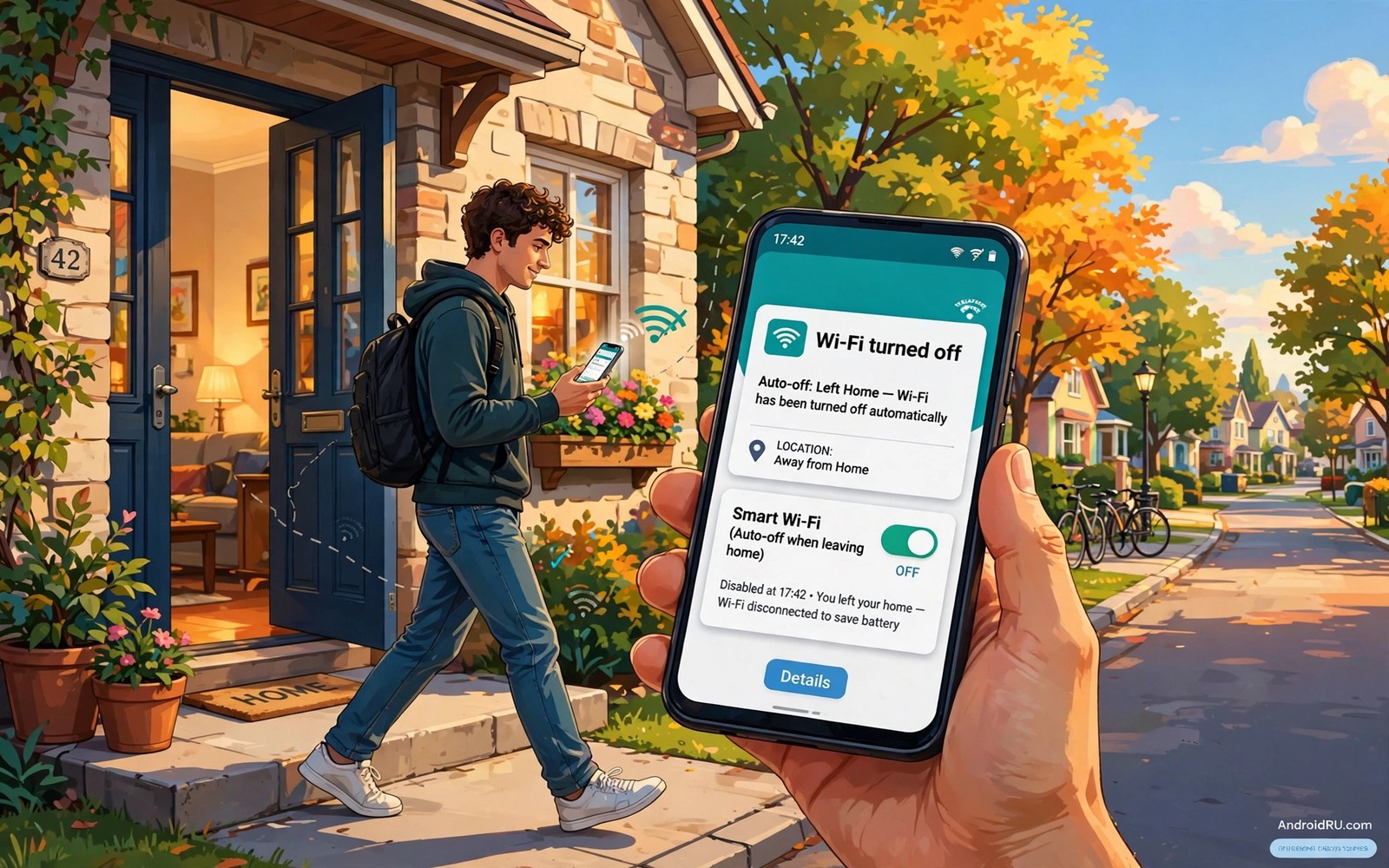
Your phone keeps Wi-Fi on all day even when no known network is nearby. That habit wastes battery because the phone keeps scanning for networks as you travel. It also probes for saved networks in places where you do not want to join. An automatic rule that turns Wi-Fi off when you leave home can save battery and reduce those probes. It can also turn Wi-Fi back on when you return so that you never miss your home network.
Android offers several paths to this automation. Some phones include a built in Wi-Fi auto turn on feature based on location. Some phones need a routine or an automation app to do the same job. The right path depends on your phone brand and your comfort with automation. This guide covers the built in option first and then a routine based option. Both paths keep your home Wi-Fi working without manual toggles.
The goal is a rule that feels invisible. Wi-Fi should turn off shortly after you leave home and turn on shortly after you return. It should not turn off while you sit in the garden or while you visit a neighbour. It should not drain battery by checking location constantly either. A well tuned rule balances those needs with a sensible radius and a sensible delay.
Use the built in Wi-Fi location feature
Open Settings and tap Network and internet and then tap Wi-Fi. Look for Wi-Fi preferences or a similar advanced section. Some phones show a Turn on Wi-Fi automatically option that uses location to detect nearby saved networks. Turn that option on and grant the location permission that it requests. The phone will then turn Wi-Fi on near a saved network and it will turn Wi-Fi off when you move away.
Test the feature on a normal departure. Leave home with the phone in your pocket and check Wi-Fi after ten minutes. A working feature should show Wi-Fi off or show a clear attempt to save power. Return home and check again after a few minutes. Wi-Fi should return without any manual tap. If the return feels slow then check the location permission and the battery optimisation setting for the Wi-Fi service.
Keep location accuracy on for the feature to work well. A low accuracy mode can delay detection and it can cause Wi-Fi to stay on longer than needed. A high accuracy mode uses more power for location but it still saves net battery when Wi-Fi scanning stops. Test both modes for a day each if you care about the balance. The mode that gives a prompt return home with a modest battery gain is the right choice for you.
Build a routine for leaving and returning
Open the routines app on your phone if your brand includes one. Create a routine that triggers when you leave a place. Set the place to your home address with a radius that covers your house and garden. Set the action to turn Wi-Fi off. Create a second routine that triggers when you arrive home and set the action to turn Wi-Fi on. Name both routines clearly so that you can find them later.
Choose a radius that matches your home layout. A radius that is too small will turn Wi-Fi off while you sit in the garden. A radius that is too large will keep Wi-Fi on for several streets after you leave. A radius of about one hundred metres works for many houses. A flat in a large building may need a larger radius to cover the whole complex. Test the radius on a normal walk and adjust it once based on the result.
Add a delay to the leaving routine if the app allows it. A delay of five minutes prevents a false trigger when you step out briefly to take out rubbish. A delay also prevents a rapid on and off cycle at the edge of the radius. A short delay costs little battery and it makes the routine feel calmer. A routine without a delay can feel twitchy and it can annoy you into disabling it.
Check battery optimisation and permissions
Open battery settings and check that the routine app is not aggressively optimised. An aggressively optimised app may fail to run at the right moment. Set the routine app to unrestricted or to not optimised if your phone offers that choice. A routine that cannot run on time is worse than no routine because it creates unpredictable Wi-Fi behaviour.
Check location permission for the routine app as well. A routine that needs location must have permission to use location in the background. A permission set to only while using the app will fail for a leaving trigger. Set the permission to allow all the time if you trust the app and the brand. A routine app from the phone maker is usually a safe choice for that permission. A third party app deserves a closer privacy check before you grant background location.
Test the routine after any system update. An update can reset permissions or battery settings without warning. A quick departure test after an update catches a reset early. A routine that worked before an update should work after it with a permission fix. Do not delete the routine at the first failure. Check permissions first because that is the most common cause.
Use this automation test routine
Test the automation on a normal day rather than on a special trip. Leave home at your usual time and note the Wi-Fi state after ten minutes. Return home and note the Wi-Fi state after five minutes. Repeat the test on a second day to confirm the result. A two day test reveals edge cases that a single test can miss.
Step one: set home place and radius in routine
Step two: set Wi-Fi off on leaving home
Step three: set Wi-Fi on on arriving home
Step four: leave home and check Wi-Fi after ten minutes
Step five: return home and check Wi-Fi after five minutes
This routine is an original example written for this guide. It uses only standard routine and Wi-Fi screens. It does not require any extra account. The routine works because it tests both directions on normal days. A rule that only turns Wi-Fi off is half a solution. A rule that also turns it back on is a complete solution that you can forget about.
Handle edge cases at the boundary
A garden or a nearby shop can sit at the edge of the home radius. A routine may toggle Wi-Fi repeatedly at that edge. A larger radius or a delay usually fixes that flutter. A delay of five minutes is often enough to calm an edge case. A larger radius can also help if your garden extends far from the house. Choose the fix that matches the pattern that you observe.
A neighbour Wi-Fi network can also complicate the rule. A phone that auto joins a neighbour network will keep Wi-Fi on even after leaving home. Forget neighbour networks that you do not need. A clean saved list keeps the automation predictable. Auto join control matters here and the steps to stop auto-connecting to slow Wi-Fi will help you clean the saved list.
A work Wi-Fi network needs its own rule if you want similar savings at work. Create a second pair of routines for the work place with the same actions. A work rule can save battery during a commute as well. Keep the work rule separate from the home rule so that you can disable one without affecting the other. Separate rules are easier to debug than one complex rule.
Measure the battery gain honestly
Check battery usage before and after a week of automation. A real gain should show lower Wi-Fi or system usage in the battery chart. A gain of a few percent is realistic for a day with long travel. A gain of a large amount is unlikely from Wi-Fi alone. A modest and honest gain is still worth the setup because it also reduces network probes. A faster home link helps the return home feel smoother and the guide to doubling Wi-Fi speed on Android shows a band change that can help there too.
Do not judge the gain on a single unusual day. A day with heavy gaming or video will hide any Wi-Fi saving. Compare similar days with similar use. A week of normal days gives a fair comparison. If the gain is tiny on your usage pattern then keep the automation for the privacy benefit alone. Fewer probes for saved networks is a real gain even when battery gain is small. Smart 5G habits pair with Wi-Fi automation and the advice on stopping battery drain from 5G searching covers the mobile side of the same problem.
Test the routine with a family member
Ask a family member to leave and return with you on a test day. A second phone gives you another data point about the radius and the delay. A routine that works for your phone may behave differently on another model. A family test reveals model differences early. It also lets you compare the Wi-Fi state on two devices at the same moment.
Note any difference between the two phones in a short log. A log entry such as Wi-Fi off after eight minutes on one phone and after twelve on another is useful. That log helps you tune the delay for the slower phone. A tuned delay for the slower device keeps the routine calm for everyone in the household.
Share the final routine settings with the family member if they want the same automation. A shared setting saves them a separate setup effort. A shared setting also means that both phones behave the same way at home. Consistent behaviour across the household reduces confusion about Wi-Fi state.
Common mistakes
A common mistake is to set a tiny radius that triggers while you sit at home. A tiny radius creates constant toggling and it can feel worse than manual control. Another mistake is to grant only foreground location permission to a routine app. A leaving trigger needs background location to work. Check that permission before you blame the routine.
Do not disable Wi-Fi manually every time and expect the routine to learn from it. A routine follows its own rules rather than learning from manual taps. Fix the rule itself when it misbehaves. Do not install several automation apps at once either. Multiple apps can fight over the Wi-Fi switch and create chaos. Use one routine app and one pair of rules.
Frequently Asked Questions
Will auto Wi-Fi off break my home smart devices?
No because smart devices use their own Wi-Fi connection to the router. Your phone Wi-Fi state does not control them. A phone routine only changes the phone radio. Home devices keep working through the router regardless of the phone setting.
Does location based Wi-Fi drain more battery than it saves?
It can if location accuracy stays at maximum all day. A balanced accuracy mode usually saves net battery because Wi-Fi scanning stops during travel. Test both modes for a day each and keep the mode with the better overall result.
What if Wi-Fi does not turn back on when I return?
Check the routine permission and the battery optimisation setting first. Check the home radius second. A radius that is too small or a permission that reset after an update are the most common causes. A manual Wi-Fi tap restores service while you fix the rule.
Conclusion
Today check whether your phone offers a built in Wi-Fi location feature in Wi-Fi preferences. If it does then turn it on and test a normal departure and return. If it does not then build a simple leaving and arriving routine with a sensible radius and a five minute delay. Test both directions over two normal days. That concrete test will give you automatic Wi-Fi control that saves battery without any daily effort.
Keep the routine simple and resist adding extra conditions. A simple rule that works every day beats a complex rule that fails at the edge. A few minutes of setup now will save many manual toggles over the coming months.

