

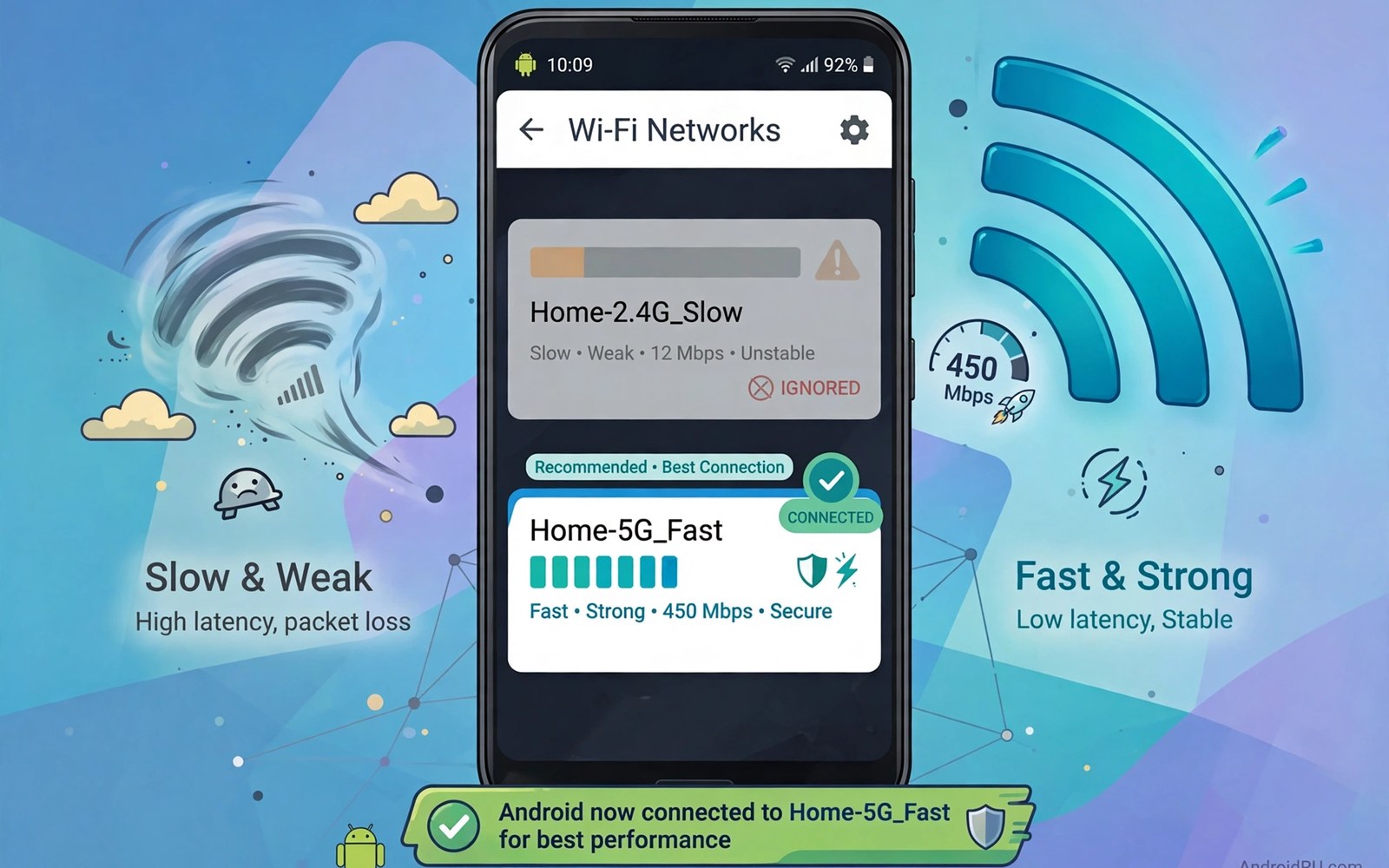
Android auto connects to saved Wi-Fi networks when they appear. That habit helps at home but it hurts when a slow network appears first. A phone may join a distant cafe network instead of a faster network nearby. It may also join a slow public network while a strong home network is available. Stopping auto connection to slow networks restores control.
Auto connection uses saved network priority and signal strength. A weak saved network can win if it appears first. A phone may stay on that weak network even when a better network appears later. A manual choice or a forgotten network can break that pattern. Control over auto join is a key Wi-Fi skill.
Find the slow network that keeps winning
Open Wi-Fi settings and check the currently connected network. Note the network name and signal strength. Check whether a better network is available in the list. A better network with stronger signal should win but may lose to auto join order. Note the slow network name for the next steps.
Test speed on the slow network and on the better network. A speed test proves the slow network is truly slow. A slow result on a weak signal points to distance. A slow result on a strong signal points to congestion or a slow internet link. A proven slow network deserves action.
Check when the slow network appears in your routine. A cafe network may appear during a commute. A neighbour network may appear at home with a weak signal. A routine pattern helps you choose the right fix. A commute network needs a different fix from a home neighbour network.
Stop auto connection for a specific network
Tap the slow network in Wi-Fi settings. Look for an auto reconnect or auto connect toggle. Turn that toggle off on phones that offer it. A disabled auto connect lets you join manually when you truly need it. The network stays saved but it will not join by itself.
Forget the network when no auto connect toggle exists. Forgetting removes the saved network entirely. Rejoin manually later if you need it once. A forgotten network cannot auto join. A manual rejoin is a small price for control.
Disable Wi-Fi auto connect globally only as a last resort. A global off setting stops all auto joins including home. A global off suits a user who prefers manual control everywhere. Most users should fix one network rather than all networks. A targeted fix preserves home convenience.
Prioritise the faster network
Connect to the faster network manually after forgetting the slow one. A manual connection sets a recent use pattern. Some phones favour recently used networks for future joins. A recent fast connection can win over an old slow one. Test auto join behaviour over a few days.
Move the faster network to the top of saved networks when your phone offers priority settings. Some brands offer a priority list in Wi-Fi settings. A top priority network joins first when both appear. Check your brand settings for a priority option. A priority list is the cleanest fix when available.
Use a Wi-Fi analyser to check signal strength for both networks. A faster network with a weak signal may still lose. Improve router placement for the faster network when possible. A stronger fast network wins more reliably. A placement fix complements a settings fix.
Home speed starts with band choice. The guide to doubling Wi-Fi speed on Android covers band and channel steps for home networks. A fast home band makes the faster network more attractive to auto join. Pair band choice with auto connect control for best results.
Handle public networks that auto join
Public networks with common names pose a special risk. A phone may auto join a fake network with a familiar name. Forget public networks after use to stop that risk. A forgotten public network cannot auto join a fake copy later. A fresh login each visit is safer.
Disable auto join for every public network you use rarely. Keep auto join only for trusted home and work networks. A short trusted list reduces auto join surprises. Review saved networks monthly and forget unused ones. A clean saved list is easier to control.
Turn Wi-Fi off when you leave a trusted area if auto join keeps surprising you. A Wi-Fi off habit stops all auto joins. Turn Wi-Fi back on at home or work. A manual Wi-Fi habit suits users who travel through many public networks.
adb shell cmd wifi status
adb shell dumpsys wifi | grep -i -m 5 "auto"
These diagnostic lines come from standard Android Wi-Fi tooling and are offered as a learning example for auto join checks. Status output shows the current wireless state. Auto hints in the output relate to saved network behaviour.
Fix a phone that still joins a forgotten network
Check whether a second device or a cloud backup restores the network. A synced Wi-Fi list can restore a forgotten network. Remove the network from the cloud sync list when possible. A synced restore can undo a local forget step silently.
Check whether a carrier Wi-Fi profile adds the network back. Some carriers push Wi-Fi profiles for partner networks. A carrier profile can reappear after a forget step. Contact the carrier to remove an unwanted profile. A profile removal stops the auto join at its source.
Reset network settings as a last resort for a stubborn auto join. A reset clears all saved networks and profiles. Rejoin only trusted networks after the reset. A clean list after a reset is easier to manage. Write down trusted passwords before a reset.
Band forcing can also influence which network wins. The guide to forcing a 5GHz connection explains band preference in detail. A fast band preference can keep a phone on a better home network. Pair band preference with auto connect control.
Use location based Wi-Fi control
Some phones offer location based Wi-Fi automation through routines. A routine can turn Wi-Fi on at home and off elsewhere. A routine reduces auto join surprises during travel. Set a routine for home and work only. A routine that covers trusted places keeps convenience while limiting risk.
Routines need location permission to work. Grant location only to the system routine feature you trust. Check routine history after a week to see whether it behaved as expected. A routine that turns Wi-Fi on in the wrong place needs adjustment. A tested routine is safer than an untested one.
Manual Wi-Fi control remains the simplest routine for many users. Turn Wi-Fi on at home and off when leaving. A manual habit takes seconds and it gives full control. A habit beats automation when automation keeps surprising you. Choose manual control if routines feel unreliable.
Review saved networks after travel
Travel adds many saved networks to a phone. Review the saved list after each trip. Forget hotel and cafe networks you will not visit again. A clean list after travel prevents future auto joins to stale networks. A post travel review takes only a few minutes.
Check for duplicate network names after travel. Two networks with the same name can confuse auto join. A duplicate name may belong to a different venue entirely. Forget duplicates that you do not recognise. A recognisable list is a safer list.
Teach family members to manage auto join
Family phones often auto join slow networks without anyone noticing. Show family members how to forget a slow network. A short lesson prevents repeated complaints about slow Wi-Fi. A family that knows the fix can solve it without help. A shared skill improves every phone in the home.
Set a family rule to forget public networks after a visit. A rule keeps every saved list clean. A clean list on every phone reduces auto join surprises for everyone. Review family saved lists together once a month. A monthly review is a quick household habit.
Show a family member the Wi-Fi settings screen once and let them practise forgetting a test network. A practised skill sticks better than a watched demonstration. A family member who practises once can repeat the fix alone later.
Write the forget steps on a fridge note for the first month. A visible note helps family members remember the fix. A fridge note can be removed once the skill becomes habit.
Check the saved network list after a software update as well. An update can restore a forgotten network from a backup. A post update check catches a restored network early. A restored slow network can be forgotten again in seconds.
Note the date you forgot a slow network in a phone note. A dated note helps you remember why a network is absent. A dated note also helps you decide whether to rejoin it later.
A clean saved list after travel and after updates keeps auto join behaviour predictable.
Common mistakes
One mistake is forgetting a network and then rejoining it the same day. A rejoin restores auto join behaviour. Another mistake is disabling Wi-Fi entirely instead of fixing one network. A global off loses home convenience.
Another mistake is trusting signal bars alone to judge a network. A strong signal network can still be slow. People also forget to review saved networks monthly. A stale saved list grows over time.
Frequently asked questions
Will forgetting a network delete its password?
Yes on that phone. A forgotten network needs its password again for a manual join. Keep the password in a safe place before forgetting. A password manager can store it for later manual use.
Can I set Wi-Fi priority on every Android phone?
No. Priority settings vary by brand and version. Some phones lack a priority list entirely. Forget and manual join work on almost every phone as a fallback. Use the fallback when priority is absent.
Does auto connect use mobile data?
Auto connect itself uses Wi-Fi not mobile data. A slow Wi-Fi link can still waste time and battery. A phone on a slow Wi-Fi link may also use mobile data for some tasks. A controlled Wi-Fi choice protects both time and data.
Conclusion
Identify the slow network that keeps winning and turn off its auto connect or forget it. Connect manually to the faster network and review saved networks monthly. Your concrete next step is to open Wi-Fi settings now and turn off auto connect for the slowest saved network today. For public network trouble read fixing public Wi-Fi landing pages next.

