

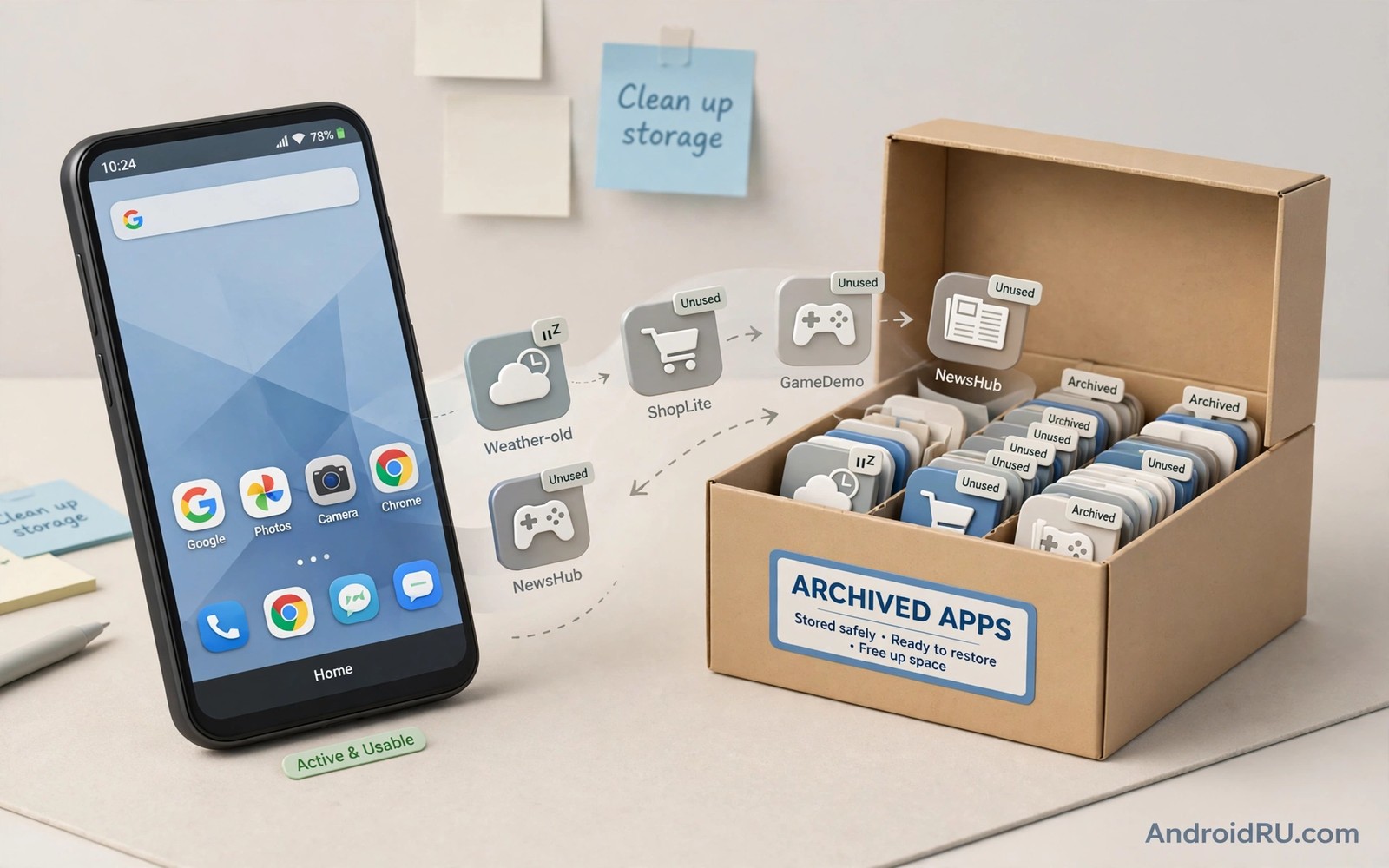
How to Auto Archiving Unused Apps to Save Space Without Uninstalling
My phone hit the storage wall on a Tuesday night, right in the middle of a video call. The warning said less than 2 GB free, and the gallery app refused to save a photo. I had already deleted the obvious junk, yet the phone still felt full. The real culprits were apps I had not opened in months: a racing game from last summer, three travel apps from one holiday, a language app I abandoned in week two. Deleting them felt wasteful, because I might want them again, and setting each one up from scratch sounded miserable. That is exactly the gap auto archiving fills. It removes the heavy app files, keeps your data and the icon in place, and lets you bring the app back with one tap when you need it.
This guide walks through the whole setup on a real phone. You will learn what archiving keeps and what it throws away, where the switch lives on Pixel, Samsung, and other Android phones, how to protect the apps you only use twice a year, and how to get an archived app back without losing logins, saves, or settings. It is written for people whose phones are full right now, not for people who enjoy reading settings menus for fun.
What auto archiving actually does on Android
Archiving is a middle step between keeping an app and deleting it. When Android archives an app, it removes the installation package, the part that usually takes hundreds of megabytes or several gigabytes, while leaving the app icon on your home screen or in the app drawer and keeping the user data that belongs to that app. Tap the greyed-out icon later and the phone fetches the app again and puts your data back in place. In practice, the app opens as if it had been waiting patiently the whole time, still logged in, still holding your settings.
That behaviour is very different from a plain uninstall. A normal uninstall usually wipes the app data along with the app, so a fresh install starts from zero: new login, new tutorial, new settings. Archiving keeps the data, which is why it suits games with long progress, banking apps with device registration, and work apps with complicated sign-in flows. The trade-off is simple to state: archiving frees less space than uninstalling, because the data stays behind, but it costs you far less time when the app comes back.
How Android decides an app is unused
Android watches the last time you opened each app. Apps that sit untouched for weeks get flagged as unused, and the exact waiting period depends on your phone maker and Android version. On most phones the window is roughly 60 to 90 days, though some makers use shorter or longer periods, and some let you influence it by opening the app even briefly. A quick open resets the clock on many systems, which is why a one-minute visit once a month can keep a seasonal app safe even before you set up exemptions.
The system also looks at whether the app runs in the background. An app that never launches and never runs a background service is an easy candidate. An app that posts notifications or syncs in the background may look more active than it really is, even if you never tap its icon. That is one reason the unused list sometimes surprises people: an app you forgot can look busy to the system because of a background sync you never asked for.
Why the unused timer sometimes feels wrong
Seasonal apps are the classic false positive. A tax app used once a year, a ski resort app, a festival app, and a school portal all look abandoned for eleven months of the year. The system cannot tell the difference between an app you abandoned and an app you use on a strict annual rhythm. The fix is not to fight the timer but to exempt those apps, which I cover in detail further down.
Archiving, hibernation, and deep sleep are not the same thing
Phone makers love giving similar features similar names, and this causes real confusion. Hibernation and deep sleep stop an app from running in the background and cut its battery and data use, but they leave the full app installed. Archiving goes further: it removes the app files themselves. An app in deep sleep still occupies its full storage. An archived app occupies only its saved data. If your goal is battery life, deep sleep helps. If your goal is free gigabytes, only archiving or uninstalling helps.
Some phones also show an option called unused apps, which bundles several behaviours at once: revoke permissions, stop notifications, and archive the app. Read the description on your own phone before turning it on, because the bundle varies by maker. On a Pixel the toggle lives near the app marketplace settings, while on a Samsung phone the same idea may sit under battery and device care. The label changes; the underlying idea stays the same.
How to turn on auto archive on Pixel, Samsung, and other phones
The switch hides in a different place depending on who made your phone, and that is the single biggest reason people give up on this feature. Work through the path that matches your phone, and check the second location if the first one comes up empty. The whole job takes about five minutes once you know where to look.
Turn on auto archive on a Pixel phone
On a Pixel, open Settings, then tap Apps, then tap See all apps. Look for the auto archive entry in the app settings area, or open the app marketplace app, tap your profile icon, tap Settings, then tap General, and look for the automatically archive apps toggle. Google moved this switch between system settings and the marketplace app across Android versions, so check both spots. Turn it on, then read the confirmation text so you know it applies only to apps you have not used recently.
After enabling it, open Settings, then Apps, then Unused apps, and look at the list the phone has already built. This list is your preview of what the phone plans to archive. Walk through it once before the first automatic run. If anything on the list makes you nervous, exempt it now rather than after the fact.
Check the Pixel toggle after a major Android update
Major Android updates sometimes reset or relocate toggles like this one. After each yearly update, spend thirty seconds confirming the switch is still on. I have seen the toggle survive three updates untouched and then move to a different menu on the fourth. A quick check after updating costs nothing and prevents a silent year of no archiving.
Turn on auto archive on a Samsung phone
On Samsung phones, open Settings, then tap Battery and device care, then tap Storage, and look for app archiving or unused app options in that area. On newer One UI versions the control may sit inside the app marketplace settings instead, under the profile menu, in the same place Pixel keeps it. Samsung also offers deep sleeping apps and sleeping apps under Battery, but those are the battery features described above, not archiving, so do not stop there if your goal is storage.
Samsung phones also let you sort apps by size inside Settings, then Apps. That size-sorted list is worth opening during setup, because it shows which unused apps are actually worth archiving. Archiving a 40 MB utility frees almost nothing. Archiving a 3 GB game frees enough space to matter. Start with the biggest entries.
Turn on auto archive on other Android phones
On Xiaomi, Oppo, Vivo, OnePlus, and Motorola phones, the path varies, but the two places to check are always the same: Settings, then Apps, then the unused apps section, and the app marketplace app under the profile menu and Settings. If neither location shows the toggle, your maker may call it app hibernation with archive behaviour, or may not offer automatic archiving at all. In that case manual archiving, covered in the next sections, still works wherever the archive option appears on an individual app info page.
Before you enable anything, set a Wi-Fi only rule for bringing apps back if your phone offers one. An archived app needs to fetch its files again, and on mobile data that fetch can eat a noticeable chunk of a monthly allowance. The Wi-Fi only setting is the single most useful companion to auto archiving, and it prevents the one nasty surprise this feature has.
What archiving keeps, what it removes, and what it never touches
Archiving removes the app package: the code, the built-in images, the bundled media, and the executable files that make the app run. It keeps your user data: accounts, settings, saved files inside the app private folder, game progress stored locally, and downloaded content that the app marked as user data. It also keeps the icon, so your home screen layout does not change and you can find the app in exactly the same place.
What archiving never touches is your stuff outside the app. Your photos in the gallery, your files in the file manager, your messages, and your contacts stay exactly where they are. Archiving one app cannot delete another app data, and it cannot touch system files. That boundary matters, because it means the worst case from archiving is an app you have to fetch again, not lost files.
The data that stays behind can still be large
Here is the catch, and it is worth stating plainly: an archived game with a 2 GB local save folder still occupies that 2 GB after archiving. The app files are gone, the data is not. I tested this on my own phone with a racing game that had downloaded extra tracks. Archiving freed about 1.4 GB, but more than 800 MB of game data stayed behind. The saving was real, but it was not the full size the app info page had shown before archiving.
That is why archiving pairs so well with a quick data cleanup first. Open the app, delete downloaded packs, maps, or offline episodes you no longer need, then archive it. You keep the account and the progress, and you free both the app files and the bulky downloads. Readers who protect game progress can explore backing up local game saves before they are lost before clearing anything inside a game, so a cleanup never turns into a lost save.
Logins, subscriptions, and paid apps after archiving
In most cases a restored app opens with your login intact, because the login token lives in the kept user data. Paid apps and subscriptions are tied to your marketplace account, not to the installed files, so archiving cannot cancel a subscription or make you pay twice. The app simply comes back from the same account that installed it. If an app forces a fresh login after a restore, that is the app own choice, not a rule of archiving, and it usually happens with banking apps that treat a fresh install as a new device for security reasons.
Banking apps deserve a special note here. Many banks ask for an extra verification step when an app returns after being archived, even though the data survived. That is not a failure of archiving. It is the bank being careful. Keep your verification method ready, such as the phone number or email tied to the account, before you archive a banking app, or exempt banking apps entirely and archive something else instead.
How to manually archive large unused apps first
Automatic archiving works slowly, on the system schedule, and only after weeks of inactivity. A manual pass works today, and it usually frees more space than a month of waiting for the automatic run. Set aside fifteen minutes, open Settings, then Apps, then sort the list by size, and work from the top down. Ask one question per app: have I opened this in the last two months, and will I miss it this week? If the answer is no to both, archive it.
- Open Settings, then Apps, and sort by size so the biggest apps sit at the top of the list.
- Tap the first large app you have not used in weeks and read its app info page for the archive option.
- Check the app size and the user data size separately, so you know how much archiving will actually free.
- Tap Archive, confirm, and watch the icon change to its archived state on the home screen.
- Move to the next app and repeat until you hit your storage target or run out of candidates.
Games go first in almost every manual pass. They are the biggest apps on most phones, they come back fastest, and their progress usually lives in cloud saves or in the kept local data. Archive the finished games before you touch anything else. A single finished open-world game can free more space than twenty small utilities combined.
Sort by last used date to find forgotten apps
Size alone can mislead you. A huge app you open every day is not a candidate, while a medium app you forgot a year ago is. Open the unused apps list in Settings, then Apps, and sort by last used date where your phone offers that view. The combination of size and inactivity is the real ranking: big and untouched beats small and untouched, and untouched for a year beats untouched for a month. Work that combined list from the top and stop when you reach your target.
Set a storage target before you start archiving
Pick a number before you tap anything. A good target is 10 GB freed, or enough free space to reach at least 20 percent free on the whole phone. A clear target stops you from archiving apps you actually like just because the list keeps going. When the target is met, stop, even if more candidates remain. You can always archive more later; you cannot un-archive the afternoon you spent second-guessing yourself.
How to protect seasonal, banking, and travel apps from auto archive
Exemptions are the feature that makes auto archiving safe to leave on for years. Without them, the system will eventually archive the exact app you need at the worst possible moment: the boarding pass app at the airport, the banking app before a payment, the school app on exam day. With them, automation handles the clutter while your critical apps stay put.
Open the auto archive settings and look for an exempt list, a keep list, or a per-app toggle. Add every app you use rarely but urgently: banking, payment, and travel apps come first, along with authenticator, airline, hotel, emergency, work VPN, and school apps. Then add the seasonal ones: the tax app, the holiday app, the sports season app, and the festival app. Review the list once per season, because a new critical app installed in spring will not exempt itself.
Open seasonal apps briefly once a month as a backup habit
Exemptions are reliable on most phones, but a one-minute monthly open is a cheap second layer of protection. Open the tax app, glance at the home screen, and close it. That brief open resets the unused timer on many systems. It takes less time than reading this paragraph, and it protects the apps you cannot afford to fetch again under time pressure, such as a boarding pass app when the airport Wi-Fi is slow.
Family phones need the same treatment with more care. A child who loses a school app to archiving may miss homework, and an older relative who finds a banking app greyed out may panic. Sit with them for five minutes, turn on archiving together, and add their critical apps to the exempt list before automation starts. Show them an archived icon and bring one app back together, so the greyed-out icon reads as a pause rather than a loss.
How to restore an archived app without losing data or settings
Bringing an archived app back is deliberately simple: tap its icon, confirm the fetch if the phone asks, and wait for the app files to arrive. The phone installs the current version of the app, then reconnects it to the saved user data. Most restores finish in under a minute on Wi-Fi, though a large game can take several minutes. Open the app after the icon returns to normal and check that your login, settings, and progress are all present before you need the app urgently.
Do the restore at home, on Wi-Fi, the day before you need the app, not at the moment you need it. A travel app brought back in the living room works the second you land. The same app brought back on airport Wi-Fi might stall, fail, or ask for a login you cannot complete while boarding. The rule is boring and it works: restore early, test once, then forget about it.
What to do when a restore fails or stalls
First, check the connection. Switch to a stable Wi-Fi network and try again, because most restore failures are network failures wearing a different label. Second, check that the app is still available in your region and for your Android version; an app removed from the marketplace cannot be fetched again, and its archived data becomes a dead end. Third, free a little space: a restore needs room for the app files, and a phone with almost no free space can fail a restore for lack of room. If the restore still fails, the archived data usually remains in place, so you can retry without losing anything, which is a safety net uninstalling never offers.
Test one restore before you trust archiving with everything
Archive one low-stakes app first, such as a finished puzzle game, and bring it back the same day. Watch what comes back: the login, the level, the settings. That single test tells you more about how archiving behaves on your exact phone than any guide can, because makers differ in small details. Once the test passes, archive with confidence. If it fails, you have learned the limit on an app you did not care about.
Auto archiving vs uninstalling vs offloading: a side-by-side comparison
Three options compete for the same job, and each one wins in a different situation. The table below compares them on the points that actually matter when your phone is full: how much space each frees, what happens to your data, how fast the app comes back, and when each choice is the right one.
| Option | Space freed | App data kept | Icon stays | Return time | Best for |
|---|---|---|---|---|---|
| Auto archiving | App files only | Yes | Yes | Under a minute on Wi-Fi | Apps you may want again |
| Manual archiving | App files only | Yes | Yes | Under a minute on Wi-Fi | Large games right now |
| Uninstalling | App files plus data | Usually no | No | Fresh setup needed | Apps you will never use again |
| Clearing cache only | Temporary files only | Yes | Yes | Instant | Quick small gains |
| Clearing app data | Data plus cache | No | Yes | Fresh setup needed | Broken apps, last resort |
The pattern is clear. Archiving is for maybe-later apps. Uninstalling is for never-again apps. Cache clearing is for right-now breathing room. Readers who manage app size can explore limiting apps that cache gigabytes of data as a companion control, because a cache limit stops the same apps from refilling the space you just freed. Use the right tool for each app, and the phone stays roomy without a single painful deletion.
Troubleshooting auto archive when it archives the wrong app or nothing at all
Two complaints dominate the help forums: the feature archived an app I still need, and the feature archived nothing at all. Both have boring, fixable causes. The first is almost always a missing exemption or a seasonal app nobody protected. The fix is the exempt list, plus a monthly open for anything seasonal. The second is usually the toggle sitting in the wrong menu, or the phone waiting out its inactivity window, or the feature living in the marketplace app rather than system settings.
Check the toggle location first. Open the marketplace app, tap the profile icon, open Settings, and confirm the archive toggle is actually on. Then open Settings, then Apps, then Unused apps, and confirm the phone has built a list at all. If the list is empty after months of use, the feature may be off, or your maker may not support it, or a system update may have moved it. If the list exists but nothing archives, wait for the next idle period: many phones only archive during overnight idle time while charging, so a phone that is never left idle overnight may archive very little.
When an archived app comes back by itself
Some users report archived apps reappearing as fully installed after a system update. An update can trigger a reinstall of archived apps, or a background sync can pull them back. The fix is a short re-archive pass after each major update: open the archived list, check what came back, and archive the ones you still do not need. Keep a note of which apps you archived before the update, and the pass takes five minutes instead of twenty.
Also check whether a family member or a second device brought the app back. A shared account can reinstall an app from another device, and a child tapping a greyed-out icon will trigger a restore on purpose. That is the feature working as designed, not a bug. If it keeps happening, the app probably belongs on the exempt list, or it was never a good archiving candidate in the first place.
Frequently asked questions about auto archiving unused apps
Will archiving delete my app data?
No, in most cases archiving keeps your user data, settings, and login information, while removing only the app installation files. Uninstalling usually removes the data as well, which is the key difference. Makers vary slightly in the details, so read the archiving description on your own phone before you archive an app with irreplaceable data, and keep a backup of anything you cannot afford to lose.
Can I bring back an archived app without Wi-Fi?
Technically yes on many phones, but it is a bad idea unless you have data to spare. A restore fetches the full app package again, and a large game can consume hundreds of megabytes or more. Set restores to Wi-Fi only where your phone offers that choice, and do the restore at home before you need the app. The archived icon stays visible so you can trigger the return whenever a good connection is available.
Does auto archive work on all Android phones?
Availability varies by maker and Android version. Pixel and Samsung phones offer it in recent versions, while some smaller makers offer it only through the marketplace app or not at all. If the toggle is missing from both system settings and the marketplace settings, your phone may not support automatic archiving, but manual archiving may still appear on individual app info pages.
How much space will auto archiving actually free?
It depends entirely on which apps get archived. Archiving one large game can free 2 to 4 GB, while archiving twenty small utilities might free less than 500 MB. The honest answer is to check the size column before you archive: the app files are what you get back, the user data stays. Combine archiving with cache cleanup and removing downloaded packs inside games for the biggest total saving.
Should I archive apps before a major system update?
Yes, and this is one of the best uses of the feature. Major updates need free space to download and install, and a phone with tight storage fails updates more often. Archive your largest unused apps the day before an update, run the update with room to spare, and bring back anything the update affected afterwards. Readers who want a full space routine can next explore keeping Android internal storage under seventy percent capacity and streamlining app updates to prevent storage bloat growth as follow-ups that pair naturally with archiving.
Auto archiving earns its place by being boring. Turn it on once, protect the handful of apps that matter, and let the phone quietly clear the clutter while you get on with your day. Your next step takes two minutes: open the unused apps list, exempt your banking and travel apps, and archive the biggest game you finished months ago. Do that today, and the next storage warning will arrive much later, if it arrives at all.

