

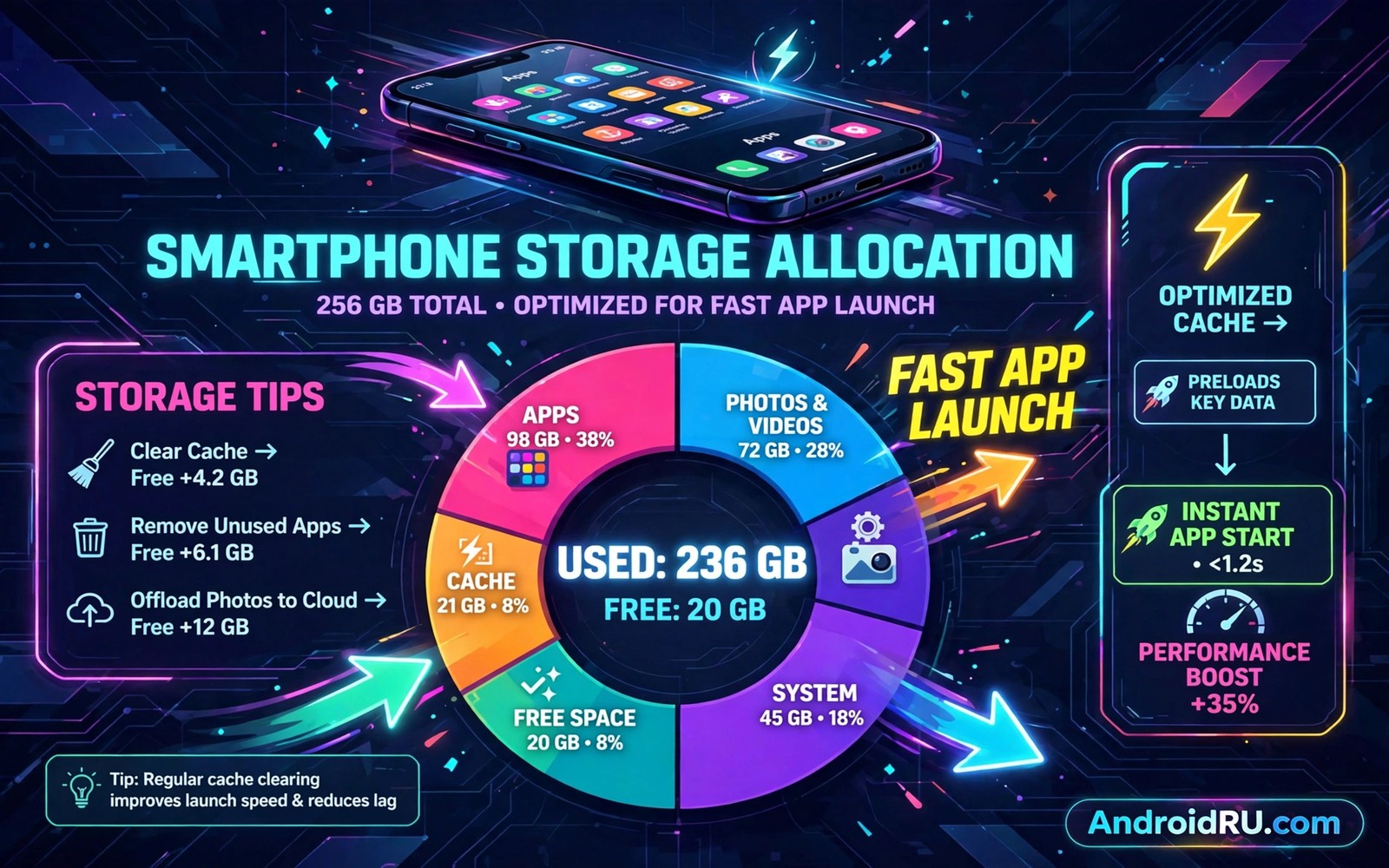
Slow app launches frustrate even patient users. An app icon tap should open the app in a second or two. When launches take five seconds the phone feels old regardless of its processor. Storage allocation often explains that delay. A crowded or fragmented storage system forces the phone to work harder for every file an app needs.
App booting reads many small files at launch. Code and resources and settings and cached data all load in sequence. Internal storage handles those small reads far faster than a slow card. Free space also matters because the system needs room for temporary files during launch. Optimising allocation therefore means placing the right files in the right place with room to spare.
Move demanding apps to internal storage
Open Settings and open Apps and check which apps sit on external storage. Move games and launchers and camera apps back to internal storage where the option exists. Internal storage offers faster random reads that launch screens demand. A moved app often launches noticeably faster after the change.
Test launch times before and after a move with a simple stopwatch habit. Launch an app three times and note the average time to a usable screen. A clear improvement confirms the move. A move that shows no improvement may point to a different bottleneck like background load.
Free space for launch caches
Keep at least twenty percent of internal storage free for best launch performance. A nearly full internal drive slows writes and forces the system to search for free blocks. Delete large videos and clear oversized caches to restore that margin. A lean drive launches apps more smoothly than a full drive on identical hardware.
Clear caches for apps that launch slowly rather than clearing every cache at once. A targeted clear removes stale data that can delay loading. Test the app after the clear and confirm that launch improves. Readers who manage caches can explore limiting apps that cache gigabytes of data for a cache control plan.
Reduce background load at boot time
Many apps start background work at phone boot. That work competes with the app you actually want to launch. Open app settings and restrict background activity for apps that do not need instant updates. News and shopping apps rarely need boot-time background work.
Restart the phone after changing background settings and test a launch. A cleaner boot leaves more resources for the foreground app. A phone that launches apps faster after a restart usually suffered from background congestion rather than from hardware limits.
Use adoptable storage only with care
Adoptable storage merges a card with internal storage into one pool. That merger can increase total space yet it can also slow launches when the card is slow. A fast card with an app performance rating suits adoptable storage better than a cheap card. A slow card in adoptable mode drags every launch down.
Consider portable storage for media and internal storage for apps instead of adoptable storage. That split keeps launch files on fast internal storage while media enjoys card space. Readers who weigh the choice can explore using adoptable storage rules without cluttering internal storage for a detailed comparison.
A small check for app storage locations
List app storage sizes in Settings to find apps that moved to a card by accident. A large game on a card often explains slow launches. Move it back and retest. A short review of app locations prevents a single misplaced app from spoiling the whole experience.
pm list packages -f 2>/dev/null | grep -i "game" | head -20
The snippet above was written for this article to show one safe way to list installed package paths for review. It reads package information and it changes nothing on the phone. Use the output only to identify apps that may sit on external storage.
Optimise launch with developer settings carefully
Developer options include animation scales that affect perceived launch speed. Reducing animation scales makes transitions feel faster without changing actual load times. Set window and transition animation scales to half for a snappier feel. That change suits users who find default animations slow on older phones. It does not increase processing power yet it improves perceived responsiveness noticeably.
Avoid aggressive background limits in developer options unless you understand their side effects. Overly aggressive limits can break notifications and messaging. A balanced background policy keeps important apps responsive while limiting wasteful apps. Test any developer change for a day before keeping it permanently. A change that breaks notifications costs more than it saves in launch speed.
Keep the launcher lean for faster home returns
Launcher performance affects how quickly the phone returns home after closing an app. A launcher with many widgets and live wallpapers consumes resources that could serve app launches. Simplify the home screen by keeping only essential widgets. A lean launcher returns home faster and leaves more memory for the next app launch.
Choose a lightweight launcher when the stock launcher feels heavy on an old phone. A lightweight launcher uses less memory and launches faster. Test a new launcher for a week before committing to it fully. A launcher change affects daily interaction more than most settings so a trial period matters.
Manage storage fragmentation on internal drives
Internal flash storage benefits from free space in the same way as external cards. A nearly full internal drive forces the system to scatter new writes across small gaps. That scattering slows launch file reads. Keeping twenty percent free allows the system to write launch files contiguously. Contiguous writes read faster and launch apps faster.
Periodic cleanup of large temporary files helps maintain that free margin. Temporary files from updates and downloads accumulate in hidden folders. A storage analyser can reveal large temporary folders that deserve attention. Clearing those folders restores free space without touching app data.
Test launch speed systematically
Systematic launch testing beats subjective impressions when judging storage changes. Time three launches of the same app under similar conditions and record the average. Repeat the test after a storage change to measure the effect. A systematic test reveals small improvements that subjective feeling might miss. It also prevents placebo effects from misleading conclusions.
Test launches after a fresh restart and after a day of normal use separately. A fresh restart test shows best-case performance. A day-of-use test shows realistic performance with background load. Both tests together give a complete picture of launch speed. A change that improves both tests deserves to stay.
Reduce launch delays from widgets and live data
Widgets that update live data can delay app launches because they compete for processor time and memory. A home screen full of live widgets forces the system to update many data sources at once. Reducing live widgets to only essential ones frees resources for app launches. A home screen with two useful widgets launches apps faster than a home screen with ten decorative widgets. Simplicity serves speed on every phone.
Test launch speed after removing live widgets to measure the improvement. A measurable improvement confirms that widgets contributed to delays. A negligible improvement suggests a different bottleneck like storage or background apps. Systematic testing with one change at a time identifies the true cause of slow launches without guesswork.
Consider a factory reset as a last resort for launch speed
A factory reset represents a last resort for launch speed when cleanup and app moves and background limits all fail to restore acceptable performance. A reset gives the phone a clean storage layout and a fresh system state. Back up everything important before a reset because the process erases all user data. Test launch speed after a reset with only essential apps installed. A reset that restores speed proves that accumulated clutter caused the problem. A reset that fails to restore speed proves that hardware limits caused the problem. Either result provides valuable information for a replacement decision. A last-resort reset should never be the first step yet it remains a powerful diagnostic tool when used carefully.
Common mistakes
One common mistake is moving every app to a card to save internal space. That move trades launch speed for space. Keep launch-sensitive apps internal. Another mistake is clearing all data to speed an app. That action deletes settings and saves and forces a slow first-run setup.
People also blame the processor when storage causes the delay. Check storage location and free space before judging hardware. Readers who speed up cards can explore speeding up slow microSD read and write transfers for card improvements.
Frequently asked questions
Does internal storage always beat a card for app launches?
Almost always. Internal storage offers faster random reads on most phones. A premium card narrows the gap yet rarely closes it fully. Keep demanding apps internal for best results.
Will freeing space alone speed up launches?
It helps when free space sits very low. A phone near full slows writes and launch caches. Freeing space to twenty percent restores normal launch behaviour in most cases.
Can I convert storage without losing data?
Converting between portable and adoptable storage usually erases the card. Back up the card fully before any conversion. App moves between internal and card storage preserve app data in most cases.
Conclusion
Faster app booting comes from placing launch files on fast internal storage and keeping free space and limiting background load. A card serves media well yet it rarely serves launch-sensitive apps well. A split allocation gives each file type the storage it deserves.
Your concrete next step is to move your slowest launching app back to internal storage today. Time three launches before and after the move. Readers who want a wider speed plan can next explore moving any app to a microSD card even when unsupported and keeping Android internal storage under seventy percent capacity as follow-ups.

