

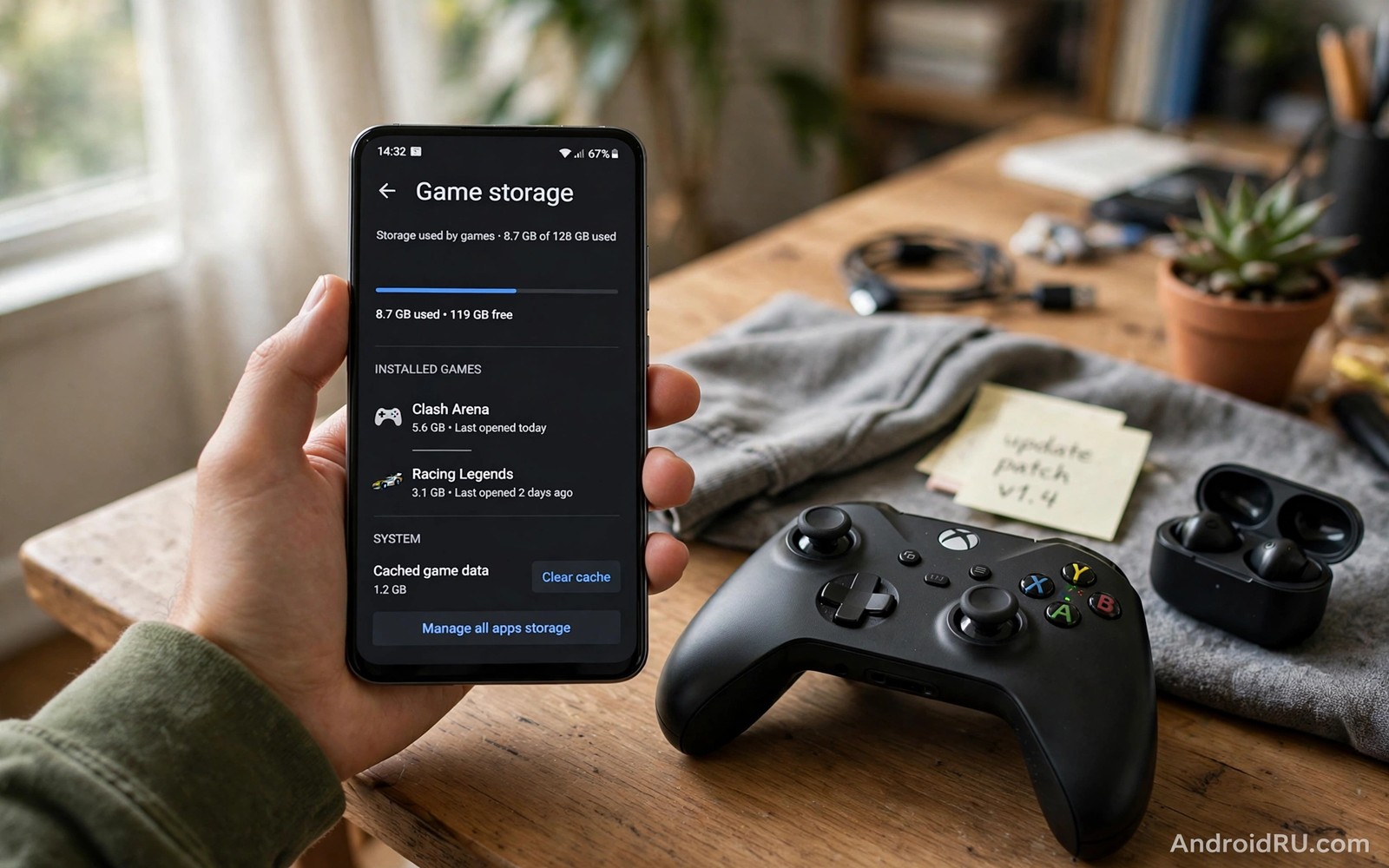
Mobile games hide their true size behind a small store listing. The app itself may measure a few hundred megabytes while its cache and data packages measure several gigabytes. Those extra packages hold maps and textures and audio and level data. Deleting the wrong package forces a huge redownload and can erase progress in some games.
Understanding the split between app and data changes every cleanup decision. The app package holds the code that runs the game. The OBB package holds large expansion files that the game reads during play. The data folder holds saves and settings and downloaded content. Each part needs a different handling rule and a different backup habit.
Find where game data actually lives
Open Settings and open Apps and open a large game and check its storage breakdown. The breakdown shows app size and user data and cache as separate numbers. A huge cache number often means downloaded levels that can return later. A huge user data number often means saves and personal progress that deserve protection.
Check the OBB folder through a file manager where the system allows it. OBB files sit in a folder named after the game package. Their names end with a clear extension and their sizes explain most of the total. Do not rename or move an OBB file while the game runs. A running game expects its files in exact places.
Clear cache safely without losing progress
Clearing cache removes temporary files while leaving saves and settings intact on most games. Use the clear cache button inside app info for a game that misbehaves or that holds an oversized cache. Test the game after clearing cache and confirm that levels load and that login still works. A clean cache often fixes stutter without any redownload of core content.
Never use clear data as a casual cleanup step. Clear data wipes saves and settings on many games unless the game syncs progress to a cloud account. Check cloud sync inside the game before you consider clear data. Readers who back up game progress can explore backing up local game saves before they are lost in this same wave as a companion guide.
Move games and data to external storage where allowed
Some games allow a move to external storage through app info. That move shifts part of the app while core data may stay internal. Test the game after a move and watch for slower loading from a slow card. A fast card keeps loading smooth while a slow card can cause texture delays. Move back to internal storage if gameplay suffers.
Games that forbid a move need a different plan. Uninstall games that you have finished and keep only active games installed. A finished game can return later through the store with its cloud save intact. An active game deserves internal space more than a finished title that sits untouched for months.
Manage downloads inside the game
Many games download extra packs after first launch. Open the game settings and review downloaded packs for maps and languages and high resolution textures. Remove packs for regions or modes that you never play. A language pack that you never use can measure hundreds of megabytes on its own.
Set download quality to a level that fits your phone. A high resolution texture pack looks better on a flagship yet it wastes space on a midrange phone with a smaller screen. A balanced pack keeps the game smooth and the storage total sane. Change the setting before a new season download begins.
A small check for game folders
List game folders by size to find the true storage leaders. A single game can dominate the whole phone while several smaller games together measure less. Sorting by size turns a vague warning into a clear ranking. Work through that ranking from the top and decide each game on its own merits.
du -sh /sdcard/Android/obb/* 2>/dev/null | sort -rh | head -20
The snippet above was written for this article to show one safe way to list OBB folders by size. It reads folder sizes and it changes nothing on the phone. Use the output only as a guide for manual review inside app settings.
Understand seasonal and event downloads
Games grow through seasonal events that add limited-time maps and characters and rewards. Each season can add hundreds of megabytes that remain after the event ends. Review seasonal content after each event and remove packs for events that will not return. A post-season cleanup prevents a steady accumulation of dead content that no longer serves gameplay. Players who clean after each season keep game size stable across the whole year.
Event downloads often include high resolution assets for a single limited mode. A mode that you played once may leave a large pack behind. Check the in-game download manager for event packs and remove those tied to finished events. A game that feels bloated after a busy season usually suffers from leftover event packs rather than from core growth.
Balance graphics quality with storage cost
Graphics quality settings directly affect storage because higher quality textures measure larger than standard textures. A flagship phone with a large screen benefits from high quality textures. A midrange phone with a smaller screen gains little visible benefit from the largest texture pack. Choosing balanced graphics saves storage without a noticeable visual loss on most midrange screens. Test both settings in a busy scene and judge the difference honestly.
Change graphics quality before downloading a new season pack so that the new pack downloads at the chosen quality. Changing quality after a large download may trigger a redownload of textures at the new level. Planning the quality choice before a season starts saves both storage and download time. A small planning habit prevents a large wasteful download.
Manage multiple games with a rotation system
Players who enjoy many games need a rotation system that keeps only active games fully installed. Keep three or four active games installed at full size. Archive or uninstall games outside the active rotation. A rotation system gives each game enough space while the total stays manageable. Returning to a rotated-out game takes only a reinstall when cloud saves protect progress.
Schedule rotation reviews at the start of each month. Open each installed game and ask whether you played it in the past two weeks. Games without recent play leave the active rotation. That simple question prevents a library of forgotten games from consuming the whole phone. A rotation review takes ten minutes and it frees space reliably.
Protect progress during reinstalls
Reinstalling a game to clean its storage requires a progress check first. Confirm cloud sync status inside the game and note the last sync time. Play for a few minutes after enabling sync to force a fresh sync. A fresh sync before uninstall protects progress far better than an old sync from weeks ago. Never uninstall a game with an uncertain sync status when progress matters.
Test the restore on a second device or after a reinstall before deleting any manual backup. A restore test proves that progress returns intact. A test that fails while the old install still exists allows a retry. A test that fails after wiping the old install offers no second chance. Patience during reinstall protects hours of gameplay.
Manage game updates on limited data plans
Game updates on limited data plans need careful scheduling because a single season update can consume a large share of a monthly allowance. Set game updates to Wi-Fi only and schedule them for home Wi-Fi sessions. A Wi-Fi only setting prevents a surprise data bill from an automatic update during a commute. It also prevents a partial update on a weak mobile connection that can corrupt game files.
Check update sizes in the store before downloading a large game update on any connection. A multi-gigabyte update deserves a storage check and a Wi-Fi check before it starts. Delaying a large update until both checks pass prevents failed installs and wasted downloads. Patient update management protects both data allowances and game integrity.
Check game storage after every major patch
Major game patches deserve a storage check because a patch can add new content while leaving old content behind. Open app storage after a major patch and compare the new total with the total before the patch. A jump far larger than the patch notes suggest signals leftover files that deserve attention. Check the in-game download manager for old packs that the patch replaced. Removing replaced packs after a major patch prevents a steady accumulation that no single cleanup session can easily reverse. A post-patch check takes only a few minutes yet it protects storage for the whole season that follows. Players who check after every major patch keep game size predictable and they avoid the surprise of a storage warning during an important event. That predictability matters most for players with limited internal storage who cannot afford unexpected growth.
Common mistakes
One common mistake is deleting OBB files by hand to free space quickly. The game then fails to launch or demands a full redownload. Delete through the game or through app info where possible. Another mistake is clearing data on a game without cloud sync. That action erases local progress that no restore can bring back.
People also move a game to a slow card and blame the game for stutter. Test loading times before and after a move and keep the game internal if the card slows it down. Readers who use cards heavily can explore speeding up slow microSD read and write transfers for card tuning.
Frequently asked questions
Does clearing cache delete my game save?
Usually no. Cache holds temporary files while saves live in user data. Check cloud sync before any larger cleanup. When in doubt back up the save first through the game account.
Can I delete OBB files for a game I still play?
Deleting OBB files breaks the game until it redownloads them. Remove in-game packs instead when the game offers that option. Keep OBB files for active games and uninstall finished games completely.
Why does a game grow after I install it?
Games download maps and textures and events after first launch. Seasonal content adds more files over time. Review in-game downloads each season to keep growth under control.
Conclusion
Game storage stays manageable when you respect the split between code and expansion files and saves. Clear cache for temporary bloat and remove unused in-game packs and uninstall finished titles. Protect saves with cloud sync before any bold cleanup.
Your concrete next step is to open the largest game on your phone today and clear only its cache. Confirm that the game still loads and that progress remains intact. Readers who want a broader plan can next explore moving any app to a microSD card even when unsupported and limiting apps that cache gigabytes of data as follow-ups.

