

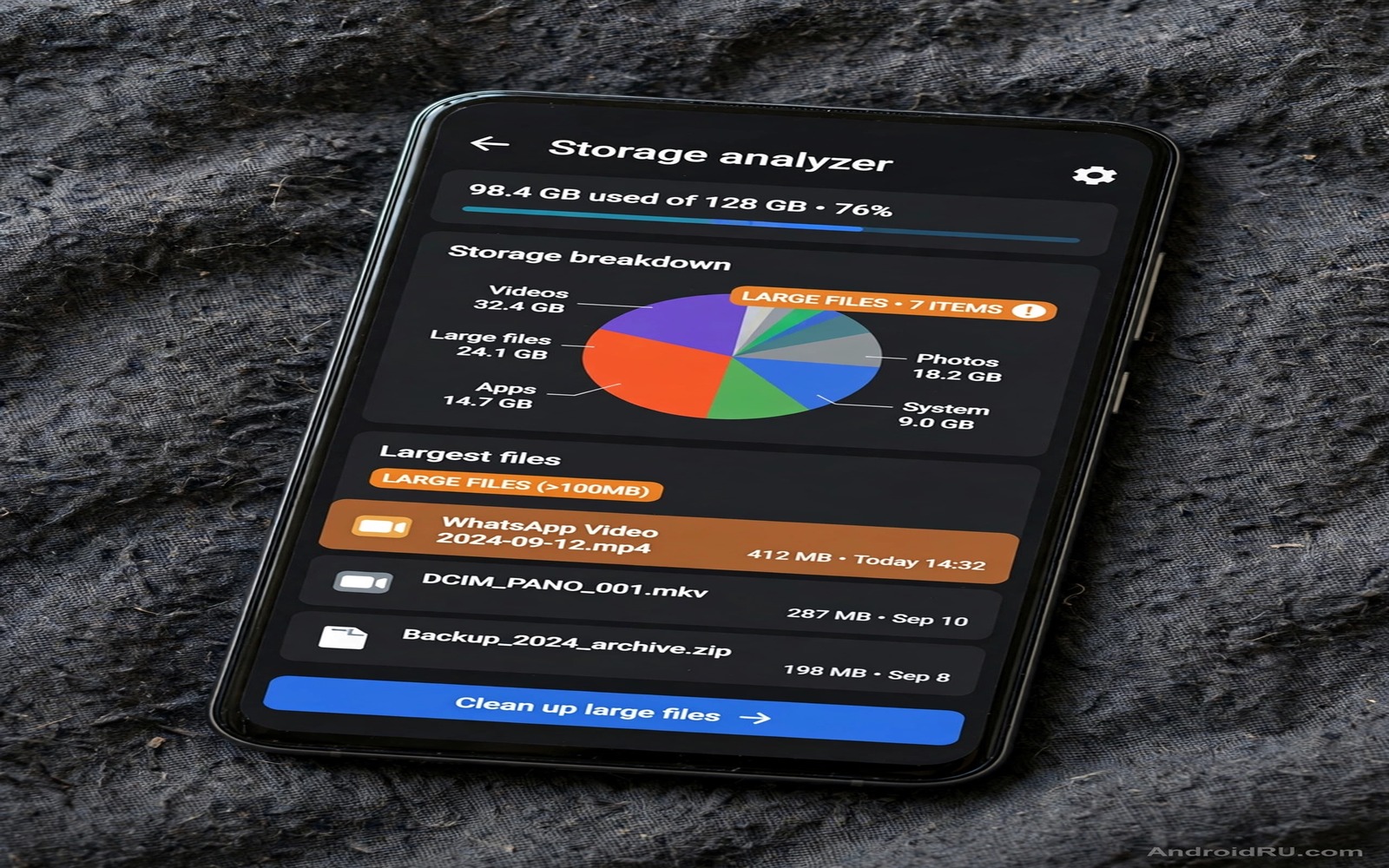
7 Storage Analyzer Apps That Find Giant Hidden Files Instantly
Your phone says storage is almost full, but Settings only shows vague categories: 28 GB of apps, 19 GB of photos, 12 GB of “other.” None of those numbers tells you which single file is eating 4 GB in a chat folder three levels deep. I hit this wall on a 128 GB phone that warned me about storage during a family trip, and the built-in screen could not point at the culprit. A good size-scanning tool found it in under a minute: a 3.8 GB video a relative had forwarded twice, sitting inside a messaging app folder I never open.
That is the whole job of this kind of app. It scans every folder, ranks files and folders by size, and shows the result as a visual map or a sorted list so the biggest files jump out at you. The right tool turns a vague “storage full” warning into a concrete list of files you can decide about, one by one. The wrong tool wastes your time with ads, vague totals, or a one-tap clean button that deletes things you wanted to keep.
This guide compares seven real apps you can install today, each with its own H3 section covering what it does, who it suits, its strengths, its weaknesses, and a verdict. You will also get a head-to-head comparison table, a five-minute first-scan routine, and the list of hidden folders where giant files actually hide on Android. If you want a fast overall cleanup first, start with freeing storage quickly on Android, then use one of these tools to find the big files that the quick pass missed.
What a Storage Analyzer Actually Measures on Android
A size scanner reads the file system the same way a file manager does, but instead of showing you folders alphabetically, it adds up the size of everything inside each folder and sorts the result. The top of the list is almost always a surprise. On most phones the largest folders are messaging app media, downloaded videos, offline maps, and the thumbnail caches of gallery apps. A scanner makes that ranking visible in seconds, while manual browsing could take an hour of tapping through folders.
The measurement itself is simple, but the way each app counts can differ. Some tools include the system reserved area in their total, so their number looks bigger than the one in Settings. Others count only user folders. A few count the same file twice when it appears in two places through a link. Those differences explain why two tools can disagree by several gigabytes on the same phone. The disagreement is not a bug in either tool. It is a counting choice, and the useful number is not the grand total but the ranking of your own folders.
Speed matters more than most people expect. A full scan of a 128 GB phone with 40,000 files should finish in one to three minutes on a modern device. A scan that takes twenty minutes will not become a habit, and a tool you only open in a crisis is a tool that fails you. I test scan speed on a normal day, not only when storage is critical, because a fast scan becomes a monthly routine while a slow scan becomes a chore you avoid.
Treemaps, sorted lists, and sunburst charts compared
Three views dominate this category, and each suits a different brain. A treemap draws every folder as a rectangle sized by its storage use, so one giant folder becomes one giant block you cannot miss. A sorted list ranks files from largest to smallest across the whole phone, which gives you a clear deletion order: start at the top and work down. A sunburst chart draws folders as rings around a center circle, which looks elegant but is harder to read on a small screen.
Treemaps win for spotting a dominant folder at a glance. Sorted lists win for acting on the result, because you can tap the largest file, preview it, and delete it without switching views. The best apps give you both views in one tap. The weakest give you only a total and a category bar chart, which adds almost nothing to what Settings already shows. When you test an app, check whether you can drill from a top-level block down to a single file in three taps or fewer. If you cannot, the view is decoration, not a tool.
What a good scanner must show before you trust it
Before I trust any scanner with deletion power, I check four things. First, it must show folder size and file-type size, because folder size tells you where the bulk lives and file-type size tells you whether videos, documents, or caches dominate. Second, it must show a preview of anything it wants to delete, with the file name, size, and location visible. Third, it must warn before touching system folders, or better, refuse to list them for deletion at all. Fourth, it must explain every permission it asks for, because a scanner needs storage access and nothing else.
A one-tap “clean all” button is a warning sign, not a feature. It mixes safe temporary files with offline content you may need, and it removes the one step that protects you: your own judgment. A scanner that deletes only what you select, after a clear preview, is slower by a minute and safer by a mile. Control is the feature that matters most once the novelty of the map wears off.
How to Read a Treemap and a Sorted File List Without Deleting the Wrong Thing
A treemap rewards a slow first look. Start at the largest block and read its label before tapping anything. The label tells you the folder path, and the path tells you the story: a block labelled with a messaging app name and a media folder is usually forwarded videos, while a block labelled with a map app name is usually offline maps. Tap the block once to drill in, and keep drilling until you reach individual files. At each level, ask whether the files belong to an app you still use and whether you have a copy somewhere else.
A sorted list rewards a different habit. Read the top ten files first, because they often account for half of the recoverable space on the phone. Tap each one to preview it before deciding. A 2 GB file named video_2024.mp4 inside a chat folder is usually safe to archive or delete. A 2 GB file inside an app’s data folder with a cryptic name is not a deletion candidate until you know which app owns it. Size tells you where to look, and content tells you whether to delete.
The 10 percent rule for safe deletion
I use a simple rule: never delete a file you cannot identify, and never delete more than you can afford to lose in one session. Start with the files you recognize and no longer need, and stop when you have freed enough space for your immediate goal. Deleting 5 GB of recognized junk beats deleting 15 GB of guesses that include a work document. If a file’s purpose is unclear, move it to a backup folder on a computer first, wait a week, and delete the phone copy only after nothing breaks.
Why system folders should stay off your deletion list
Folders named Android, data, and obb hold app data that cannot be rebuilt by reinstalling the app, including saved games, offline work, and login tokens. A scanner that lists those folders for deletion is doing you a disservice, even if the numbers look tempting. The safe zone is your own media, your downloads, and the clearly labelled media folders inside messaging apps. Everything else deserves a preview and a pause. Readers hunting for system waste should also read hidden files to delete for system storage and the secret folder taking up gigabytes, which cover the specific folders that are safe to clean and the ones that are not.
7 Storage Analyzer Apps That Find Giant Hidden Files Instantly
These seven apps cover every style in this category: a free treemap classic, the built-in Google option, a root-friendly cleaner, a dedicated duplicate hunter, and three file managers with serious analysis built in. I tested each one on the same 128 GB phone with the same messy mix of chat media, downloads, and offline files, so the notes below reflect the same workload. Prices and features can change, so check the current listing before you install.
1. DiskUsage — the free treemap classic for instant visual answers
DiskUsage is the oldest app in this list and still one of the fastest. It draws a treemap of your storage in seconds, with each folder as a block sized by its use, and you can zoom into any block with a tap. It asks for no account, shows no ads, and takes up less than 1 MB itself. It does not delete files directly; instead, it hands the file to your file manager or to Android’s own delete dialog, which is a safety feature in disguise because it forces you to confirm each deletion in a familiar screen.
It suits owners who want a quick visual answer and nothing else: which folder is huge, and how huge is it compared with the rest. The trade-off is that it has no duplicate finder, no file-type breakdown beyond the map, and no scheduled scans. On Android 13 and newer, it needs the all-files access permission to see the full storage, and the setup screen explains that plainly. Verdict: the best first tool to try, and the one I keep installed permanently because it answers the question in under a minute with zero clutter.
Pros: completely free with no ads, scan finishes in under a minute on most phones, treemap makes giant folders obvious at a glance. Cons: no built-in duplicate detection, deletion requires a second step through another app, interface looks dated next to modern file managers.
2. Files by Google — the safe built-in option with smart suggestions
Files by Google is the official Google file manager, and its storage analysis is the most careful of the seven. It sorts files into categories, flags large files, finds duplicates and blurry photos, and suggests items to delete with a preview for each one. It also handles file sharing to nearby devices without data, and its Clean tab shows a running total of space you can recover. Because it comes from Google, it respects scoped storage rules and never suggests deleting system files.
It suits owners who want one app for browsing and cleaning, and people who are nervous about third-party tools touching their files. The trade-off is that its suggestions are conservative: it finds obvious junk and duplicates well, but it will not show you a raw treemap or a full sorted list of every file on the phone. Power users who want to see the exact 4 GB file hiding in an app folder will need a second tool. Verdict: the safest starting point, and the best choice if you only want one app and you value careful suggestions over raw detail.
Pros: free with no ads, duplicate and blurry-photo detection built in, suggestions always come with a preview. Cons: no treemap view, conservative suggestions miss deeply hidden files, requires a Google account for some features.
3. SD Maid SE — the deep cleaner for rooted and advanced owners
SD Maid SE is the successor to the long-running SD Maid, rebuilt for modern Android storage rules. It scans for corpse files left behind by uninstalled apps, orphaned caches, empty folders, and duplicate files, and it presents the results as a set of focused tools rather than one giant list. Its storage analyzer draws a detailed overview of where space goes, and its AppCleaner can clear caches app by app with a clear log of what was removed. Advanced owners can grant it extra access through Shizuku or root for deeper scans.
It suits advanced owners who enjoy control and want to clean the leftovers that ordinary tools miss. The trade-off is complexity: the interface has many screens, the free version limits some tools, and the paid upgrade is needed for scheduled cleaning. Beginners can feel lost in the options, and the app assumes you know the difference between a cache and app data. Verdict: the strongest deep-cleaning toolkit here, and the right pick if you already know your way around Android storage and want the leftovers gone too.
Pros: finds corpse files and orphaned data other tools miss, detailed logs show exactly what was cleaned, works well with Shizuku for deeper access. Cons: interface is dense for beginners, several tools need the paid version, setup takes longer than the simpler apps.
4. Storage Analyzer & Disk Usage — the duplicate hunter with the clearest lists
Storage Analyzer & Disk Usage, from the developer Mobile Clean, focuses on ranked lists. Its main screen sorts your largest files, your largest folders, and your duplicate files into separate tabs, and each entry shows the exact path and size. Its duplicate finder compares file size and content, groups identical files together, and lets you keep one copy while deleting the rest after a preview. It also ranks files by age, so you can find the big files you have not opened in a year and archive them instead of deleting them.
It suits owners whose storage is full of repeated media: forwarded videos, downloaded copies of the same photo, and chat backups that duplicated themselves. The trade-off is that the free version shows ads, and the treemap view is basic compared with DiskUsage. It also needs the all-files access permission to scan properly, which is normal for this category but worth knowing before you install. Verdict: the best duplicate finder in this list, and the right tool when your problem is copies rather than one giant file.
Pros: excellent duplicate grouping with previews, age sorting helps you archive old files, clear ranked lists of the largest files. Cons: free version shows ads, treemap is weaker than dedicated map apps, duplicate detection needs a careful review of similar photos.
5. Cx File Explorer — the clean file manager with analysis built in
Cx File Explorer is a file manager first and a scanner second, and that combination suits owners who already manage files by hand. Its storage analysis screen shows a visual breakdown by category, a list of large files, and a duplicate finder, all reachable from the same app you use to move and rename files. It can also browse network storage and cloud drives, which means you can compare local files with your cloud copies before deleting anything. It shows no ads in normal use, and its interface is one of the clearest in this list.
It suits owners who want browsing and analysis in one place, and people who move files to a computer or a NAS as part of their cleanup. The trade-off is that its analysis is less detailed than a dedicated scanner: there is no full treemap, and the duplicate finder is simpler than the one in Storage Analyzer & Disk Usage. It also cannot clear caches as thoroughly as SD Maid SE. Verdict: the best all-rounder for people who manage files manually, and a strong second app to keep alongside a dedicated treemap tool.
Pros: no ads, combines browsing, analysis, and network storage in one app, interface is clear and fast. Cons: no full treemap view, duplicate detection is basic, cache cleaning is limited.
6. Solid Explorer — the dual-pane manager with a sharp size view
Solid Explorer is a long-standing paid file manager with a storage analyzer that shows folder sizes as you browse, so you can see which folder is heavy without opening a separate screen. Its dual-pane layout lets you compare two folders side by side, which is handy when you are moving large files to an SD card or a USB drive. It supports cloud storage, network shares, and encrypted folders, and its search can filter by file size, which turns “find files over 500 MB” into a one-line query.
It suits owners who juggle local storage, an SD card, and cloud drives, and who want size information inside their normal file browsing instead of a separate tool. The trade-off is price: the full version is a paid upgrade after a trial, and the analysis features are part of the file manager rather than a dedicated scanner, so there is no treemap and no scheduled scan. Verdict: a strong choice if you already pay for a file manager and want size awareness built into every folder you open, rather than a separate app you only open in a crisis.
Pros: folder sizes shown inline while browsing, dual-pane view makes moving big files easy, search by file size is genuinely useful. Cons: full version is paid, no treemap or scheduled scans, analysis is less visual than dedicated scanners.
7. MiXplorer Silver — the power user’s scanner with total control
MiXplorer Silver is the paid Play Store version of the popular MiXplorer file manager, and its analysis tools are the most flexible in this list. It can sort any folder by size, search by size ranges, show detailed properties for folders including their total contents, and handle archives, cloud storage, and network shares from one interface. It supports themes and add-ons, and it can open almost any archive format without a second app. Owners who like to tune every detail will feel at home here.
It suits advanced owners who want one powerful manager instead of several small tools, and people who regularly move large files between phone, SD card, and computer. The trade-off is the learning curve: the interface is dense, the settings are deep, and beginners can take a week to feel comfortable. There is also no guided cleanup flow, so the app shows you the numbers and leaves every decision to you. Verdict: the most capable file manager here, and the right pick if you want full control and you are willing to learn the interface.
Pros: flexible size sorting and search, handles archives and cloud storage, highly customizable. Cons: steep learning curve, no guided cleanup suggestions, paid version required for the full feature set.
Storage Analyzer Apps Compared: Speed, Maps, Duplicates, and Price
No single app wins on every measure, so the table below compares the seven on the criteria that matter for this job. Scan speed was measured on the same 128 GB phone with roughly 40,000 files. Prices are the listing prices at the time of testing, and they can change, so check the current listing before you buy.
| App | Scan speed | Treemap | Duplicate finder | Ads | Price |
|---|---|---|---|---|---|
| DiskUsage | Under 1 minute | Yes, excellent | No | None | Free |
| Files by Google | 1 to 2 minutes | No | Yes | None | Free |
| SD Maid SE | 2 to 3 minutes | Basic overview | Yes | None in free tier | Free with paid upgrade |
| Storage Analyzer & Disk Usage | 1 to 2 minutes | Basic | Yes, excellent | Yes in free version | Free with paid upgrade |
| Cx File Explorer | 1 to 2 minutes | No | Yes, basic | None | Free |
| Solid Explorer | 1 to 2 minutes | No | No | None | Paid after trial |
| MiXplorer Silver | 1 to 2 minutes | No | No | None | Paid |
The pattern is clear. If you want a visual answer, pick DiskUsage. If you want safe suggestions, pick Files by Google. If duplicates are your problem, pick Storage Analyzer & Disk Usage. If you want deep cleaning, pick SD Maid SE. If you want one manager that does everything reasonably well, pick Cx File Explorer, Solid Explorer, or MiXplorer Silver, depending on how much control you enjoy. Two tools together cover almost every case: a treemap app for finding the giant file, plus Files by Google for safe duplicate cleanup.
Who should pick which app
Beginners should start with Files by Google, because its suggestions are careful and its previews are clear. Visual thinkers should start with DiskUsage, because the map answers the question before you read a single number. Owners with years of forwarded chat media should start with Storage Analyzer & Disk Usage, because duplicates are usually their biggest win. Advanced owners who enjoy control should start with SD Maid SE or MiXplorer Silver, because those two reward experience with deeper results.
The wrong choice is installing all seven at once. Multiple scanners run background scans, keep their own caches, and consume the storage they are supposed to free. Pick one that matches your style, use it for a month, and uninstall the rest. One good tool used monthly beats five tools used once.
How to Run Your First Full Scan in Under Five Minutes
A first scan is a small job when you do it in order. Set aside five minutes, plug the phone into a charger so a long scan is not interrupted, and follow the steps below. The goal is not to free the maximum space. The goal is to find the three largest files you can safely remove, and to learn where your storage actually goes.
Step 1: install one scanner and grant only storage access
Install your chosen app from the Play Store and open it. When it asks for permission, grant the storage access it needs and decline anything else. A scanner needs to read files to rank them. It does not need contacts, location, or call history, and an app that demands those permissions is asking for data it cannot use for this job. If the app asks for all-files access on Android 13 or newer, the system will take you to a settings screen where you can grant it there.
Step 2: run the full scan on Wi-Fi and wait for the total
Start the full scan and let it finish without opening other heavy apps. On a typical phone this takes one to three minutes. When the total appears, compare it with the number in Settings. A gap of a few gigabytes is normal, because tools count system areas differently. Write down the top three folders by size, because those three are your cleanup plan for the next ten minutes.
Step 3: preview the top ten files before deleting anything
Open the largest-files list and tap each of the top ten files to preview it. A video preview tells you in two seconds whether the file is a memory worth keeping or a forwarded clip you have already forgotten. Delete only the files you recognize and no longer need. If a file is large and its purpose is unclear, leave it alone and move on to the next one. Ten minutes of careful previewing prevents an hour of regret.
Step 4: handle duplicates with a preview, not a bulk delete
If your app found duplicates, open the group and look at the copies before you delete any of them. Keep the copy with the best quality and the clearest name, and delete the rest one group at a time. Similar photos are not always true duplicates: a burst of ten photos can look identical in thumbnails while one of them is sharper than the rest. Never delete all copies of a file without checking which one you are keeping, and never trust a bulk “delete all duplicates” button without reviewing the list first.
Hidden Folders Where Giant Files Actually Hide on Android
Giant files rarely sit in the open. They hide in folders that belong to other apps, and the folder names give no hint of what is inside. The most common hiding places are messaging app media folders, where forwarded videos pile up; the download folders of browsers and social apps, where videos you watched once are saved; and the offline folders of map and streaming apps, where a single city map or a playlist can take 1 to 2 GB without ever appearing in your gallery.
Gallery thumbnail caches are another quiet consumer. Some gallery apps keep a thumbnail for every photo you have ever taken, and on a phone with 20,000 photos that cache can reach 2 to 3 GB. Clearing it is safe, because the app rebuilds thumbnails as you browse, but the cache grows back over time, so it is a recurring job rather than a one-time fix. The same is true of browser caches, which can hold a gigabyte of images and videos from sites you visited once.
Chat media folders: the number one hiding place
Messaging apps save every photo and video you receive, and most of them keep saving even after you have seen the file once. A single group chat with active members can add 500 MB of media in a week, and the files sit in a folder named after the app, not after the chat, so you never see them in your gallery’s main view. Open the media folder for your most active chat app inside your scanner, sort by size, and you will usually find a handful of videos over 200 MB each. Those are the first files to review, because they are the easiest to archive and the least likely to be missed.
Offline maps, podcasts, and streaming downloads
Offline content is invisible by design. A map app downloads whole regions for offline use, a podcast app downloads episodes automatically, and a music app saves playlists for offline listening. Each of those downloads is legitimate, but together they can take 5 to 10 GB on a phone whose owner forgot they were there. Check the storage settings inside each of those apps, not just the file manager, because offline content is managed by the app and may not appear as ordinary files. Deleting an offline map you no longer need is a two-tap job that can free more space than an hour of cache clearing.
Common Mistakes That Turn a Cleanup Into Lost Photos
The biggest mistake is trusting a one-tap clean button without a preview. A clean button can delete offline maps, saved work documents, and podcast episodes together with genuine junk, and there is no undo button after the deletion. Always review the deletion list, deselect anything you need, and delete in small batches. A preview step takes a minute and prevents an hour of recovery.
The second mistake is deleting files based on size alone. A large file may be an important video project, a work archive, or the only copy of a family video. Open or preview a large file before deleting it. Size tells you where to look, and content tells you whether to delete. The third mistake is installing several scanners at once and running them all, which burns battery, duplicates scans, and adds clutter. Pick one, use it monthly, and remove the rest.
The fourth mistake is ignoring permissions. A scanner that asks for contacts or location is asking for data it does not need, and granting those permissions gives a stranger access to your address book for no benefit. Deny unrelated permissions and choose a tool that explains why it needs each permission it requests. The fifth mistake is deleting local copies of photos that a cloud backup has not finished uploading yet. Confirm the backup status inside your gallery app before you remove local copies, or you may delete the only copy of a photo that was still waiting to upload.
Frequently Asked Questions About Storage Analyzer Apps
Are storage analyzer apps safe to use?
Reputable scanners are safe when you review deletions before confirming them. The risk comes from blind one-tap cleaning, from granting unnecessary permissions, and from deleting files you do not understand. Use the built-in tools first, choose a third-party app with clear previews and minimal permissions, and delete only files you can identify. A scanner is a diagnostic tool first and a deletion tool second, and the safest way to use one is to let it show you the problem while you make the decision.
Why does a scanner show more used space than Settings?
Different tools count system reserved space and hidden folders differently. Settings may exclude some system areas while a scanner includes them, or the reverse, and the gap is usually a few gigabytes. Focus on the ranking of your own folders and files, not on the grand total, because the ranking is where the actionable information lives. A difference in total counting does not mean either tool is broken.
How often should I run a storage scan?
Monthly is enough for most owners. A monthly scan catches growing chat media and downloads before they become a crisis, and it takes five minutes once you know the routine. Run an extra scan before a trip or a large video project, when free space matters more than usual, and aim for at least 10 GB free before a trip that involves heavy photography. Regular light scans beat rare panic scans, because small growth is easy to manage and a full phone is not.
Can a scanner find files that Settings cannot show?
Yes, within limits. A scanner with all-files access can show individual files inside app folders that Settings only reports as a category total, and it can rank those files by size so the giant ones stand out. What it cannot do is reach the reserved system partitions or the private data folders of other apps on recent Android versions, because those areas are fenced off by the operating system. If a scanner claims it can delete system files for you, treat that claim as a reason to uninstall it.
Do I need a paid scanner to find large files?
No. DiskUsage and Files by Google are both free, and together they cover the two most useful views: a treemap for spotting giant folders and safe suggestions for duplicates and junk. Paid apps add convenience, deeper cleaning, and extra file-manager features, but the core job of finding the largest files is free. Pay only if you want the extra tools, such as the deep cleaning in SD Maid SE or the dual-pane management in Solid Explorer, and only after the free tools have shown you what your storage problem actually is.
Pick One Scanner and Run It Today
A full phone warning is a vague problem until a scanner turns it into a list. Visual maps reveal dominant folders in seconds. Sorted lists give you a clear deletion order. Duplicate finders remove repeated copies. A safe tool with previews and minimal permissions helps you act without risking the files that matter.
Your concrete next step is simple. Install DiskUsage or open Files by Google, run a full scan, and write down the three largest folders it shows. Preview the five largest files, delete or archive the ones you recognize and no longer need, and check the duplicate tab before you finish. That one scan, done today, will tell you more about your storage than a year of glancing at the Settings screen. Do it once a month after that, and the “storage full” warning will stop arriving as a surprise.

