

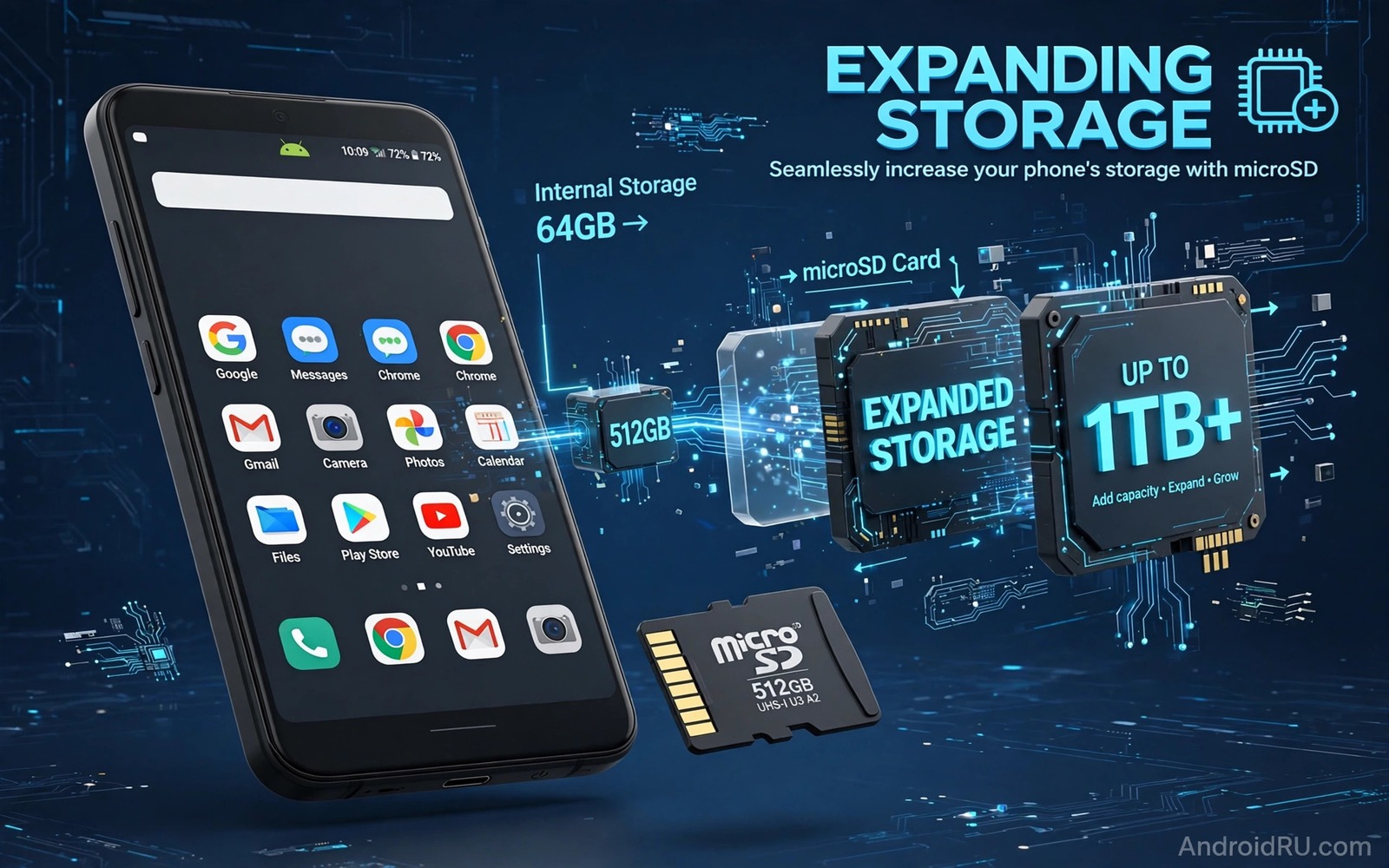
Cloud storage subscriptions start small and grow quietly. A few dollars a month feels harmless until several services add up over a year. Many Android owners pay for cloud space while their phone still has unused expansion options. A microSD card and smarter file habits can expand usable storage for free after a one time card cost. This guide shows how to gain space without a new monthly bill.
Free expansion does not mean unlimited expansion. It means using local storage and free tiers wisely rather than buying a larger cloud plan by default. A microSD card adds tens or hundreds of gigabytes locally. Compression shrinks large photos and videos without visible loss. Smart backup habits keep only active files on the phone while older files live on a computer or a free cloud tier.
Start by auditing what actually fills your phone. A cloud plan that stores mostly duplicate photos and old videos is wasteful. A local card that stores those same duplicates is also wasteful. Clean first and then expand. A clean phone with a card lasts longer than a cluttered phone with a larger cloud plan.
Use a microSD card the smart way
Check whether your phone supports a microSD card and what maximum size it accepts. Many mid range phones accept cards up to one terabyte. A card from a reputable brand with a good speed rating handles photos and video smoothly. A slow cheap card can lag when recording video or opening large files. Speed rating matters more than brand marketing for everyday use.
Format the card as portable storage when you want flexibility. Portable storage lets you move the card between devices and remove it easily. Adoptable storage merges the card with internal storage but it ties the card to one phone and it can slow the system if the card is slow. Portable storage is safer for most owners because it keeps internal apps fast and media flexible.
Move media to the card rather than apps when possible. Photos and videos and downloads move cleanly to portable storage. Apps may refuse to move or may run slower from a card. Set the camera app to save new photos directly to the card when your phone allows it. That single setting prevents internal storage from filling with every new photo.
Compress large media without visible loss
Photos and videos dominate storage on most phones. Modern compression can shrink a video significantly while keeping it pleasant on a phone screen. A video recorded for social sharing does not need a huge bitrate for a large television. Export a smaller version for sharing and keep the original only when you plan a large print or a professional edit.
Use a compression tool that lets you choose resolution and bitrate. A 4K video downsized to 1080p for everyday sharing saves a large amount of space. A photo resized from a huge resolution to a screen friendly resolution also saves space. Keep the original for a small set of favourites and compress the bulk of everyday captures.
Batch compression works best after a backup. Back up originals to a computer or an external drive before compressing local copies. A backup protects you if compression goes too far. After compression compare a few results on a large screen. If detail holds up then the smaller files are safe to keep as your everyday versions.
Use free cloud tiers as a second layer
Free cloud tiers from several services together offer useful backup space without a subscription. Use one free tier for photos and another for documents if that suits your workflow. Keep track of what lives where with a simple note. A scattered backup that you cannot find is worse than no backup at all.
Set free cloud apps to back up on Wi-Fi only and at original or high quality depending on your needs. High quality backup may compress photos slightly but it saves free tier space. Original quality preserves detail but fills a free tier faster. Choose high quality for everyday photos and original quality for a small set of important images.
Delete local copies only after backup confirmation. Open the cloud app and check the backup count and the last sync time. A photo that shows a pending upload icon is not yet safe to delete. Patience during backup prevents the most painful storage mistake which is deleting an original before it truly backed up.
A small script to estimate space saved
The script below estimates space saved by compression. It compares original and compressed sizes for a folder of media files. Run it on a computer after compressing copies of your files.
import os
original_total = 0
compressed_total = 0
for name in os.listdir("media"):
    path = os.path.join("media", name)
    if name.endswith("_compressed.jpg"):
        compressed_total += os.path.getsize(path)
    elif name.endswith(".jpg"):
        original_total += os.path.getsize(path)
saved = original_total - compressed_total
print(f"Original total: {original_total / 1048576:.1f} MB")
print(f"Compressed total: {compressed_total / 1048576:.1f} MB")
print(f"Saved: {saved / 1048576:.1f} MB")
The code above was written for this guide as an original compression savings estimator. It reads only local files in a folder named media and prints totals in megabytes. It does not compress files itself and it does not upload anything. Use the saved figure to decide whether compression is worth applying to a larger set.
Move old projects off the phone
Old projects occupy space long after they stop being active. A video project from last year or a photo set from a completed event rarely needs daily phone access. Move those projects to a computer or an external drive and keep only a small preview on the phone. A project archive frees space without deleting creative work.
Label archived projects with a clear folder name that includes the year and the event. A clear label makes retrieval easy when a client or a friend asks for an old file. A vague archive folder becomes a digital attic that no one searches. Good labels turn archiving into a useful system rather than a hiding place.
Use a computer as a free archive
A computer with a large drive is a free archive for phone media. Connect the phone on Wi-Fi or with a cable and copy older folders to the computer once a month. Verify that copied files open correctly before deleting phone copies. A verified copy is a true archive while an unverified copy is only a hope.
For owners who move media regularly a guide to moving apps and media to microSD complements a computer archive because a card can hold the active set while the computer holds the archive set. Together they cover daily access and long term preservation without a subscription.
Free tiers work best when you assign each tier a clear job. Use one free tier for photos and another for documents so you always know where a file lives. A written note listing each tier and its job prevents confusion when you need a file urgently. A scattered backup without a map wastes the time that free storage was meant to save.
Review free tier usage every few months to avoid hitting a limit unexpectedly. A tier that fills up stops backing up new files silently. A quarterly check shows which tier needs a cleanup and which tier still has room. Regular review keeps free storage reliable rather than accidental.
Delete failed uploads and duplicate backups during that review. Failed uploads occupy tier space without providing a usable copy. Duplicates from repeated backup attempts also waste free space. A clean tier holds only verified copies that you can actually restore.
A free archive on a computer also protects you when a phone is lost or damaged. A phone copy alone is not a backup. A computer copy turns a lost phone into an inconvenience rather than a data disaster. Copy important media to a computer at least once a month.
Common mistakes
The biggest mistake is buying cloud storage before cleaning local waste. A subscription that stores duplicates and old installers wastes money every month. Clean downloads and chat media and duplicates first. Expansion after cleaning lasts longer and costs less.
Another mistake is buying the cheapest microSD card available. A slow card causes lag and recording failures that feel like a phone problem. A card with a reputable speed rating costs a little more once and performs reliably for years. A cheap card that fails can also lose photos if it is the only copy.
People also treat a microSD card as a backup. A card inside the phone is not a backup because it can be lost with the phone. Keep a second copy of important photos on a computer or in cloud storage. A card expands space but it does not replace backup.
Finally avoid adopting a slow card as internal storage without testing. Adoptable storage on a slow card can slow app launches and updates. Portable storage keeps apps on fast internal memory and media on the card. That separation gives the best balance for most phones.
Frequently asked questions
Is a microSD card still useful in 2026?
Yes for phones that support it. A card adds affordable local space for photos and videos and downloads. It works offline and it needs no subscription. Phones without a card slot need a different strategy based on compression and cloud tiers and regular backup to a computer.
Will moving photos to a card slow the gallery?
A fast card keeps gallery performance close to internal storage for most uses. A slow card may delay thumbnail loading for large albums. Use a card with a good speed rating and keep the gallery cache on internal storage when possible. The gallery may take longer to load a huge album after a restart while it rebuilds previews.
Can I really avoid cloud storage completely?
Some owners can with a card and a computer backup. Others benefit from a free cloud tier as a safety net for important photos. Avoiding paid cloud storage does not mean avoiding backup altogether. A computer backup plus a free tier covers most needs without a monthly fee.
Conclusion
Free storage expansion combines a microSD card and compression and smart free tier use. Cleaning waste first makes expansion last longer. Portable storage keeps apps fast while media lives on the card. Compression shrinks everyday media without visible loss when done after backup. A computer copy protects important files from card failure.
Your concrete next step is to check your phone for a microSD slot today and note the largest media folder in Storage settings. If a slot exists then set the camera to save to the card after backing up current photos. If no slot exists then compress one large video folder after backup. Readers who want to move apps safely will also like moving apps to microSD even when unsupported and compressing photos and videos without losing quality as follow-ups. As a related next step, explore freeing up 20GB of storage in under 2 minutes to extend what you set up here.

