

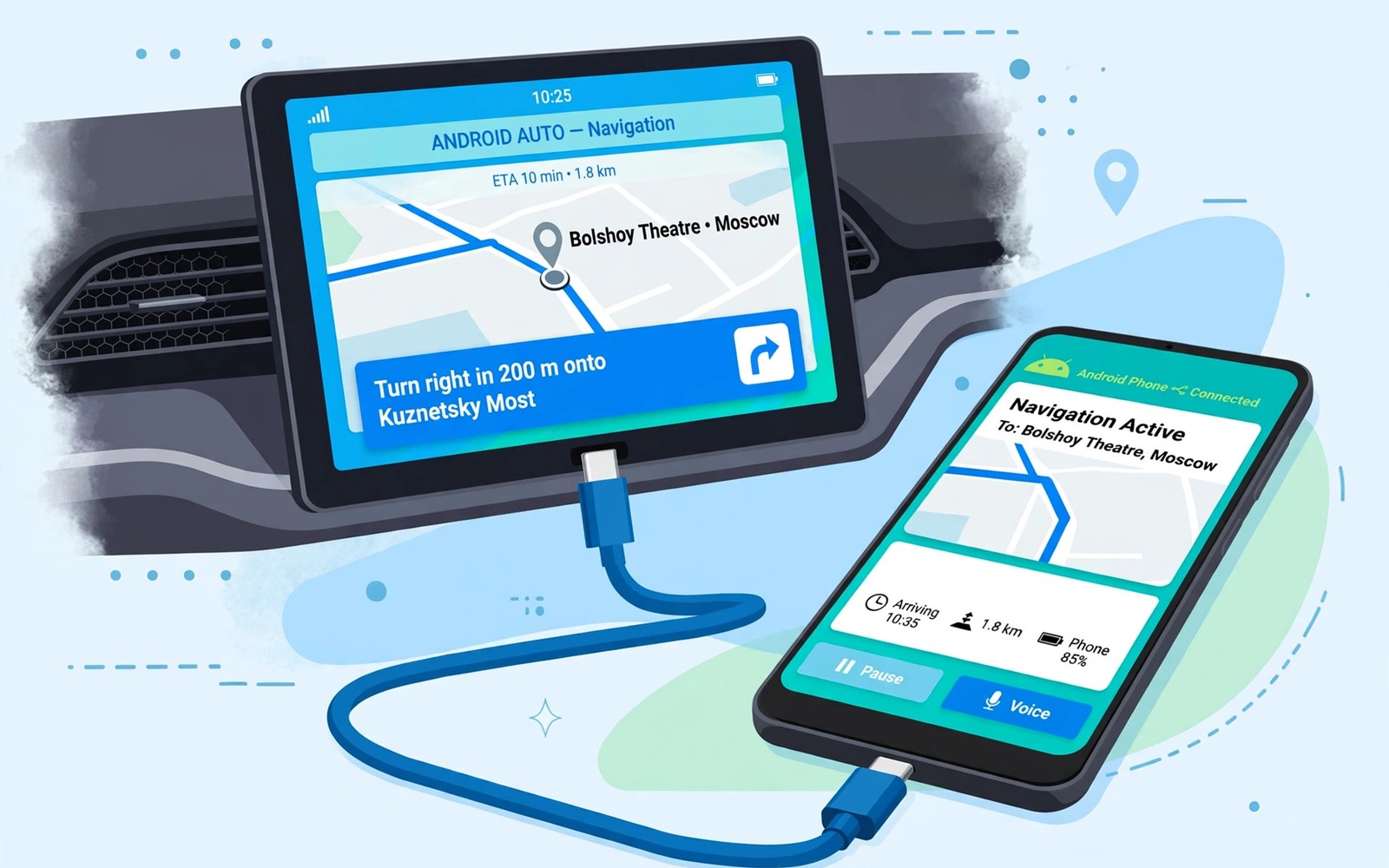
You plug your phone into the car and the car screen stays black or it shows a connection error. Music does not play and navigation does not appear. That failure matters most when you need directions for a trip that starts now.
Android Auto needs a data cable and a working app and a compatible car display all at once. A charge-only cable will power the phone but it will not start Android Auto. A corrupt app cache can also block the connection even with a good cable. A black car display and a screen that stays black during phone calls are different faults, but both reward the same habit of checking whether the display or the connection is at fault first.
This guide gives you five fixes in order. Test with the car parked and the engine running so power and display conditions stay stable. Keep a known good data cable ready for testing.
Fix one use a data cable and a clean port
Use a short high quality data cable for the test. Long cheap cables can fail data transfer even when they charge the phone. A cable under one metre often works more reliably in a car.
Try a different USB port in the car if the car offers more than one. Some car ports support charging only and they will never start Android Auto. The correct port is usually marked with a phone or CarPlay symbol in the car manual.
Clean the phone port gently and make sure the plug sits firm. A loose plug in a moving car can disconnect Android Auto repeatedly. A firm plug is essential for a stable car connection.
Fix two restart phone and car system
Restart the phone before you reconnect to the car. A restart clears a stuck Android Auto service. Reconnect only after the phone fully boots.
Restart the car infotainment system if your car allows a reboot from its settings menu. A stuck car system can refuse a new Android Auto session. Turning the car off and on again can also reset the system on many models.
Forget the car in Android Auto settings on the phone and pair fresh. A stale car record can block a new session after a software update. Fresh pairing forces new keys and settings.
Fix three clear Android Auto cache
Open Settings and then open Apps and then open Android Auto and then open Storage. Clear the cache first and test again. Cache clearing keeps your settings and it fixes many black screen faults.
Update Android Auto and Google Play Services from the store. An outdated service can fail to start the car display. Restart the phone after updates before you test in the car.
Check Android Auto permissions including location and notifications. A denied permission can stop the car display from starting. Grant the permissions that Android Auto requests during setup.
Fix four check car display settings
Check the car display source and make sure it is set to Android Auto rather than radio or another input. A wrong source shows a black screen even when the phone connects. Switch sources manually for the test.
Check whether the car needs a software update for Android Auto compatibility. Car makers release infotainment updates that fix connection bugs. A dealer or a USB update can install those fixes.
Test with another phone if you can borrow one. If the second phone works in the same car then your phone settings or cable are at fault. If neither phone works then the car system needs attention. If USB transfer also fails on a computer then the steps for resolving USB device not recognized error on PC can help you check the phone USB path.
Fix five reset Android Auto as a last step
Clear Android Auto data only after cache and update tests fail. Clearing data resets Android Auto settings and it requires fresh setup in the car. Back up any custom settings you remember before this step.
Set up Android Auto fresh in the car after clearing data. Follow each permission prompt carefully. A missed permission during setup can recreate the black screen fault.
Seek car system support if a fresh setup still shows a black screen with a known good cable and a second phone. That pattern points to a car display fault. Take notes on cable and phone tests for support.
adb shell dumpsys activity service com.google.android.projection.gearhead
adb shell pm clear com.google.android.projection.gearhead
adb shell settings get global android_auto_enabled
The commands above were prepared for this guide and they use only standard tools that ship with Android developer tools. They show Android Auto service state for advanced users who want to confirm that the service is present before a reset.
While you work through these steps it helps to compare symptoms with other fixes in the same area. For example the steps for USB device not recognized errors show how a related fault behaves differently and the steps for Bluetooth pairing problems help you rule out a second fault that shares early symptoms.
Common mistakes
One common mistake is using a charge-only cable and blaming the car. A data cable test is essential before any reset. Another mistake is clearing Android Auto data before clearing cache which loses settings unnecessarily.
Another mistake is testing Android Auto while the car is off or in accessory mode with low power. Some cars need the engine running for full USB power. Test with the engine running.
A third mistake is ignoring a car infotainment update. Users update the phone and forget the car system also needs updates. Check car updates once a year.
A week-long Android Auto test that proves the fix
Connect the phone to the car each day for a week with the same cable and note whether the display starts cleanly. A stable week after a cache clear proves the cache was the fault. Failures that return only on bumpy roads point to a loose cable or port rather than software.
Test a second phone in the same car on day four. A second phone that works cleanly isolates the fault to your phone or cable. A second phone that also fails points to the car system.
Test a second cable on day six after phone tests settle. A cable change that fixes the display proves the first cable was faulty or charge-only. A cable change that changes nothing points to the app or car system.
Long-term habits that protect Android Auto
Keep a short good data cable in the car permanently for Android Auto. A dedicated car cable avoids grabbing a random charge cable before a trip. That habit prevents many roadside connection failures.
Update Android Auto and Play Services before long trips. An update on the road is harder than an update at home on Wi-Fi. A pre-trip update check keeps the car display reliable.
Check car infotainment updates once a year. Car systems receive fixes that phone updates cannot provide. A yearly check keeps car compatibility current.
What to do when Android Auto still fails with a good cable
Test Android Auto with a wireless connection if your car and phone support it. A wireless success with a cable failure points to the car USB port or cable path. A wireless failure too points to the app or car system.
Check car system logs or error codes in the car settings menu if available. A car error code can point to a specific compatibility issue. That code helps dealer support diagnose the car side faster.
Test Android Auto after a car system reset if your car allows it. A car reset clears corrupt car pairing data that phone resets cannot fix. Follow car manual instructions carefully because a car reset can clear radio presets.
Keep a wired backup plan such as a phone mount for navigation while car repair is pending. A mount keeps navigation visible even when the car display fails. That workaround is practical for long trips.
Testing Android Auto with a second car and a second phone
Test Android Auto in a second car if you can borrow one for a short drive. A second car test separates car system faults from phone faults cleanly. A success in a second car points to your car system. A failure in both cars points to your phone or cable.
Test Android Auto with a different user profile on the phone if available. A profile test removes personal settings from the diagnosis. A success on a second profile points to a setting or app in the main profile.
Test Android Auto with navigation only and with music only on separate trips. A navigation-only test uses a different app path from a music-only test. A failure in one path but not the other points to that app rather than Android Auto itself.
Test Android Auto after a car system update if one is available. A car update test can fix compatibility bugs that phone updates cannot fix. A success after a car update proves the car was the limiting factor.
Test Android Auto with the phone in a dashboard mount versus in a pocket. A mount test gives the cable a stable position. A pocket test can loosen the cable during driving. A difference between those tests points to cable movement.
Keep a note of the exact car error message and the time it appears. A precise error message helps dealer support identify the failing step. A vague report about a black screen takes longer to resolve.
Test Android Auto one final time with a short drive around the block after a fresh phone restart. A short drive test checks stability under real driving vibration. If the display stays stable on a short drive then longer trips are more likely to succeed. That final test completes a thorough Android Auto diagnosis.
Frequently asked questions
Why does Android Auto work sometimes and fail other times?
Intermittent failure often comes from a loose cable or a port that moves while driving. A short good cable and a firm plug reduce that pattern. A stuck service that needs a restart can also cause intermittent failure.
Why is the car screen black but audio still plays?
Audio and display use separate paths in some cars. A display source error can leave audio working while the screen stays black. Check the car display source first in that case.
Can wireless Android Auto fix a cable fault?
Wireless Android Auto bypasses the cable but it needs a compatible car and phone. It is a useful alternative when the car supports it. A cable fault does not affect wireless if the car supports that mode.
Conclusion
Android Auto connection and black screen failures usually yield to a data cable test and a restart and a cache clear in that order. Check car display source and update car software before a full data reset. Test with a second phone to separate phone faults from car faults. If a fresh setup still fails with a good cable then seek car support. Start today by testing a short known data cable in the correct car port with the engine running.

