

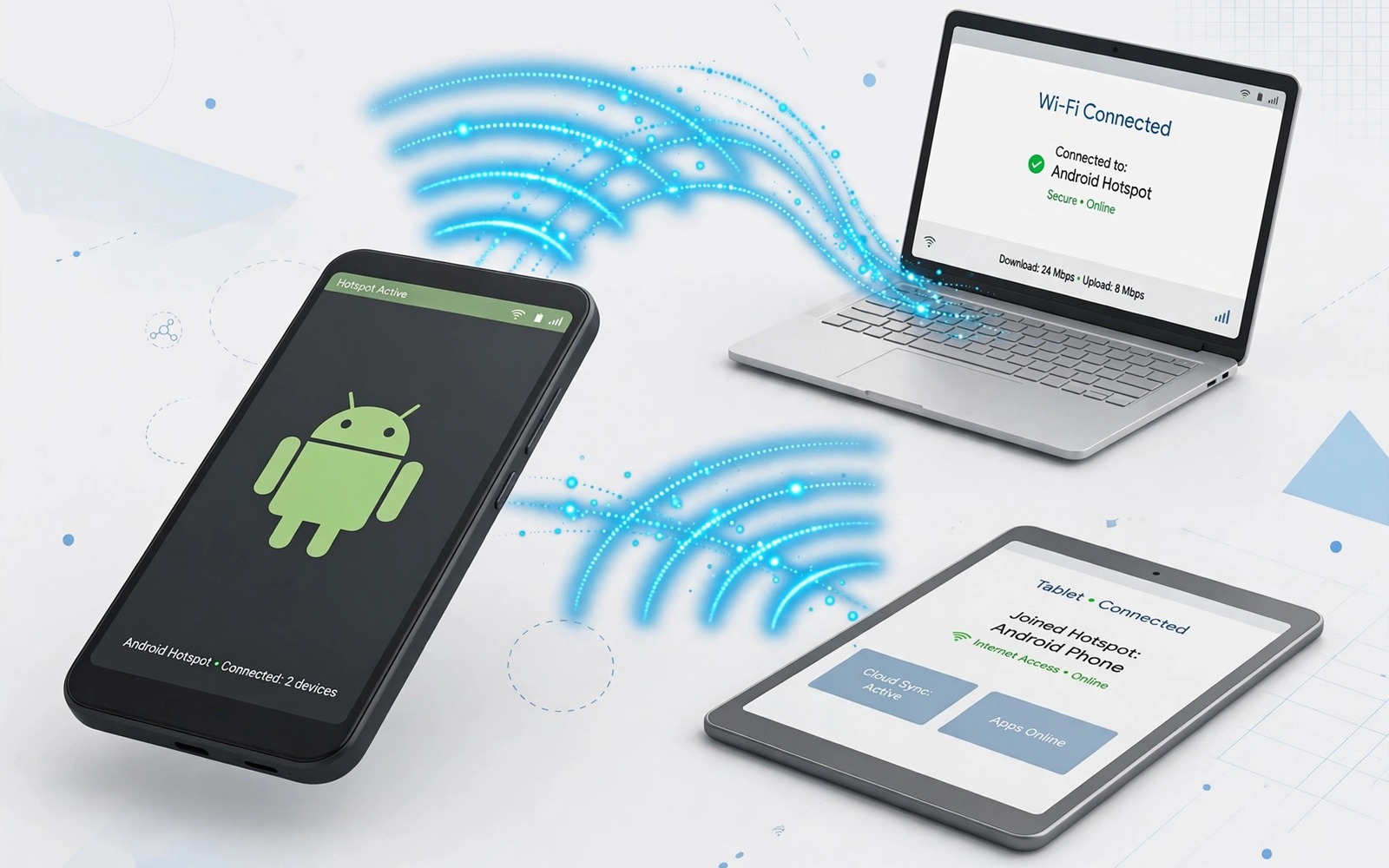
You turn on your hotspot and a laptop connects and then it drops after a few minutes. You turn the hotspot off and on again and the same drop returns. That cycle makes the hotspot useless for work because every drop breaks downloads and video calls.
Hotspot drops happen when the phone saves power or when the mobile signal weakens or when a timeout closes idle connections. A device that sleeps can also drop itself and look like a hotspot fault. The phone settings and the connected device settings both matter. Hotspot drops and a Wi-Fi connection with no internet behind it often share a cause, so checking the host phone’s own connection first saves a round of pointless reconnects.
This guide gives you seven solutions in order. Test with one connected device first so you can tell whether the fault sits in the phone or in that device. Keep the phone charged during tests because low battery triggers power saving.
Check hotspot timeout and device sleep
Open hotspot settings and look for a timeout that turns the hotspot off when no device uses it. Set the timeout to never or to the longest option for the test. A short timeout can close the hotspot during a pause in a video call.
Check the connected device sleep settings. A laptop that sleeps will drop its Wi-Fi connection and the hotspot will look faulty. Set the laptop to stay awake while plugged in for the test.
Keep at least one device actively using data during the test. Idle connections can time out on some phones even with a long timeout setting. A simple page refresh every few minutes keeps the link active for diagnosis.
Stop power saving from killing the hotspot
Turn off battery saver during a hotspot test. Battery saver can lower radio power and close the hotspot early. If the hotspot stays stable without battery saver then power saving is the trigger.
Keep the phone plugged into a charger during hotspot use. Hotspot use drains the battery fast and low battery triggers aggressive power saving. A charger also keeps the phone cool enough to maintain radio power in many cases.
Check whether adaptive battery restricts the hotspot service or the tethering app. Set tethering to unrestricted if your phone offers that option. Test for a full hour after the change.
Fix mobile signal and band problems
Check mobile signal strength at the hotspot location. A weak signal causes the hotspot to drop when the phone loses its data link. Move near a window or outside for a test and see whether drops stop.
Change the hotspot band to 2.4 GHz if the connected device struggles with 5 GHz. The 2.4 GHz band travels further through walls and holds a link better. The 5 GHz band is faster but it drops sooner at distance.
Set the hotspot to a fixed channel or a less crowded band if your phone offers that option. Neighbouring networks can crowd a channel and cause drops. A different band often gives a cleaner link. If mobile data itself drops then the steps for resolving mobile data dropping on 4G and 5G can help you fix the underlying data link first.
Reset hotspot settings cleanly
Change the hotspot name and password for a test and reconnect the device fresh. A stale saved network on the device can cause repeated drops. Forgetting the old network on the device forces a clean connection.
Restart the phone and the connected device before the fresh pairing test. A restart clears stuck tethering services on both sides. Pair only one device after the restart and test for an hour.
Reset network settings only if all other steps fail. That reset clears Wi-Fi and Bluetooth settings as well. Write down Wi-Fi passwords before you reset.
adb shell dumpsys connectivity
adb shell settings get global tether_dun_required
adb shell cmd connectivity tethering
The commands above were prepared for this guide and they use only standard tools that ship with Android developer tools. They show tethering state for advanced users who want to confirm that the hotspot service is running.
While you work through these steps it helps to compare symptoms with other fixes in the same area. For example the steps for mobile data dropping problems show how a related fault behaves differently and the steps for delayed notification problems help you rule out a second fault that shares early symptoms.
Common mistakes
One common mistake is testing the hotspot with a device that sleeps after five minutes. The device sleep looks like a hotspot drop. Keep the device awake for the test. Another mistake is using the hotspot in a basement with weak signal and blaming phone settings.
Another mistake is leaving battery saver on during hotspot tests. Battery saver is designed to cut radio power and it will close hotspots early. Turn it off for a fair test.
A third mistake is connecting five devices at once during diagnosis. One faulty device can confuse the test. Test with one device first and add others slowly.
A week-long hotspot test that proves the fix
Run the hotspot for one hour each day for a week with one laptop connected and note every drop. A stable hour after timeout and battery saver changes proves those settings mattered. Drops that happen at the same time each day point to a signal or carrier pattern rather than a setting.
Test the hotspot in a second location on day four. A location change that removes drops points to weak signal at the first location. Drops in both locations point to phone settings or a device fault.
Test with a second connected device on day six after the first device proves stable. A second device that drops while the first stays stable points to that device sleep settings. Both devices dropping together points to the hotspot itself.
Long-term habits that protect hotspot stability
Keep the hotspot timeout set to a long period or never when you use the hotspot for work. A short timeout saves battery but it breaks work sessions during pauses. A long timeout is a better trade for work use.
Keep the phone charged during hotspot sessions as a routine. Low battery triggers power saving that closes hotspots early. A charger removes that variable completely.
Forget old hotspot networks on connected devices when you change the hotspot password. A stale saved network can cause repeated drops after a password change. A fresh connection after a password change is cleaner.
What to do when the hotspot still drops after a reset
Test the hotspot with a different carrier SIM if you can borrow one. A different SIM test separates carrier data faults from phone hotspot faults. If the second SIM holds a stable hotspot then your original SIM or account needs attention.
Check whether the hotspot drops only when the phone moves. Movement can cause tower handoffs that drop the data link briefly. A stationary test versus a moving test reveals handoff problems clearly.
Test the hotspot in airplane mode with Wi-Fi only for the connected device if that fits your use. That test is not a full hotspot test but it checks the Wi-Fi radio alone. A stable Wi-Fi link in that mode points to mobile data as the weak link.
Keep a log of drop times and signal strength for carrier support. A log with times helps the carrier check tower logs for the same period. That detail speeds up carrier investigation.
Testing hotspot stability with a second device and a second location
Test the hotspot with a tablet instead of a laptop for a full hour. A tablet test removes laptop sleep and Wi-Fi driver variables. A stable tablet connection with a dropping laptop points to the laptop. Drops on both devices point to the hotspot itself.
Test the hotspot outdoors near a window and indoors away from a window on the same day. A signal comparison between those places shows building effects clearly. A large difference points to signal strength as a major factor. A small difference points to phone settings.
Test the hotspot with only one app using data on the connected device. A single app test removes background downloads from the connected device. A stable single app test with drops during heavy downloads points to bandwidth or signal limits.
Test the hotspot after a phone restart and after a full day of phone use. A restart test removes stuck tethering services from the results. A hotspot that works after a restart but drops later points to a service that degrades over time.
Test the hotspot with the phone plugged in and on battery on separate days. A plugged-in test removes low battery power saving from the diagnosis. A stable plugged-in hotspot with drops on battery points to power management.
Keep a log of hotspot drops with time and connected device and activity. A log with those details helps you spot patterns such as drops during video calls only. That pattern can point to bandwidth or signal causes.
Test the hotspot one final time with the connected device close to the phone and with no other wireless devices nearby. A close and quiet test gives the hotspot its best chance to stay stable. If drops continue in that ideal test then the hotspot service itself needs deeper attention. That final test completes a thorough hotspot diagnosis.
Keep the hotspot test running for a second hour on a day when it already proved stable for one hour. A second hour test reveals drops that appear only after longer use and heating. That longer test gives confidence before you rely on the hotspot for work.
Frequently asked questions
Why does my hotspot turn off by itself?
Hotspot timeout and battery saver are the usual causes. A timeout closes the hotspot after idle time and battery saver cuts radio power at low battery. Set timeout to never and keep the phone charged for a test.
Why does only one device drop from my hotspot?
A single device drop points to that device sleep or Wi-Fi settings rather than the hotspot. Check that device power and Wi-Fi settings first. Other devices staying connected proves the hotspot itself works.
Does hotspot use drain battery faster?
Yes because hotspot keeps radios active and serves data to other devices. Keep the phone plugged in during long hotspot sessions. A charger prevents low battery power saving from closing the link.
Conclusion
Hotspot disconnects usually come from timeout or power saving or weak signal rather than a broken phone. Set timeout to never and turn off battery saver and keep the phone charged for the test. Use the 2.4 GHz band for distance and test with one awake device. If drops continue after a network reset then check carrier data stability. Start today by setting hotspot timeout to never and testing for one hour with one plugged in phone.

