

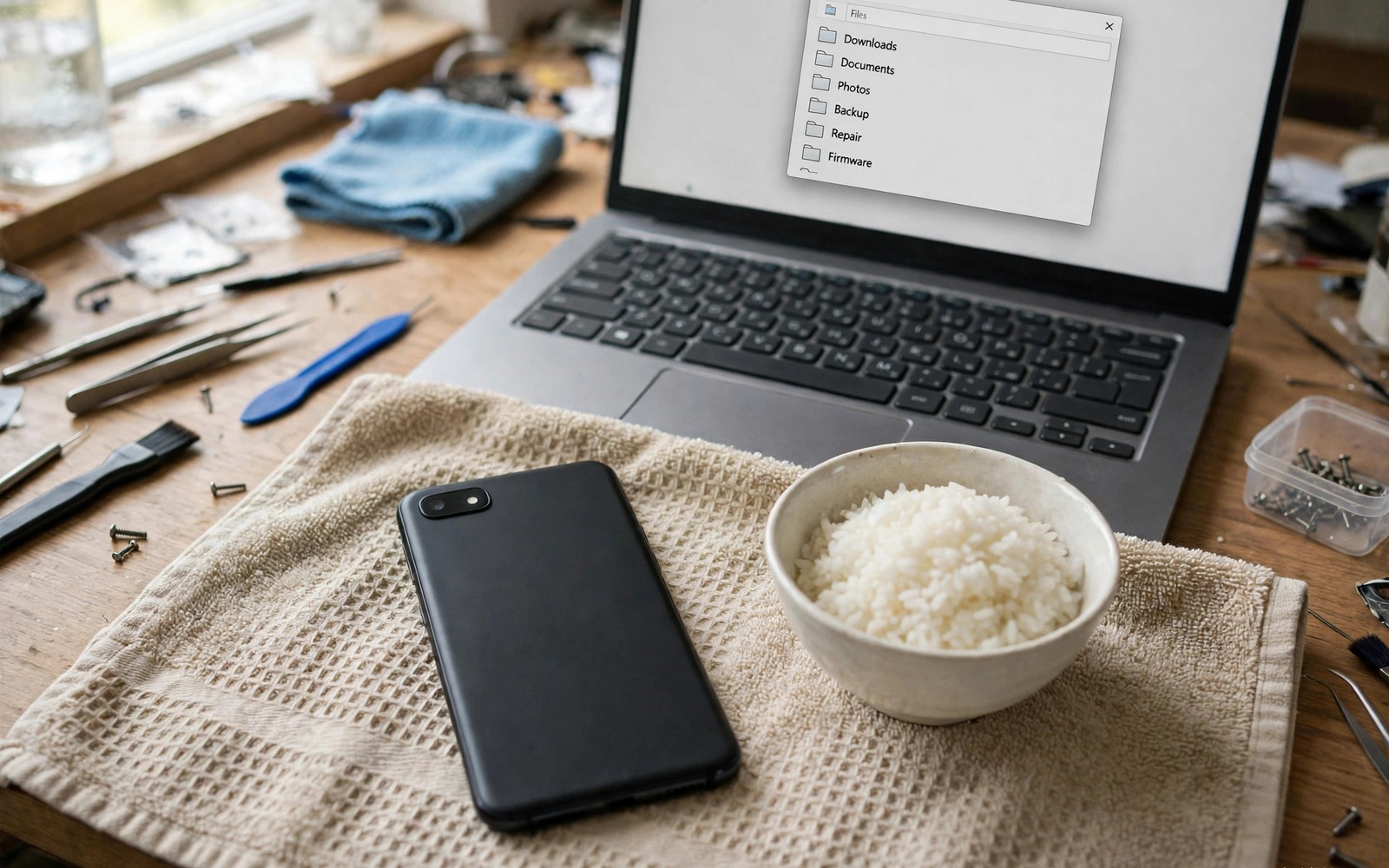
Your phone falls into water and the screen goes dark and you panic about photos that were never backed up. You want to turn it on at once to see whether your files survived. That urge is understandable but powering a wet phone can destroy the very files you want to save.
Water causes short circuits when power flows through wet circuits. Drying first reduces that risk and it gives the storage a better chance to survive. Many files survive water damage when the phone dries fully before any charging or power attempt. Water damage threatens files first, so learning how to recover deleted photos is a useful companion skill when the phone survives but its storage does not behave.
This guide gives you a safe recovery sequence. It covers drying and backup and professional recovery in order. Do not rush the drying stage because patience protects your data.
Stop power and dry the phone safely
Turn the phone off at once if it is still on and do not charge it. Remove the case and the SIM tray if you can do so safely. Shaking the phone can push water deeper so hold it still and let water drain naturally.
Dry the outside with a soft towel and place the phone in a dry room with airflow. A fan blowing room temperature air helps drying without adding heat. Do not use a hair dryer on high heat because heat can damage the battery and the screen.
Wait at least forty eight hours before you try to power the phone again. Water inside the phone dries slowly even when the outside looks dry. A longer wait is safer than an early power test that shorts a circuit.
Check backup before you power the phone
Check your cloud account from another device while the phone dries. Photos and contacts may already be backed up even if you never checked. A cloud backup can save you from risky recovery attempts.
Check a computer for old backups or photo copies you may have transferred earlier. Many users have partial backups they forgot about. Those copies reduce pressure to power a wet phone early.
Write down which files matter most before you attempt recovery. A clear priority list helps you copy the most important files first if the phone works only briefly. Photos and contacts usually top that list.
Power the phone carefully after drying
Try to power the phone only after the full drying period and in a safe place. If the phone powers on then back up files immediately to cloud storage or a computer. Do not run games or heavy apps during that backup because they add heat and load.
Use a USB cable to copy files to a computer if the screen works. Copy the most important folders first and work quickly but calmly. If the phone shuts down during copying then let it cool and try again once.
Stop immediately if you smell burning or see swelling or smoke. Disconnect power and seek professional help at once. Those signs mean the battery or board is damaged and further attempts can be unsafe. If the phone also fails to connect by USB then the steps for resolving USB device not recognized error on PC can help you check the connection after drying.
Use professional recovery when the phone stays dead
Take the phone to a data recovery specialist if it does not power on after drying. Specialists can read storage directly in some cases without powering the whole phone. That method gives files a better chance than repeated home power attempts.
Do not open the phone yourself unless you have proper tools and experience. Opening a sealed phone can break waterproof seals and damage storage further. A specialist has the tools to open it safely.
Ask the specialist about cost and success chance before authorising work. Water recovery success depends on how long the phone stayed wet and whether it was powered while wet. Honest specialists will explain those limits before they start.
adb devices
adb pull /sdcard/DCIM ./recovery_photos
adb pull /sdcard/Download ./recovery_downloads
The commands above were prepared for this guide and they use only standard tools that ship with Android developer tools. They copy photo and download folders to a computer when the phone powers on and is recognised.
While you work through these steps it helps to compare symptoms with other fixes in the same area. For example the steps for USB device not recognized errors show how a related fault behaves differently and the steps for camera connection errors help you rule out a second fault that shares early symptoms.
Common mistakes
One common mistake is charging a wet phone to test it quickly. Charging while wet is the fastest way to destroy storage. Wait for full drying first. Another mistake is using rice as a drying method and believing it dries the inside quickly.
Another mistake is using high heat to dry the phone faster. Heat can warp the battery and damage the screen. Room temperature airflow is slower but safer.
A third mistake is shaking the phone vigorously to remove water. Shaking spreads water to dry areas inside the phone. Hold the phone still and let gravity and airflow work.
A week-long recovery plan after water damage
Use the first two days only for drying and for checking cloud backup from another device. Do not power the phone during those days even if the outside looks dry. A patient drying period gives storage the best chance to survive and it prevents a short circuit from an early power test.
On day three attempt a single careful power test in a safe place and back up the most important files first if the phone starts. Copy photos before documents and copy documents before large videos. A priority order ensures the most valuable files survive even if the phone stops again.
If the phone does not start on day three then wait another day and seek specialist advice rather than repeated power attempts. Repeated attempts increase damage risk without improving recovery odds. A specialist can assess storage directly and explain realistic options.
Long-term habits that protect files from water damage
Turn on automatic cloud backup for photos as a routine. Automatic backup means a water accident loses at most a few recent photos rather than years of memories. That habit is the single best protection against water loss.
Copy important files to a computer once a month. A monthly copy creates a second safety net beyond cloud backup. That habit also frees phone storage for normal use.
Use a waterproof pouch near water as a habit for boating and beach trips. A pouch costs little and it prevents most water accidents entirely. Prevention beats recovery for water damage every time.
What to do when the phone powers on but files are missing
Check cloud trash and recently deleted folders from another device. Deleted files often sit in trash for thirty days in cloud services. A trash check can recover files that look lost on the phone.
Check a computer for an old photo import that may contain copies. Many users import photos to a computer and forget about that copy. That forgotten copy can restore a large share of lost photos.
Use file recovery software on a computer only for a memory card, not for internal storage that you keep using. Continued use of internal storage can overwrite deleted files. A specialist is safer for internal storage recovery.
Stop using the phone for new photos until recovery is complete. New photos can overwrite the storage areas that hold deleted files. A pause in new use improves recovery odds.
Testing water recovery with a second backup check and a second device
Check a second cloud service for backups that you may have enabled and forgotten. Many phones back up to more than one service over time. A second service check can recover photos that the main service missed. That check is worth doing while the phone dries.
Check an old phone or tablet that may have synced the same account in the past. An old device can hold copies of contacts and photos from an earlier sync. Those copies can fill gaps in a recent backup. That check costs little time and it can save important files.
Test the wet phone with a wireless charger only after full drying and never before. A wireless charger test after drying avoids port corrosion risks from a wet USB port. A wireless power test is gentler on a wet port than a cable test. That caution protects the port for later USB backup.
Test the phone screen responsiveness carefully after drying before attempting a full backup. A screen that responds poorly may fail during a long backup. A short test copy of a few photos first proves the phone can sustain a backup. A successful short copy gives confidence for a larger copy.
Test file access through a computer in small batches rather than one huge copy. Small batches reduce the risk of losing everything if the phone shuts down mid-copy. A batch that succeeds is safe even if a later batch fails. That method maximises recovered files from an unstable phone.
Keep a list of recovered files as you copy them so you know what is still missing. A list prevents duplicate copies and it shows gaps clearly. That list also helps a specialist focus on missing files if professional recovery follows.
Check one final backup location such as an email account where you may have sent yourself important photos. An email self-send can hold copies that cloud backup missed. That final check costs little time and it can recover a few precious files. That final check completes a thorough backup search.
Frequently asked questions
Does rice really dry a wet phone?
Rice absorbs some surface moisture but it does not dry the inside reliably and dust can enter ports. Airflow in a dry room works better. Rice is not a substitute for waiting forty eight hours.
Can files survive if the screen stays black?
Yes because storage can survive even when the screen or battery fails. A specialist can sometimes read storage directly. A black screen alone does not mean files are lost.
Should I try to power the phone after one day?
Waiting longer is safer because internal water dries slowly. Forty eight hours is a minimum for a phone that was fully submerged. A shorter wait risks a short circuit.
Conclusion
Water damage recovery rewards patience and a safe drying sequence. Turn the phone off and do not charge it and dry it with room temperature airflow for at least forty eight hours. Check cloud backup from another device while you wait. If the phone powers on then back up the most important files first. If it stays dead then seek specialist recovery instead of repeated power attempts. Start today by powering off the wet phone and placing it in a dry airflow room without charging it.

