

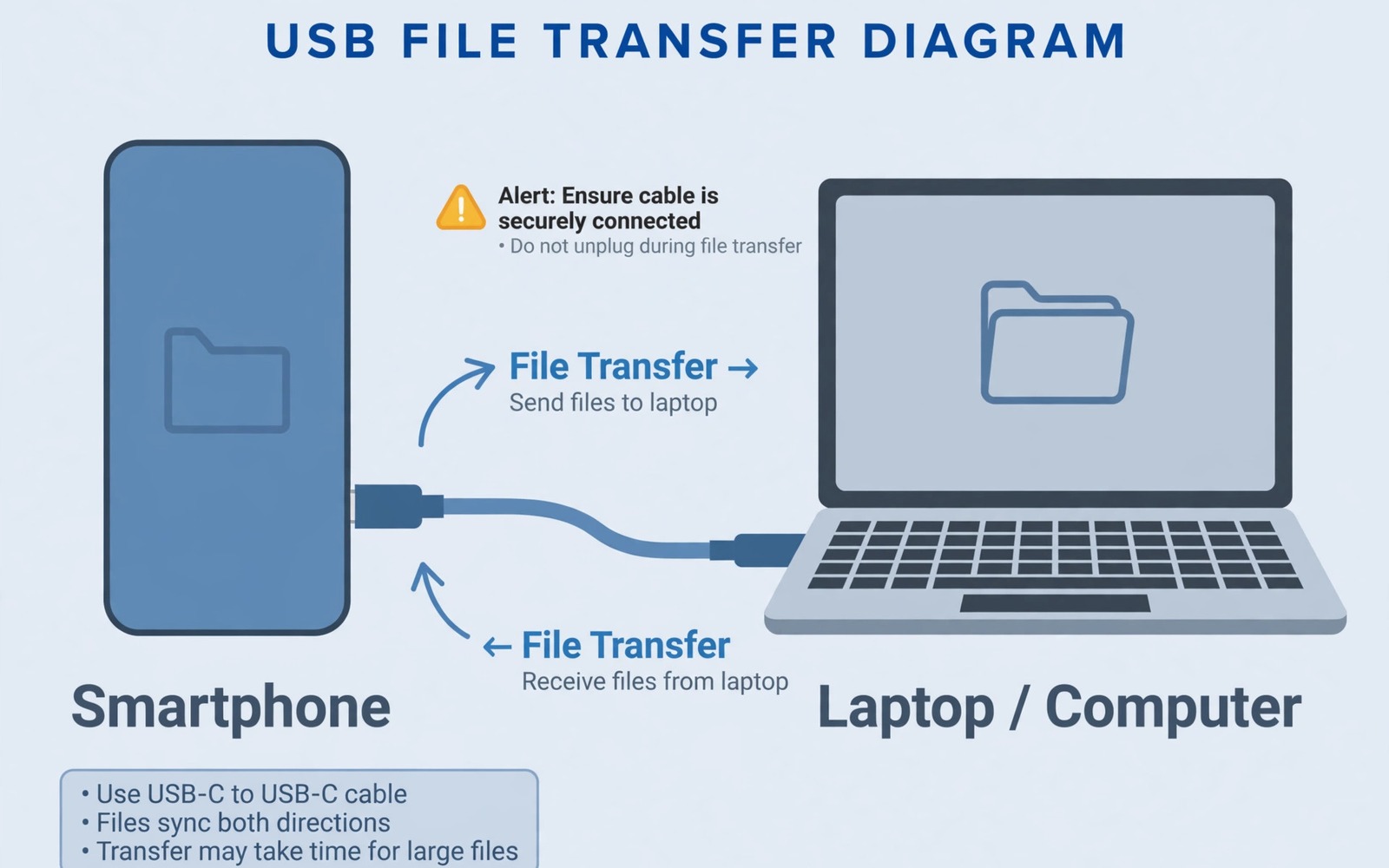
You connect your phone to a computer to copy photos and the computer shows a message that the device is not recognised. The phone charges but no file window appears. That split behaviour is confusing because charging proves the cable carries power.
USB file transfer needs data lines and a driver and a transfer mode all working together. A charge-only cable carries power but no data. A missing driver can block recognition even with a good cable. A wrong USB mode can also hide the phone from the computer. When a PC refuses the phone entirely, the storage itself may be the culprit, so repairing a corrupted SD card can open a second route to your files.
This guide walks you through cable and port and driver and mode checks in order. Test after each step by reconnecting the phone. Keep your files safe by not formatting anything during diagnosis.
Test cable and port first
Use the cable that came with the phone or a cable you know transfers data with another device. Many cheap cables support charging only and they will never show a file window. A data cable is the first requirement for transfer.
Try a different USB port on the computer especially a port on the back of a desktop. Front ports and hubs can supply less power and weaker data signals. Connect directly to the computer without a hub for the test.
Check the phone charging port for lint that stops the plug from seating fully. A loose plug can charge but fail data transfer. Clean the port gently with a soft brush and make sure the plug sits straight.
Set the correct USB mode on the phone
Unlock the phone after connecting it to the computer. A locked phone can block file access for security. Swipe down the notification shade and tap the USB notification if it appears.
Choose File Transfer or Android Auto mode in the USB preferences. Charging only mode will not show files on the computer. If no notification appears then open Settings and search for USB preferences.
Enable developer options and USB debugging only if you need advanced transfer tools. Debugging is not required for normal file transfer and it should stay off for daily use. Turn it off again after advanced testing.
Fix drivers on the computer
Open Device Manager on Windows and look for a device with a yellow warning mark. That mark points to a driver problem. Right click the device and choose Update driver and let Windows search automatically first.
Restart the computer after a driver update and reconnect the phone. A restart clears a stuck USB service that can block recognition. Test with the same cable and port so you compare fairly.
Try the phone on a second computer if drivers fail on the first. If the second computer recognises the phone then the first computer driver is at fault. If neither computer recognises it then the cable or phone port needs attention. If the phone also fails to connect to a car system then the steps for fixing Android Auto connection and black screen failures can help you check USB modes used by car connections.
Use wireless transfer as a safe fallback
Use a wireless transfer method to copy urgent files while you fix USB. A local Wi-Fi transfer app or cloud upload can move photos without a cable. That fallback protects your deadline while USB diagnosis continues.
Check whether the phone appears as a media device rather than a drive on the computer. Modern Android phones use media transfer protocol instead of mass storage. Open the media device entry to browse files even when no drive letter appears.
Back up important files wirelessly before any port repair. A repair shop may reset the phone during port testing. A wireless backup keeps photos safe during that process.
adb devices
adb shell dumpsys usb
adb shell settings get global adb_enabled
The commands above were prepared for this guide and they use only standard tools that ship with Android developer tools. They show connected device state for advanced users who want to confirm that the computer sees the phone at all.
While you work through these steps it helps to compare symptoms with other fixes in the same area. For example the steps for Android Auto connection failures show how a related fault behaves differently and the steps for Bluetooth pairing problems help you rule out a second fault that shares early symptoms.
Common mistakes
One common mistake is using a charge-only cable and blaming the computer. Test with a known data cable first. Another mistake is leaving the phone locked and wondering why no files appear.
Another mistake is formatting the phone storage to fix a driver problem. Formatting deletes files and it does not fix a computer driver. Never format during USB diagnosis.
A third mistake is installing random driver packs from unknown sites. Those packs can install malware and break other devices. Use the computer maker driver update first.
A week-long USB test that proves the fix
Connect the phone to the same computer each day for a week with the same cable and note whether the computer recognises it. A recognition pattern that improves after a driver update proves the driver was the fault. A pattern that stays broken with the same cable points to the cable or port.
Test a second computer on day four after the first computer tests settle. A second computer that recognises the phone isolates the fault to the first computer driver. A second computer that also fails points to the cable or phone port.
Test a second cable on day six after driver tests. A cable change that suddenly enables transfer proves the first cable was charge-only or damaged. A cable change that changes nothing points to the port or driver.
Long-term habits that protect USB transfer
Keep one labelled data cable for computer transfers and do not mix it with charge-only cables. Labelling prevents the common mistake of grabbing a charge-only cable for a transfer. A dedicated data cable saves repeated diagnosis.
Clean the phone port monthly if you carry the phone in a pocket. Lint buildup causes loose plugs that charge but fail data transfer. Monthly cleaning keeps data transfer reliable.
Back up photos wirelessly as a routine so a USB fault never blocks urgent access to files. A wireless backup gives you a fallback while you fix USB. That habit turns a USB fault into an inconvenience rather than a crisis.
What to do when USB still fails on two computers
Test the phone in recovery mode USB connection if your model supports it. A recovery mode connection can reveal whether the system or the port is at fault. That test is advanced and it should follow your model instructions carefully.
Inspect the phone port with a magnifier for bent pins or corrosion. Bent pins can charge but fail data lines specifically. Corrosion after water exposure can also break data lines while power lines still work.
Use a wireless backup as your main method while USB remains broken. A wireless method keeps files accessible and it reduces pressure to force a broken port. That fallback is practical for daily photo transfers.
Seek port repair if two computers and two cables both fail with a clean port. That pattern is strong evidence for a port or board fault. A professional repair can replace the port module in many models.
Testing USB transfer with a second cable type and a second file
Test USB transfer with a short cable and a long cable on separate days. A short cable test often gives a stronger data signal than a long cable. A short cable success with a long cable failure points to cable length or quality. A failure on both points to port or driver causes.
Test USB transfer with a small photo file and a large video file. A small file test checks basic recognition. A large file test checks sustained transfer stability. A small file success with a large file failure points to a connection that drops under load.
Test USB transfer with the phone screen on and with the screen off. A screen-off test can reveal a sleep setting that closes the connection. A screen-on success with a screen-off failure points to sleep settings. That distinction is easy to miss.
Test USB transfer after disabling USB debugging and after enabling it on separate days. A debugging test shows whether advanced settings affect recognition. A difference between those tests points to a driver or mode interaction.
Test USB transfer with a different user account on the computer if available. A user account test removes computer profile settings from the diagnosis. A success on a second account points to a profile driver issue on the first account.
Keep a note of the exact computer error message for each test. A precise error message helps support distinguish driver faults from port faults. A vague report takes longer to resolve.
Test USB transfer one final time with a fresh restart of both the phone and the computer. A dual restart clears stuck services on both sides at once. If transfer still fails after a dual restart then a port or driver fault is the likely cause. That final test completes a thorough USB diagnosis.
Keep a dedicated data cable in your computer bag so you never need to borrow a random cable for transfers. A dedicated cable removes cable uncertainty from every future transfer. That habit saves diagnosis time and it keeps transfers reliable.
Frequently asked questions
Why does my phone charge but not transfer files?
Charging needs power lines only while transfer needs data lines and a driver and a transfer mode. A charge-only cable or a wrong mode breaks transfer while charging still works. Check cable type and USB mode first.
Why does USB work on one computer but not another?
Drivers differ between computers and one computer may lack the correct driver. A port fault on one computer can also cause the difference. Testing on a second computer isolates driver faults quickly.
Is wireless transfer as fast as USB?
Wireless transfer is slower than a good USB cable for large video files. It is still fast enough for photos and documents. Use USB for large video backups when it works.
Conclusion
USB Device Not Recognised usually comes from a charge-only cable or a wrong mode or a driver fault. Test a known data cable in a direct port and set File Transfer mode on an unlocked phone. Update drivers and restart the computer before you suspect the phone port. Use wireless transfer for urgent files while you diagnose. Start today by trying a known data cable in a back port with the phone unlocked.

