

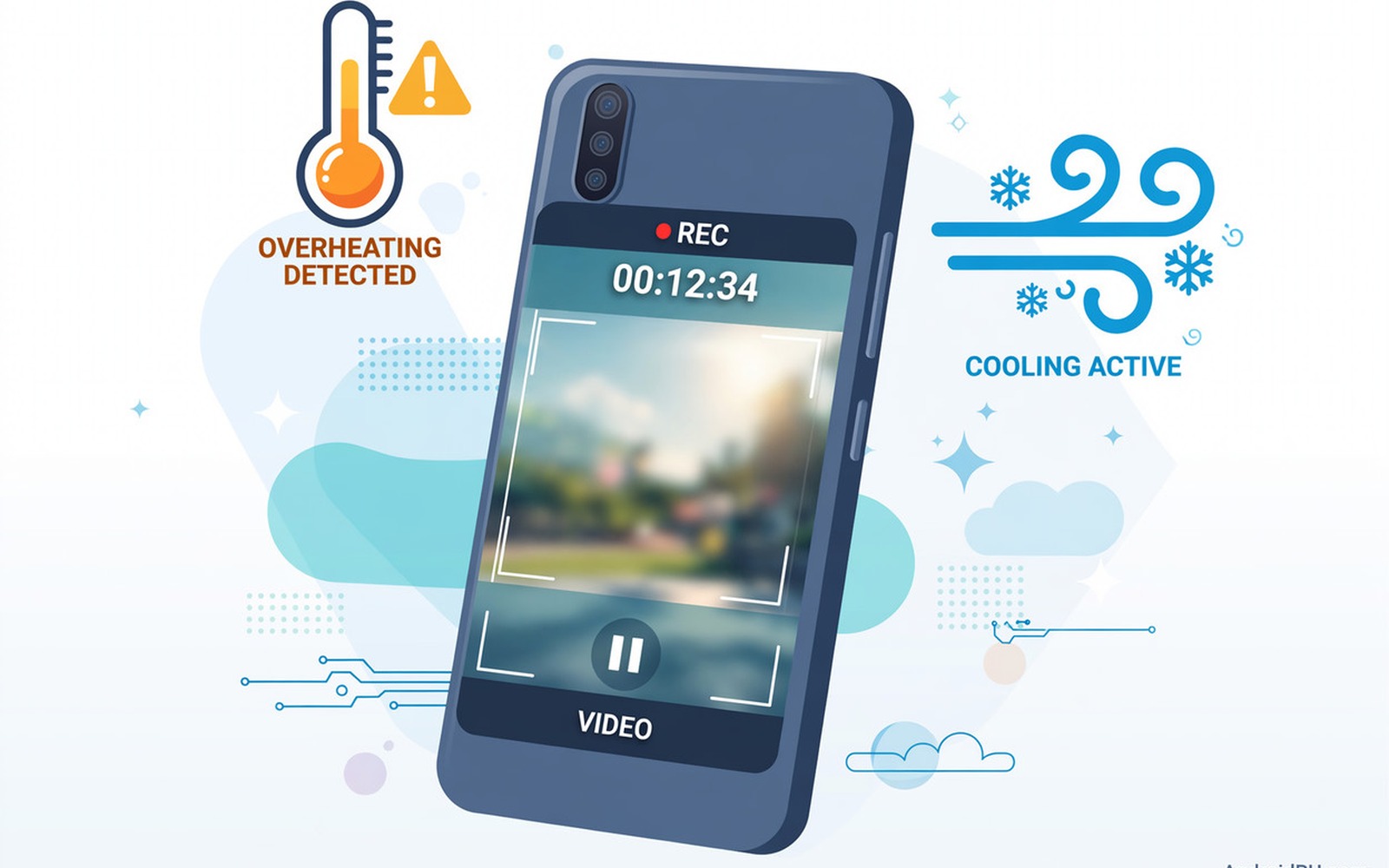
You start recording a long video and after ten minutes a warning appears and the camera stops. You lose the ending of an event that will not happen again. That forced stop is frustrating because the phone worked fine for photos and short clips.
Video recording pushes the processor and the camera sensor and the storage together for a long time. High resolution and high frame rate increase that load sharply. Heat builds up faster than the phone can shed it especially in sunlight or with a thick case. Recording is not the only video task that pushes heat limits, since a phone getting extremely hot while watching video shows the same thermal pressure from the other side of the camera.
This guide shows you how to lower heat without giving up video quality completely. You will adjust resolution and frame rate and recording habits in order. Test with a short recording first so you can compare heat fairly.
Lower resolution and frame rate first
Switch from 4K to 1080p for long recordings. 4K recording uses far more processing power and it generates far more heat. 1080p still looks excellent for most sharing and it lets you record much longer.
Lower the frame rate from sixty frames per second to thirty for long takes. High frame rate doubles the processing load for smoother motion. Thirty frames per second is smooth enough for interviews and events and it runs cooler.
Turn off video stabilisation enhancements that use heavy processing if your phone offers a choice. Stabilisation helps handheld shots but it adds processor load. Use a tripod or a steady hand for long takes instead of heavy stabilisation.
Cool the phone before and during recording
Remove a thick case before a long recording session. A case traps heat around the processor and the battery. A thin case or no case lets heat escape faster during recording.
Record in shade whenever you can and avoid direct sunlight on the phone. Sunlight adds heat on top of recording heat and it can trigger a warning much sooner. A simple shade umbrella can extend recording time a lot outdoors.
Pause between long takes to let the phone cool. A five minute pause after twenty minutes of recording can prevent a forced shutdown later. Close other apps during the pause so the processor can cool fully.
Manage storage and background load
Free storage space before a long recording. A nearly full phone works harder to write video files and that extra work adds heat. Keep several gigabytes free for video sessions.
Close games and navigation apps before recording. Those apps use the processor and the radio in the background. A clean background lets the camera use the full cooling headroom.
Turn on airplane mode if you do not need live sharing during recording. Mobile data searching in a weak signal area adds heat. Airplane mode also stops notifications that can interrupt a long take. If the camera also shows a connection error then the steps for fixing camera error can’t connect to camera can help you check whether the camera service itself is at fault.
Plan long recordings in segments
Record long events in ten minute segments instead of one continuous hour. Segments give the phone natural cooling breaks and they reduce the risk of losing a whole event to one shutdown. Join the segments later in an editor.
Use an external recorder or a second phone for very long events if you have one. Alternating phones lets each device cool while the other records. That method is practical for weddings and conferences.
Check for a system update that improves thermal management for video. Makers tune thermal limits in updates and a patch can extend recording time. Install updates before an important event not during it.
adb shell dumpsys thermalservice
adb shell dumpsys media.camera
adb shell settings get global video_resolution
The commands above were prepared for this guide and they use only standard tools that ship with Android developer tools. They show thermal and camera state for advanced users who want to confirm heat limits before recording.
While you work through these steps it helps to compare symptoms with other fixes in the same area. For example the steps for camera connection errors show how a related fault behaves differently and the steps for slow overheating charging problems help you rule out a second fault that shares early symptoms.
Common mistakes
One common mistake is recording in 4K at sixty frames per second in direct sunlight with a thick case. Each factor adds heat and together they guarantee a shutdown. Change at least two factors for long takes. Another mistake is ignoring the first heat warning and continuing until the phone forces a stop.
Another mistake is filling storage to nearly full before a long video. The phone then struggles to write large files and heats up faster. Free space first.
A third mistake is charging while recording in sunlight. Charging adds heat on top of recording heat. Charge fully before the session and avoid charging during long takes if you can.
A week-long recording test that proves the fix
Record a ten minute test video each day for a week at 1080p in shade and note when any heat warning appears. A warning that moves later each day shows that cooling habits are working. A warning at the same early time each day points to a deeper thermal or battery issue.
Record one test at 4K on day four and compare its heat warning time with 1080p tests. A much earlier warning at 4K confirms that resolution drives heat on your phone. That comparison helps you choose the right resolution for each event length.
Record with the case removed on day six and compare it with cased tests. A later warning without a case shows that the case traps heat. A warning at the same time without a case points to processor or ambient heat instead.
Long-term habits that protect video recording
Plan long events in segments as a habit rather than as an emergency fix. Segments protect against losing a whole event to one shutdown. They also give natural breaks for cooling and for checking footage.
Charge fully before long recording sessions and avoid charging during recording when you can. Charging adds heat that shortens recording time. A full battery before the session is a simple preparation step.
Keep storage free before video events. A nearly full phone works harder to write large video files and it heats up faster. Freeing space the day before an event prevents that extra load.
What to do when recording still overheats at 1080p
Test recording in a cool indoor room at 1080p to remove sunlight from the equation. An indoor warning at 1080p points to a processor or battery thermal issue rather than environment. An outdoor-only warning points to sunlight and ambient heat.
Check battery health because a degraded battery generates more heat under load. A battery test can reveal heat sources that settings cannot fix. Replacing a degraded battery can extend recording time noticeably.
Test recording with a cooling accessory such as a small fan clipped to the phone. A fan test shows how much external cooling helps your model. A large improvement with a fan suggests thermal design limits rather than a fault.
Plan important recordings with a second device as backup if overheating persists. A backup device ensures you capture the event even if one phone stops. That planning is practical for events that cannot be repeated.
Testing video recording heat with a second resolution and a second location
Test recording indoors in an air conditioned room at 1080p for ten minutes. An indoor cool test gives the best possible thermal conditions. A warning indoors points to a processor or battery issue. No warning indoors points to outdoor heat as the main factor.
Test recording with the phone mounted on a tripod versus held in your hand. A tripod test removes hand heat from the results. A hand test adds body heat to the phone back. A large difference between those tests points to handling heat.
Test recording a static scene versus a moving scene for the same duration. A moving scene uses more stabilisation and processing than a static scene. A static scene that records longer shows that processing load matters. That comparison helps you plan shots.
Test recording with airplane mode on versus off on separate days. An airplane mode test removes radio heat from the results. A longer recording in airplane mode points to radio heat as a contributor. No difference points to camera processing alone.
Test recording after a restart with no other apps open. A clean restart test gives the camera full thermal headroom. A longer recording after a restart shows that background apps were adding heat. A similar recording time shows background apps were not the main factor.
Record the ambient temperature for each test if you can. A hot day test and a cool day test are not directly comparable without that note. Ambient temperature notes make your tests fair and useful.
Test recording one final time with a short clip at 1080p after a full charge and a restart. A clean short test gives a baseline for longer recordings. If a short clip already warns about heat then a deeper thermal fault is likely. That final test completes a thorough recording diagnosis.
Frequently asked questions
Why does video recording heat more than gaming?
Video recording uses the camera sensor and the processor and storage continuously without pauses. Gaming also heats the phone but it often pauses between scenes. Continuous camera work leaves no cooling gaps.
Will a cooling fan help video recording?
A small clip-on fan can help by moving air over the phone back. It works best in shade with the case removed. A fan cannot overcome direct sunlight and 4K recording together.
Is an overheating shutdown harmful to my phone?
A shutdown protects the phone from damage and a single shutdown rarely harms it. Repeated overheating over months can age the battery faster. Lowering resolution and recording in shade reduces that long term stress.
Conclusion
Overheating shutdowns during video recording usually come from high resolution and sunlight and case heat together. Switch to 1080p at thirty frames per second for long takes and record in shade without a thick case. Pause between segments and close background apps. If warnings persist at 1080p in shade then a battery or thermal fault needs a professional check. Start today by recording a ten minute test at 1080p in shade and noting when heat warnings appear.

