

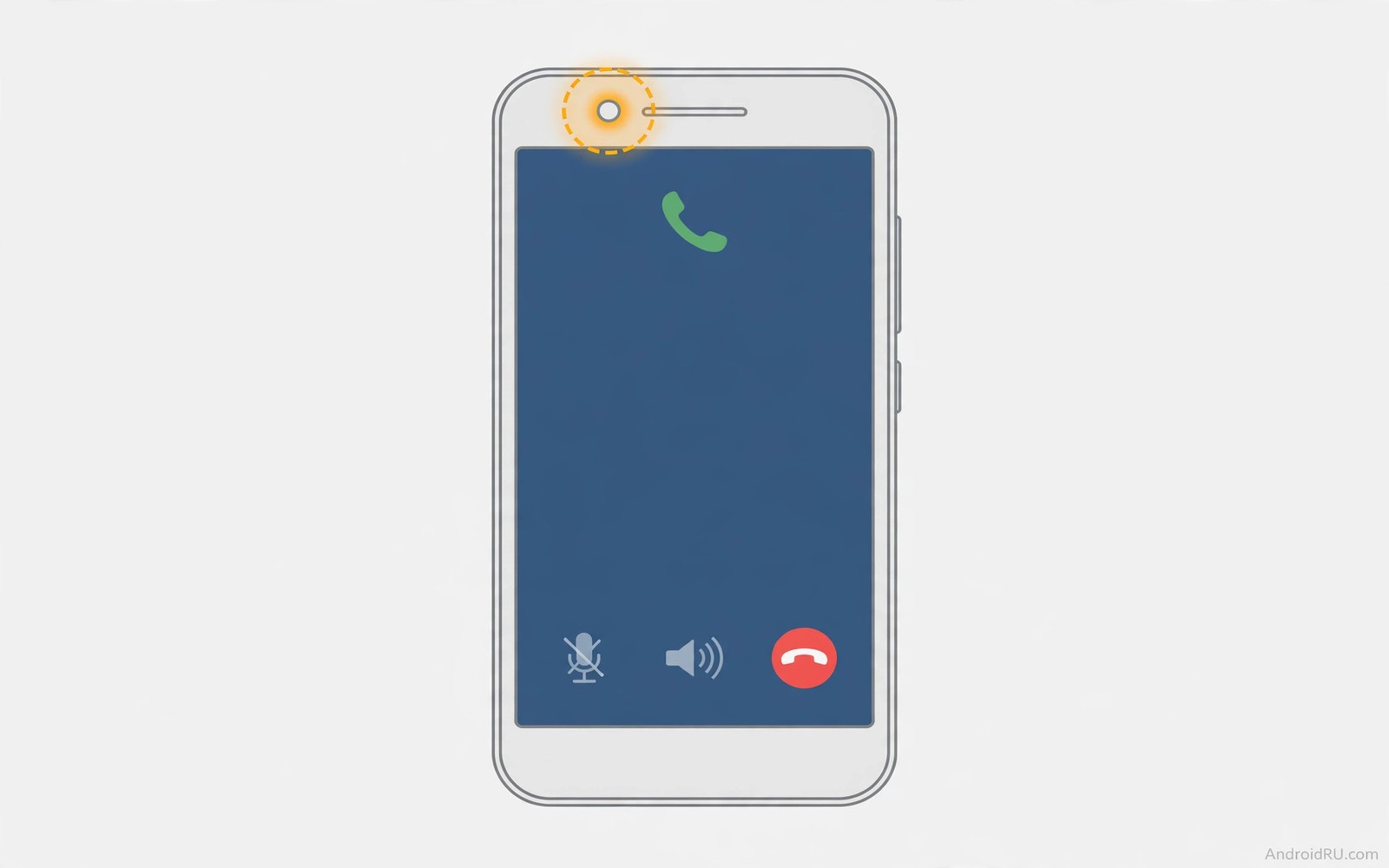
A black screen during a call feels like the phone has died. The call continues but you cannot see the keypad or the end call button. You cannot check another app or enter a number for an automated menu. The screen should wake when you move the phone away from your ear. When it stays black the proximity sensor or the display wake logic has failed. The fault is annoying but it is often fixable without a repair.
The proximity sensor sits near the earpiece and detects when the phone is close to your face. During a call it turns the screen off to prevent accidental touches. When you move the phone away it should turn the screen back on. A blocked sensor stays in the near state and keeps the screen off. A faulty sensor reports near constantly even in open air. A software fault can also ignore the sensor wake signal. Each cause needs a different test. Sensor faults can also cause slow or unresponsive screen rotation on the same display.
Test the behaviour carefully before you change settings. Make a test call to a voicemail number or a friend who can stay on the line. Hold the phone to your ear and then move it away slowly. Note whether the screen wakes at any distance. A screen that never wakes points to a blocked or faulty sensor. A screen that wakes after a long delay points to a software lag rather than a dead sensor.
Remove blockages from the sensor area
Remove the phone case and any screen protector that covers the top edge. A case lip or a dark screen protector can block the proximity sensor window. Clean the top edge near the earpiece with a dry soft cloth. Dust and skin oil can dim the sensor signal enough to keep it in the near state. Test a call without the case and without the protector if possible. A screen that wakes normally without accessories proves a blockage fault.
Check whether a third party screen protector uses a black border that covers the sensor. Some protectors cover the sensor area completely on phones with a hidden sensor. Replace such a protector with one that leaves the sensor window clear. Also check for a magnetic mount or a wallet case flap that covers the top edge during calls. Any cover over the sensor area can hold the screen black for the whole call. Call audio faults can appear alongside a dark display, including echo and noise during phone calls on the same call.
Test the sensor and restart call services
Use a sensor test app to observe proximity values in real time. Cover the top edge with your hand and watch the value change to near. Uncover the edge and watch it change to far. A sensor that stays near in open air is faulty or blocked. A sensor that changes correctly but the screen stays black points to a display wake fault. Restart the phone after the sensor test to reload call services cleanly.
Clear cache for the phone app through Settings then Apps if the screen still stays black after a restart. Cache clearing removes stale call state without deleting call history. Avoid clearing data for the phone app at this stage because data clearing can remove call settings. Test a call immediately after cache clearing while the phone is out of its case. A clean test removes accessory and cache variables at once. When rotation also behaves strangely the guide on slow or unresponsive screen rotation shows how a wider sensor fault can affect more than calls.
Check accessibility and display settings
Review accessibility settings that control screen timeout or touch blocking during calls. Some accessibility services keep the screen off longer or intercept wake signals. Disable one service at a time for a test call if you use several services. Also check screen timeout settings because a very short timeout combined with a sensor fault can make waking feel inconsistent. Set a normal timeout for testing and observe whether the screen wakes reliably. Call faults that start after a SIM change may trace back to fixing a SIM not detected fault instead of the sensor.
Install pending system updates because proximity driver fixes often arrive through updates. After an update restart the phone and test a call before restoring accessories. If the fault began after an update then note the version and watch for a patch. A driver fault from an update behaves like a hardware fault until the patch arrives. Do not replace the sensor before a patch has had a chance to fix a software driver.
Inspect sensor state with a diagnostic command
A sensor dump can confirm whether the proximity sensor is present and reporting values. Connect the phone with debugging enabled and query sensor service state. A missing proximity sensor entry points to a driver or hardware fault. A present sensor with a stuck near value points to blockage or sensor failure.
adb shell dumpsys sensorservice
adb shell dumpsys power
The commands above are part of the standard platform tooling used to inspect sensor and power state on Android devices. They only read state and they do not change sensor behaviour. Use the output to confirm sensor presence after a restart. If the sensor is absent then seek hardware inspection rather than repeating software steps.
Related call faults that can mask a black screen
Echo testing needs a working screen to switch audio modes. The steps for echo and noise during phone calls test handset and speakerphone and headset separately. Fix screen wake first so you can switch modes during a call. A screen that wakes lets you toggle speakerphone mid call. A screen that stays dark forces a headset test as the only reliable mode switch.
System interface freezes can also keep a screen dark. The guide on a frozen system interface teaches you to wait and then restart cleanly. Test the screen after a restart without any case. A screen that wakes after a restart suffered a temporary stall. A screen that stays dark after a restart has a sensor or blockage fault.
Clean the sensor area with a dry cloth before any software step. Dust on the sensor window can hold the near state all day. A clean sensor test in open air gives a trustworthy result. A dirty sensor test gives a false hardware verdict.
What to do when the screen stays black after sensor cleaning
A screen that stays black after sensor cleaning may have a sensor that failed internally. A failed sensor reports near constantly even in bright open air. Test the sensor with a test app in several lighting conditions. A sensor that never changes value in any light is likely faulty. A sensor that changes in bright light but not in dim light may have a calibration fault.
Check for a display wake fault by testing the power button during a call. Press power once during a test call and note whether the screen wakes briefly. A screen that wakes with power but not with sensor movement points to a sensor wake fault. A screen that never wakes with power points to a display or system fault. That distinction guides a technician to the right component.
Consider a temporary workaround while you arrange repair. Use a Bluetooth headset to answer and end calls without the screen. A headset with call controls lets you manage calls while the screen stays dark. A voice assistant can also place calls without screen interaction. Those workarounds keep the phone usable until repair is possible.
- Test the sensor in several lighting conditions with a sensor test app.
- Press power once during a test call to check for a display wake fault.
- Use a Bluetooth headset with call controls as a temporary workaround.
- Install pending system updates that may include a proximity driver fix.
- Seek hardware inspection if the sensor never changes value in open air.
Before you seek sensor repair
When Android screen stays black during calls after cleaning the repair decision needs a sensor test record. Run a sensor test app in bright light and in dim light and in open air. Record the near and far values for each condition. A sensor that never leaves near in any condition is strong evidence for repair. A sensor that changes in some conditions may need calibration or a driver fix instead.
Check whether the fault affects other sensor features such as auto brightness. A sensor cluster fault can affect brightness and rotation together. A fault that affects only calls points to a call specific wake issue. A fault that affects several sensor features points to a wider sensor failure. That breadth helps a technician choose the right repair.
Use a headset workaround while you wait for repair to keep the phone usable. A headset with call controls answers and ends calls without the screen. A voice assistant can dial numbers without screen interaction. Those workarounds reduce frustration during the repair wait. They do not fix the sensor but they keep daily calls possible.
- Record sensor near and far values in bright light and dim light.
- Check whether auto brightness and rotation also show sensor faults.
- Use a headset with call controls as a workaround while awaiting repair.
Common mistakes
- Pressing the power button repeatedly during a call. That action can end the call or lock the phone instead of waking the screen.
- Keeping a sensor blocking case on during every test. A case fault looks like a sensor fault until the case is removed.
- Clearing phone app data as a first step. Data clearing removes settings while cache clearing often suffices.
- Assuming the screen is dead. The screen may be working perfectly while the sensor holds it off.
- Replacing the sensor before testing a patch. An update driver fault can mimic hardware failure.
Frequently asked questions
Why does the screen stay black after the call ends?
A stuck proximity value can keep the screen off after the call ends. Pressing power once usually wakes the screen. If the screen stays black after the call then restart the phone and test the sensor in open air.
Can a screen protector really block the sensor?
A protector with a dark border over the sensor window can block infrared light. The sensor then reports near constantly. A protector that leaves the sensor window clear avoids that fault.
Should I disable the proximity sensor?
Disabling the sensor is not a standard option on most phones and it would cause accidental touches during calls. Fix the blockage or the driver fault instead. A working sensor prevents cheek dialling and saves battery during calls.
Conclusion
A screen that stays black during calls usually means the proximity sensor reports near constantly or the wake signal fails. Remove the case and clean the sensor area. Test the sensor with live values and restart call services. Clear phone app cache and check for updates before you seek hardware repair. Those steps restore the screen in most cases.
Your concrete next step is to remove the case and make a test call in open air. Move the phone away from your ear slowly and watch whether the screen wakes. If it never wakes then run a sensor test app to confirm a stuck near value.

