

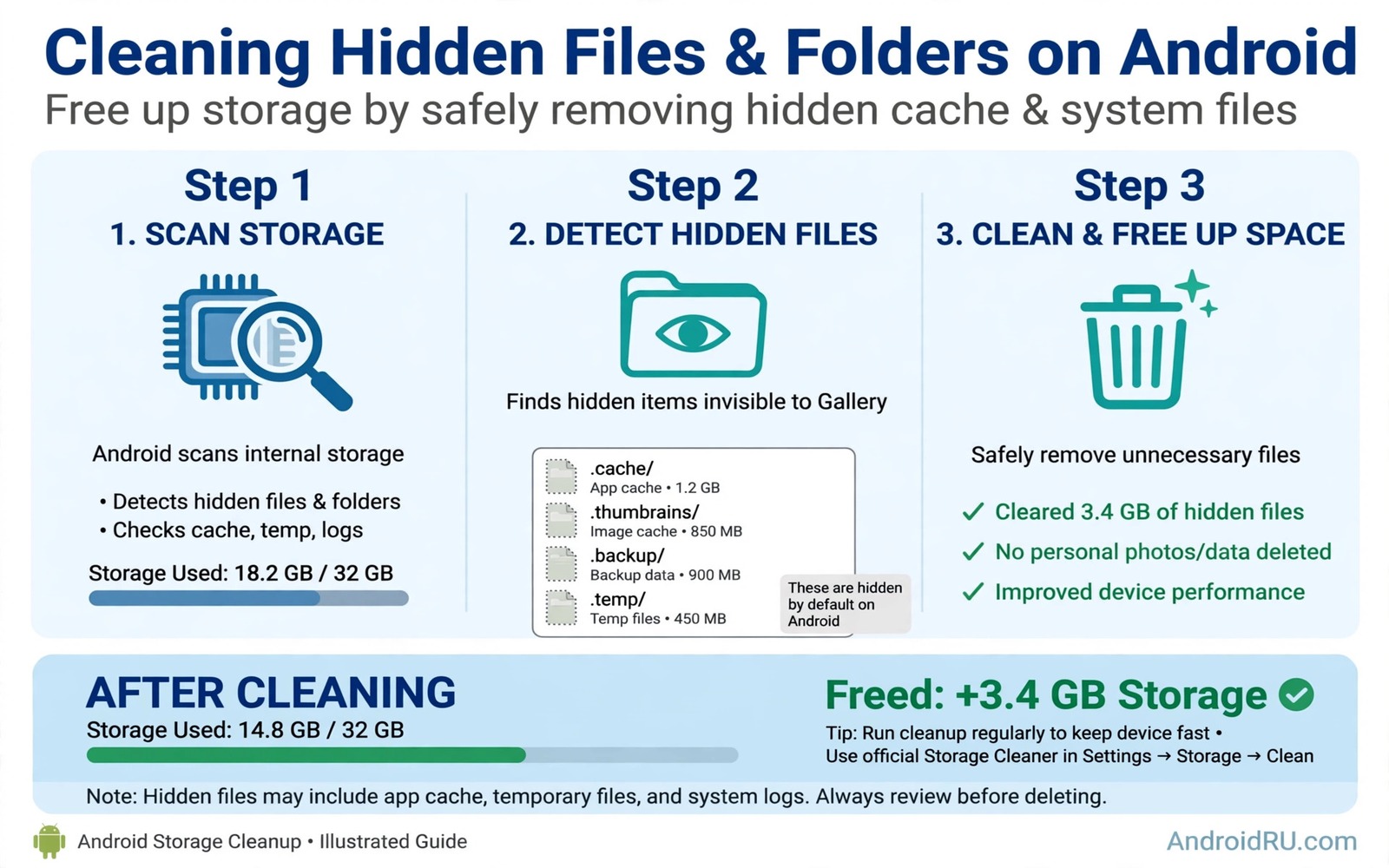
Delete These Hidden Files Right Now to Reclaim System Storage
Your phone says storage is almost full, yet your photos and apps look modest when you add them up. That gap is where hidden files live. Thumbnail previews, app caches, old logs, half-finished downloads and folders left behind by apps you removed months ago all sit in places the gallery and the storage screen never show you clearly. On a phone I cleaned last year, those invisible files added up to just over 9 GB, nearly a tenth of the whole device, and none of them were photos I wanted to keep.
Hidden does not mean dangerous, and it does not mean useless either. Most of these files are working material an app was supposed to tidy up and never did: previews that can be rebuilt in seconds, logs that describe events from weeks ago, temporary copies of images you already viewed. A smaller group belongs to Android itself or to apps you still use, and those files must stay where they are. The skill is telling the two groups apart before you tap delete, and this guide shows you how to do that with a size-sorted file manager and a one-folder-at-a-time habit.
What follows is a practical walkthrough, not a list of vague tips. You will see the exact folders where the biggest hidden clutter gathers, which ones are safe to remove, which ones will break things if you touch them, and the settings that stop the clutter growing back within a week. Every step can be done with the tools already on your phone, and every deletion below is reversible in the sense that the app rebuilds the file on its own if it still needs it.
What Counts as a Hidden File on Android and Where It Lives
Android treats any file or folder whose name starts with a dot as hidden. Your file manager skips those names by default, so a folder called .thumbnails or .cache never appears in a normal browse, even when it holds several gigabytes. App-private folders under Android/data and Android/obb behave the same way in practice: they are visible in some file managers and sealed off in others, depending on the Android version, yet they still consume space silently. Add in the cache partition each app keeps for itself, and you get a whole layer of storage that a quick glance at your photo roll will never reveal.
The second thing to grasp is that hidden clutter is not one thing. It is at least five different kinds of material, each with its own size pattern and its own risk level. Thumbnails grow in proportion to how many photos and videos you browse. App caches grow with how much you scroll through social feeds, shopping pages and video apps. Logs grow slowly and steadily. Temporary files spike after a failed download or an interrupted update. Leftover folders appear the day you uninstall an app and never shrink again on their own. Knowing which kind you are looking at changes the decision completely.
Why Android Hides Files That Start With a Dot
The dot convention comes from Linux, the system Android is built on. A leading dot marks a file as configuration or working data rather than something the user is meant to open, so file managers hide it to keep the view clean. That design choice made sense when phones had a few hundred megabytes of storage and a handful of apps. It makes far less sense now that a single social app can stash a gigabyte of preview images behind a dot folder, and the only sign is a storage warning that blames your photos.
The Five Places Hidden Clutter Gathers First
When I sort a phone by folder size, the same five locations show up at the top almost every time, so check them in this order before you go hunting anywhere else.
- Thumbnail cache folders hold small previews of every photo and video the gallery has ever displayed, and they are the single biggest hidden item on most phones.
- App cache folders hold images, video fragments and web pages from apps you scrolled through, and a heavy social app can pass 1 GB here on its own.
- Log and crash report folders hold text records of app events, and they grow quietly in the background for months.
- Temporary download folders hold partial files from interrupted downloads and updates that will never resume.
- Leftover folders from uninstalled apps hold settings and cached media for apps that no longer exist on the phone.
Thumbnail Caches and Media Previews That Swallow Gigabytes
Every time you open the gallery, Android builds a small preview of each photo so the grid loads fast. Those previews are stored, not thrown away, and a phone with years of photos can carry a thumbnail folder of 2 GB or more. The previews are redundant by design: delete them and the gallery simply builds new ones the next time you open an album, a little slower for the first scroll and then back to normal. That trade is worth making whenever the folder passes a few hundred megabytes, because the original photos are untouched.
Video apps and social apps run the same trick at a larger scale. A short video you watched once leaves behind a preview frame, a buffered fragment and sometimes a full cached copy, all filed under the app’s cache rather than your downloads. I once found 1.4 GB of cached video fragments from a single social app I open for ten minutes a day. Clearing that cache logged me out of nothing, deleted no saved post, and freed more space than deleting two hundred photos would have.
The .thumbnails Folder in DCIM
Open your file manager, turn on the option to show hidden files, then look inside the DCIM folder, which is where the camera stores photos. A folder named .thumbnails often sits there, and on older phones it can be enormous because early gallery apps never pruned it. Deleting the contents of .thumbnails is safe. Your photos live in DCIM/Camera, not in .thumbnails, and the gallery rebuilds the previews it needs. Do this in the evening if you have a huge library, since the first gallery opening afterwards will take longer while previews regenerate.
Gallery and Social App Preview Caches
Not every preview lives in DCIM. Gallery apps from phone makers keep their own cache, and messaging apps keep preview images for every photo shared in a chat, including photos you only glanced at once. The fastest way to find these is Settings, then Storage, then Apps, sorted by size. Any app over 500 MB with a cache figure close to its total size is a candidate: tap it, tap Storage, and look at the split between app size, user data and cache. Cache is the safe number to clear. User data is not, since clearing it signs you out and wipes offline content.
When a manual hunt feels slow, a size-sorted scan does the same job in seconds, which is why many readers pair this cleanup with storage analyzer apps that find giant hidden files that surface the biggest folders first instead of making you open each one by hand.
App Caches, Temporary Downloads and Leftover Folders After Uninstalls
App caches are the biggest single win for most people, because they are both large and completely safe to clear. A cache holds copies of things you already saw: profile pictures, product photos, map tiles, article images, video fragments. Nothing in a cache is original content. The app can fetch it again, and in practice it only re-fetches what you actually open again, so a cache you clear today often stays small for weeks. The catch is that clearing cache is temporary by nature: an app that caches aggressively will rebuild its pile, so pair the cleanup with the settings in the later section that slow the regrowth.
Temporary downloads are the next easy target. Open the Downloads folder and sort by date. Partial files with names ending in .tmp, .crdownload or .part, or files with scrambled names from months ago, are almost always failed downloads that will never resume. A failed system update package can also sit here at several hundred megabytes. Delete anything partial and older than a month, but keep a recent partial file if you genuinely plan to resume that download this week.
Clearing App Cache From Settings
The safe path is Settings, then Apps, then See all apps, then the app in question, then Storage and cache, then Clear cache. Never tap Clear storage or Clear data on this screen unless you intend to reset the app completely, because that button wipes logins, settings and offline files. Work through the three or four largest apps first and you will often recover 2 to 4 GB in under ten minutes. Check the storage figure again after each app so you can see which one was actually responsible, and make a note of the worst offender for the monthly routine.
Leftover Folders From Apps You Already Removed
Uninstalling an app does not always remove its folder. Open your file manager and look in the main storage root and in Android/data for folders named after apps you no longer have. A folder for a game you deleted a year ago, or a photo editor you tried once, can still hold hundreds of megabytes of cached media. Before deleting, open the folder and glance at its contents: if it holds only cache and thumbnail files, delete it. If it holds documents, exports or saved projects, move those to a backup first. This is also the kind of clutter that hides in plain sight, and it is exactly what the secret folder taking up gigabytes describes in detail for the folders most people never think to open.
Log Files, Crash Reports and Debug Data You Can Clear Safely
Logs are text records of what apps and the system were doing, written for developers and support teams. A single log is tiny, a few kilobytes, but a phone that has been running for a year can hold thousands of them, plus crash reports and bug report bundles that run to tens of megabytes each. Old logs are safe to delete when you are not in the middle of troubleshooting a problem. They describe past events, and nobody will need a log from three months ago to fix a crash happening today.
The one exception is an active problem. If an app is crashing right now, or a support agent has asked you for logs, leave recent logs alone until the issue is resolved. Delete logs older than a month first, then check the total. On most phones the saving is modest, a few hundred megabytes at best, so treat logs as a tidy-up step rather than the main event, and do it after the thumbnail and cache work has delivered the big win.
Log Folders and Bug Report Files Worth Checking
Look for folders named log, logs, crash, bugreport or dump inside app folders and in the storage root. Bug report files often carry a .txt extension and a date in the name, and a single report can reach 20 or 30 MB because it bundles a snapshot of the whole system. Delete dated reports older than a month. If a folder keeps refilling with large logs every day, that is a symptom, not just clutter: one app is crashing in a loop, and finding that app matters more than deleting its logs again.
| Hidden file type | Where it lives | Typical size | Safe to delete | What happens next |
|---|---|---|---|---|
| Thumbnail cache | DCIM/.thumbnails, gallery cache | 500 MB to 3 GB | Yes | Gallery rebuilds previews slowly at first |
| App cache | Android/data, per-app cache | 200 MB to 2 GB per app | Yes | App re-downloads only what you open again |
| Log files | Log and crash folders | 50 to 500 MB | Yes, if older than a month | Nothing visible changes |
| Leftover app folders | Storage root, Android/data | 100 MB to 1 GB | Yes, if the app is gone | Nothing, the app is already uninstalled |
| Partial downloads | Downloads folder | 50 MB to 1 GB | Yes, if old and partial | A fresh download replaces it if needed |
Folders You Must Never Delete on Android
Some large folders look like waste and are actually the operating system. Anything with system, framework or a core service name in its path belongs to Android itself, and deleting it can break updates, stop apps launching, or in the worst case force a factory reset. Storage settings already separates the system figure from the space you can reclaim, so if a folder sits under the system total, leave it alone and focus on the user files around it instead.
App data is the second no-go area in a bulk sweep. Cache is a copy; data is the original. Deleting an app’s data signs you out, wipes your settings, deletes offline downloads and removes saved drafts. The only time to clear data is when you have deliberately decided to reset that one app and you accept starting from scratch. Synced folders deserve the same caution: if a folder syncs with a cloud service, deleting local files while sync is active can delete the cloud copies too, so pause sync first and confirm what the service will do before you touch anything inside it.
- System and framework folders: part of Android itself, deleting them breaks updates and apps.
- Active app data folders: clearing data signs you out and wipes offline content, unlike clearing cache.
- Synced cloud folders: local deletions can propagate to the cloud while sync is running.
- Backup folders for apps you still use: chat backups and export folders hold the only copy of some data.
- Folders with encrypted or database files you do not recognise: a .db or .crypt file may be the only copy of messages or notes.
How to Delete Hidden Files Step by Step Without Losing Data
The method matters more than the tool. A careful cleanup done in small steps recovers just as much space as a reckless purge, and it never costs you a photo or a login. Work in this order: make the hidden files visible, sort by size, back up anything uncertain, delete one folder, then check the app that owned it before moving on. The whole job takes about twenty minutes the first time and about five minutes a month after that.
Step 1: Show Hidden Files and Sort by Size
Open your file manager, open its settings or the three-dot menu, and turn on Show hidden files. Then switch the view to sort by size, largest first. This single change turns a blind hunt into a short list: the top five folders usually hold more than half of all recoverable space, and everything below them is hardly worth your time.
Turn on Show Hidden Files in Your File Manager
On the Files by Google app, tap the menu, open Settings, and enable Show hidden files. On Samsung’s My Files, tap the menu, open Settings, and enable Show hidden system files. Other file managers put the same switch under View options or Display settings. The switch only changes what you can see; it deletes nothing on its own, so it is safe to leave on afterwards if you want to keep an eye on regrowth.
Sort Folders by Size Before You Touch Anything
Take a screenshot of the largest folders before you delete. The screenshot is your safety net: if an app behaves oddly afterwards, you know exactly which folder changed, and if a folder regrows to gigabytes within a week, the screenshot proves which app setting needs changing. Size-first ordering also stops the classic mistake of deleting dozens of tiny logs while a 2 GB thumbnail folder sits unnoticed at the bottom of the list.
Step 2: Delete One Folder, Then Check the App
Delete the single largest safe folder, then open the app that owned it and confirm it still works. Open the gallery after clearing thumbnails and check that photos load. Open a social app after clearing its cache and check that you are still signed in. This one-check-per-deletion rhythm feels slow, and it is the reason careful cleanups never turn into recovery jobs. If anything looks wrong, you know the exact folder to blame, and most cache deletions can be fixed by simply reopening the app.
Step 3: Back Up Anything You Are Unsure About
When a folder contains files you cannot identify, copy it to a computer or a cloud folder before deleting the original. A backup of an uncertain folder costs a few minutes and a little temporary space, and it removes the fear that stops most people from cleaning at all. After a week of normal use with no problem, delete the backup copy too. If a folder contains exported documents, chat exports or saved projects, that backup is not optional: those files may be the only copy that exists.
Stop Hidden Files Coming Back: Settings That Cut Regrowth
Deleting hidden files without changing the cause is like bailing out a boat without plugging the leak. The files will return, because caches and thumbnails are normal working material, not a malfunction. The goal is not zero cache, which is impossible, but a slower regrowth rate, so a cleanup lasts a month instead of a week. Three settings do most of that work, and all three take less than a minute each.
Start with the gallery. Some gallery apps rebuild a huge thumbnail cache because they scan folders full of images that are not photos: meme folders, downloaded wallpapers, app asset folders, thousands of received images in a messaging folder. Move old images into an archive folder outside the gallery’s scan path, or exclude the noisiest folders from the gallery’s scan list where the app allows it. The next change is in your heaviest apps: turn off autoplay for videos and lower the image quality setting where the app offers it, since both settings decide how much cached media a short scroll creates.
Lower the Cache Load at the Source
Open the worst offender from your earlier size check and look in its settings for data usage, media quality and autoplay. Switching video autoplay off and image quality from original to standard can cut that app’s weekly cache growth by half or more on a phone used for daily scrolling. Messaging apps often have a separate setting for auto-downloading media in chats: turn it off for large groups and channels, and your phone stops storing every photo a group shares.
Then set a reminder. A monthly check takes five minutes once you know the locations: sort by size, clear the biggest thumbnail folder, clear the biggest app cache, glance at logs. The reminder matters more than the technique, because hidden files grow silently and the warning only appears when the phone is already nearly full.
Frequently Asked Questions About Reclaiming System Storage
Will deleting thumbnails delete my photos?
No. Thumbnails are small preview images generated from your photos, and deleting them leaves the originals untouched in their normal folders. The gallery rebuilds previews when you open an album again, so the first scroll after a cleanup is slower and then everything returns to normal. Only delete a folder inside DCIM/Camera itself if you mean to delete the photos it holds.
How do I know if a hidden folder is safe to delete?
Check three things: the app name in the folder path, whether that app is still installed, and whether the folder holds cache or thumbnails rather than data or documents. A cache or thumbnail folder for an installed app is usually safe, and a leftover folder for an app you removed is safe once you have checked it holds no personal files. A system folder, an active app’s data folder, or any folder you cannot identify at all should stay untouched until you have looked up its name.
Why do hidden files come back after I delete them?
Apps rebuild caches and thumbnails during normal use, so regrowth is expected and not a sign that the cleanup failed. The aim is to reclaim space from stale material and slow the rebuild, not to keep caches at zero forever. If a folder returns to gigabytes within days rather than weeks, look for the cause: a gallery scanning a huge image folder, a social app set to autoplay everything, or a messaging group auto-downloading every photo it receives.
Is it safe to use a cleaner app to delete hidden files?
Built-in storage tools and a manual file manager review give you control over exactly what disappears, which is why they are the safer choice for hidden files. Many third-party cleaner apps target folders they do not understand, and some delete files that belong to apps you still use. If you do use a cleaner, pick one that shows you each folder and its size before deleting, and never let any tool delete hidden system files automatically.
A Monthly Cleanup Routine That Keeps Storage Free
The whole job fits into a five-minute monthly habit. Pick one day a month, open your file manager with hidden files shown, sort by size, and clear the biggest thumbnail folder and the biggest app cache. Glance at the Downloads folder for partial files and at the storage root for folders left by apps you removed since last month. Write the largest folder and its size in a note, and compare it with last month: a folder that doubles in a month points at an app setting that needs changing, while a stable folder needs only an occasional clear.
End each session by opening the gallery and your two most-used apps to confirm everything still works. That quick check turns cleanup from a gamble into a routine you can trust. For a fast overall win alongside this deeper clean, readers also like freeing 20GB in under two minutes, which covers the quickest system-wide steps in one pass. Do the hidden-file pass today, the quick pass alongside it, and the monthly reminder will keep the storage warning away for good.

