

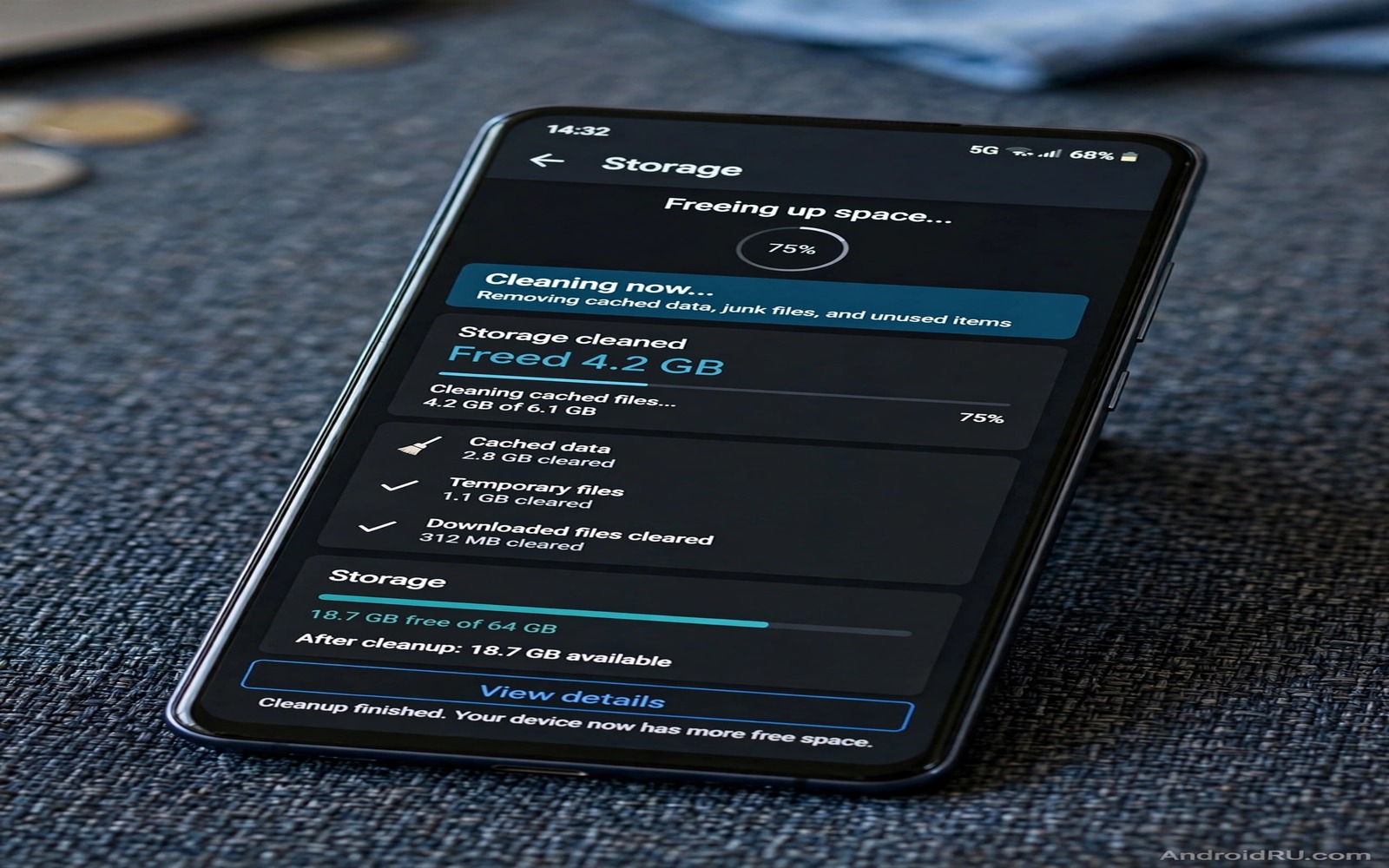
A full phone feels slow and stubborn at the worst moment. It refuses a photo and it pauses an update and it warns you during a video call. The fix does not need a factory reset or a paid cleaner. Most phones hide tens of gigabytes in safe places such as old downloads and duplicate media and app caches that no longer serve a purpose. A focused two minute routine can reclaim a surprising amount of space without risking your important files.
The trick is to target large safe categories first. A single downloaded video can outweigh hundreds of small files. A chat media folder can hold gigabytes of forwarded videos you watched once. An app cache for a streaming service can grow quietly for months. Clearing the largest safe buckets first gives you a visible win quickly and it motivates a deeper cleanup later.
This guide gives you a timed routine rather than a vague suggestion to delete things. You will work in order from safest and largest to smaller and more careful. You will also learn what not to delete in a hurry. Speed matters but a rushed delete of an offline map or a work document costs more time than it saves.
Start with a one minute storage scan
Open Settings and then open Storage to see the breakdown by category. Note the largest categories before deleting anything. Photos and videos usually dominate. Apps come next. System and other categories need more care and they are not the first target for a two minute cleanup. A scan tells you where the gigabytes actually live on your phone rather than where you assume they live.
Tap the largest category to see its details. A photos category may show a large downloads subfolder or a chat media subfolder. An apps category may show one streaming app with a huge cache. Details prevent blind deletion. A scan that takes thirty seconds can save you from deleting a useful app while ignoring a huge video file.
Set a realistic target before you start. Twenty gigabytes is achievable when downloads and chat media and caches have built up for months. It is less achievable on a freshly cleaned phone with only essential apps. Judge success by free space gained rather than by hitting an exact number. Even five gigabytes can restore smooth updates and camera function.
Clear downloads and duplicate media first
Open the Downloads folder and sort by size. Delete installers and old PDFs and videos you have already watched or backed up. Installers are easy to download again if needed. Old documents that matter should move to cloud backup before deletion. A size sorted view makes the largest wins obvious in seconds.
Next check duplicate photos and burst rejects. Burst mode creates many near identical frames and only one frame usually deserves keeping. Delete the rejects in bulk after confirming the keeper. Duplicate detection in a gallery app can also surface repeated downloads from chat apps. Removing duplicates frees space without losing any unique memory.
Chat media deserves a separate pass because it hides inside app folders. Open a chat app and review its media storage settings. Delete large forwarded videos that you do not need offline. Keep photos that hold personal value and back them up first. A guide to how WhatsApp quietly uses storage shows where chat media accumulates and how to limit it going forward.
Clear safe app caches with care
App cache is temporary data that an app can rebuild. Clearing cache for a browser or a shopping app or a streaming app usually frees space without losing logins or saved content. Clear cache one app at a time starting with the largest cache in Settings. Watch the free space rise after each clear to confirm the gain.
Do not confuse cache with data. Clearing data removes logins and settings and offline content. Clearing cache only removes temporary files. In Settings the two buttons sit close together so read the label before tapping. A mistaken data clear on a banking app or a messaging app creates a recovery chore that wipes out any time saved.
Streaming apps deserve special attention because offline downloads count as data rather than cache in some cases. Deleting an offline playlist you no longer watch frees more space than clearing its cache. Review downloaded episodes and music inside the app before using system cache tools. Offline content you finished watching is a safe large win.
Use the built-in cleanup tool as a final sweep
Most Android phones include a cleanup suggestion in Storage settings. It lists junk files and large files and rarely used apps. Review each suggestion before accepting it. A suggestion to delete a rarely used app may target an app you need for travel or work once a year. Accept suggestions for junk and temporary files and review app suggestions individually.
After the sweep restart the phone once. A restart clears temporary system files and lets the storage display update accurately. Check free space again after restart. The number may rise slightly as temporary files clear. A restart also confirms the phone still runs smoothly after the cleanup.
Set a monthly reminder for this routine. A two minute cleanup once a month prevents the slow buildup that leads to a full phone crisis. A routine beats a panic delete because it keeps decisions calm and reversible. Readers who want a deeper method will benefit from storage analyzer apps that find giant hidden files for the next level of detail.
A small script to list large files
The script below lists the largest files in a folder tree on a computer. It helps you practise size based cleanup on a backup copy before doing it on your phone. Run it on a local folder that mirrors your downloads.
import os
sizes = []
for root, dirs, files in os.walk("downloads"):
    for name in files:
        path = os.path.join(root, name)
        sizes.append((os.path.getsize(path), path))
for size, path in sorted(sizes, reverse=True)[:20]:
    print(f"{size / 1048576:.1f} MB {path}")
The code above was written for this guide as an original large file lister. It walks a local folder named downloads and prints the twenty largest files with sizes in megabytes. It does not delete anything and it does not access your phone. Use the list to decide which files are safe to remove or back up first.
Protect offline content during a fast cleanup
A fast cleanup can accidentally delete offline maps and music that you need later. Before clearing caches check which apps hold offline content for travel or work. A map app with a downloaded region and a music app with downloaded playlists deserve protection during a two minute sweep. Skip those apps in the fast routine and handle them deliberately later.
Make a short protected list in a note on your phone. List the apps whose offline content must survive any cleanup. Consult that list before accepting a bulk suggestion from a cleanup tool. A protected list takes a minute to create and it prevents a fast cleanup from creating a slow recovery task on a trip.
After a fast cleanup open each protected app briefly to confirm offline content remains. A quick confirmation takes seconds and it gives confidence for the next cleanup. A routine that protects important offline content is a routine you can repeat without fear.
After a fast cleanup check that your camera opens and saves a test photo normally. A cleanup that breaks camera saving would be a false success. A test photo takes seconds and it confirms that the phone is ready for real use. A working camera after cleanup is the true measure of a successful routine.
Common mistakes
The biggest mistake is deleting everything suggested by a cleaner app without review. Cleaner apps may flag offline maps and work files as junk. Review every suggestion and keep files tied to travel or work. A fast cleanup that deletes a needed file is not a successful cleanup.
Another mistake is clearing data instead of cache. Data clears log you out and removes offline content. Cache clears only temporary files. Read the button label carefully in Settings. A single careless tap can turn a two minute cleanup into an hour of re-login and re-download.
People also delete original photos before confirming a backup completed. A cloud icon does not always mean a full resolution backup finished. Open the backup app and confirm the photo count and the last backup time. Delete local originals only after backup confirmation. A photo lost to a rushed delete cannot be recovered by a storage trick.
Finally avoid installing a new cleaner app to solve a full phone. A cleaner app itself uses storage and may run in the background. Built-in storage tools already cover the main cleanup categories. A new app adds risk without adding much benefit for a two minute routine.
Frequently asked questions
Is it safe to clear cache for all apps at once?
Clearing cache is generally safe because apps rebuild temporary files as needed. Some apps may load slower on first open after a cache clear. Avoid clearing cache for apps you need instantly such as maps during travel. Clear cache selectively starting with the largest caches for the best balance.
Why does free space drop again after cleanup?
Apps rebuild cache during normal use and chat apps download new media automatically. A cleanup gives temporary relief unless you also change settings. Limit auto download in chat apps and set a monthly cleanup reminder. Storage management is an ongoing habit rather than a one time fix.
Should I move photos to cloud storage to free space?
Cloud backup helps when you confirm the backup before deleting local copies. Move originals to cloud storage only after checking backup completeness and resolution settings. Keep a local copy of the most important photos if you travel without reliable internet. A backup you cannot access when needed is not a real backup.
Conclusion
Freeing twenty gigabytes in two minutes is possible when downloads and chat media and caches have accumulated unchecked. A storage scan and a size sorted downloads pass and a careful cache clear deliver the largest safe wins first. A built-in cleanup sweep and a restart finish the routine. A monthly reminder keeps the phone from filling up again.
Your concrete next step is to open Settings and Storage right now and note your largest category. Delete the largest safe download or chat video you no longer need and watch free space rise. Repeat the routine monthly. Readers who want to find hidden giants will also like hidden files to delete for system storage and the secret folder taking up gigabytes as follow-ups.

