

7 Hidden GCam Features Google Keeps Exclusive to Pixel Phones
Pixel phones earn their camera reputation partly through software features that Google reserves for its own devices. Those features include advanced night processing, motion modes, and clever portrait tools. GCam ports bring many of those features to other Android phones with varying success, and understanding which features transfer well helps you choose a port wisely.
Exclusivity often comes from hardware tuning rather than a simple software lock. A feature tuned for Pixel sensors may behave differently on other sensors even when the port enables it, which is why some Pixel features shine on ported phones while others disappoint. Readers new to ports should first read installing a GCam port step by step before chasing exclusive features, because a bad install will hide even the features that should work.
Start by listing which Pixel features matter most to your photography before you install anything. Night and portrait features help most photographers daily, while specialised motion modes suit niche shooting. Prioritise the features you will actually use rather than collecting every exclusive toggle. That focus prevents disappointment when a rarely used feature fails on your model.
Why these features stay Pixel-exclusive
Google builds its camera features around the specific sensors and processors in Pixel phones. The Tensor chip runs machine learning models that are tuned for the Pixel sensor’s colour response and noise pattern, and the camera app expects that tuning. When a port moves those features to a different sensor, the models still run, but they work with data they were not tuned for, so the result varies by phone.
Some features also depend on Pixel-specific hardware, such as the spectral sensor or the dedicated image processing pipeline. Those features cannot transfer fully, no matter how good the port is. Others depend only on software, and those transfer well. Knowing which is which saves you from chasing a feature your phone can never run properly.
Night and low-light features
Night photography is where Pixel phones built their reputation, and it is where GCam ports deliver the most visible improvement over stock camera apps. The three features below cover the full range of low-light shooting, from starry skies to moving water.
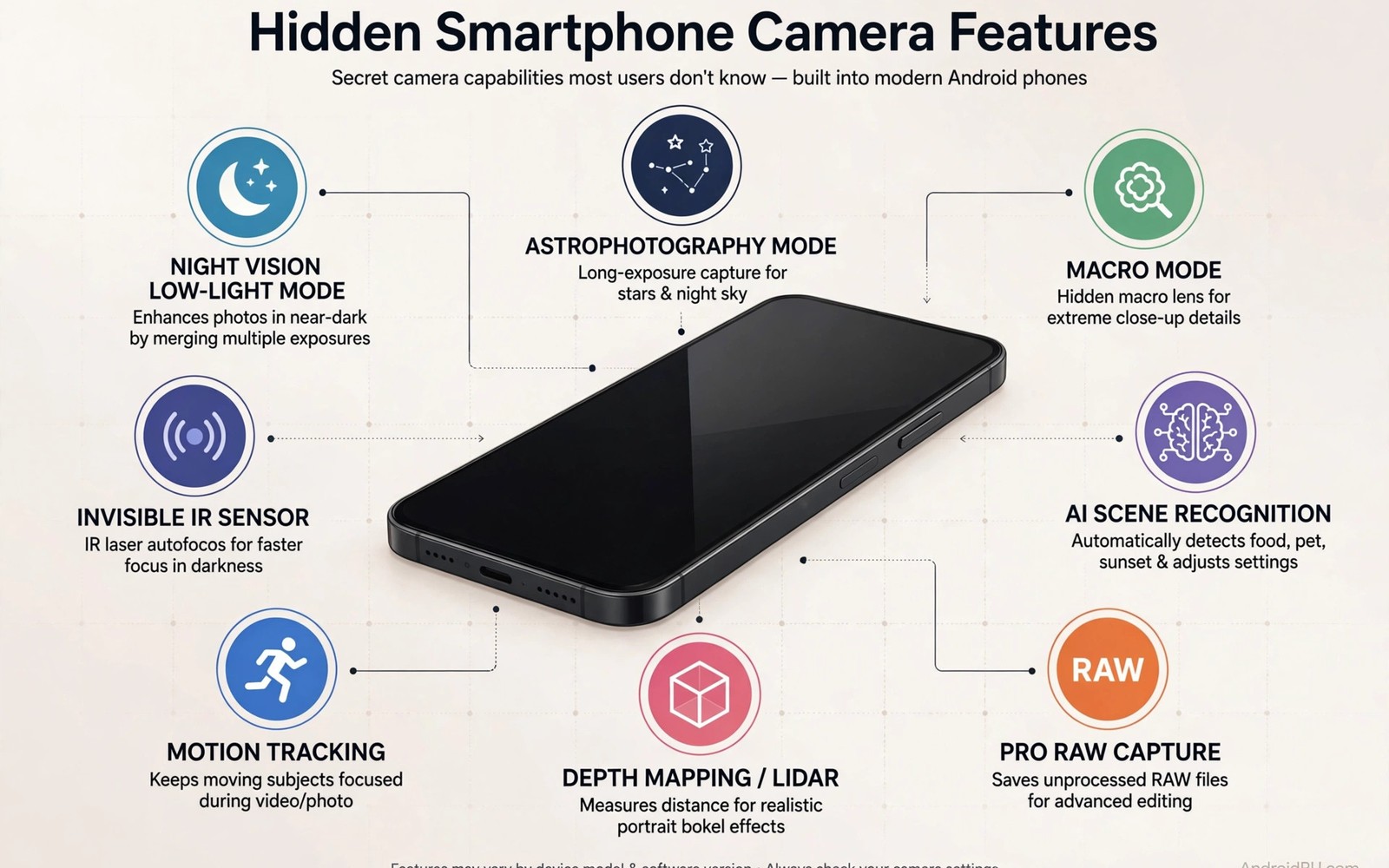
1. Astrophotography mode
Astrophotography mode stacks long exposures to reveal stars invisible to normal night mode. It takes many frames over several minutes, aligns them against the movement of the stars, and merges them into a single image with visible constellations and Milky Way detail. Ports bring this feature to many non-Pixel phones with adequate Camera2 support, and Pixel astrophotography mode on unsupported phones is one of the most requested port features for exactly that reason. Dark skies and a tripod remain essential, because software cannot replace stillness and darkness. Test astro mode at home in a dark garden before travelling to a remote location, and check the result on a large screen, since stars that look sharp on the phone can show trails on a monitor.
2. Night Sight with machine learning
Night Sight uses machine learning to brighten dark scenes while controlling noise. It captures a burst of short exposures, aligns them, and merges them into one bright image with far less noise than a single long exposure. Ported Night Sight often performs close to Pixel results on similar sensors, because the technique depends mostly on software. It struggles on phones with weak low-light sensors, because the hardware captures less signal to process, and a good port narrows that gap but cannot fully close a large hardware difference. Try Night Sight on a street scene at dusk first, since that is where the improvement over the stock camera is most obvious.
3. Long exposure motion modes
Long exposure motion modes extend Night Sight ideas to moving water and light trails. They capture a burst and blend it into a smooth long-exposure effect, turning a waterfall into silk and car headlights into ribbons. They work best on a tripod or a stable rest, because movement breaks the blend. Try motion modes on waterfalls and traffic trails for creative results that standard night mode cannot produce, and keep the phone still for the full capture, since even a small shake ruins the blend.
Tripod tips for night and astro shooting
A small phone tripod costs little and changes night photography completely. Use a remote shutter or the timer so pressing the button does not shake the phone, and turn off any stabilisation that fights the tripod. A stable phone lets the software stack more frames, and more frames mean cleaner stars and smoother water.
Portrait and face tools
Portrait tools are the second pillar of the Pixel camera, and they transfer to ports better than most people expect, because they depend on depth estimation and machine learning rather than on a specific sensor. The three features below cover the full portrait workflow, from cutting out the subject to rescuing a blinked eye.
4. Portrait mode with depth estimation
Pixel portrait mode uses depth data and machine learning to cut out subjects cleanly, blurring the background while keeping the person sharp. Ports replicate much of that quality on phones with good depth information, whether from a second camera or from dual-pixel autofocus data. Hair edges remain the hardest test, because fine strands confuse depth estimation, and a distant simple background helps ported portrait mode succeed where busy backgrounds fail. Shoot portraits against a plain wall or an open field first, and check the hairline at full zoom before you trust the result.
5. Subtle face retouching
Face retouching on Pixel phones stays subtle and natural compared with heavy beauty filters elsewhere. The Pixel approach smooths skin slightly while preserving texture, so the person still looks like themselves. Ports carry that restrained retouching approach to other phones. Turn retouching to its lowest useful level for adult portraits to preserve skin texture, because natural skin beats plastic smoothness in every serious portrait. Children and older subjects need even less retouching, since their skin texture is part of the photo.
6. Top Shot and motion photos
Top Shot captures frames before and after the shutter press and suggests the best frame automatically. That feature rescues blinked eyes and missed smiles by offering nearby frames, and it is one of the most practical Pixel features for family photography. Ports sometimes include Top Shot or a similar motion photo feature, though the implementation varies by port. Enable motion photos for family events where expressions change quickly, and review the suggested frames before you delete the extras, since the best frame is not always the one the algorithm picks.
Motion photos for family events
Motion photos record a short video clip around each still image, and that clip is what makes Top Shot possible. The clip costs storage, so enable motion photos for events and turn them off for everyday shots. A birthday party with motion photos gives you ten chances at every smile, while a walk in the park does not need them.
Zoom and dynamic range
Zoom and dynamic range are the quiet workhorses of the Pixel camera. They do not get the attention that night mode gets, but they change everyday photos more than any other feature, because most photos are taken in daylight with mixed light and a subject that is too far away.
7. Super Res Zoom and HDR+
Super Res Zoom combines multiple frames to improve digital zoom detail beyond a single crop. It works by shifting the sensor slightly between frames and merging the results, which recovers detail that a single cropped frame cannot. Ports bring this technique to phones without optical telephoto lenses, and it works best in good light with a still subject, because frame alignment needs stability. Expect a clear improvement over standard digital zoom, but not a miracle equal to optical zoom.
HDR+ captures a burst of underexposed frames and merges them for wide dynamic range. That approach preserves highlights while lifting shadows with low noise, which is why Pixel photos handle bright sky over dark ground so well. Ported HDR+ often outperforms stock camera HDR on the same phone, because the burst-and-merge approach captures more information than a single frame. Test HDR+ on high-contrast scenes such as bright sky over dark ground to see the difference, and compare the result with the stock camera on the same scene.
When HDR+ beats stock HDR
HDR+ wins in high-contrast daylight, where the stock camera must choose between a blown sky and a black foreground. It also wins in mixed indoor light, where windows and lamps create the same problem. Stock HDR can match it in even light, so the difference shows most clearly in hard light, which is exactly where most photos need help.
Which features transfer well to ported phones
Night Sight, HDR+, and portrait mode transfer well to most phones with good Camera2 support, because they depend mainly on software. Astrophotography transfers well when the phone has a capable sensor and a stable mount, and it disappoints on phones with weak low-light sensors. Top Shot and motion photos transfer partially, depending on the port. Super Res Zoom transfers well in good light and poorly in low light, for the same alignment reasons as on Pixel.
Frequent Faces and smart storage features help organise photos on Pixel phones, but ports rarely replicate those fully. Those features depend on on-device learning and account integration that ports cannot copy easily. Do not choose a port based on those features, because they are the least likely to work, and they matter less than the seven features above.
Features that work well on most ports
Night Sight and HDR+ are the safest bets, because they are software techniques that run on any capable sensor. Portrait mode is next, provided the phone supplies usable depth data. If a port delivers those three well, it is a good port for your phone, and the remaining features are a bonus rather than a requirement.
Features that depend on Pixel hardware
Features tied to the Tensor chip’s machine learning models, or to Pixel-specific sensors, transfer least well. Astrophotography on a phone with a small sensor will never match a Pixel, no matter how good the port is. Accept that limit, and judge the port by what it does well on your hardware rather than by what it cannot do.
Frequent Faces and smart storage
Frequent Faces groups photos by person using on-device learning, and smart storage suggests photos to back up or delete. Ports rarely include these, because they need account integration and background processing that a port cannot provide. Use Google Photos itself for organisation, since it offers similar grouping without needing a Pixel feature.
Choosing a GCam port for these features
Choose a port that is actively maintained for your phone model, and check user reports for the specific features you want. A port that works well on one model can fail on another, because sensor tuning differs. Install one port, test the features that matter to you, and keep the port that performs best on your hardware rather than the port with the longest feature list.
Checking Camera2 API support
Open a Camera2 probe app and check the support level for your rear camera. Full or Level 3 support means the port can use manual controls, raw capture, and the processing pipeline it needs. Limited support means some features will not work, no matter which port you install. That check takes two minutes and prevents hours of troubleshooting a port that never had a chance.
XML configs that tune the port
Ports accept XML configuration files that tune noise reduction, saturation, and sharpness for specific phones. A good config can transform a mediocre port into an excellent one, and the community publishes configs per model. GCam XML configs that unlock finer detail are worth trying once the port itself works, because they adjust the processing to your sensor rather than using generic defaults. Load one config at a time, test the same scene before and after, and keep the config that looks best on your phone.
Frequently asked questions
Can I get all Pixel camera features on any Android phone?
No. Software features such as Night Sight and HDR+ transfer well, but features tied to Pixel sensors or the Tensor chip transfer partially or not at all. A good port gives you most of the Pixel experience on a capable phone, and the gap is smallest on phones with strong sensors and full Camera2 support.
Why does Night Sight look worse on my phone than on a Pixel?
Night Sight depends on the sensor’s low-light signal, and a weaker sensor gives the software less to work with. A good port narrows the gap, but it cannot create signal that the sensor never captured. A tripod helps, because longer exposures capture more light, and a config tuned for your model helps too.
Do GCam ports need root?
No. GCam ports install like normal apps and need no root access. They need Camera2 API support, which most modern phones provide, and they need permission to use the camera. Root is irrelevant to whether a port works, and installing a port does not affect your warranty in the way rooting does.
Will a GCam port void my warranty?
Installing a camera app does not void a warranty, because it changes no system files. A port is an app like any other, and removing it restores the phone to its previous state. That is one of the reasons ports are popular: they offer Pixel features without the risk of system modification.
Start with the features you will actually use
List the three Pixel features that matter most to your photography, then find a port that delivers those three well on your phone model. Test them on real scenes, not on test charts, and keep the port that wins on your scenes. A port that nails Night Sight, HDR+, and portrait mode is worth keeping, even if it misses a niche motion feature you would rarely use.
Your next step is the Camera2 check. Open a probe app, confirm your support level, and then install one port and test it on a dusk street scene. That single test tells you more about the port than any feature list, and it takes less time than reading another comparison.

