

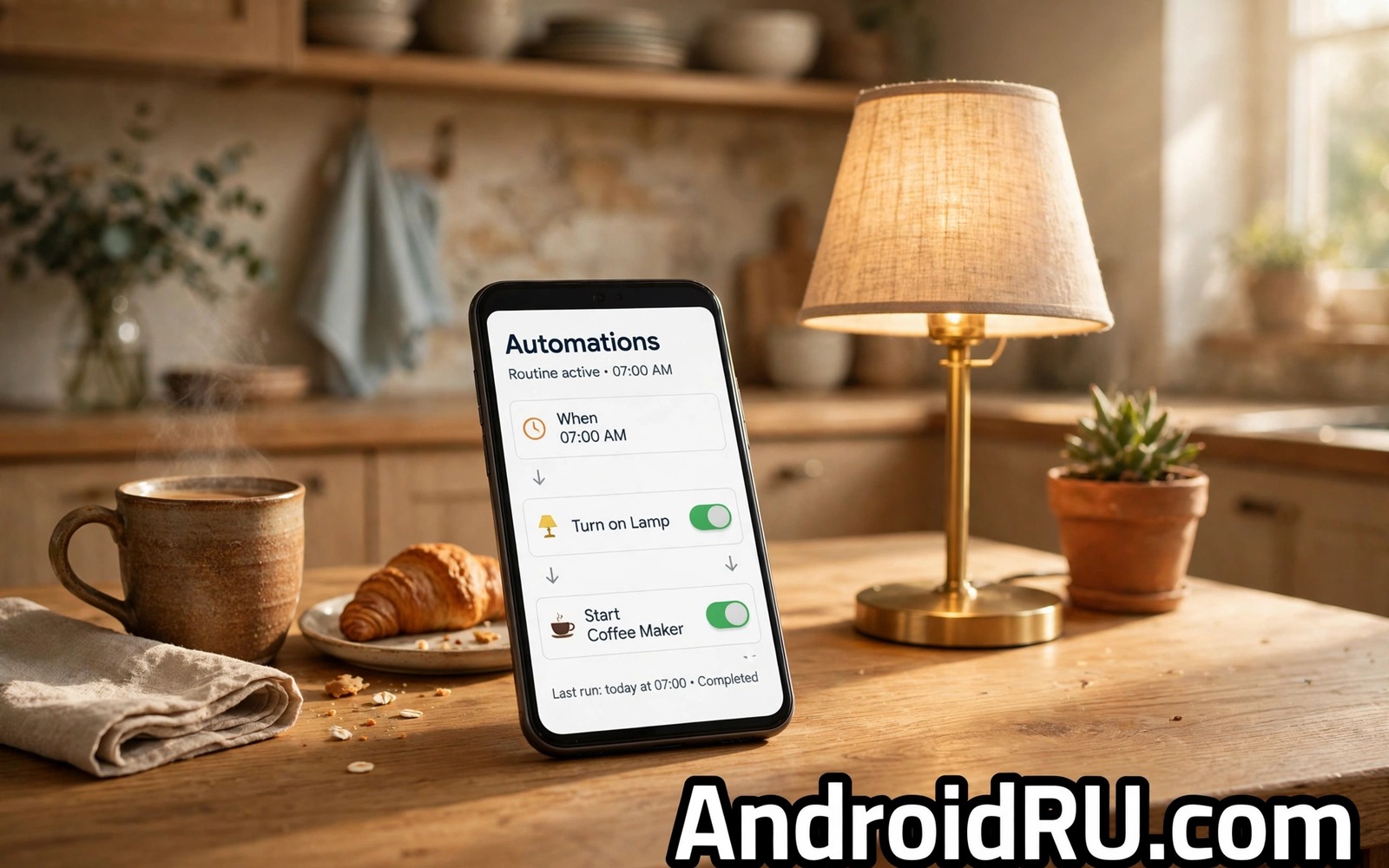
Tasker earns praise for power and criticism for complexity. Its trigger and action system can automate almost anything. Its interface can overwhelm a first time user. Simpler automation apps offer the most useful routines without the steep learning curve. A simple app can silence the phone at bedtime and restore sound in the morning. A simple app can turn on Wi-Fi at home and off when you leave. A simple app can send a location message when you arrive at work. This guide reviews the simpler path and shows how to pick a tool that fits your patience.
Simplicity in automation means clear language and visible routines. A simple app describes a trigger in plain words. It shows the routine as a short sentence rather than as a nested tree. It offers templates for common routines so you start from an example. Templates reduce the blank page problem that stops beginners. A template for bedtime mode needs only a time change. A template for driving mode needs only an app choice. Starting from a template teaches the system while it delivers value.
Judge an automation app by its first routine time. A good simple app lets you build a first routine within ten minutes. A complex app may need an hour of tutorials before the first routine works. Ten minutes to value matters because motivation fades quickly. A first success encourages a second routine. A first failure encourages abandonment. Choose the app that gives you a quick win on day one. Power that you never reach is not power at all.
What Simpler Apps Do Well
Simpler apps excel at location and time triggers. A location trigger can switch settings when you enter a place. A time trigger can run a routine at a set hour daily. A connection trigger can act when Wi-Fi connects or disconnects. A battery trigger can act when charge drops below a level. Those four trigger types cover most daily needs. A complex app adds dozens more triggers that few people use. A simple app focuses on the triggers that matter daily.
Simpler apps also excel at single purpose actions. A single action such as toggling silent mode is easy to understand. A single action such as opening an app at a location is easy to test. A chain of five actions is harder to debug when one step fails. Simple apps encourage short chains that stay reliable. A short chain that works every day beats a long chain that works sometimes. Reliability grows from simplicity.
Simpler apps often use less battery than complex tools. A tool that watches few triggers wakes less often. A tool that watches many sensors wakes constantly. Battery statistics after a week reveal the difference. A simple tool should stay near the bottom of battery use. A complex tool with many active profiles can climb higher. Choose the tool whose battery cost matches its benefit.
Pick A Tool By Your Comfort Level
Beginners should choose an app with templates and plain language. Look for a home screen that lists routines as sentences. Look for a creation flow with three steps or fewer. Avoid an app that asks for scripting knowledge on the first screen. A beginner app should feel like setting an alarm rather than writing code. If the first screen confuses you then try another app. Confusion on day one rarely improves on day seven.
Intermediate users may want a simple app with a few advanced options. A location condition plus a time condition covers many routines. A notification action plus a settings action covers many outputs. An intermediate app adds conditions without adding a scripting language. Conditions let you refine a routine without complexity. A routine that runs only at home and only at night is precise enough for most needs. Precision through conditions beats power through code for daily life.
Advanced users who outgrow a simple app can migrate later. A simple app teaches trigger and action thinking that transfers to any tool. A user who masters simple routines understands automation logic. Migration then becomes a translation task rather than a fresh learning task. Starting simple does not lock you out of power later. It builds a foundation that makes power easier to use when you need it.
Routine: Bedtime Mode
Trigger: Time 22:30 daily
Action: Enable Do Not Disturb
Action: Lower brightness to 30 percent
Routine: Home Arrival
Trigger: Connect to home Wi-Fi
Action: Disable silent mode
Action: Open music app
The routines above follow standard automation practice for personal Android devices and they are presented here as practical templates for everyday use rather than as a claim about any single automation app. Each routine uses one trigger and two actions. Keep routines that short during your first month. A short routine is easy to test and easy to fix. Add a third action only after the first two prove reliable for two weeks.
Build Your First Three Routines
Start with a bedtime routine because its trigger is predictable. Set a time trigger for your usual bedtime. Add a silent mode action and a brightness action. Test it one night and check the result in the morning. A bedtime routine that works feels like magic on the second night. A bedtime routine that fails is easy to diagnose because the trigger time is known. Predictability makes bedtime the best first routine.
Add a home arrival routine next because its trigger is location based. Use Wi-Fi connection as the trigger rather than GPS for battery efficiency. Add an action that restores normal sound. Add an action that opens a chosen app if desired. Test the routine by leaving and returning home once. A Wi-Fi trigger fires reliably when the phone reconnects. A GPS trigger can delay or misfire indoors. Wi-Fi suits home arrival better than GPS.
Add a low battery routine as the third routine because it protects the phone. Set a trigger at twenty five percent charge. Add an action that enables battery saver. Add an action that lowers brightness. Test it by lowering the threshold temporarily during a test. A low battery routine buys hours of use when charging is far away. A routine that protects battery earns trust quickly. Three routines form a complete starter set for most users.
Common Mistakes
One common mistake is building too many routines in the first week. A dozen new routines interact in unexpected ways. A bedtime routine can fight a location routine. A driving routine can fight a home routine. Build three routines and live with them for a month. A month reveals interactions that a day hides. Slow growth prevents routine conflicts.
Another mistake is choosing a tool based on online praise rather than on personal fit. A tool praised by power users may frustrate a beginner. A tool praised for simplicity may limit an advanced user. Test the tool yourself for ten minutes before committing. Personal fit decides long term use. Praise from others cannot replace a personal test.
A third mistake is granting every permission during setup without reading. A simple routine needs only a few permissions. A tool that requests contacts for a bedtime routine deserves a second look. Read each permission against the routine purpose. A permission without a purpose is a warning sign. Choose a tool whose permissions match its routines.
Frequently Asked Questions
Can a simple automation app replace Tasker completely?
A simple app replaces Tasker for most daily routines based on time and location and battery. A complex workflow with variables and scripts still needs a powerful tool. Most users never need those advanced features. A simple app covers bedtime and home and driving routines well. Evaluate your actual routines before assuming you need full power. Daily needs usually fit simple tools.
Why does my location routine trigger late?
GPS location indoors can delay or drift. Wi-Fi connection triggers faster at home because the phone connects quickly. Use Wi-Fi triggers for home routines and reserve GPS for outdoor routines. Check battery optimisation settings for the automation tool. Aggressive optimisation can delay location detection. A Wi-Fi trigger plus an optimisation exemption gives the most reliable home result.
Do simpler apps work on older Android phones?
Simpler apps often run well on older phones because they use fewer resources. Check the minimum Android version for the app before installing. Test one routine on the old phone for a week. A simple tool that works on old hardware extends the useful life of the device. A complex tool may strain an old phone with constant monitoring. Simplicity suits older hardware.
Avoid Routine Conflicts Before They Start
Two routines can pull the same setting in opposite directions. A bedtime routine may silence the phone while a home routine restores sound. A driving routine may open maps while a work routine opens email. Conflicts create a phone that flickers between states. List all active routines in one place before adding a new one. Look for overlapping triggers and overlapping actions. A visible list reveals conflicts before they happen.
Give each routine a priority in your own mind even if the app lacks a priority setting. A bedtime routine should outrank a home routine at night. A driving routine should outrank a work routine on the road. Time windows can enforce priority without a formal setting. A home routine that runs only in daytime will not fight a bedtime routine. A driving routine that runs only while moving will not fight a desk routine. Windows create order from simple rules.
Disable a routine temporarily when testing a new one rather than deleting it. A disabled routine preserves its settings for later use. A deleted routine forces a rebuild if the new routine fails. Testing with old routines disabled isolates the new behaviour. Re-enable old routines one by one after the new routine proves stable. Isolation during testing prevents a tangle of simultaneous changes.
Keep A Simple Routine Log
Write each routine name and its trigger on a single note. A log with three lines covers a starter set completely. A log helps you remember why a routine exists after months of use. A routine without a reason becomes a mystery setting. A mystery setting gets deleted during a cleanup. A log preserves intent alongside configuration. Intent matters when habits change.
Conclusion
Pick one simple automation app today and build a bedtime routine within ten minutes. Test it tonight and add a home arrival routine tomorrow. Keep the total at three routines for a month. Readers who want a full system may also like a master approach to Android power automation for routine design, and automatic battery saver below twenty five percent for a protective routine, plus genius utility hacks for daily life for more practical ideas. Your next step is one app and one bedtime routine.

