

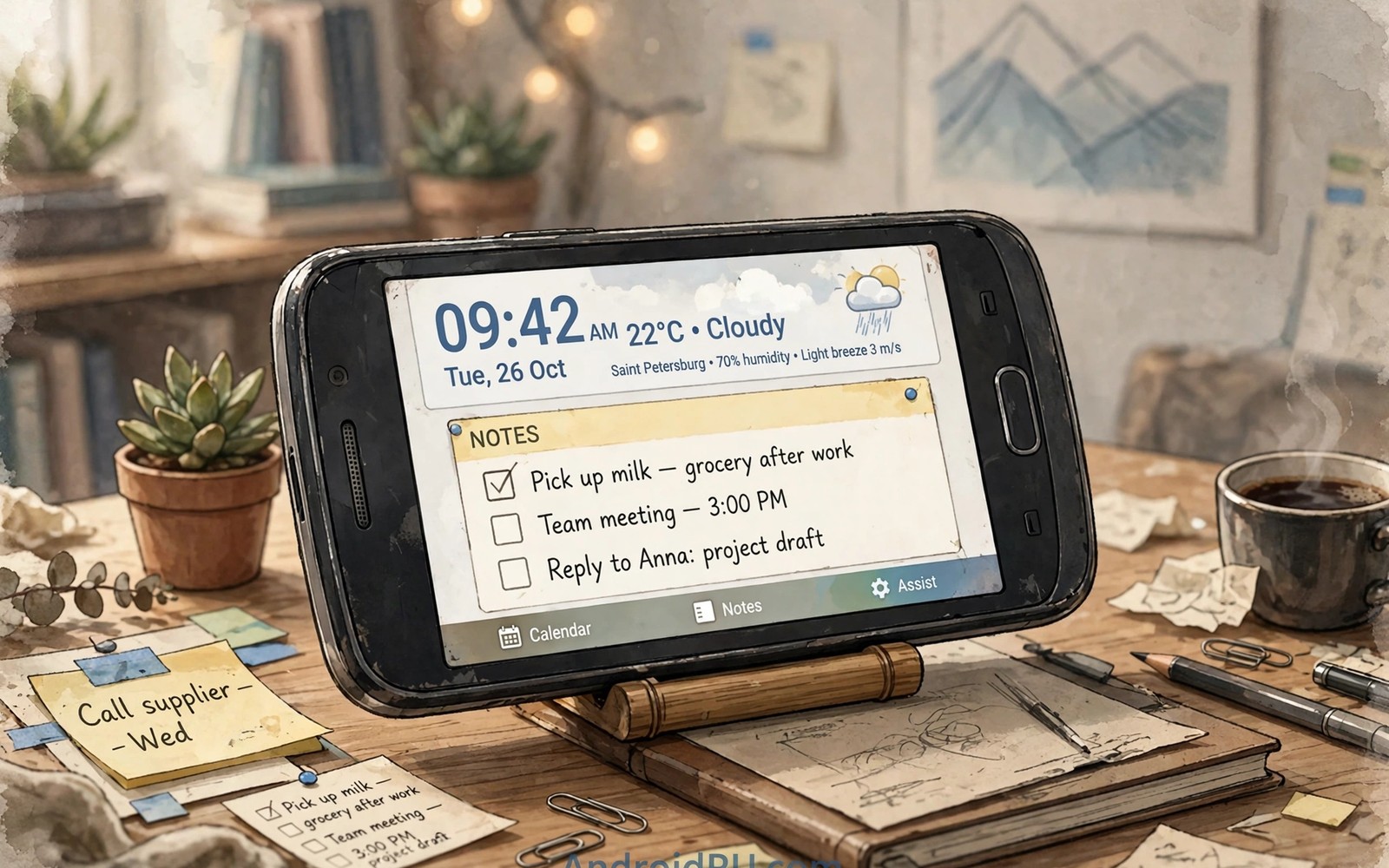
An old phone in a drawer still holds a useful screen and a capable processor. It can become a desk assistant that shows time and weather and notes without draining your main phone. It can sit beside a monitor as a calm second display. It can control music while your main phone stays in your pocket. The transformation costs little because the hardware already exists. This guide turns a retired phone into a purposeful desk companion. You will remove distractions and keep only the functions that help at a desk.
A desk assistant succeeds when it does one job well rather than many jobs poorly. A phone that tries to be a full second computer will frustrate you with small text and slow switching. A phone that shows a clock and a task list will serve you every day. Decide the single primary job before you install anything. A clock plus weather setup suits a quiet workspace. A music control plus timer setup suits a workshop. A notes plus calendar setup suits a study desk. One clear job guides every later choice.
Start with a factory reset if the old phone holds personal data from its previous life. A reset gives you a clean slate and it removes old accounts. Set up the phone with a minimal account or with no account if the chosen apps allow it. Disable notifications from every app except the assistant functions. A desk assistant that buzzes like a main phone defeats its purpose. Calm is the product here. Every notification you keep should earn its place.
Choose The Desk Job And The Mount
Pick a stable position where the screen faces you without glare. A simple stand that holds the phone upright works better than laying it flat. A flat phone forces you to lean over the desk to read it. An upright phone reads at a glance from a normal sitting position. Test the viewing angle in morning light and in evening light. A position that glares at noon will annoy you daily. Move the stand once during setup rather than adjusting it forever.
Power the phone with a short cable routed neatly behind the stand. A long cable across the desk creates clutter and snag risk. Use the original charger or a known good charger that matches the phone. A weak charger may not keep up with an always on screen. Check the battery level after a full day of desk use. If the level drops despite charging then try a stronger charger. A desk phone should stay near full charge without constant attention.
Set the screen timeout to a long interval or to always on for desk mode if your phone supports it. An always on screen uses more power but it serves the glance purpose. A screen that sleeps every thirty seconds forces constant taps. Balance power use against glance value for your own desk. A dim screen with a dark clock face often provides the best balance. Brightness matters more than resolution for a desk display. A dim readable display beats a bright glaring display.
Install Only The Apps The Job Needs
Install a clock widget or a clock app that matches the desk job. Add a weather widget only if weather changes your daily plans. Add a notes app only if you capture ideas at the desk. Add a music control app only if the desk phone controls speakers. Each app should answer a real desk need. An app installed just because it looks nice adds maintenance without benefit. A lean app list keeps the old phone responsive.
Use a simple launcher that shows large widgets and few icons. A minimalist launcher reduces accidental taps and it keeps the screen calm. Hide the app drawer behind a gesture if you rarely need it. Place the primary widget at eye level on the screen. Place secondary controls below it where a hand reaches naturally. Test the layout from your chair before you finalise it. A layout that looks good in hand may read poorly from a chair.
Turn off automatic updates for apps that already work well on the old phone. An update can slow an old device or remove a feature you rely on. Update only when a security fix or a needed feature appears. A desk phone does not need the newest version of every app. Stability matters more than novelty for a device that serves one job. A frozen good setup beats a constantly changing setup.
Connect The Desk Phone To Your Daily Flow
Sync notes through a simple shared service if the desk phone must share data with your main phone. A shared notes service lets you capture an idea at the desk and read it later on the main phone. Keep the sync scope narrow to one notes folder. A broad sync can pull private data onto a device that sits in a shared room. A narrow sync protects privacy while it preserves usefulness. Check the sync folder from the main phone after the first test note.
Use the desk phone as a music remote for a speaker on the same network. A dedicated remote avoids unlocking your main phone during work. It also keeps music controls visible during calls on the main phone. Pair the speaker once and test volume and track controls from the desk position. A remote that works from the chair saves many small interruptions. Those saved interruptions add up to real focus over a week.
adb shell dumpsys battery
adb shell settings put system screen_off_timeout 600000
adb shell cmd appops set com.example.clock WAKE_LOCK allow
The commands above follow standard Android tooling practice for personal devices and they are included here as a practical example for checking desk phone health and screen timing rather than as a universal configuration. The first command reports battery state for a phone that stays plugged in. The second command sets a ten minute screen timeout for testing. The third line illustrates how an app permission can be inspected on a test device. Replace the example package name with the real package used on your own phone before any practical use. Treat these lines as diagnostic examples rather than as a setup script.
Protect the desk phone from casual access if it sits in a shared space. Use a simple lock screen that you can open quickly but that stops a passerby. Keep sensitive accounts off the desk phone entirely. A desk phone with only a clock and public notes carries little risk. A desk phone with email and banking carries the same risk as a main phone. Match the lock strength to the data on the device. A calm desk display should not become a security hole.
Common Mistakes
One common mistake is giving the old phone too many jobs at once. A phone that shows clock and weather and news and social feeds becomes a distraction machine. A desk assistant should reduce distraction rather than relocate it. Remove any feed that pulls attention during work. Keep only the information that supports the desk job. A focused screen is a productive screen.
Another mistake is ignoring battery swelling on a very old phone. A phone that stays plugged in for months needs occasional battery checks. Look for a screen that lifts or a case that no longer sits flat. Stop using a swollen battery at once and recycle the device safely. A desk project is never worth a battery safety risk. Check the phone monthly if it lives on a charger.
A third mistake is placing the desk phone where it blocks natural light or airflow. A phone near a window can overheat in direct sun. A phone behind a monitor can trap heat. Choose a spot with shade and airflow. A cool phone lasts longer and it stays responsive. Placement is a maintenance decision as much as an aesthetic one.
Frequently Asked Questions
Can an old phone with a cracked screen work as a desk assistant?
A small crack away from the main display area may still work for a clock. A large crack over the centre makes reading hard and it risks further damage. A cracked screen also weakens touch response in that area. Use a cracked phone only if the display remains fully readable. Otherwise recycle it and choose another retired device. Readability decides the answer.
Does an always on desk display ruin the battery?
A phone that stays plugged in avoids battery drain during desk use. Long term always on display use can still age the screen and the battery. Use a dim dark display to reduce both effects. Unplug the phone once a week and let it discharge partially. A simple weekly cycle helps battery health on a plugged in device. Screen burn in matters less on a dim clock face.
Should the desk phone use the same account as my main phone?
A separate minimal account reduces risk on a shared desk device. A shared notes account can still sync the one folder you need. Avoid full account mirroring that pulls email and photos onto the desk phone. Narrow sync gives you the benefit without the exposure. Choose the smallest account setup that supports the desk job.
Give The Desk Phone A Second Useful Role
A desk phone can serve as a timer during focused work sessions. Set a visible countdown for a work block and let the phone show progress without notifications. A visible timer reduces the urge to check a main phone for the time. It also signals focus to colleagues in a shared room. A timer role pairs well with a clock role because both rely on glanceable time. Keep the timer simple and avoid complex productivity apps on the old device.
A desk phone can also display a single photo that changes daily for inspiration. A rotating photo keeps the desk fresh without adding feeds. Choose photos that calm rather than excite. A landscape photo suits a work desk better than a busy city scene. Change the photo weekly during a routine desk tidy. A small visual change prevents the display from becoming invisible background. Freshness keeps the glance habit alive.
A desk phone can act as a backup alarm for important morning meetings. Set the alarm on the desk phone in addition to the main phone. A second alarm in a different room can save a day when the main phone silences itself. Test the backup alarm volume from your bedroom or office doorway. A backup that you cannot hear is not a backup. Redundancy for critical alarms is cheap and practical.
Conclusion
Reset the old phone today and set it up for one desk job before the weekend. Mount it upright and install only the apps that job needs. Test it for three workdays and remove any widget you ignore. Readers planning wider automation may also like easier automation apps for daily routines and a master approach to Android power automation once the desk setup feels calm, plus weather based wallpaper changes for a desk display that reflects the day. Your next step is one reset and one clear desk job.

