

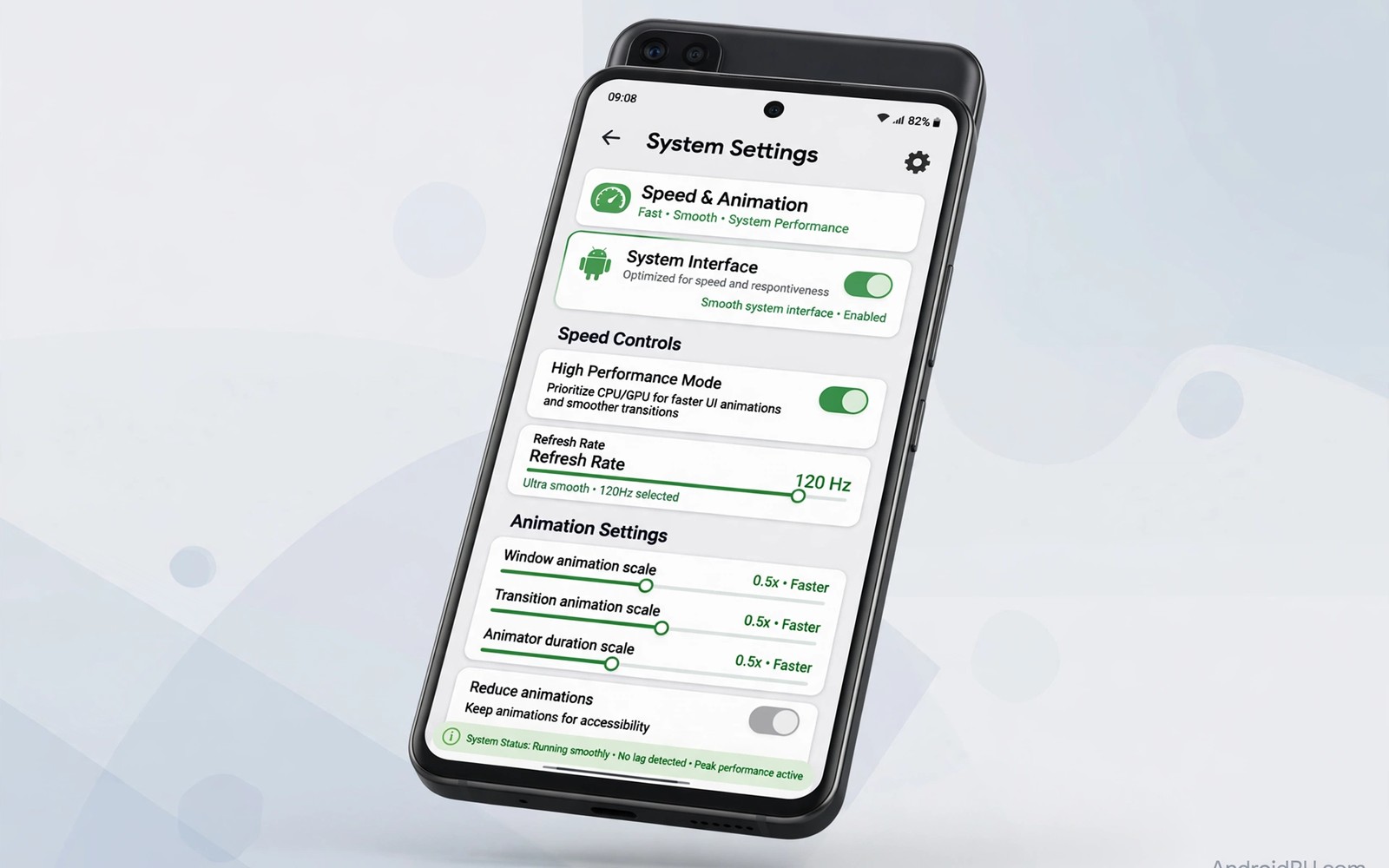
Your phone can feel slow even when its processor is still strong. The delay often lives in the interface layer rather than in the hardware itself. Animations stretch every transition by fractions of a second. Background services compete for attention while you swipe between screens. Small interface bottlenecks add up until the whole phone feels heavy. Android Debug Bridge gives you a controlled way to adjust that layer without root access. You connect the phone to a computer once and you issue a small set of commands. The changes apply to system behaviour rather than to any single app. This guide walks through five tweaks that target the interface directly. Each tweak is reversible and each one is easy to test on its own.
Speed here means responsiveness rather than raw benchmark power. A phone that opens an app one tenth of a second sooner feels faster in daily use. A menu that appears without a long fade feels sharper even if nothing else changed. Animations are pleasant when they are short and they become a burden when they are long. Scaling them down keeps the visual language intact while it removes wasted waiting time. Other tweaks in this guide reduce interface clutter or they stop the system from redrawing work it has already done. The goal is a phone that reacts to your touch without hesitation. You do not need a new device to get that feeling. You need a few deliberate settings that match how you actually use the phone.
Before you change anything you should record a simple baseline for your own phone. Open three apps you use every morning and note how each one feels when it launches. Swipe through the home screen and open the notification shade twice. Pay attention to stutter during scrolling rather than to any single number. A short video of the screen can help you compare later if you want proof. Keep your phone charged above half while you test so power saving does not distort the result. Readers who enjoy deeper system control may also like wireless ADB access for everyday shell work because it removes the cable from later sessions. That method pairs well with the tweaks below once you understand the wired steps first.
What ADB Changes And What It Leaves Alone
ADB is a bridge between a computer and an Android device. It lets you send commands that adjust system settings that menus do not always expose. It does not unlock the bootloader and it does not replace the operating system. It does not grant permanent root privileges to apps on the phone. The settings changed here live in the normal system settings database. A factory reset returns them to their defaults. That boundary matters because it keeps the risk low while it still gives you real control. You remain the owner of a stock device with a few tuned values.
Some phones hide these options behind developer settings that must be enabled first. Tap the build number seven times in the about section to reveal developer options. Enable USB debugging inside that menu and accept the computer fingerprint prompt on the phone. Use the original cable or a known good cable to avoid connection drops. If the computer cannot see the device then try a different port before you blame the command. Most failures at this stage come from a faulty cable or a missed authorisation prompt. A stable connection makes every later step straightforward.
Think of each tweak as a dial rather than a switch that transforms the phone. One dial shortens animation time. Another dial limits how many background processes the system keeps ready. A third dial changes how the interface renders transitions. None of these dials increases processor speed in a physical sense. They change how much work the interface performs before it shows you a result. That distinction explains why the phone can feel much faster without any change to its benchmark score. Responsiveness is about removing waiting rather than about adding power.
Five Tweaks In A Sensible Order
Start with animation scales because they deliver the clearest immediate change. Window animation scale controls how app windows appear and disappear. Transition animation scale controls movement between screens inside apps. Animator duration scale controls finer motion inside elements such as buttons and cards. Setting each value to 0.5 halves the time spent on those motions. Setting them to zero removes motion entirely but some users find that change too abrupt. A value of 0.5 keeps the interface readable while it removes the sense of lag. Test that value for a full day before you decide whether zero suits you better.
Next look at background process limits with caution rather than enthusiasm. A strict limit can force apps to reload more often and that reloading can feel slower. A moderate limit can help a phone with limited memory stay responsive during heavy multitasking. Leave this setting alone if your phone already has generous memory. Change it only if apps in the background keep freezing the foreground app. Record the original value before you change it so you can restore it quickly. A tweak that helps one phone can hurt another phone with a different memory profile.
The third tweak targets forced rendering behaviour that some older apps rely on. Certain apps draw their interface in a way that taxes the graphics pipeline. A rendering setting can push those apps toward hardware acceleration. The effect varies by app and it may not change modern apps at all. Test it with the specific app that stutters for you rather than assuming a global gain. If the app looks worse after the change then revert it at once. Visual glitches are a clear signal that the setting does not suit that app. Never keep a tweak that trades correctness for a small speed gain.
Fourth examine the logger and debug overhead that developer tools sometimes leave active. Verbose logging writes constant data while you use the phone. Reducing that overhead can smooth scrolling on older hardware. The gain is modest and it matters most during long sessions with many apps open. Turn logging back up only when you need to diagnose a real problem. A phone used for daily work does not need constant debug output. Keep diagnostics for the moment when you actually troubleshoot an issue.
Fifth review transition behaviour in the launcher itself rather than in every app. Launchers control home screen swipes and app drawer motion. A launcher with heavy blur or complex widgets can dominate the feeling of speed. Simplify one widget at a time and test the home screen after each change. A static wallpaper often scrolls more smoothly than a live wallpaper on older hardware. The launcher is the surface you touch most often so a small gain there feels large across the whole day. Combine a lighter launcher setup with the ADB animation tweaks for a consistent result.
Run The Commands Safely
Connect the phone and confirm the device appears in the ADB device list. Run one command at a time and watch for an error message after each one. Do not paste a long block of commands without reading each line first. A single typo can set the wrong value and a careful pace prevents that mistake. Write down each command and its value in a note on the computer. That note becomes your rollback plan if a later app behaves oddly. A rollback is simple when you know exactly what you changed.
adb devices
adb shell settings put global window_animation_scale 0.5
adb shell settings put global transition_animation_scale 0.5
adb shell settings put global animator_duration_scale 0.5
adb shell settings get global window_animation_scale
The commands above follow standard Android tooling practice for personal devices and they are presented here as a practical example for readers who want to adjust animation timing without root access. They use only the public settings interface and they avoid any modification to system partitions or boot state. Treat the final verification command as part of the routine rather than an optional extra. A value that you confirm on screen is a value you can trust during later testing.
After the commands run you should restart the launcher or reboot the phone for a clean test. A reboot clears temporary interface state and it lets the new scales apply everywhere. Test the same three morning apps again and compare the feeling with your baseline. Scroll a long feed and open the settings menu several times. If the phone feels sharper without visual errors then keep the values. If anything looks broken then restore the scales to 1.0 and reboot again. A quick revert is always better than living with a glitch for weeks.
Measure The Result Instead Of Trusting Feeling Alone
Feeling can mislead you after you invest effort in a change. A simple timed test gives you a steadier view of the result. Time how long it takes to open a heavy app from a cold start three times. Average the three attempts and write the number down. Repeat the same test after the tweaks and compare the averages. A gain of a few tenths of a second across many opens adds up during a day. A gain that appears only once may reflect a warm cache rather than a real improvement.
Watch battery behaviour over two full days rather than over one hour. Animation tweaks rarely change battery use by a large amount. A background limit change can change battery use more noticeably. If battery life drops sharply after a tweak then that tweak costs more than it saves. Restore the previous value and test again for two days. A fast phone that dies early is not a better phone for daily work. Balance matters more than any single speed number.
Custom shortcuts can extend the benefit once the core tweaks feel stable. A well placed shortcut reduces taps and it keeps the interface calm during busy moments. Readers exploring that idea may enjoy custom quick tiles for advanced functions because a tile can expose a useful toggle without opening full settings. Use tiles for actions you repeat every day rather than for every possible action. A crowded quick panel slows you down just as surely as a slow animation. Keep the panel focused on the few actions that truly matter.
Common Mistakes
One common mistake is copying a long list of commands from an unverified source without understanding any of them. A list can include a setting that disables a feature you rely on. It can also include a value meant for a different Android version. Read each command and check what setting it touches before you run it. A short list that you understand beats a long list that you cannot explain. Your phone deserves deliberate changes rather than bulk changes.
Another mistake is setting every animation scale to zero on the first attempt. Zero motion can make the interface feel abrupt and it can hide useful feedback. A button press without any response motion can feel unresponsive even when it worked. Start at 0.5 and live with that value for a day. You can move to zero later if you genuinely prefer it. Gradual tuning teaches you what each value does for your own habits.
A third mistake is changing many settings at once and then guessing which one caused a problem. Change one tweak and test it before you add another. A disciplined sequence takes a little longer at the start. It saves a long troubleshooting session later when something breaks. Keep a simple log with the date and the value for each change. That log turns a mystery into a short checklist when you need to revert.
A fourth mistake is leaving USB debugging enabled forever without thought. Debugging is a powerful bridge and it should not stay open on a phone you carry everywhere. Disable it after your tuning session ends. Enable it again only when you plan a new session. This habit keeps convenience from becoming a quiet security risk. A phone that is tuned and then locked down is the best outcome.
Frequently Asked Questions
Do ADB tweaks require root access on a modern Android phone?
No root access is needed for the animation settings described here. ADB settings commands adjust values that the system already manages. Root would allow deeper changes to system files and partitions. Those deeper changes carry higher risk and they are not needed for interface speed. Stay within the settings interface unless you have a specific reason to go further.
Will these tweaks void the phone warranty?
Animation scale changes through ADB do not modify the bootloader or the system image. Most manufacturers treat such settings changes as normal user configuration. A factory reset restores the defaults if a service centre ever needs a clean state. Keep your change log so you can restore defaults before any service visit. If you are unsure about a specific warranty term then check the terms for your model before you proceed.
Why does my phone still stutter after animation tweaks?
Stutter can come from storage pressure or from a single app that misbehaves. Check free storage and clear space if the phone is nearly full. Identify apps that use heavy background work during scrolling. Test in safe mode if the stutter affects every app. Animation tweaks remove interface waiting time but they cannot fix a failing app or a full storage chip. Treat them as one layer in a broader health check.
Conclusion
Set the three animation scales to 0.5 today and test your three morning apps before bedtime. Write down the cold start times and compare them with your baseline from this morning. If the phone feels sharper and nothing looks broken then keep the values for a full week. Readers who want a broader system of routines can explore a master approach to Android power automation once the basics feel stable. A single deliberate tweak tested properly beats a dozen copied commands that nobody understands. Your next step is small and it takes less than ten minutes from cable to confirmation.

