

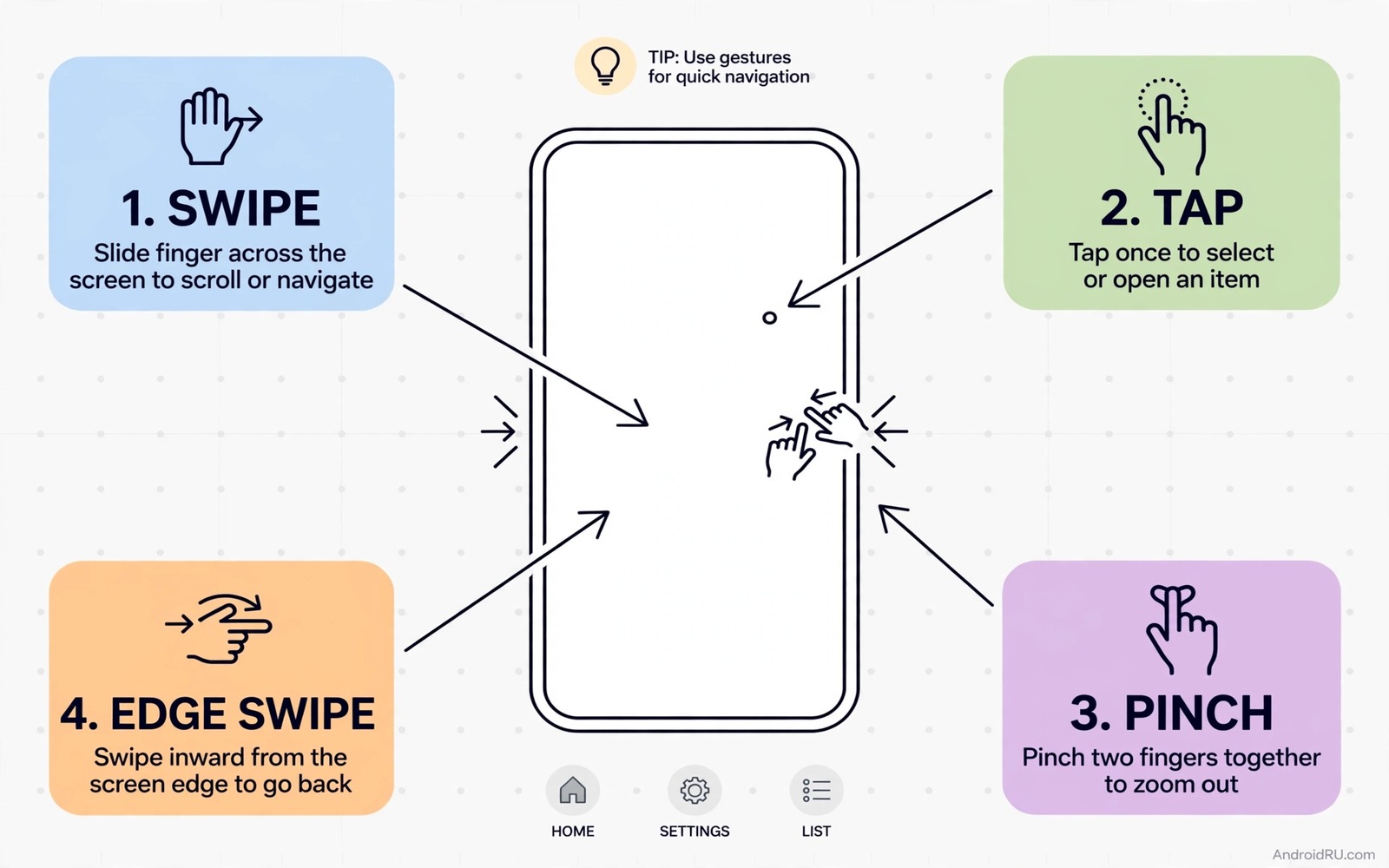
Navigation gestures can make a phone feel faster than button taps. A swipe from an edge can go back and a swipe up can go home and a swipe and hold can show recent apps. Those motions use muscle memory and they free screen space that buttons would occupy. A power user who learns seven gestures can move through a phone without hunting for buttons. This guide shows seven gestures that truly save time and it shows how to learn them without confusion.
Gestures work because they match natural hand movement. A swipe back feels like turning a page and a swipe up feels like closing a book. A gesture that matches a mental model is easy to remember. A gesture that feels arbitrary is hard to remember even after many tries. Choose gestures that feel natural first and add clever gestures only after the natural set feels automatic.
Gestures pair well with other fast navigation tools such as double tap and shake. double tap gestures to lock a phone screen shows a tap gesture that complements swipe navigation. Start with swipe gestures because they cover the core moves of back and home and recent. Add tap gestures after swipe navigation feels automatic.
Master Back Home And Recent First
Learn back first because it is the most used navigation move. Swipe from the left or right edge toward the centre to go back. Test it in a browser and in a settings menu and in a chat app. Each app should respond the same way. If an app uses an edge swipe for its own menu then learn that app exception separately. A back gesture that works in most apps still saves time overall.
Learn home next because it returns you to a known place from any app. Swipe up from the bottom edge to go home. That motion should feel like a single confident flick rather than a slow drag. A slow drag may open a search or a recent view instead of home. Practise the flick speed on a home screen until it feels natural. A confident flick is faster than a button tap once it becomes habit.
Learn recent apps next because it lets you switch tasks without returning home first. Swipe up and hold briefly to show recent apps. Hold just long enough for the cards to appear and then release. A hold that is too short goes home and a hold that is too long can feel slow. Practise the hold timing for a few minutes until the cards appear reliably. That timing is the key to the gesture.
Learn App Switch And Quick Switch
A horizontal swipe along the bottom edge can switch between recent apps fast. Swipe left or right along the bottom bar to move to the previous or next app. That motion is ideal for copying a code from one app to another. Test it with a browser and a notes app. Switch back and forth a few times until the motion feels smooth. A smooth switch saves many home trips during a task.
A quick switch gesture can jump straight to the last used app with one motion. Some phones offer a double swipe or a swipe and hold variant for quick switch. Check your gesture settings for a quick switch option and test it with two apps that you use together often. A quick switch that works reliably can replace a recent apps view for a two app task. That replacement saves a tap and a visual search.
A back gesture can also switch apps in some launchers when used with a hold. Avoid stacking too many meanings on one gesture at first. A gesture with one clear job is easier to learn than a gesture with three jobs. Add a hold variant only after the basic gesture feels automatic. A layered gesture set grows from a solid base.
A Gesture Timing Example
The code below is a small developer example that shows how a swipe can be detected from touch movement and time. It checks the distance moved and the time taken and it classifies the motion as a swipe when both pass a threshold. It does not replace system gestures and it does not run on a phone on its own. Use it only to learn how gesture detection can look in code. A real system adds velocity and direction checks to that basic idea.
boolean isSwipe = distance > 100 && duration < 300;
if (isSwipe) { navigateBack(); }
Attribution: the code above is an original example written for this guide. It follows the standard command interface shipped with the Android platform tools and it uses only public commands that work on a normal developer setup.
After the example you can see why speed matters for a gesture. A slow drag with a long duration may not count as a swipe even when the distance is large. A fast flick with a short duration counts even when the distance is modest. That speed rule is why a confident flick works better than a careful drag for system gestures. Practise speed rather than distance when a gesture fails.
Use One Handed Gestures Safely
One handed gestures help when the other hand holds a bag or a rail. A swipe from the bottom edge with a thumb can go home without shifting grip. A swipe from the side edge with a thumb can go back without reaching across the screen. Test one handed gestures with your normal grip rather than with a stretched grip. A gesture that needs a stretch is not a true one handed gesture.
A reachability gesture can pull the top of the screen down for a thumb. Some phones offer a swipe down on the bottom bar to lower the screen. That gesture helps when a top button sits out of thumb reach. Test it with a tall phone because tall screens benefit most. A reachability gesture that works well can reduce hand strain over a long day.
A thumb keyboard gesture can move the cursor by sliding on the space bar in some keyboards. That gesture helps editing without lifting the thumb to the text. Test it in a notes app with a long sentence. Slide slowly to move one character at a time and slide faster to move by words when the keyboard supports it. A cursor gesture can save many taps during editing.
Customise Gestures Without Confusion
Custom gestures should serve jobs that system gestures do not cover. A custom swipe on a launcher can open a favourite app or toggle flashlight. Choose one custom gesture for a first test and use it for a week before you add another. A single custom gesture is easy to remember and easy to test. A set of five custom gestures on day one is easy to forget.
Name each custom gesture by its action in a note. A note such as swipe down opens camera helps you recall the gesture after a break. A gesture without a note can fade after a holiday. Review the note after a break and practise each custom gesture once. That review restores muscle memory fast.
A custom gesture should not conflict with a system gesture. A swipe from the left edge already means back on many phones. A custom action on that same edge will clash and produce a random result. Choose an unused edge or a distinct pattern for custom actions. That separation keeps both sets reliable. The same separation principle helps other custom controls and launch apps by drawing gestures needs a distinct pattern to avoid clashes.
Practise Gestures In Real Tasks
Practise gestures inside real tasks rather than in a gesture demo alone. A demo teaches the motion but a real task teaches the timing under pressure. Copy a code from a browser into a notes app using app switch gestures. That real task forces several gestures in sequence and it reveals which gesture still feels slow. A sequence test is more honest than a single gesture test.
A real task test also reveals app exceptions that a demo hides. A browser edge menu can clash with a back gesture and a game can block system gestures entirely. Note each exception during real tasks and learn a workaround for each one. A workaround such as using the opposite edge can save a gesture set from frustration.
Repeat a real task test after a week of gesture use and compare the time with the first test. A faster time proves that muscle memory formed. A similar time points to a gesture that still needs practise. Focus practise on the slow gesture only rather than on the whole set. Targeted practise improves speed faster than general practise.
Common Mistakes
One common mistake is to learn all gestures at once and then forget most of them. Learn back and home and recent first and add others slowly. Another mistake is to drag slowly instead of flicking confidently. A slow drag can trigger a different gesture. Practise speed for system gestures. A third mistake is to use a custom gesture that clashes with a system gesture. Choose distinct patterns for custom actions.
A further mistake is to judge gestures after one day of use. Muscle memory needs several days to form. Use a new gesture for a week before you decide whether it helps. A further mistake is to ignore one handed testing. A gesture that works with two hands may fail with one hand. Test with your normal grip.
A final mistake is to turn on gesture navigation and keep button habits at the same time. Mixed habits slow learning because the brain chooses the old button path. Commit to gestures for a week and let buttons fade. That commitment builds muscle memory faster. The same commitment helps other habit changes and keyboard shortcuts that control an entire Android device needs a week of commitment too.
Frequently Asked Questions
Are gestures faster than buttons?
They become faster after muscle memory forms. Buttons feel faster on day one because they are visible. Gestures feel faster after a week because they need no visual search. Give gestures a full week before you judge speed.
Can I bring back buttons if gestures do not suit me?
Yes. Gesture navigation is a setting that you can change back at any time. Open navigation settings and choose button navigation again. Your apps and data stay unchanged when you switch modes.
Why does my swipe sometimes open a menu instead of going back?
Some apps use an edge swipe for their own menu. That app exception can clash with a system back gesture. Learn the exception for that app or use a back gesture from the opposite edge when the app allows it.
Conclusion
Turn on gesture navigation today and practise back and home and recent for ten minutes. Use only those three gestures for the rest of the day and note any failure. That focused practise builds the core muscle memory fast.
After three days add app switch along the bottom edge and practise it with two apps that you use together. After a week add one custom gesture for a favourite action. A slow build gives you a gesture set that feels natural rather than forced.
Review your gesture set after a month and drop any gesture that you never use. A tight set of seven useful gestures beats a long list of forgotten motions. That tight set is the real payoff of power user navigation.

