

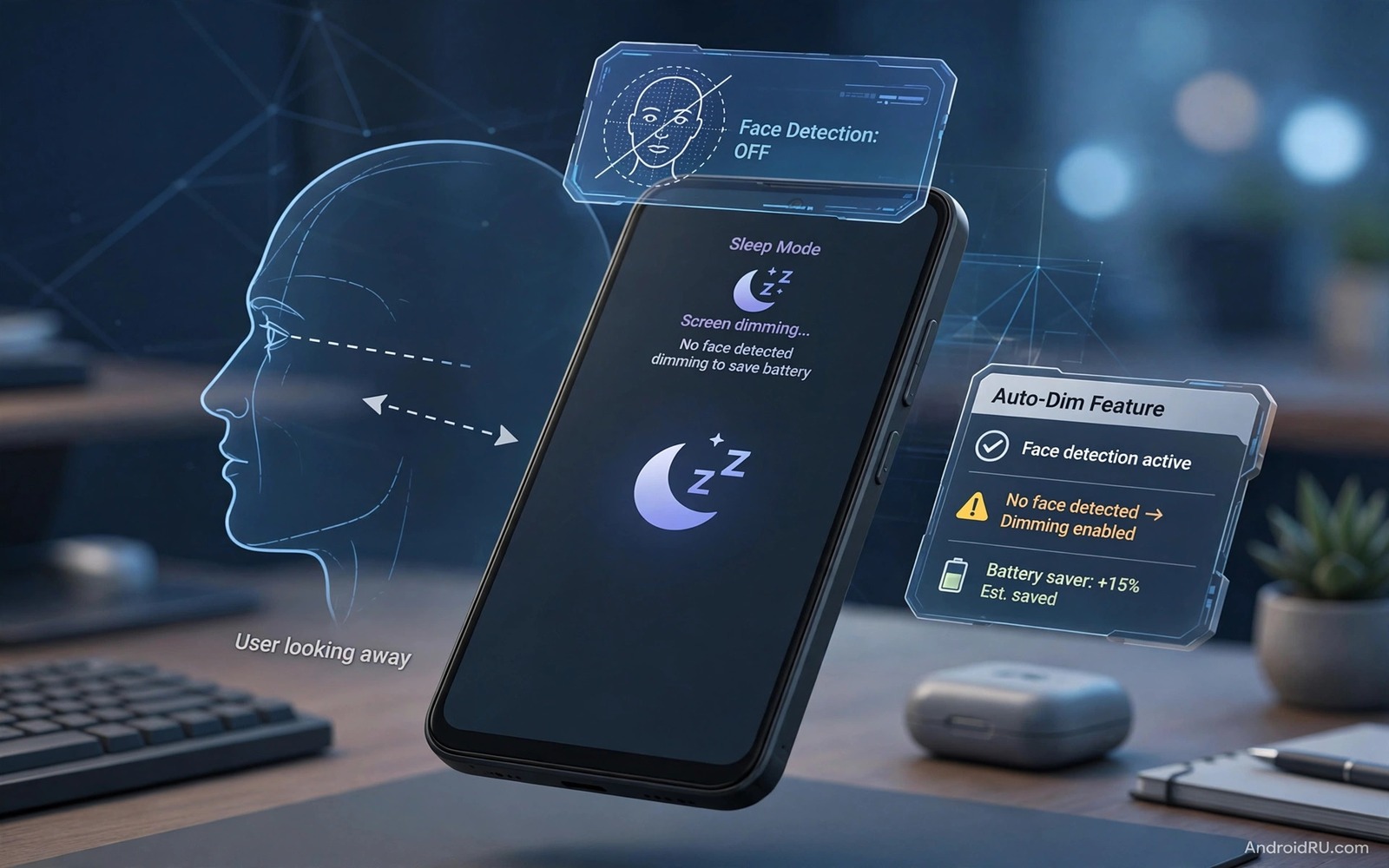
A phone screen that stays on wastes battery and it can also show private content to anyone nearby. A screen that turns off too fast annoys you during a long read. A face based timeout solves both problems because it keeps the screen on while you look at it and it turns the screen off when you look away. That smart behaviour feels natural once you try it. It also saves battery without a constant manual lock habit.
Face based timeout uses the front camera to check for attention at intervals. It does not record video and it does not send face data to a server in a well designed system. It checks for a face shape and it resets the timeout timer when it finds one. When no face appears for a set period the screen dims and then locks. That check runs only while the screen is on and it stops when the screen locks.
A face timeout pairs well with other attention aware features such as a screen that stays on during a video call. auto mute that silences a phone at work shows a different attention rule based on place. Start with face timeout because it has a clear battery benefit and a clear privacy benefit. Test it for a week before you judge it.
Check Face Attention Support On Your Phone
Open Settings and search for screen attention or smart stay or keep screen on while viewing. Brands use different names for the same idea. Some phones place it under Display and some phones place it under Smart features. If you cannot find it then your phone may offer it inside a digital wellbeing or a motion setting. Search slowly with several terms before you assume that the feature is missing.
Check camera permission for the feature when the phone asks for it. A face attention feature needs front camera access to check for a face. That permission should stay local to the feature and it should not grant camera access to other apps. Read the permission screen carefully and deny any extra permission that looks unrelated. A feature that asks for location for a screen timeout is asking too much.
Check battery impact in the first week because a camera check can use power if it runs too often. A well tuned feature checks at intervals rather than constantly. If battery drops fast after you turn it on then check the interval setting and lengthen it. A longer interval still catches a look away within a reasonable time and it costs less power.
Set Up Face Timeout Step By Step
Turn on the face attention feature in Display settings and set a normal screen timeout such as thirty seconds. The face feature extends that timeout only while a face is present. It does not replace the timeout and it does not keep the screen on forever. A thirty second base timeout with face extension gives a good balance between responsiveness and battery saving. Test that balance for a day before you change it.
Test the setup by opening a long article and reading without touching the screen. The screen should stay on while you read and it should dim soon after you put the phone face down. That pair of tests proves both sides of the feature. If the screen turns off while you read then check lighting because a dark room can hide your face from the front camera. Add light or move closer to the phone for a fair test.
Test the setup in different positions such as lying down and sitting at a desk. A face check can fail at a sharp angle or when the phone sits far away. A desk stand that holds the phone upright helps the camera see your face. A phone lying flat on a desk may fail the check because the camera points at the ceiling. Position matters as much as settings for this feature.
A Simple Attention Timer Example
The code below is a small developer example that shows how a timer can reset when a face is detected. It uses a simple condition to reset a timeout counter. It does not access a real camera and it does not replace a system face feature. Use it only to learn how an attention timer can work in code. A real system feature uses camera hardware and privacy protections that a simple example cannot show.
if (faceDetected) {
  timeoutCounter = 0;
} else {
  timeoutCounter = timeoutCounter + 1;
}
Attribution: the code above is an original example written for this guide. It follows the standard command interface shipped with the Android platform tools and it uses only public commands that work on a normal developer setup.
After the example you can see why interval checks matter. A check every few seconds is enough to catch a look away without constant camera use. A check every second would waste power for no clear gain. A real feature balances interval and responsiveness and it stops checks entirely when the screen locks. That balance is the engineering behind a simple sounding feature.
Tune Timeout For Reading Video And Calls
Reading needs a longer effective timeout because eyes move slowly across a page. A face feature handles reading well because it sees your face during the whole read. Video needs less face help because video apps often keep the screen on by themselves. Calls need a different rule because the phone sits near your ear and the proximity sensor turns the screen off. Do not judge face timeout during a call because the proximity sensor overrides it.
A long article test is the best reading test. Open an article and read for two minutes without touching the screen. Note whether the screen stayed on the whole time. A screen that dims during a read points to a lighting or angle problem rather than a settings problem. Fix lighting or position before you change the timeout value. A settings change cannot fix a camera that cannot see your face.
A video test is less useful for face timeout because many video apps already prevent sleep. Test face timeout with a static page such as a recipe or a map. A static page has no video keep awake signal so the face feature must do the work alone. That clean test shows the true behaviour of the feature without help from another app.
Privacy And Camera Use
A face attention feature should process face data on the device and it should discard each check at once. It should not store face images and it should not upload them. Check the feature description on your phone for an on device note. If the description mentions cloud processing then think carefully before you turn it on. A screen timeout feature does not need cloud face data to work.
Cover the front camera test is a simple privacy check. Cover the camera with a finger and read a page. The screen should dim because no face is visible. Uncover the camera and the screen should stay on again. That test proves that the feature uses the camera as described. It also proves that the feature stops when it cannot see a face.
Turn the feature off in a shared or public setting if you worry about camera use. A public setting does not change the privacy design but a personal comfort rule matters too. You can turn the feature on at home and off at work with a routine if you prefer. A routine that toggles the feature by place gives you control without daily manual taps.
Use Face Timeout With Reading Apps
Reading apps benefit most from face timeout because they show static pages for long periods. A recipe app and a news app and a book app all keep a page still while you read. Face timeout keeps those pages lit without a touch. That benefit is larger than for video apps which already keep the screen on. Test face timeout with a book app first for the clearest result.
A book app test also reveals angle problems fast because reading in bed uses a sharp angle. A phone held low can hide your face from the camera. A stand or a pillow prop can improve the angle. A small position change often fixes a reading failure without a settings change. Try position first and settings second.
A reading test also helps with other attention rules because it shows how long you truly look at a page. That time data can inform a timeout value for other apps too. A timeout that works for reading usually works for maps and recipes as well. Share that value across similar static apps for a consistent feel. Consistency across apps makes the phone feel smarter overall.
Face timeout also works well alongside a calm phone routine that reduces distractions during reading. A routine that silences social alerts while you read can protect focus in the same way that face timeout protects battery. The automation guide for daily routines shows how such rules can stack without conflict and it can help you build a reading mode that stays quiet and lit at the same time. See automation routines for a calmer daily phone for a tested starting point.
Common Mistakes
One common mistake is to set a very long base timeout and then blame the face feature for battery drain. Keep the base timeout short and let the face feature extend it only while you look. Another mistake is to test in a dark room and then declare the feature broken. Add light and test again before you judge it. A third mistake is to expect face timeout to work during a call. A proximity sensor overrides the screen during a call by design.
A further mistake is to use a phone case that covers the front camera edge. A case that blocks part of the camera view can cause false look away results. Check the case fit and trim any cover that blocks the camera. A further mistake is to ignore battery permission for the feature. A feature that the system kills cannot check for a face. Exclude it from aggressive battery saving when the maker recommends it.
A final mistake is to enable a third party face stay app without checking its privacy policy. A third party app can access the camera in ways that a system feature cannot. Use the built in feature when possible. The same caution applies to other camera tools and use a phone camera as a real-time translator should be chosen from a trusted source with a clear privacy note.
Frequently Asked Questions
Does face timeout record my face?
A well designed system feature checks for a face shape on the device and discards the check at once. It should not store face images or upload them. Check the feature description on your phone for an on device note before you turn it on.
Why does my screen still turn off while I read?
Lighting and angle are the usual causes. A dark room or a sharp angle can hide your face from the front camera. Add light and hold the phone upright for a fair test. If the problem persists then check whether a case blocks the camera edge.
Can face timeout replace a screen lock?
No. Face timeout only delays the lock while you look at the screen. It does not unlock the phone and it does not replace a PIN or fingerprint. The phone still locks after you look away for the set period.
Conclusion
Turn on face attention today and set a thirty second base timeout. Test it with a long article in good light and test it again with the phone face down. That pair of tests proves both sides of the feature in minutes.
After the tests pass use the feature for a week and note any room where it fails. Fix lighting or position based on those notes before you change timeout values. A week of notes turns a clever feature into a reliable battery saver.
Review battery use after that week and compare it with the week before. A real saving plus a screen that stays on while you read is the proof that the feature earns its place. Keep it on only if both results look good.

