

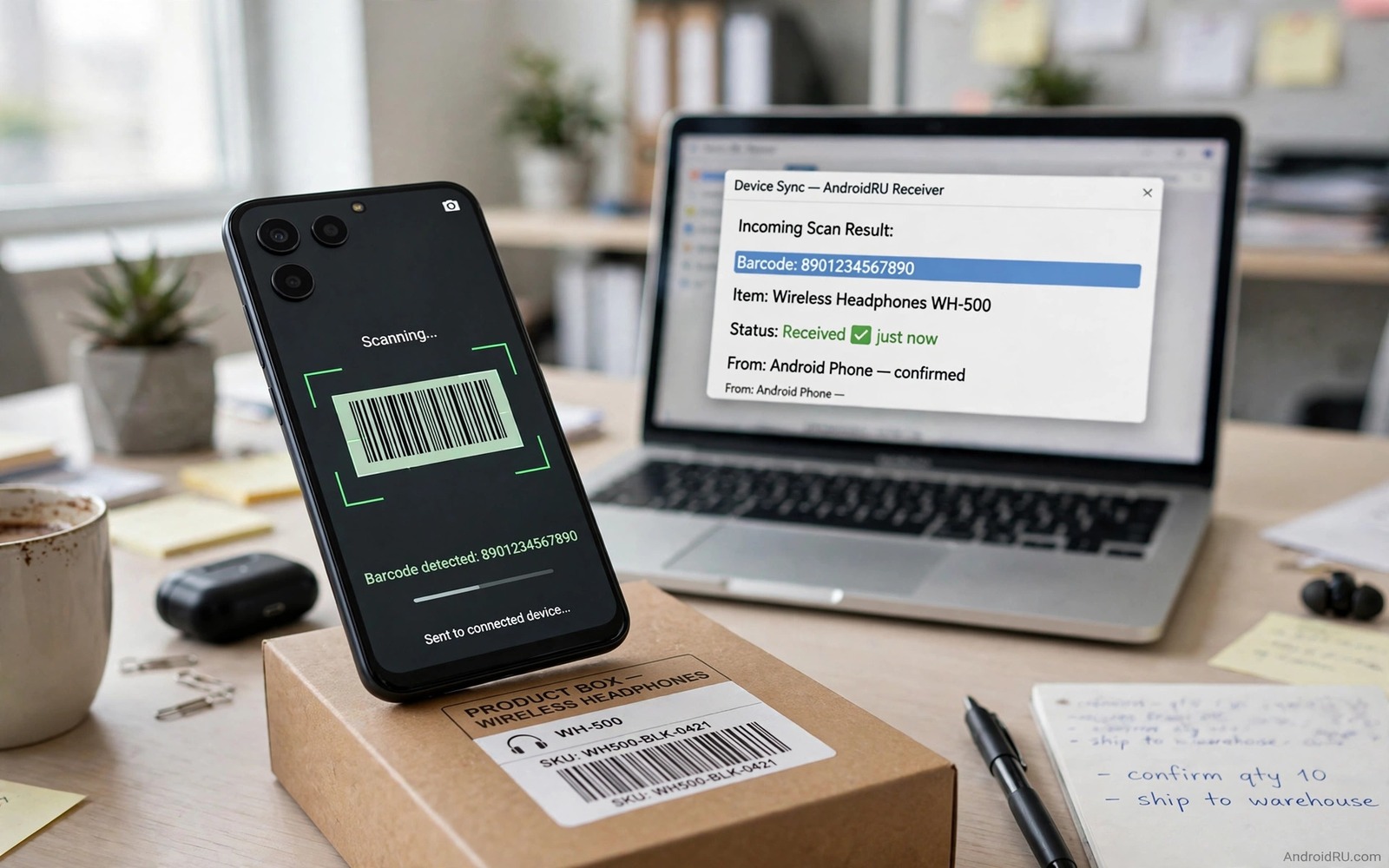
A barcode scanner is a handy tool for a shop or a library or a home stockroom. A dedicated scanner costs money and it needs a cable or a dock. Your Android phone already has a camera that can read barcodes fast. With a simple link to a computer the phone can send each scanned code straight into a spreadsheet or a stock app. That setup turns a phone that you already own into a wireless scanner for real work.
The idea works because a barcode is just a code that represents a product or a book or an item. The phone camera reads the code and the companion app sends the text to the computer. The computer then types that text into the active field as if you typed it on a keyboard. That keyboard trick is why the setup works with almost any program. A spreadsheet and a stock system and a library catalog can all receive codes without special integration.
A phone scanner pairs well with other phone as tool setups. A phone can serve as a display or a trackpad or a remote control when a computer needs a hand. turn a smartphone into a full wireless trackpad shows another reuse that uses the same wireless link idea. Start with scanning because it has a clear job and a clear test. A successful scan test proves the link before you trust it for stock work.
Choose A Scanner App And PC Link
Look for a scanner app that offers a PC companion or a web link mode. The app should show a clear scanned code on the phone and a clear sent status after each scan. A good app also keeps a scan history on the phone so a lost link does not lose a whole session. Check reviews for link stability rather than for fancy features. A stable link matters more than a pretty interface for stock work.
Choose a link method that fits your room. A local Wi-Fi link works well in a shop with a stable network. A USB link works well at a fixed desk with a cable nearby. A Bluetooth link works well for short range work without a network. Test the link in the real room because walls and other devices can affect a wireless link. A link that works at a desk may fail in a large warehouse.
Check the PC side before a work session. Install the companion program or open the web receiver page and confirm that the computer shows a ready status. Click into a test spreadsheet cell and scan a test barcode. The code should appear in that cell at once. If the code appears in the wrong field then click the right field before the next scan. That focus step is easy to forget during a fast session.
Set Up Scanning Step By Step
Install the scanner app on the phone and install the companion on the computer. Connect both devices to the same network for a Wi-Fi link or pair them for a Bluetooth link. Open the companion and note the connection code or address that it shows. Enter that code in the phone app if the app asks for it. Confirm that both sides show a connected status before you scan a real item.
Set the scan mode to match your work. A single scan mode suits a slow stock check where each item needs a look. A continuous scan mode suits a fast stocktake where many items pass quickly. A continuous mode can also cause double scans if you hold the phone too long on one code. Test both modes with ten items and pick the mode that gives the cleanest list with the fewest duplicates.
Set a sound or vibration for each successful scan. A clear beep tells you that the code reached the computer without looking at the screen. A failed scan should sound different so you can rescan at once. That audio feedback speeds up a session a lot because you can keep your eyes on items rather than on the phone. Test the sounds in the real room because a noisy shop may need vibration plus sound.
A Simple Barcode Format Example
The code below is a small developer example that shows how a scanned barcode value can be sent as plain text. It takes a code string and it writes that string to a connected output. It does not scan a real barcode and it does not replace a scanner app. Use it only to learn how a scanned value travels from a phone to a computer as text. A real scanner app handles camera focus and code decoding before this step.
String barcode = "9780201379624";
output.write(barcode);
output.write("\n");
Attribution: the code above is an original example written for this guide. It follows the standard command interface shipped with the Android platform tools and it uses only public commands that work on a normal developer setup.
After the example you can think about data cleaning in a real stock list. A scanned code may carry extra spaces or a prefix that your system does not want. A spreadsheet formula can trim spaces and a stock app can strip a prefix on import. Test cleaning on a small sample before a large stocktake. A clean sample prevents a large list with hidden errors that appear only later.
Scan Faster Without Errors
Hold the phone steady and let the camera focus before you move to the next item. A rushed scan can read a partial code or a neighbouring code. Keep the barcode flat and well lit and keep the phone at a natural distance. A damaged barcode may need a slower approach or a manual entry. Do not force a damaged code through many retries when manual entry is faster and safer.
Work in small batches and save after each batch. A batch of twenty items is easy to check and easy to redo if a link drops. A batch of two hundred items is hard to check and a link drop can lose a lot of work. Save the spreadsheet after each batch and check the count against the items that you scanned. That count check catches a missing scan early.
Label each batch with a location or a shelf name so a later review can find the source. A batch label such as shelf A or room two turns a long list into a useful stock record. A list without labels can tell you what you scanned but it cannot tell you where each item lives. Location labels make the stock list useful for a future search.
Fix Link Drops And Duplicate Scans
A link drop usually shows as a scan that never appears on the computer. Check the connection status on both sides before you rescan. A rescan without a check can create a duplicate when the first scan arrives late. Wait a few seconds after a reconnect and then rescan the last item only. That careful rescan keeps the list clean.
Duplicate scans also come from holding the phone on one code too long in continuous mode. Move the phone away after the success beep and let the app reset before the next item. A short pause between items feels slow at first but it saves time overall because it avoids duplicate cleanup. A clean list beats a fast list with errors.
Battery drain can also break a long session because camera scanning uses power fast. Keep a charger nearby for a long stocktake or take a short charging break between batches. A phone that dies mid batch can lose unsaved scans. Save often and charge between batches. That habit also helps other long phone tasks and control a PC mouse and sound directly from Android needs the same battery care during a long remote session.
Common Mistakes
One common mistake is to start a large stocktake without a test scan. Always test with ten items in the real room first. Another mistake is to scan in poor light and then blame the app. Add light or move near a window before you judge the scanner. A third mistake is to ignore the active field on the computer. A scan goes to the field that has focus and a wrong focus can scatter codes across a sheet.
A further mistake is to use a phone with a cracked camera lens for scanning. A cracked lens can blur codes and cause repeated failures. Use a phone with a clear lens for stock work. A further mistake is to forget scan history on the phone. History can rescue a session when a link drops. Check that history is on before a large session.
A final mistake is to mix barcode types without checking app support. A retail barcode and a QR code use different formats and some apps support only one type. Check support for your barcode type before a work session. That check takes a minute and it saves a failed session. The same format care matters for other device links and mirror an Android screen to any TV instantly needs a matching format on both sides too.
Frequently Asked Questions
Can any Android phone work as a barcode scanner for a PC?
Most modern phones with a decent camera can scan common barcodes well. A phone with a clear lens and good autofocus works best. Test your phone with your actual barcode type before a large stocktake.
Does the phone need internet to send scans to a PC?
It needs a local link such as Wi-Fi or Bluetooth or USB. It does not need internet when both devices share a local network. A web receiver mode may need a local address rather than a public internet link.
Why do some scans appear twice on the computer?
Duplicates usually come from continuous mode or from a late first scan after a link drop. Move the phone away after the success beep and wait after a reconnect before you rescan. Small batches also make duplicates easy to spot.
Conclusion
Set up a phone scanner today with a test of ten barcodes in your real room. Install the app and the PC companion and scan into a test spreadsheet. Check the codes and the sounds and the link stability before any real stock work.
After the test passes run a small batch of twenty real items and save after the batch. That small success proves the link and it gives you a clean method for larger stocktakes. Grow batch size only after the small batch stays error free.
Keep the phone scanner kit ready in one place with a charger and a test barcode. A ready kit removes setup friction before a stocktake and it prevents a rushed start. A calm start with a test scan leads to a clean list and a faster finish overall.
Train a helper with the same test batch before a large stocktake. A helper who passes the test batch will follow the same clean habits. A shared method keeps lists consistent when two people scan in different rooms.
Keep a spare charger and a spare cable in the scanner kit for long sessions. A dead phone in the middle of a batch can lose unsaved scans and break the rhythm of a stocktake. A spare power source is cheap insurance for a long day of scanning work.

