

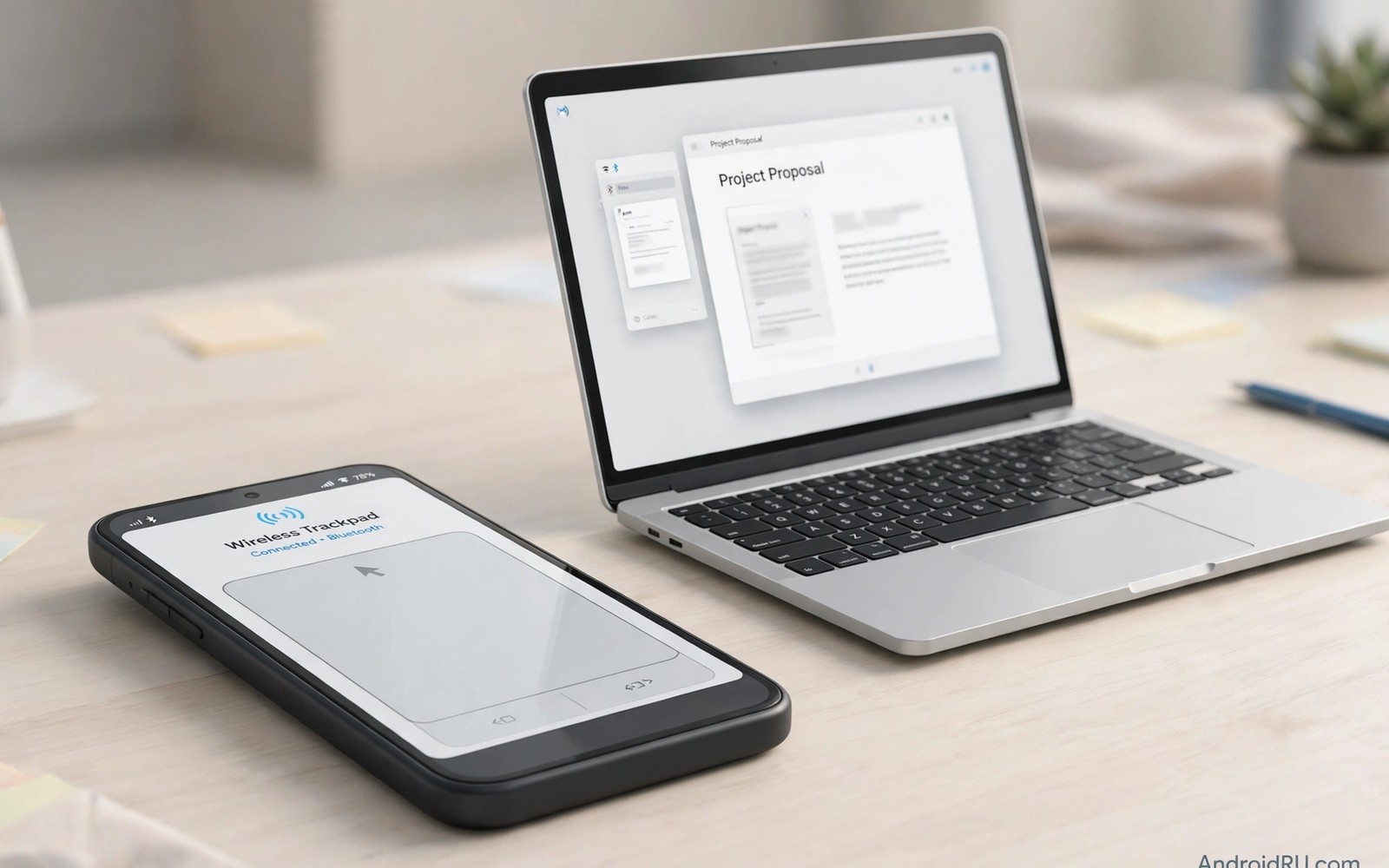
A smartphone can act as a wireless trackpad for a computer or a TV when you need pointer control without a mouse. A trackpad app turns the phone screen into a touch surface that moves a cursor on the larger screen. That setup helps during presentations and couch browsing and compact desk work.
Wireless trackpad apps connect over Wi-Fi or Bluetooth depending on the app and the target device. A Wi-Fi connection usually offers lower latency on a local network. A Bluetooth connection works without a shared network yet it may feel slower for fast movements.
This guide shows how to choose a trackpad app and connect it and tune sensitivity. You will learn gesture controls and keyboard pairing and troubleshooting for lag. A tuned trackpad soon feels like a natural extension of the larger screen. The same phone-as-peripheral idea extends to controlling a PC from your phone, where keyboard and mouse input join pointer control for full desk work.
Choose a trackpad app that fits your target
A trackpad app for a computer usually needs a small receiver program on that computer. Install the receiver from the app developer and keep both devices on the same network for Wi-Fi mode. A receiver that matches the app version prevents connection errors.
A trackpad app for a TV may use a built in casting protocol rather than a receiver program. Check the TV settings for remote control or pointer options before you install an app. A TV that already supports a phone remote may need no extra software.
Pick an app with a clear privacy policy because a trackpad app sees your pointer movements and typing. A reputable app processes input locally on your network. Avoid apps that route input through a distant server without a clear reason.
Connect the phone to the target device
Open the trackpad app and select the target device from the discovered list. Confirm any pairing code shown on the larger screen. A successful pair should move the cursor when you slide a finger across the phone screen.
When the target does not appear check that both devices share the same Wi-Fi network. A phone on mobile data and a computer on home Wi-Fi cannot discover each other. Switch the phone to the home network and refresh the device list.
Test the connection with slow movements first to confirm cursor accuracy. Fast flicks can hide lag and overshoot problems. Slow control proves the baseline before you increase speed.
Learn trackpad gestures
A single finger slide moves the cursor across the larger screen. A tap on the phone screen acts as a left click in most trackpad apps. A two finger tap often acts as a right click yet the exact mapping varies by app.
Two finger scrolling moves pages and documents without a scroll wheel. Pinch gestures may zoom in apps that support zoom. Practice gestures in a simple document before you use them in a presentation.
A trackpad phone pairs naturally with how to control a device using keyboard shortcuts for a complete control setup. A phone trackpad handles pointer movement while a keyboard handles typing and shortcuts. Together they replace a mouse and a keyboard in a compact kit.
Tune sensitivity and layout
Open trackpad settings and adjust pointer speed to match your hand movement. A speed that feels fast on a small phone screen may feel slow on a large TV. Test several speeds with a simple target clicking exercise.
Adjust the trackpad area when the app lets you reserve space for buttons. A larger touch area gives finer control yet leaves less room for click buttons. A balanced layout keeps movement smooth and clicks easy to reach.
Enable haptic feedback when available so taps feel confirmed without looking at the phone. Haptic feedback helps during presentations when your eyes stay on the larger screen. A subtle vibration beats a loud click sound in a quiet room.
Use the trackpad for presentations
A phone trackpad lets you advance slides and point at details from anywhere in a room. Stand near the audience rather than behind a computer during a talk. That freedom makes a presentation feel more engaging.
Keep the phone charged before a presentation because trackpad use drains battery faster than idle use. A low battery warning during a talk distracts the audience. Charge the phone fully and keep a cable nearby as a backup.
Practice slide navigation once before the real presentation. A rehearsal reveals gesture mappings that differ from your expectation. A short practice run prevents awkward pauses during the actual talk.
A small code check for input devices
A quick command can show input device state on a phone with debugging enabled. Connect the phone and run the command below once to view connected input settings. The output helps you confirm that the phone recognises touch input correctly.
adb shell dumpsys input
adb shell settings get secure default_input_method
The snippet above was written for this article to show a safe read only way to review input settings for trackpad use. It changes no input setting while it reports device input state. You can run it again after pairing a new device to confirm input state. Keep a note of the output when you troubleshoot lag.
Use a trackpad for couch browsing
Couch browsing with a phone trackpad avoids reaching for a mouse on a coffee table. A phone that already sits nearby becomes the pointer controller. That convenience makes a TV browser feel usable rather than awkward.
Keep the phone brightness low during couch browsing to save battery. A dim screen still registers trackpad gestures accurately. A low brightness setting extends a browsing session by hours.
Use two finger scrolling for web pages during couch browsing. Scrolling with two fingers feels natural on a phone trackpad. That gesture replaces a scroll wheel that a couch setup lacks.
Control a presentation from the audience
A presenter who stands in the audience can advance slides with a phone trackpad. That freedom lets the presenter engage the audience directly. A trackpad in hand beats a laptop on a podium for interaction.
Practice slide advance timing before a real talk to avoid accidental double advances. A double advance can skip a key slide and confuse the audience. A rehearsal reveals the tap rhythm that works best.
Keep a backup clicker or a laptop nearby during an important presentation. A backup prevents a trackpad failure from stopping the talk. A simple backup gives confidence during a high stakes session.
Secure a trackpad connection
A trackpad connection should stay on a trusted local network rather than a public network. A public network can expose pointer traffic to other users. A trusted home or office network reduces that risk sharply.
Disconnect the trackpad app after each session to prevent accidental cursor movement. A connected trackpad can move a cursor when the phone shifts in a pocket. A clean disconnect also saves battery after the session.
Check the trackpad app permissions after each update. An update can add permissions unrelated to pointer control. Revoke permissions that do not match the app purpose. Readers who want a larger screen will also like how to mirror an Android screen to any TV because a trackpad and a mirror together create a full couch workstation.
Use a trackpad for digital art
A phone trackpad can control a cursor in a drawing app on a larger screen. That control lets an artist sketch with a stylus on a tablet while the phone acts as a secondary input. A secondary trackpad can zoom and pan without interrupting the drawing hand. That workflow suits artists who work on a large canvas.
Set trackpad sensitivity low for detailed art work to allow fine cursor movements. A low sensitivity gives precise control over small details. A high sensitivity can overshoot a fine line and ruin a detail. Sensitivity tuning matters most for art tasks.
Use trackpad gestures for undo and redo during art sessions. A gesture for undo saves a trip to a menu during a creative flow. That flow preservation helps an artist stay focused on the canvas. A menu break can disrupt a creative idea.
Keep the phone trackpad charged during long art sessions because an awake screen drains battery fast. A low battery warning during art work distracts from the creative process. Charge the phone fully before a session and keep a cable nearby. A prepared setup lets art flow without interruption.
Common mistakes
The biggest mistake is using a trackpad app over a slow or crowded Wi-Fi network. Network lag makes the cursor feel disconnected from your finger. Move closer to the router or switch to a less crowded network for smoother control.
Another mistake is forgetting to lock the phone screen orientation during trackpad use. A rotating screen can resize the trackpad area mid movement. Lock orientation to landscape or portrait before you start a session.
People also leave the trackpad app running after a session which drains battery. Close the app and disconnect from the target device when you finish. A clean disconnect also prevents accidental cursor movements later.
Frequently asked questions
Can a phone trackpad replace a real mouse?
A phone trackpad works well for browsing and presentations and light editing. A real mouse still wins for precise design work and long sessions. Use the phone trackpad as a portable backup rather than a permanent replacement.
Does trackpad use need internet access?
Wi-Fi trackpad apps usually need only a local network rather than internet access. Both devices must share the same local network for discovery. Bluetooth trackpad apps need no network at all.
Will the phone screen stay on during trackpad use?
Most trackpad apps keep the screen awake while the session runs. Check battery level before a long session because an awake screen drains power. Lower screen brightness to extend battery during use.
Conclusion
Turning a smartphone into a wireless trackpad gives you pointer control without carrying a mouse. App choice and connection and gestures and sensitivity tuning together make the experience smooth. Presentation use shows the benefit most clearly yet couch browsing benefits too.
Your concrete next step is to install a reputable trackpad app today and pair it with your computer on the same Wi-Fi network. Practice cursor movement for five minutes. Readers who want a larger screen experience will benefit from how to mirror an Android screen to any TV as a next project.

