

7 Genius Tasker Scripts That Automate Your Daily Routine
My phone used to demand a dozen small jobs from me every day: silence it for work, turn the volume back up after, dim the screen at night, turn off Wi-Fi when I left home, launch music when I plugged in headphones. None of these jobs is hard. Together, they add up to a hundred small taps a day, and a hundred chances to forget one of them. Tasker removes that work by turning each job into a script: a trigger that watches for a condition, and a list of actions that run when the condition is met.
I built the seven scripts in this guide one at a time over two months, testing each one for several days before adding the next. That slow pace matters. A script you understand is a script you can fix, and a script you copied without understanding will break the first time a phone update changes a permission. Every script below comes with its trigger, its actions, its exit task, and an honest verdict, so you can build it, test it, and decide whether it earns a place in your routine.
You do not need root for any of these seven scripts. You do need Tasker itself, a paid app, plus a little patience and the willingness to grant the permissions each script actually uses. If you are new to Tasker, start with the morning script, which is the simplest, and work through the list in order. By the end you will have a phone that prepares itself for the day, protects your focus, saves battery, and greets you at the door.
Before you build: Tasker basics that make every script work
Tasker organises automation into profiles, tasks, and contexts. A profile is the whole script: it pairs a context, which is the trigger, with a task, which is the list of actions. A context can be a time, a place, a device state, or an event such as a Bluetooth connection. When the context becomes true, the task runs. When the context becomes false, Tasker can run an exit task, which undoes the changes. That entry and exit task pair is the key idea behind this whole guide, and it is what separates a tidy script from one that leaves your phone in a strange state.
Two habits will save you hours. First, name every profile and task clearly, such as Morning Startup and Morning Startup Exit, so you can find them in a month. Second, test each script by hand before you trust it: Tasker lets you run any task manually with a tap, and the log shows exactly which action ran and which one failed. A script that passes a manual test and a two-day live test is a script you can rely on.
Profiles, tasks, and contexts in plain language
Think of a profile as a rule, a context as the condition in that rule, and a task as the job the rule performs. The morning script, for example, is a profile whose context is the time 6:30 on weekdays, and whose task turns off Do Not Disturb and opens the calendar. Variables let a task remember things, such as the volume level before a script changed it, so the exit task can restore the old value instead of guessing. You will not need variables for the first three scripts, but the battery and location scripts use them lightly.
Permissions to grant, and only those
Tasker asks for many permissions, and the right approach is to grant only the ones your scripts use. A morning script needs alarm and Do Not Disturb access. A driving script needs Bluetooth and notification access. A location script needs location permission set to allow all the time, or the geofence will not fire when the app is in the background. Grant a permission when a script asks for it, test the script, and move on. Handing Tasker every permission at once makes it harder to tell which one a broken script is missing.
How to test a script without breaking your day
Build a script, run its task manually, and watch what happens. Then let it run live for two or three days while you keep a note of anything odd. Add a temporary Flash action, a short message on screen, at the end of a new task, so you can see the moment it fires. Remove the Flash action once the script has proved itself. Testing on a weekend is wise for the sleep and work scripts, where a mistake could silence an alarm or a call.
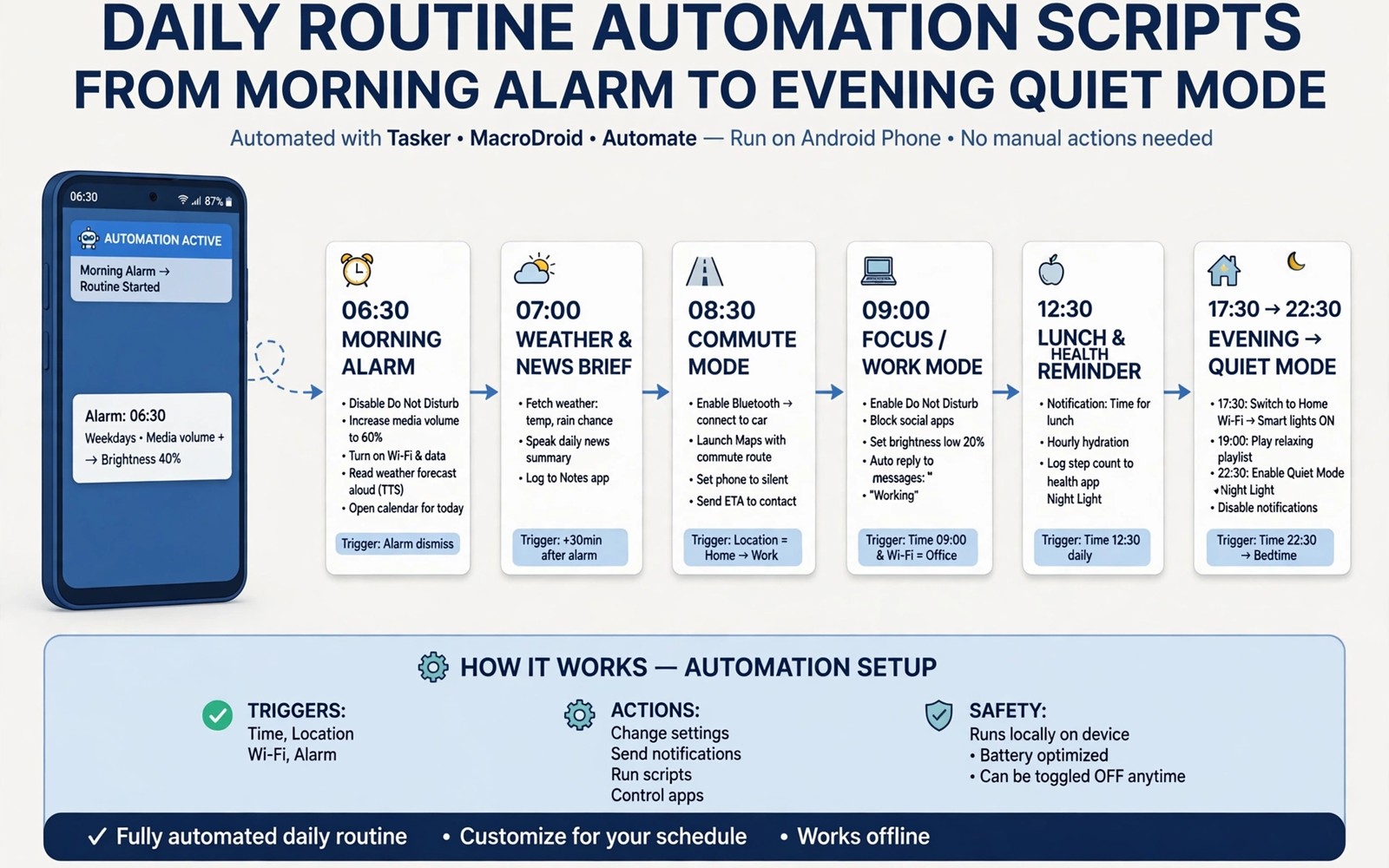
The seven Tasker scripts at a glance
Here is the whole set before we build each one. The table shows the trigger, the headline action, and the exit behaviour for all seven scripts, so you can see how they fit together and spot any overlap with routines you already have. Readers who want a gentler starting point will enjoy ten genius hacks to automate an Android phone, because those built-in routines cover single actions, while the scripts below chain several actions into one sequence.
| Script | Trigger | Main actions | Exit task |
|---|---|---|---|
| 1. Morning Startup | Time 6:30 weekdays, or alarm dismissed | Do Not Disturb off, media volume 60 percent, open calendar | None needed |
| 2. Driving Mode | Car Bluetooth connected | Bluetooth on, launch navigation, read messages aloud | Restore volume, close navigation |
| 3. Focus Work Mode | Weekday 9:00 to 17:00 | Do Not Disturb on, silence social apps, calm wallpaper | Do Not Disturb off, restore wallpaper |
| 4. Quiet Sleep Mode | Time 22:30 | Do Not Disturb on, dim screen, Wi-Fi off, set alarm | Morning script handles wake-up |
| 5. Battery Saver | Battery below 20 percent | Battery saver on, brightness 30 percent, pause heavy sync | Restore brightness and sync on charge |
| 6. Location Arrival | Geofence around home | Wi-Fi on, send arrival message to family | Wi-Fi off when leaving home |
| 7. Headphone Helper | Headphones connected | Launch music app, media volume 50 percent | Pause playback on disconnect |
Morning, driving, and work scripts
The first three scripts cover the start of the day: waking up, driving, and working. They are the most rewarding to build first, because you feel the benefit every single morning. Each one follows the same pattern, so once you have built the morning script, the other two will feel familiar.
Script 1: Morning Startup, a calm beginning to the day
The morning script replaces the first five taps of your day with nothing at all. When it fires, your phone is already awake, already at a sensible volume, and already showing your calendar. I built this one first because it is the simplest script in the guide, and because a good morning makes the rest of the automation feel worthwhile. After a week of it working, I stopped reaching for the volume buttons before breakfast, which is exactly the point.
Trigger, actions, and exit task
Trigger: a Time context set to your real wake time, such as 6:30, on weekdays, with a second profile using the Alarm Done event if your wake time changes at weekends. Actions: turn Do Not Disturb off, set media volume to about 60 percent, set the screen brightness to automatic, and launch the calendar app. Keep the action list to four steps at first. There is no exit task, because the morning script only sets up the day; the work and sleep scripts handle the rest. If your wake time is irregular, use the alarm event instead of a fixed time, and the script will follow your alarm rather than the clock.
Pros, cons, and verdict
Pros: it removes a daily chore completely, it is easy to test, and it rarely breaks, because time triggers are the most reliable context in Tasker. Cons: a fixed time fails on holidays and lie-ins, and a script that opens an app can interrupt you if you wake early and are already using the phone. Verdict: build this one first. It is the best introduction to Tasker, and it pays for itself within a week. If your schedule is irregular, use the alarm trigger from the start and skip the fixed time entirely.
Script 2: Driving Mode, hands on the wheel
The driving script is the most safety-critical script in this guide, and it earns its place by removing the need to touch your phone in the car. When the phone connects to your car Bluetooth, it launches navigation, sets a sensible volume, and offers to read incoming messages aloud. I tested mine by starting the car in the driveway and watching the actions run, and the first time navigation opened by itself, I knew the script was a keeper.
Trigger, actions, and exit task
Trigger: a Bluetooth Connected state tied to your car device name, not to any Bluetooth device, so the script does not fire when you connect headphones. Actions: turn Bluetooth on if it is off, launch your navigation app, set media volume to about 70 percent, and enable the read-aloud feature for messages if your setup supports it. Exit task: when car Bluetooth disconnects, restore media volume to its previous level and close the navigation app. The exit task matters here more than anywhere else, because a script that leaves navigation running will keep giving directions long after you have parked.
Pros, cons, and verdict
Pros: it keeps your hands on the wheel, it starts navigation before you have even left the driveway, and the device-specific trigger prevents false starts. Cons: it depends on your car Bluetooth name staying the same, and some cars take a few seconds to connect, so the script can fire late on the first trip of the day. Verdict: essential if you drive regularly. Test it twice in the driveway before you rely on it, and keep the exit task, because a driving script without one is worse than no script at all.
Script 3: Focus Work Mode, quiet hours that respect your attention
The work script draws a line around your working hours. Between 9:00 and 17:00 on weekdays it turns on Do Not Disturb, silences the social apps that steal attention, and changes the wallpaper to a calm image as a visual cue that you are in focus mode. The wallpaper trick sounds trivial, but it works: when the screen changes, your brain registers that the rules have changed too. I noticed the difference within three days, because the phone stopped buzzing and I stopped checking it.
Trigger, actions, and exit task
Trigger: a Time context for weekdays 9:00 to 17:00, with an optional location condition if you work from a fixed office. Actions: turn Do Not Disturb on with starred contacts allowed through, mute notifications from social apps, and set a calm wallpaper. Exit task: when the time range ends, turn Do Not Disturb off and restore your normal wallpaper. If your work hours vary, add a second profile for a manual toggle, a home screen widget that starts and stops focus mode on demand, so a late meeting does not leave you silenced.
Pros, cons, and verdict
Pros: it protects deep work without willpower, the wallpaper cue makes the mode obvious, and allowing starred contacts through keeps emergencies reachable. Cons: a rigid time range fails on flexible days, and silencing apps can delay a message you actually needed. Verdict: build it if you work fixed hours, and add the manual widget toggle on day one. A focus script you cannot override quickly is a script you will delete within a month.
Sleep, battery, and location scripts
The next three scripts look after your phone when you are not using it: at night, when the battery is low, and when you arrive home. They are quieter than the first three, and you may not notice them working, which is the highest praise an automation script can earn.
Script 4: Quiet Sleep Mode, a phone that rests when you do
The sleep script prepares the phone for the night in one automatic sequence: Do Not Disturb on, screen dimmed, Wi-Fi off, and an alarm set for the morning if you use a fixed wake time. I test sleep scripts on weekends first, because a mistake here can silence a work alarm, and that is a mistake you only want to make once, on a Saturday. After two weekends of clean tests, I trusted it with weeknights.
Trigger, actions, and exit task
Trigger: a Time context at your bedtime, such as 22:30, every day. Actions: turn Do Not Disturb on with starred contacts and repeated callers allowed through, set brightness to a low level, turn Wi-Fi off, and set the next morning alarm if you use a fixed wake time. Exit task: the morning script handles the wake-up, turning Do Not Disturb off and restoring brightness, so the two scripts work as a pair. Keep the emergency exception in place: a sleep script that blocks every call creates anxiety, not rest.
Pros, cons, and verdict
Pros: it removes a nightly routine of five taps, it protects your sleep from late notifications, and it pairs neatly with the morning script. Cons: a fixed bedtime fails on late nights out, and turning Wi-Fi off can delay overnight updates and backups. Verdict: worth building, but test it on a weekend and keep the starred-contact exception. If your bedtime varies, trigger it from a home screen widget instead of a fixed time.
Script 5: Battery Saver, more hours from the last twenty percent
The battery saver script is the one you will be most grateful for on a long day away from a charger. When the battery drops below twenty percent, it turns on battery saver, drops the brightness to about thirty percent, and pauses background sync for the heaviest social apps, while keeping messages working. Twenty percent is the right threshold for most people: low enough that the script rarely fires, high enough that it still has hours to save.
Trigger, actions, and exit task
Trigger: a Battery Level event set to below twenty percent. Actions: enable battery saver, set brightness to thirty percent and turn off auto-brightness, and disable background sync for heavy social apps. Exit task: when the phone is plugged in and charging, restore normal brightness, re-enable sync, and turn battery saver off. Use a variable to store the brightness level before the script changes it, so the exit task restores your real setting instead of a guessed number.
Pros, cons, and verdict
Pros: it can add an hour or more to a low battery, it fires automatically at the moment you need it, and the exit task returns the phone to normal without any taps. Cons: pausing sync can delay a message by a few minutes, and a threshold set too low leaves the saver with nothing to save. Verdict: build it and forget it. This is the most set-and-forget script in the guide, and it only needs attention when you change phones or reset Tasker.
Script 6: Location Arrival, Wi-Fi on and a message home
The location script watches for a geofence around your home. When you arrive, it turns Wi-Fi on and sends a short preset message to family, such as home safe, so nobody has to ask. When you leave, the exit task turns Wi-Fi off again, saving battery and keeping the phone off unknown networks. I set my home geofence radius to about two hundred metres, because a tight radius can fail to fire inside a concrete building, while a generous one fires reliably as you turn into the street.
Trigger, actions, and exit task
Trigger: a Location context, a geofence around your home address with a radius of about two hundred metres. Actions: turn Wi-Fi on, and send a preset arrival message to a family member or group. Exit task: when you leave the geofence, turn Wi-Fi off. Test the geofence by leaving and returning once, then check the Tasker log to confirm both the entry and the exit fired. If the trigger is unreliable, widen the radius and check that location permission is set to allow all the time, not only while the app is open. Owners who prefer a simpler tool will like a macro that turns off Wi-Fi when leaving home, because a macro app sets this up in minutes, while Tasker gives you more actions to chain after the trigger.
Pros, cons, and verdict
Pros: it saves battery by turning Wi-Fi off away from home, the arrival message reassures family without a manual text, and the geofence needs no daily attention. Cons: geofences can be slow to fire, sometimes by several minutes, and location permission set wrong will stop the script silently. Verdict: build it if you have a stable home routine, and accept a small delay in firing. If you need instant Wi-Fi switching, a Bluetooth trigger tied to your home speaker is faster than a geofence.
Script 7: Headphone Helper and a comparison of all seven
The last script is the smallest, and it is the one that makes your phone feel clever. When headphones connect, the music app opens and the volume sets itself. When they disconnect, playback pauses, so you never lose your place or blast music into a quiet room. It is a tiny automation, and it is the one visitors notice first, because it looks like the phone is reading your mind.
Script 7: Headphone Helper, music that starts itself
Plug in headphones, or connect Bluetooth earbuds, and the phone should know what you want: music, at a comfortable volume, right now. That is what this script does. I use it every morning on the walk to the bus, and the moment the music starts without me touching the screen is a small daily pleasure. The disconnect side matters just as much: pulling out an earbud should pause the music, not let it play on through the speaker.
Trigger, actions, and exit task
Trigger: a Headset Plugged event for wired headphones, and a separate Bluetooth Connected profile for wireless earbuds, because wired and Bluetooth need different contexts in Tasker. Actions: launch your music app and set media volume to about fifty percent. Exit task: when the headphones disconnect, pause playback. Create both profiles if you use both headphone types, and test each one with a short song so you can confirm the launch and the volume before a real commute.
Pros, cons, and verdict
Pros: it is simple, reliable, and delightful to use, and the pause-on-disconnect behaviour prevents embarrassing speaker playback. Cons: it can fire when you connect headphones to take a call, launching music you did not want, and the volume level is a guess that may need tuning. Verdict: build it last, as a reward after the serious scripts. It is the easiest script in this guide to show off, and the hardest to give up once you are used to it.
Comparing all seven scripts side by side
Look at the table near the top of this guide again, and one pattern stands out: every script that changes a setting has an exit task, and the only script without one is the morning script, which only sets up the day. That pattern is the whole discipline of Tasker in one sentence. The morning and headphone scripts are the easiest to build. The driving and location scripts need the most testing. The work and sleep scripts need the most care, because a mistake can silence a call or an alarm. Build in that order, and you will never have two untested scripts failing at once.
Debugging a Tasker script that fails silently
A script that fails silently is the most common Tasker frustration, and the fix is almost always the same: a missing permission, a wrong trigger, or an action that ran before its condition was ready. Start with the log. Tasker keeps a run log that names the action that stopped, and in my experience the log points at the real problem nine times out of ten. Open the log, find the failed step, and fix that step instead of rebuilding the whole script.
Test a failing script action by action using manual run. Tap each action in turn and watch what happens on the phone. That isolation saves hours compared with deleting the profile and starting over. If a location trigger is slow, widen the geofence radius. If a Bluetooth trigger misses, check the device name, because a renamed car stereo or a new pair of earbuds will not match the old trigger. If a time trigger never fires, check that battery optimisation is not putting Tasker to sleep, and exclude Tasker from optimisation if needed.
Three debugging habits that fix most failures
First, add a temporary notification action at the end of a new task, so you can see the moment it completes. Remove it once the script is reliable. Second, keep one script in test mode at a time, and give it three days before you trust it. Third, write down the trigger and the actions for each script in a note, because a script you built three months ago is a script you have already forgotten, and a short note is the fastest way to fix it.
Reading the Tasker log the fast way
Open Tasker, open the menu, and look at the run log filtered to the profile you are testing. A green entry means the action ran, a red entry means it failed, and the error text usually names the missing permission or the wrong value. Fix the red entry, run the task by hand, and check the log again. Two passes through the log fix most broken scripts, and the ones that survive two passes usually have a trigger problem, not an action problem.
A quick device check with ADB before you tune thresholds
Before you pick a battery threshold or a Wi-Fi rule, it helps to see the real values on your phone. With debugging enabled, connect the phone to a computer and run a read-only command to view battery and Wi-Fi state. The output shows the current battery level and whether Wi-Fi is on, which helps you choose a threshold that fits real daily use instead of guessing. The command below only reads state and changes nothing on the phone.
adb shell dumpsys battery
adb shell settings get global wifi_on
Note the battery level at the time of day when you usually reach for a charger, and set your battery saver threshold a little above that level. If you regularly hit twenty percent by six in the evening, a threshold of twenty-five percent gives the saver more time to help. Keep a note of the numbers when you tune a script later, because a threshold chosen from real data beats one chosen from a guess.
Sharing Tasker scripts safely with others
Tasker lets you export a profile as a file, which a friend can import, but an export can carry personal details: phone numbers, addresses, device names, and message text. Before you share anything, open the export and remove every personal value, replacing them with placeholders such as YOUR NUMBER HERE. A clean export shares the logic, not your life, and a friend who imports it can fill in their own details in a minute.
Explain the trigger and the actions when you share a script, because a script without an explanation often fails on a different phone. Note which permissions it needs, which app it launches, and what the exit task does. Keep a backup of your own collection outside the phone, in cloud storage or on a computer, and export again after every major change. A phone that is lost or reset should cost you an afternoon of restoring apps, not a month of rebuilding scripts.
Common mistakes to avoid when you automate
The biggest mistake is building all seven scripts in one day without testing any of them. Untested scripts can conflict, and when two scripts change the same setting, the result is strange behaviour that is hard to trace. Build one, test it for several days, then add the next. Another mistake is granting every permission without thought: grant only what each script uses. And the mistake that causes the most grief is forgetting the exit task, because a script that turns on Do Not Disturb without an exit task can silence your phone for days.
Frequently asked questions about Tasker scripts
Does Tasker need root access to run these scripts?
No. All seven scripts in this guide work without root, using standard permissions and accessibility features. Root gives deeper control, such as changing system settings that Android normally protects, but it also adds risk and can break other things. Start with non-root scripts, because they cover almost every daily routine, and consider root only if you hit a specific action that truly needs it.
Will Tasker drain my battery?
A well-built script uses event triggers, which wait quietly until a condition occurs, and costs almost no battery. A badly built script that polls location or checks a condition every minute will drain the battery, so prefer a geofence trigger over repeated checks. In practice, the battery saver script in this guide saves more power than all seven scripts consume together.
Can I back up my Tasker scripts?
Yes. Tasker includes export options for profiles, tasks, and the whole setup, and you should export after every stable change. Save the export outside the phone, in cloud storage or on a computer, so a lost or reset phone does not mean rebuilding everything. Importing an export on a new phone takes minutes, though you will need to re-grant permissions and check device names such as your car Bluetooth.
What should I do if two scripts conflict?
Find the setting both scripts change, and decide which script owns it. The usual conflict is Do Not Disturb, which the work script and the sleep script both control. Give each script its own time range so they never overlap, and use the Tasker log to see which profile fired last. If two profiles can be true at the same time, add a condition to one of them, or merge them into a single profile with a variable that tracks the current mode.
Your next step: build the morning script today
Seven scripts sound like a lot, but the work is one script at a time, and the first one takes ten minutes. Build the morning script today, with a time trigger and two actions, and test it tomorrow morning. When it works, add the headphone helper, because it is quick and delightful. Then take on the driving and work scripts, and finish with sleep, battery, and location. Within a month your phone will handle the small jobs by itself, and you will wonder why you ever did them by hand.
Once the seven scripts are running, the next project is up to you. Readers who want to control a computer from their phone will benefit from how to turn a smartphone into a wireless trackpad as a next project, because it uses the same idea, a phone that quietly does a job for you, on a bigger screen. Start small, test everything, and let the automation earn your trust one script at a time.

