

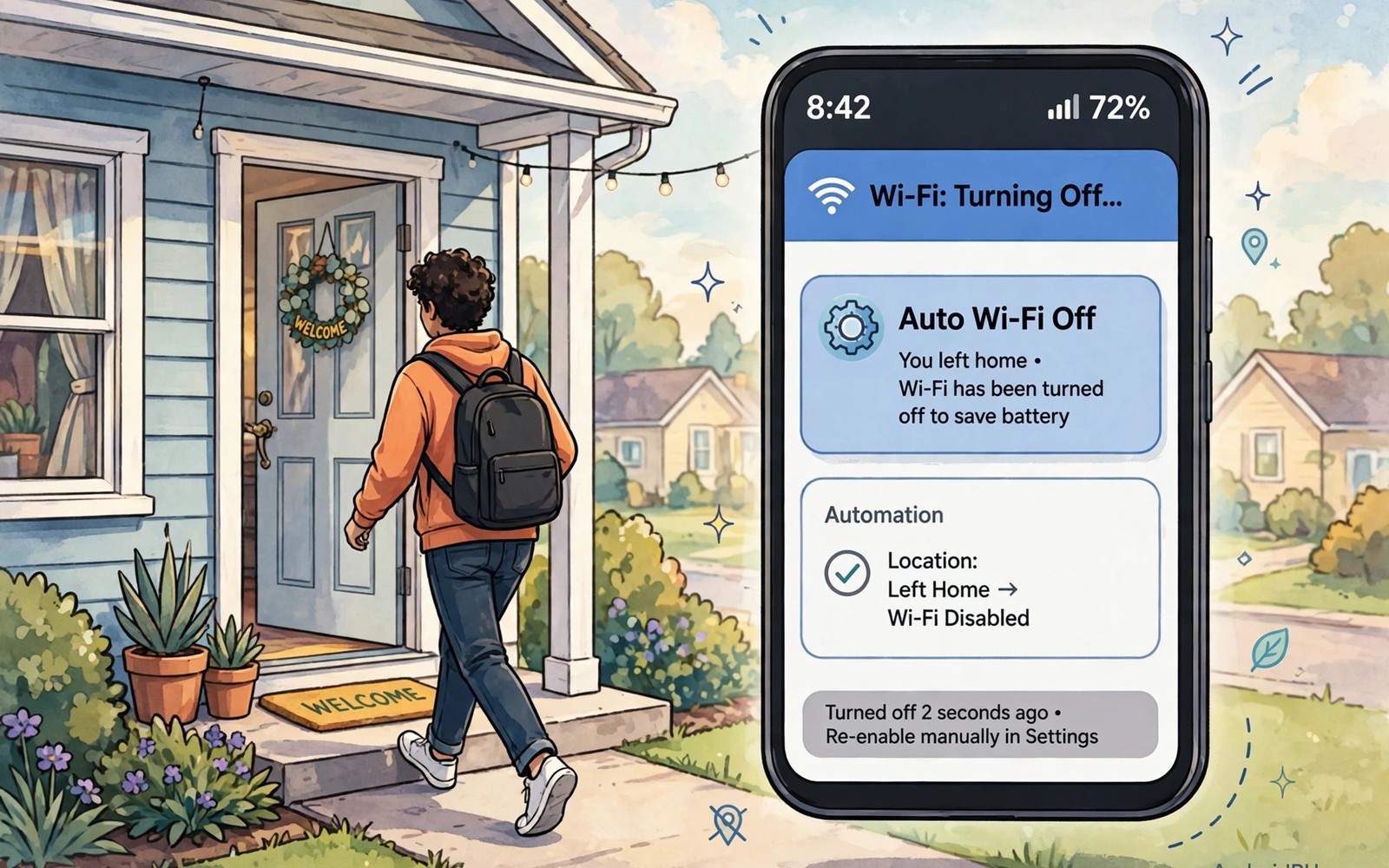
Wi-Fi that stays on after you leave home drains battery and connects to weak networks without asking. A macro that turns Wi-Fi off when you leave home solves that problem automatically. The phone senses the departure and switches the radio off without a manual tap.
Location macros use a geofence around your home address to trigger the action. When the phone crosses the geofence boundary the macro runs. That trigger feels magical at first yet it relies on simple location data that your phone already tracks.
This guide builds the macro step by step using a common automation app. You will set the home location and choose the trigger and add the Wi-Fi action and test the result. A tested macro soon becomes an invisible helper you forget is running. The same location logic also powers location-based muting, which silences the phone automatically when you arrive at work instead of relying on memory.
Choose an automation app for macros
A macro app lets you create triggers and actions without coding. Open the app store and choose a macro app with a clear reputation and recent updates. Avoid apps that request broad access unrelated to location and Wi-Fi control.
Grant only the permissions the macro needs for location and Wi-Fi changes. A macro app needs location permission to detect departure and system permission to change Wi-Fi state. Deny contacts and messages access when the macro does not use those features.
Explore the app interface before you build the macro. A short tour of triggers and actions prevents confusion during setup. Most macro apps group triggers by location and time and device state in separate lists.
Set the home geofence correctly
Open the macro app and create a new macro with a location trigger. Drop the pin on your home address and set a radius that covers your house and garden. A radius that is too tight may trigger while you move between rooms.
Set the trigger to fire when you exit the geofence rather than when you enter it. An exit trigger matches the goal of turning Wi-Fi off after departure. An entry trigger would turn Wi-Fi off at the wrong moment.
Test the geofence by walking to the edge of your street and checking the macro log. A log entry proves the trigger fired even when Wi-Fi state is hard to observe. Adjust the radius when the trigger fires too early or too late.
Add the Wi-Fi off action
Add an action to the macro that turns Wi-Fi off. Some phones need a system setting action rather than a simple toggle due to newer permission rules. Follow the macro app guidance for your Android version when the simple toggle fails.
Add a second action that shows a brief notification when the macro runs. A notification confirms the macro worked during the first week of testing. Remove the notification later when you trust the macro and want silence.
Save the macro and enable it before you leave home for a real test. A saved macro that stays disabled will never trigger. Check the enabled switch in the macro list as a final step.
Handle edge cases around home
A short trip to a neighbour may trigger the macro even when you return minutes later. That behaviour is harmless because Wi-Fi can reconnect on return through a separate entry macro. Build an entry macro that turns Wi-Fi on when you arrive home.
A phone in battery saver mode may delay location updates and delay the macro. Test the macro with battery saver on when you often use that mode. A delayed trigger still helps even when it fires a few minutes after departure.
Readers who want a broader automation set will enjoy ten genius hacks to automate an Android phone because a Wi-Fi macro is one piece of a larger routine. A departure macro and an arrival macro together handle network changes without thought. Add a bedtime routine next for a fuller system.
Test the macro over several days
Check the macro log each evening for the first week to confirm a daily trigger. A log that shows consistent triggers proves reliability. A log with missing days points to a permission or battery optimisation problem.
Open battery optimisation settings and exclude the macro app from aggressive optimisation when triggers go missing. Aggressive optimisation can kill background location tracking. Excluding the app restores reliable triggers at a small battery cost.
Adjust the geofence radius after a week based on the log pattern. A radius that triggers at the driveway works better than one that triggers halfway down the street. Small adjustments over time produce a macro that feels precise.
A small code check for Wi-Fi state
A quick command can show Wi-Fi state on a phone with debugging enabled. Connect the phone and run the command below once to view the current Wi-Fi setting. The output helps you confirm the macro action after a test departure.
adb shell settings get global wifi_on
adb shell dumpsys wifi
The snippet above was written for this article to show a safe read only way to review Wi-Fi state for macro testing. It changes no Wi-Fi setting while it reports the radio state. You can run it again after a departure test to confirm Wi-Fi turned off. Keep a note of the output when you tune the geofence.
Build a return macro for arrival
A return macro turns Wi-Fi on when you enter the home geofence. That macro complements the departure macro and completes the network cycle. Without a return macro you must enable Wi-Fi manually after every trip.
Set the return geofence radius to match the departure radius for consistency. A matched radius prevents a gap where Wi-Fi stays off just outside the door. Test both macros on the same trip to confirm the cycle works.
Add a notification for the return macro during the first week of testing. A notification confirms arrival triggering even when Wi-Fi connection feels instant. Remove the notification after the macro proves reliable.
Handle multiple homes and offices
A second geofence for a workplace can turn Wi-Fi off on departure from work as well. A work geofence uses the same action as the home geofence yet with a different location. Multiple geofences together cover a daily commute fully.
Name each geofence clearly in the macro app to avoid confusion during editing. A clear name such as Home Exit and Work Exit helps when you adjust radii later. Clear names prevent editing the wrong macro by mistake.
Test each geofence separately on different days to isolate problems. A test that mixes home and work triggers can hide which geofence failed. Separate tests give clear logs for each location.
Optimise battery for location macros
Location macros use low power geofencing rather than constant GPS polling. That design keeps battery impact low for a single home geofence. A single geofence is far cheaper than a location app that polls every minute.
Exclude the macro app from aggressive battery optimisation when triggers go missing. Aggressive optimisation can pause background location tracking. An exclusion restores reliability at a small battery cost that is worth paying.
Review battery usage for the macro app after a month of use. A modest battery share proves the macro is efficient. A large share suggests a polling problem that needs a settings fix. Readers who want deeper scripting will benefit from seven Tasker scripts for a daily routine because Tasker location scripts use the same geofence logic with more actions.
Automate mobile data by location
A location macro can turn mobile data off when you arrive at a trusted Wi-Fi location. That macro saves mobile data allowance and prevents accidental data use on a slow network. A data macro complements a Wi-Fi macro for a complete network routine. Together they ensure the phone uses the best connection available.
Set a data macro to turn mobile data back on when you leave a Wi-Fi location. A return macro prevents a phone from staying offline after departure. Without a return macro you might miss messages until you notice the data state. A paired on and off macro avoids that gap.
Test a data macro with a short trip to confirm it triggers reliably. A trip test reveals geofence radius problems before daily reliance. Adjust the radius when the macro triggers too early or too late. A tested macro feels invisible while an untested macro feels risky.
Exclude the macro app from battery optimisation when data triggers go missing. Aggressive optimisation can delay location updates and break data macros. An exclusion restores reliable triggering at a small battery cost. That cost is worth paying for a macro that saves data allowance.
Common mistakes
The biggest mistake is setting a geofence radius that is far too small. A tiny radius triggers while you walk around your own house and turns Wi-Fi off indoors. A generous radius that covers the property prevents indoor false triggers.
Another mistake is forgetting to build the return macro. A phone that turns Wi-Fi off on departure should turn it back on on arrival. Without a return macro you must enable Wi-Fi manually every time you come home.
People also grant location permission only while using the app which breaks background triggers. A macro needs location access in the background to detect departure. Grant the background permission when the macro app explains why it needs it.
Frequently asked questions
Will a location macro drain my battery?
Location geofences use low power location services rather than constant GPS tracking. Battery impact is small for a single home geofence. Many small geofences together can add up so keep the count low.
Does the macro work without mobile data?
A geofence can work with GPS and Wi-Fi scanning even when mobile data is off. Location accuracy may drop indoors without data assistance. Test the macro in your normal daily conditions to confirm reliability.
Can I use the same macro for work?
Yes. Create a second geofence around your workplace with the same Wi-Fi off action for departure. A work macro helps when office Wi-Fi is slow or unreliable. Keep each geofence separate for clear logs.
Conclusion
A Wi-Fi macro that triggers on leaving home removes a daily manual task and saves battery. A correct geofence and a clear Wi-Fi action and a tested return macro together make the system reliable. A week of log checks turns a new macro into a trusted helper.
Your concrete next step is to create the exit geofence macro today and test it on your next trip out. Check the macro log when you return. Readers who want scripted routines will benefit from seven Tasker scripts for a daily routine as a deeper automation next step.

