

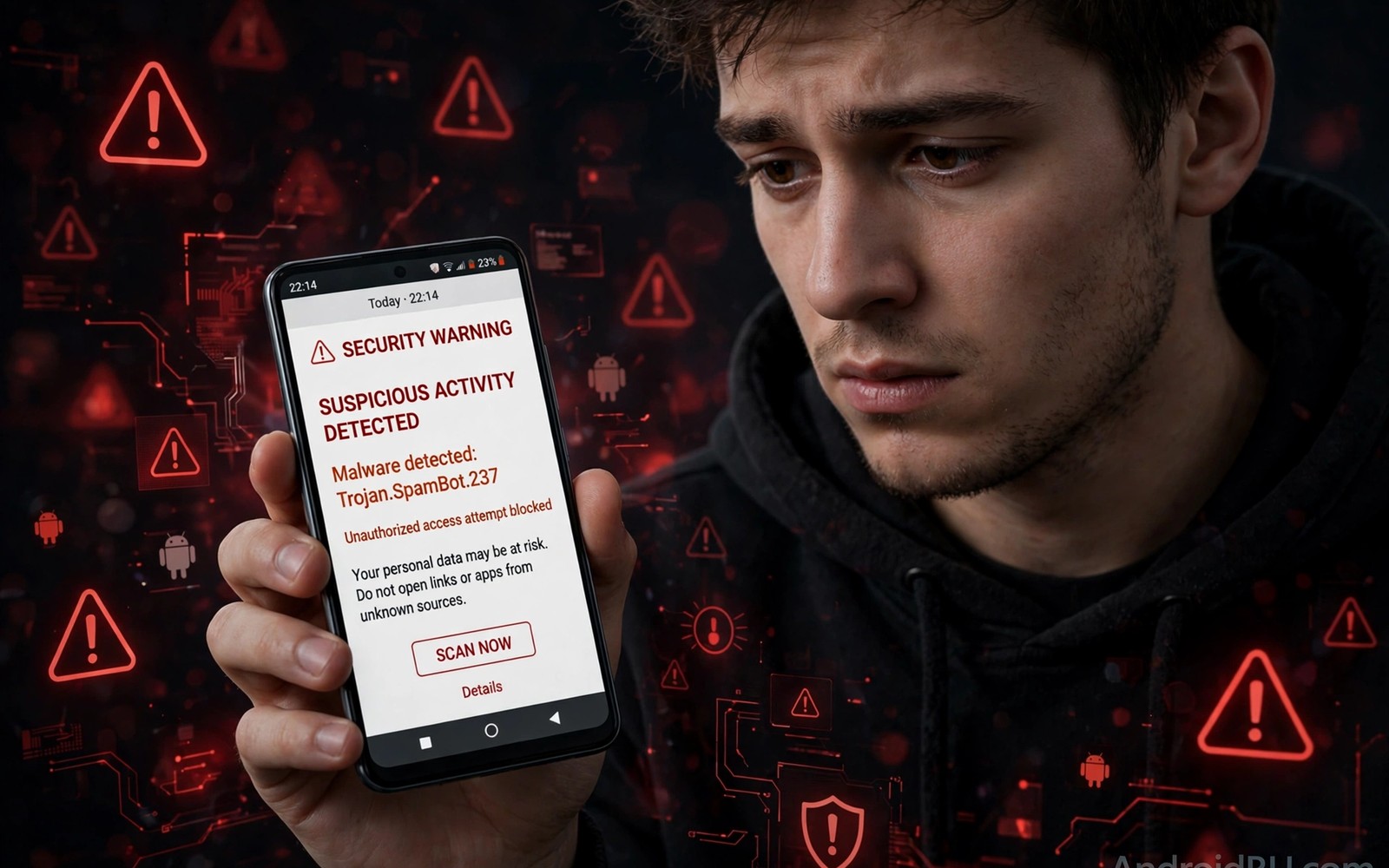
Ransomware on a phone does not announce itself with a clear warning at first. It often arrives as a normal looking app or a tempting file or a message that urges a quick install. Once it runs it locks your photos and documents and demands payment for a key that may never arrive.
Early signs appear before the lock screen changes. The phone may slow down suddenly and the battery may drain faster and new apps may appear without your permission. Files may open with errors or file names may change into strange extensions that no app recognises.
This guide teaches you to spot those early signs and to act before encryption spreads through your storage. You will learn the warning patterns and the safe response steps and the recovery habits that make payment unnecessary. Speed matters yet panic helps the attacker more than it helps you.
Watch for strange app behaviour
A ransomware app often asks for broad permissions during install that have nothing to do with its stated purpose. A wallpaper app that wants access to all files and to accessibility services deserves immediate suspicion. Deny permissions that feel unrelated and delete the app when the request cannot be justified.
Check for apps that hide their icon after install because a hidden app can run in the background without drawing attention. Open Settings and open Apps and sort by recent installs to see everything added in the last few days. An app with a blank name or a generic icon near the top of that list needs a closer look.
Sudden permission changes for a trusted app can also signal compromise. An update may quietly add file access or device admin rights that the app never needed before. Review the permissions of any app that changed behaviour after an update and revoke access that looks wrong.
Watch for file and performance changes
Encryption work uses processor power and storage writes at a scale that normal apps rarely reach. A phone that grows hot while idle and that loses battery quickly may be encrypting files in the background. Open the battery screen to see which app consumes power even when you have not opened it.
Test a few recent photos and documents when performance drops without a clear reason. Files that fail to open or that show a new extension may already be encrypted. Do not open more files in a panic because each open attempt can trigger further prompts or further locks.
A sudden flood of popups that demand payment or that claim your files are locked is a later stage sign. Do not tap the payment button and do not follow instructions inside the popup. Disconnect the phone from the internet first so the malware cannot contact its server or spread to a shared folder.
Treat messages and downloads as the main entry point
Most mobile ransomware arrives through a link or an attachment that looks urgent or rewarding. A delivery failure notice or a prize claim or a fake system update can carry the payload. Treat any unexpected installer file as hostile until you can verify it through a trusted channel.
Avoid installing apps from links inside messages even when the sender name looks familiar. An attacker can spoof a contact name or hijack an account to send the link. Open the official store yourself and search for the app name instead of trusting a direct link.
Readers who sideload apps should use SHA256 hash verification for downloaded APK files as a routine check before any install from outside the store. A hash mismatch proves the file differs from the published version. That proof alone is enough reason to delete the file without opening it.
Respond fast when you suspect infection
Turn on airplane mode as soon as you suspect ransomware because isolation stops further encryption and stops data theft. Do not restart the phone repeatedly because a restart can trigger a lock screen that blocks access to settings. Keep the phone on and isolated while you plan the next step.
Back up nothing from the infected phone to a clean device until you know which files are safe. A backup that copies encrypted files or the malware itself can spread the problem to a new phone. Use a clean backup from before the infection when one exists.
Report the incident to your bank when a payment prompt mentions an account or a card. A bank can watch for fraudulent charges and can freeze a card before damage grows. Keep screenshots of the ransom message for the report yet do not send payment details to anyone who contacts you about the case.
A small code check for suspicious packages
A quick command can list recently installed packages on a phone with debugging enabled. Connect the phone and run the command below once to review package names and install order. Look for packages that you do not recognise or that appeared on the day the problems started.
adb shell pm list packages
adb shell dumpsys package
The snippet above was written for this article to show a safe read only way to review installed packages during a suspected infection. It alters no app and no file while it lists packages for review. You can use the list to identify a suspicious package for removal through the normal settings screen. Do not run unknown commands from a ransom message because those commands may cause more harm.
Separate work data from personal data
A work profile keeps job files apart from personal photos and messages on the same phone. That separation limits ransomware spread because a malicious app in one profile cannot easily reach files in the other profile. A profile boundary acts as a simple firewall inside the device.
Move work documents into the work profile before you open a suspicious attachment in the personal profile. That order matters because an infection that starts in one profile should not find work files nearby. A habit of separation reduces the blast radius of any single infection.
Pause the work profile when you finish work for the day. A paused profile stops its apps and hides its files from the main view. That pause also stops background encryption work that might target work files overnight.
Keep offline copies of essential files
An offline copy on a computer or an external drive gives you a clean restore point after an infection. Update that copy weekly so it stays close to your current files without copying an infection. A weekly rhythm balances freshness with safety.
Disconnect the backup drive after each backup so ransomware cannot reach it during an infection. A drive that stays connected behaves like another folder on the phone. A disconnected drive stays safe even when the phone is fully encrypted.
Label backup copies by date so you can choose a copy from before the first strange behaviour. A dated label prevents guessing during a stressful recovery. A clear label also helps a helper who assists with the restore.
Review app installs after every update
System updates can change app behaviour and can restore permissions that you previously revoked. Review app permissions after each major update to catch silent changes. A post update review takes five minutes and prevents a quiet return to risky access.
Check the recent installs list after an update that adds new system apps. A new system app may request file access that you never approved. Revoke access that looks unrelated to the app purpose.
Readers who want a daily safety routine will benefit from seven daily security habits for smartphone owners because ransomware defence works best as a routine rather than a single check. A routine catches small changes before they become a full infection. Combine update reviews with permission reviews for a stronger defence.
Isolate a suspicious app before you delete it
Isolation starts with revoking permissions for a suspicious app before you remove it. Revoked permissions stop the app from accessing files and contacts while you investigate. That pause prevents further encryption or data theft during the investigation. A paused app is safer than an app that keeps running while you decide.
Turn off background data for the suspicious app in data usage settings. Background data allows an app to contact a server even when you are not using it. Blocking background data cuts the link to a ransomware server. That cut can stop a ransom prompt from appearing or updating.
Move important files to an offline drive before you delete a suspicious app. A deletion can trigger a final encryption step in some malware designs. An offline copy made before deletion gives you a restore point regardless of what deletion triggers. Label that copy by date so you can identify the clean version later.
Restart the phone in safe mode when an app resists deletion through normal settings. Safe mode loads only system apps and lets you remove a stubborn third party app. That mode is a useful tool when a malicious app blocks its own uninstall button. Learn how to enter safe mode on your phone model before you need it in an emergency.
Common mistakes
The biggest mistake is paying the ransom in the hope that files will return. Payment funds further attacks and it does not guarantee a working decryption key. Many victims pay and receive nothing or receive a key that only unlocks part of their files.
Another mistake is deleting files at random in an attempt to remove the malware. Random deletion can destroy the only clean copies that a recovery tool could have restored. Isolate the phone first and seek help from a trusted repair service when you feel unsure.
People also restore a backup that was made after the infection started. That backup may already contain encrypted files or the malware itself. Check the backup date carefully and choose a backup from before the first strange behaviour appeared.
Frequently asked questions
Can ransomware infect a phone without an install?
A drive by infection through a browser alone is rare on a modern phone yet a malicious download still needs your tap to install. A link that downloads an installer file poses the real risk. Never grant install permission to a file that arrived through a message.
Will a factory reset remove ransomware?
A factory reset removes most malware from the main storage yet it also removes your files when no clean backup exists. Use a reset as a last resort after you have isolated the phone and saved any clean backup. A reset alone does not restore files that were already encrypted.
Should I keep the phone online to seek help?
Isolation comes first because an online infected phone can leak data and encrypt shared files. You can seek help from another device while the infected phone stays in airplane mode. A helper can guide you through settings without needing the infected phone online.
Conclusion
Ransomware gives early warnings through strange permissions and sudden slowdowns and file errors. Owners who notice those warnings and isolate the phone fast can limit damage and avoid payment. A clean backup and careful download habits together make ransomware far less threatening.
Your concrete next step is to open Apps today and sort by recent installs and remove anything you do not recognise. Check the battery screen for an app that drains power while idle. Readers who want a broader defence will benefit from seven daily security habits for smartphone owners and from an encrypted private folder profile for sensitive files as follow up reading.

