

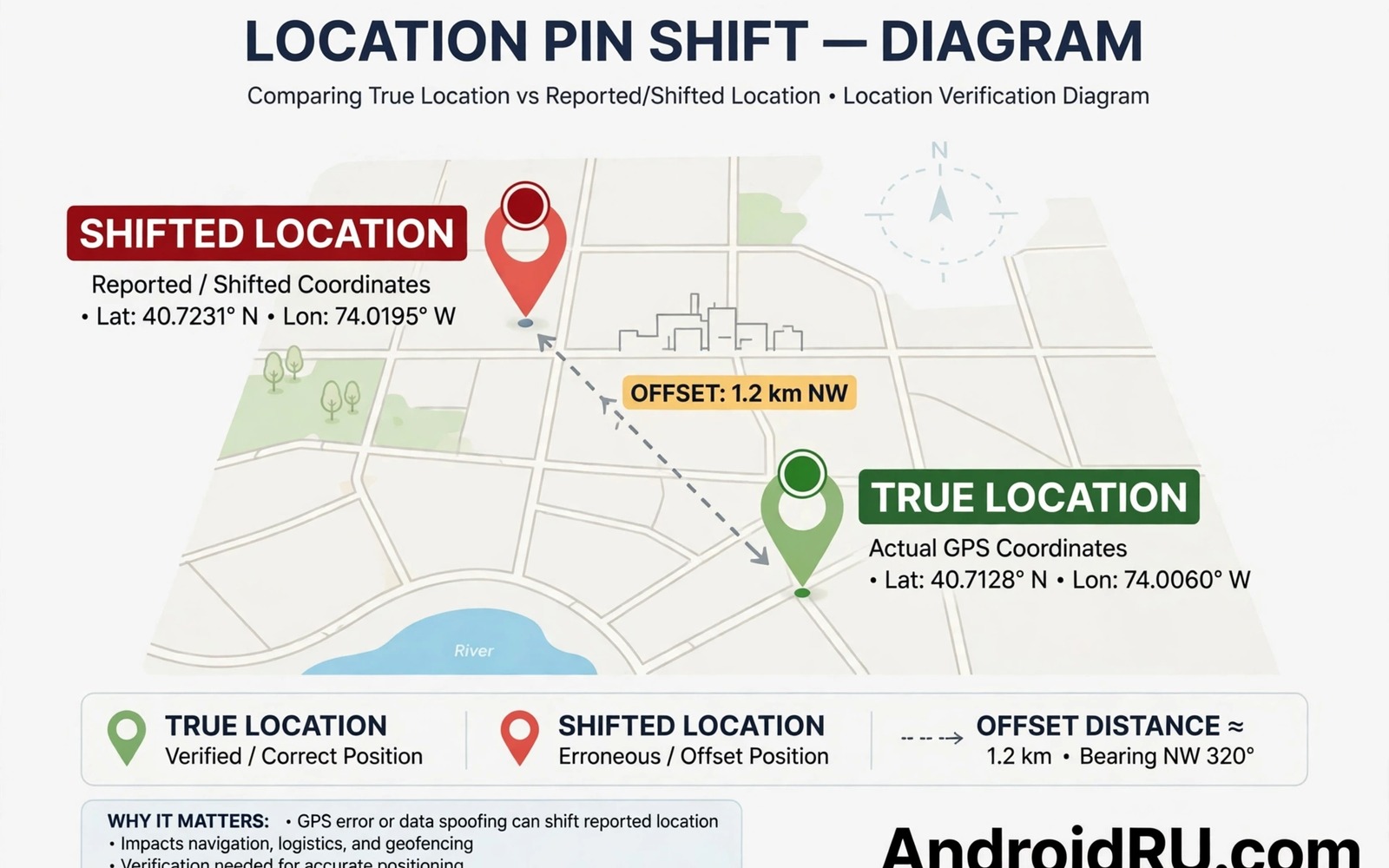
Sharing your real location with every app and every contact creates a detailed map of your life. A fake GPS location can protect that map when an app does not truly need to know where you are. It lets you test location features and protect privacy without revealing your home or workplace. Used responsibly it is a practical privacy tool rather than a trick.
Fake location must be used with care because some services forbid it in their terms. Ride and delivery and banking services may block accounts that report false locations. Emergency services also need your real location when you call for help. This guide focuses on privacy uses where fake location is safe and legitimate such as testing and social apps that do not need precision.
You will learn how to enable mock locations on Android and how to choose a fake location app. You will also learn when to turn mock location off and how to avoid detection problems. The steps require developer options but they do not require root on most phones.
Enable mock location in developer options
Open Settings and go to About phone and tap the build number seven times to enable developer options. Return to Settings and open System and then Developer options. Look for the setting called select mock location app. That setting lets you choose which app is allowed to report a fake location to the system.
Install a reputable mock location app from a trusted source before you choose it in developer options. Open the mock app and pick a location on its map. A city centre or a public park makes a better fake location than a random residential address. Avoid choosing a location that belongs to a real person or a sensitive facility.
Return to developer options and select your mock app as the mock location app. Then open the mock app again and start the fake location. Your phone will now report the chosen coordinates to apps that request GPS location. Test the result in a maps app to confirm that the pin moved to the fake spot.
Choose when fake location helps
Fake location helps when a social app requests precise location for a feature that does not need it. A photo sharing app does not need your home coordinates to apply a filter. A game that checks regional availability may work with a general city location. In those cases a fake city location protects your real address while keeping the feature usable.
Fake location also helps developers and testers and it complements stopping social media apps from accessing contact storage when you want to limit what a social app learns about you overall. who need to check how an app behaves in different regions. A tester in one country can simulate a user in another country without travelling. That use is legitimate and it improves app quality for real users in those regions. Testers should still use real devices and real networks for final verification.
Privacy conscious users can use a fake location to avoid building a precise movement history in apps that store location data. A general city pin reveals far less than a home pin. Over time that difference prevents a broker from inferring home and work patterns from app data. The protection works best when combined with tight location permissions for other apps.
Turn mock location off for essential services
Turn off mock location before you use ride hailing or food delivery or emergency services. Those services need your real location to find you and to deliver to the right place. A fake location during a ride request can send a driver to the wrong street. A fake location during an emergency call can delay help.
Turn off mock location before you open a banking app that uses location as a fraud signal. A sudden jump from your real city to a fake city can trigger a fraud block on your account. That block protects you in theory but it also locks you out at an inconvenient moment. Restore real location before any financial transaction that checks location.
Make turning mock location off part of your routine after a privacy session. A mock location left on accidentally can cause confusion across many apps. Set a reminder or use a mock app with a timer that stops automatically after a set period. That automatic stop prevents a forgotten fake location from lingering for days.
Avoid common detection problems
Some apps detect mock locations and refuse to work while one is active. That detection uses system signals that reveal the mock status. If an app refuses to work then turn off mock location and use the app with real location or with location denied instead. Trying to hide mock status with extra tools can violate app terms and can trigger account bans.
Location jumps can also look suspicious to services that track movement speed. A jump from one continent to another in seconds is physically impossible and it flags the account. Choose fake locations near your real region when possible and move the pin gradually if you need to test different areas. Realistic movement reduces false fraud alerts.
Keep your mock app updated and choose one with clear privacy practices. A mock app itself requests location permission and it could collect data about your real location. Read its privacy policy and deny network access if the app works offline. A mock tool that phones home defeats its own privacy purpose.
adb shell settings put secure mock_location 1
# Enable mock location support on your own test device
# Select a mock app in developer options first
# Turn mock location off before essential services
The commands above are an original example written for this guide to show a mock location setting check on a test device. They illustrate how a developer setting interacts with the mock app selection in system settings. Use them only on a device that you own and only for legitimate testing or privacy purposes.
Testing teams often need to simulate movement rather than a single static fake location. A mock app with a route feature can move the pin along a road at a realistic speed. That simulation helps test navigation features without driving the route in real life. Use realistic speeds and nearby locations to avoid triggering fraud checks during testing.
Region specific app features sometimes depend on IP location rather than GPS location alone. A fake GPS pin will not change the region shown by a service that checks your network address. Test both signals separately when you evaluate a location dependent feature. Understanding which signal a service uses prevents confusion when a fake GPS change produces no visible effect.
Common mistakes
One common mistake is leaving mock location on during a ride or delivery order. Another mistake is choosing a fake location inside a restricted area which can trigger extra scrutiny. A third mistake is using fake location to evade regional pricing or content rules in ways that violate service terms. Each of these mistakes turns a privacy tool into an account risk.
People also make the mistake of installing a mock app from an untrusted source that contains malware. A mock app holds powerful location permissions and a malicious version can abuse them. Install mock apps only from trusted sources and check their permissions carefully. A reputable mock app needs location permission but it does not need contacts or messages.
Another error is forgetting that mock location does not hide your IP address location. A service that checks IP location will still see your real region through the network. Combine mock GPS with an understanding of IP based location for a complete picture. That awareness also helps when you learn how to know if someone is secretly tracking your GPS location through other signals.
FAQ
Does mock location require root?
Most modern Android phones support mock location through developer options without root. You need to enable developer options and select a mock location app. That method works for most apps that use standard location APIs. Root based methods exist but they carry extra security risks and they are unnecessary for most privacy uses.
Some apps with strong anti spoofing checks may still detect developer mock locations. Those apps often serve financial or gaming purposes where location integrity matters. Respect their detection and use real location for those services. A privacy tool should not become a way to bypass integrity checks.
Can fake GPS protect me from location tracking?
Fake GPS protects against GPS based tracking by apps that read system location. It does not protect against IP based tracking or Wi-Fi based tracking or carrier based tracking. A complete privacy approach therefore combines mock GPS with network controls and permission reviews. No single tool gives total location privacy.
For everyday social apps fake GPS provides a meaningful improvement over sharing a precise home location. For high stakes privacy needs consider leaving the phone behind or using a device without location services at all. Those stronger steps are appropriate when the risk justifies the inconvenience.
Will my phone show a warning while mock location is active?
Android shows a developer options notification or a mock location indicator on many devices while a mock app is active. That indicator reminds you that location is fake. It also alerts other users of the phone that the reported location cannot be trusted. Do not try to hide that indicator for deceptive purposes.
Keep the indicator visible as a safety reminder to turn mock location off before essential services. A visible reminder prevents the forgotten fake location problem that causes most mock location incidents. That habit pairs well with understanding which apps secretly sell your personal location data because both address location exposure from different angles.
Conclusion
Fake GPS coordinates give you control over what location apps can learn about you. Developer options and a reputable mock app make the technique accessible without root. Responsible use means turning mock location off for rides and deliveries and emergencies and banking. It also means choosing realistic locations and respecting app terms.
Your concrete next step is to enable developer options and select a reputable mock location app this week. Test it with a maps app using a public city centre location. Then practice turning it off again so that the routine becomes automatic before you need it for real privacy use.

