

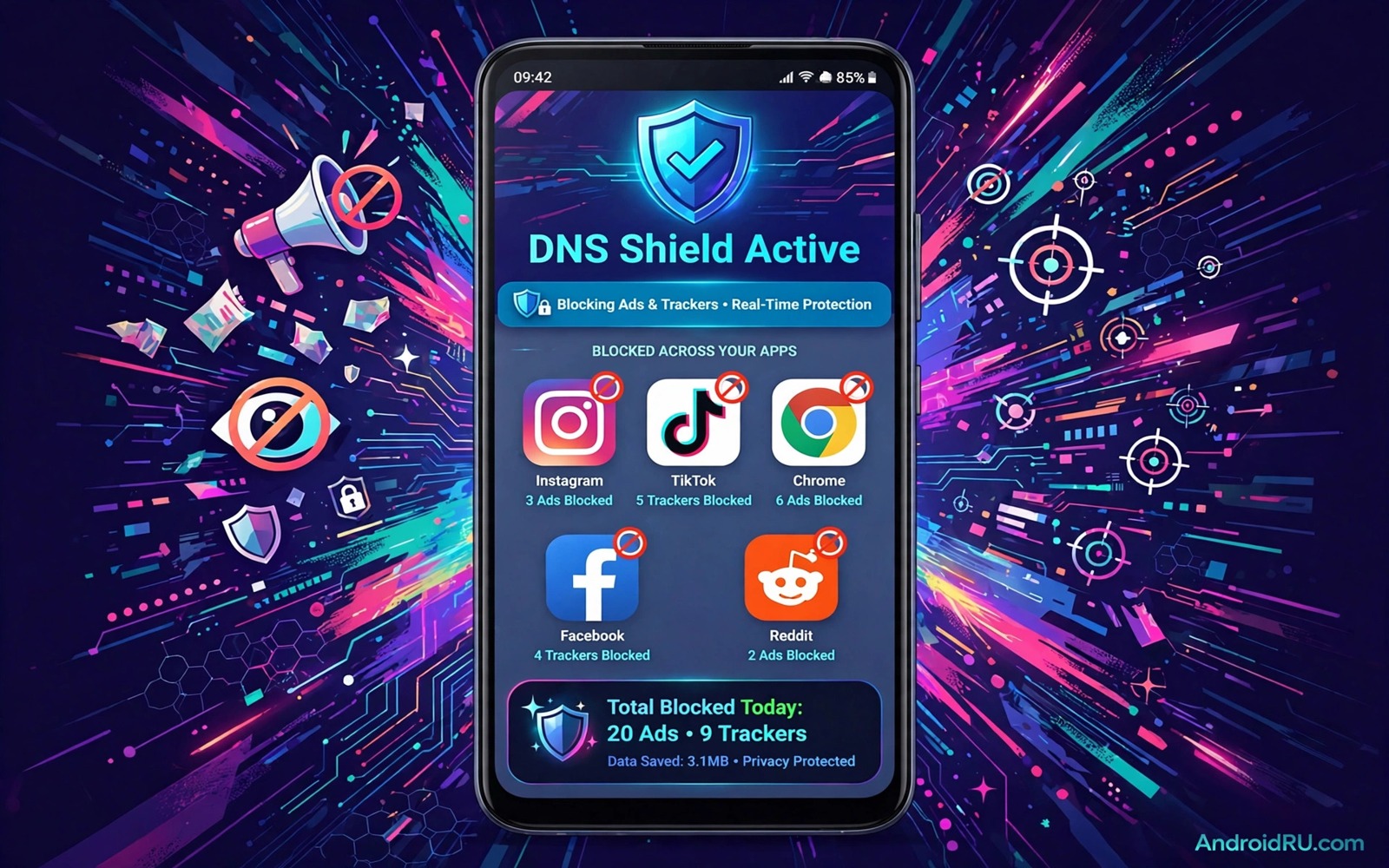
Ads and trackers follow you across apps and websites. A tracker in one app can share data with a tracker in another app. Browser blockers help inside one browser yet they leave app trackers untouched. Private DNS works at the network level so it can block tracker domains across the whole phone.
This guide shows how to set up private DNS on Android. It explains what DNS does and how a blocking provider stops tracker requests. It also covers testing and troubleshooting when a site or app breaks. The setup takes two minutes and it needs no root access and no extra app running in the background.
Start by choosing a reputable blocking provider that you trust. A DNS provider sees every domain that your phone requests. That visibility is a privacy trade off. A provider with a clear no log policy and a long public history is a safer choice than an unknown provider with bold claims.
Understand what private DNS does
DNS translates a domain name into an address that the network can reach. Every app that loads content makes DNS requests first. A blocking DNS provider answers tracker domains with a blocked response instead of a real address. The tracker content never loads because the phone never reaches the tracker server.
Private DNS on Android uses encrypted DNS over TLS. That encryption hides your DNS requests from local networks. A cafe Wi-Fi operator cannot easily see which domains you request when private DNS is on. The DNS provider itself can still see the requests. That is why provider trust matters so much.
Blocking DNS does not block every ad. Some ads load from the same domain as real content and cannot be separated by DNS alone. Some apps cache tracker data and show old ads after blocking starts. Despite those limits a blocking DNS provider cuts a large share of tracker traffic with almost no effort.
Set up private DNS step by step
Open Settings and then open Network and internet and then open Private DNS. Choose the Private DNS provider hostname option. Enter the hostname of the blocking provider that you chose. Save the setting and wait a few seconds for the phone to switch to the new DNS service. No restart is usually needed.
Test the setup by browsing a site that showed heavy ads before the change. A clear drop in ads confirms that blocking works. Test a few apps that showed tracker heavy behaviour as well. A social app may load faster when tracker requests are blocked at the network level.
Check the connection status when a site fails to load. Return to the Private DNS menu and confirm that the hostname is spelled correctly. A single typo breaks the whole setting and the phone may fall back to automatic DNS without a clear warning. Copy the hostname from the provider page rather than typing it from memory.
Troubleshoot breaks and limits
Some apps break when a blocked domain serves a real function. A banking app may use a domain that a blocklist flags as a tracker. A work app may rely on a domain that looks like analytics. When an app breaks switch Private DNS to automatic temporarily and test again. If the app works on automatic DNS then a blocked domain is the cause.
A provider switch can solve many breaks. Different blocking providers use different blocklists. A provider with a lighter list may allow the app to work while still blocking major trackers. Try a second reputable provider before you abandon private DNS entirely. A lighter blocklist still beats no blocking at all.
Some networks block private DNS itself. A corporate or school network may force its own DNS for filtering. On such a network the phone may show a connection warning or fall back to automatic DNS. That behaviour is a network policy rather than a phone fault. Use mobile data for private DNS protection when a restrictive network blocks it. For spyware layers read how to block spyware and adware without root and combine DNS blocking with its permission layers.
A simple private DNS checklist
The checklist below gives a repeatable routine for private DNS setup. Work through it in order and test after each step. A test after setup proves that blocking works. A test after a break proves whether DNS caused the break or another factor did.
1. Choose a reputable blocking DNS provider
2. Enter the provider hostname in Private DNS settings
3. Test browsing and apps for ad reduction
4. Switch to automatic DNS when an app breaks
5. Try a lighter blocklist provider if breaks persist
6. Keep private DNS on for daily use
This checklist follows the standard controls built into Android and it uses only the menus that ship with the system. No extra tool is required to complete the six steps. The order matters because provider choice comes first and daily use closes the list.
Combine private DNS with browser and app controls
Private DNS alone cannot block trackers that share a domain with real content. Browser content blockers can block those trackers inside web pages by filtering page elements rather than domains. App permission controls can block tracker access to location and contacts that DNS cannot see. Those three layers together cover domain blocking and content blocking and data access blocking. A tracker that survives one layer often fails at the next layer. That layered defence is stronger than any single tool used alone.
Test the combined layers with a tracker heavy site and a tracker heavy app. Open a news site in a browser with content blocking on and private DNS on and count the trackers blocked by each layer. Open a social app with limited permissions and private DNS on and check data use for tracker traffic. A clear reduction in both tests proves that the layers work together. A tracker that still appears in both tests may use a first party domain that no layer can block without breaking the service. That remaining tracker is a smaller risk than the broad tracker set that the layers already removed.
Review the combined layers after a major browser update because updates can reset content blocking settings. A browser update may disable an extension or reset a tracking protection level without a clear notice. Open browser privacy settings after each major update and confirm that tracking protection still matches your choice. That post update check takes two minutes and it prevents a silent reset from undoing the browser layer while DNS and permissions still hold.
Share the combined routine with family members who share the same network. A household where every phone uses private DNS and browser blocking and permission reviews creates a network wide reduction in tracker traffic. A single phone with strong layers still shares a network with phones that leak tracker data yet the household total drops when everyone participates. That shared routine also means that a new tracker domain found on one phone can be checked on every other phone in the house.
Test private DNS in different locations
Private DNS behaviour can change across locations because different networks handle encrypted DNS differently. A home network may allow private DNS without restriction. A hotel network may block private DNS and force its own DNS service. A work network may intercept DNS requests for security monitoring. Test private DNS at home and at work and on a public network to learn how each location handles it. That location knowledge helps you choose a fallback plan for networks that block private DNS.
Carry a fallback plan for networks that block private DNS. A fallback plan may use mobile data for sensitive browsing when a restrictive network blocks private DNS. A fallback plan may use a VPN with its own DNS service that bypasses network DNS blocks. That plan should be decided before travel rather than improvised at a hotel desk. A pre decided fallback prevents a rushed choice on an untrusted network when time pressure is high.
Review DNS provider performance across locations as well. A provider with fast servers near home may be slow from a distant travel location. A slow provider can delay every page load during a trip. Test provider speed from a travel location during the first day of a trip and switch to a closer provider when speed suffers. That travel speed test ensures that privacy protection does not become a usability burden that pushes you back to unprotected DNS.
Common mistakes
One mistake is entering a random hostname found in a comment section. A DNS provider sees all domain requests and a malicious provider can log or redirect them. Choose a provider with a public privacy policy and a long history. A random hostname from an unverified comment is a serious risk.
Another mistake is expecting private DNS to block every ad. DNS blocking works at the domain level and it cannot separate ads served from a main content domain. A browser content blocker still helps for web ads. Private DNS and browser blocking together cover more ground than either alone.
A third mistake is leaving private DNS off after a single app break. A temporary switch to automatic DNS for testing often becomes permanent through forgetfulness. Restore the blocking hostname after the test. If you need Wi-Fi safety read how to lock down mobile browsing on public Wi-Fi and keep private DNS as part of that plan.
Frequently asked questions
Does private DNS slow browsing?
No and blocking tracker requests often speeds up page loads. A distant DNS provider can add a small lookup delay yet the saved tracker traffic usually outweighs it. Choose a provider with servers near your region for the best speed.
Will private DNS hide my activity from my provider?
Private DNS hides domain requests from local networks and it moves that visibility to the DNS provider. Your internet provider can still see IP addresses that you connect to. A VPN is needed for stronger hiding of destination IPs.
Can I use private DNS with a VPN?
Yes in many cases and the VPN may override DNS settings depending on its design. Check the VPN app settings for a private DNS option. A VPN with its own blocking DNS can replace the system setting without conflict.
Conclusion
Private DNS is a simple systemwide layer against ads and trackers. A reputable blocking provider stops tracker domains before they load across apps and browsers. Testing and provider choice handle the breaks that a blocklist can cause. The setup takes minutes and the benefit lasts every day.
Your concrete next step is to open Private DNS settings today and enter the hostname of a reputable blocking provider. Test browsing for a day and note the ad reduction. For permission safety read which dangerous permissions to revoke from unused apps and review grants alongside DNS blocking.

