

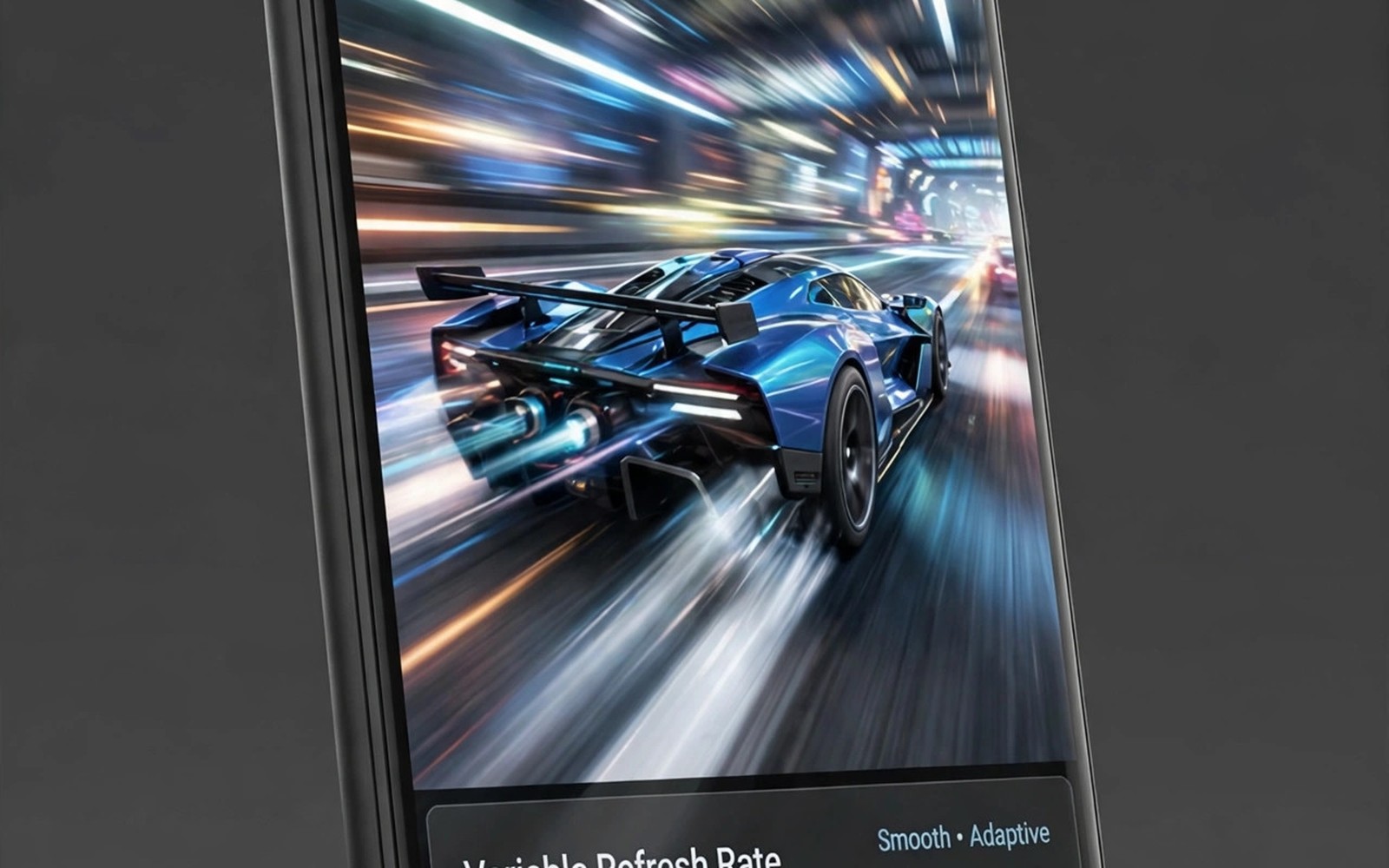
Variable refresh rate lets a phone screen change its refresh speed to match the game. A fixed 120Hz screen redraws 120 times per second even when a game renders only 50 frames. That mismatch wastes battery. A variable screen can drop to 50Hz to match the game. It can rise to 120Hz when the game speeds up. The result is smoother motion and better battery life. This guide shows you how to enable variable refresh and how to tune it for games.
Start by checking if your phone supports variable refresh. Open Settings and open Display. Look for a refresh rate option. Some phones call it adaptive refresh rate. Some phones call it dynamic refresh rate. Some phones list a range such as 1 to 120Hz. A range indicates variable support. A single fixed option indicates no variable support. If your phone has no variable option then use a fixed high rate for games and a fixed standard rate for normal use.
Understand the difference between adaptive and fixed modes. Fixed mode locks the screen to one rate. Adaptive mode changes the rate based on content. Adaptive mode saves battery in menus and reading. It can also cause a brief lag when a game starts because the screen must ramp up. A game mode profile can force a high rate during play to avoid that lag. Use adaptive mode for daily use and a game profile for matches. That combination gives battery savings and gaming smoothness. High refresh rate games you did not know run at 120Hz lists games that benefit most from a variable or high rate.
Enable Variable Refresh Rate Step By Step
Open Display settings and choose adaptive or variable refresh rate. Save the choice and restart a game to test it. Play a practice match and watch for smoothness during camera turns. A variable screen should feel smooth when the game runs fast. It should also feel steady when the game slows in a busy scene. If motion feels juddery then the screen may be switching rates too slowly. Try a fixed high rate for that game as a comparison.
Check per app refresh settings if your phone offers them. Some phones let you set a refresh rate per app. Set games to adaptive or high. Set reading apps to standard. Per app settings give the best balance. A reading app does not need 120Hz. A fast game does. Per app control stops a single global setting from wasting battery in every app. Save per app choices after testing each app.
Update your phone system before you judge variable refresh. A system update can improve rate switching speed. An old system may switch slowly and cause judder. Test variable refresh after an update with the same game and scene. If switching feels faster then the update helped. If it still judders then a fixed rate may suit that game better. A direct comparison after an update is the fairest test.
Tune Variable Refresh For Different Game Types
Fast shooters benefit from a high minimum rate. Set a minimum of 90Hz if your phone allows a minimum setting. A high minimum prevents the screen from dropping too low during a quiet moment. A drop to a very low rate can cause a visible jump when action resumes. A high minimum keeps the screen ready for sudden action. It costs some battery but it protects responsiveness. Shooters deserve that trade.
Slow strategy games can use a lower minimum rate safely. A strategy game changes the screen slowly. A variable screen can drop low without hurting play. A low minimum saves battery during long sessions. Set a strategy game to full adaptive with no minimum if possible. The screen will rise only when you scroll the map quickly. That rise is fast enough for strategy play. Battery savings over a long session are significant.
Racing games need a smooth high rate during fast movement. Set a racing game to adaptive with a high maximum. The screen should stay high during a race. It can drop in menus between races. That pattern saves battery in menus without hurting race smoothness. Test a full race lap at the chosen setting. A lap test reveals rate switching during real play better than a menu test.
Fix Judder And Flicker In Variable Mode
refresh_mode = adaptive
min_rate = 60
max_rate = 120
per_app_games = adaptive
brightness = auto_off
The snippet above is an original example written for this guide. It shows generic settings that you can adapt to your own device. It does not copy code from any outside source.
Use the settings above as a starting point for variable refresh. It uses adaptive mode with a minimum of 60Hz and a maximum of 120Hz. It sets games to adaptive per app. It turns auto brightness off for the test because brightness changes can look like flicker. Test with a fixed brightness first. If flicker vanishes with fixed brightness then auto brightness was the cause. If flicker remains then rate switching may be the cause.
Compare Variable And Fixed Rates Fairly
Test the same game scene in variable mode and in fixed high mode. Use the same graphics settings for both tests. Record frame smoothness and battery use for each test. Variable mode should save battery with similar smoothness. Fixed mode should feel slightly more consistent in a fast game. Choose variable mode when battery matters and smoothness matches. Choose fixed mode when a fast game judders in variable mode. A fair test needs the same scene for both modes.
Test battery over a full hour rather than a few minutes. A short test can hide battery differences. A full hour of play shows the real saving. Note battery percentage at start and end for each mode. A variable mode that saves ten percent over an hour is a meaningful gain. A variable mode that saves only one percent may not be worth any judder. Numbers over an hour guide a better choice than feelings over five minutes.
Check for flicker at low brightness in variable mode. Some screens flicker more at low brightness when the rate changes. If flicker appears only at low brightness then raise brightness slightly. A slightly higher brightness can reduce flicker. If flicker persists at all brightness levels then try a fixed rate for that game. A flicker free fixed rate beats a flickering variable rate even if battery use rises. Unlocking 120fps in popular shooters covers fixed high rate setup for shooters that may prefer a locked rate.
Keep Variable Refresh Stable After Updates
System updates can reset display settings. Check refresh settings after each update. Confirm adaptive mode is still on and per app settings are still correct. A reset can silently return the screen to a fixed standard rate. A quick check after an update prevents a surprise in the next match. Add display settings to your post update checklist alongside game mode and controller profiles.
Game updates can also change frame rate caps. A game that supported 120 frames may cap at 60 frames after an update. Check the in game frame rate setting after an update. A cap change can make variable refresh look broken. The screen cannot exceed the game cap. Restoring the game cap restores variable benefits. A post update check for both system and game settings keeps the setup honest.
Share your variable settings with friends who own the same phone. Include the phone model and the game title and the mode. A shared setting can save a friend from judder. A setting without a phone model can mislead because variable behaviour differs by screen type. A complete note with model and game is useful. An incomplete note can waste time.
Test variable refresh in bright sunlight as well as indoors. Sunlight can force maximum brightness. Maximum brightness can interact with refresh switching on some screens. A screen that flickers indoors may behave differently outdoors. A screen that works indoors may flicker in sunlight. Test both environments before you settle on a mode. A mode that works everywhere is the right daily mode.
Check variable refresh behaviour in video apps as well as games. A video app may switch rates for different frame rates. A movie at 24 frames should use a matching rate. A variable screen that matches video frame rate can reduce judder in movies. A screen that forces a high rate for video wastes battery. Per app settings can give video a matching rate and games a high rate. A balanced library setting covers both uses.
Common Mistakes
One mistake is to expect variable refresh to fix a game capped at 60 frames. Variable refresh cannot exceed the game cap. Another mistake is to test only in menus. Menus switch rates differently from gameplay. Test in a real match. A third mistake is to blame variable refresh for auto brightness flicker. Test with fixed brightness first. A fourth mistake is to use one global setting for every app. Per app settings give a better balance.
Do not disable variable refresh entirely because one game judders. Use a fixed rate for that game only and keep variable mode for other games. Per app control solves most variable problems. Uncapped frame rates on Android explains when an uncapped rate can help a game that variable mode cannot fix.
Frequently Asked Questions
What is variable refresh rate on Android?
Variable refresh rate lets the screen change its redraw speed to match content. It can rise to 120Hz for fast games. It can drop lower for static content. That matching saves battery and keeps motion smooth. Check Display settings for adaptive or dynamic options.
Does variable refresh rate save battery in games?
Yes it can save battery when a game renders below the maximum rate. The screen drops to match the game instead of redrawing at full speed wastefully. Savings depend on the game and the scene. Test battery over a full hour for a fair comparison.
Why does my game judder in variable mode?
The screen may switch rates too slowly when action changes. A game cap at 60 frames can also limit the screen. Test the same scene in fixed high mode. Use a fixed rate for games that judder in variable mode. Keep variable mode for other games.
Conclusion
Open Display settings today and turn on adaptive refresh rate. Test one fast game in a practice match and watch camera smoothness. If motion stays smooth then keep adaptive mode for daily play and games. That single setting is your concrete step toward smoother play with better battery life.

