

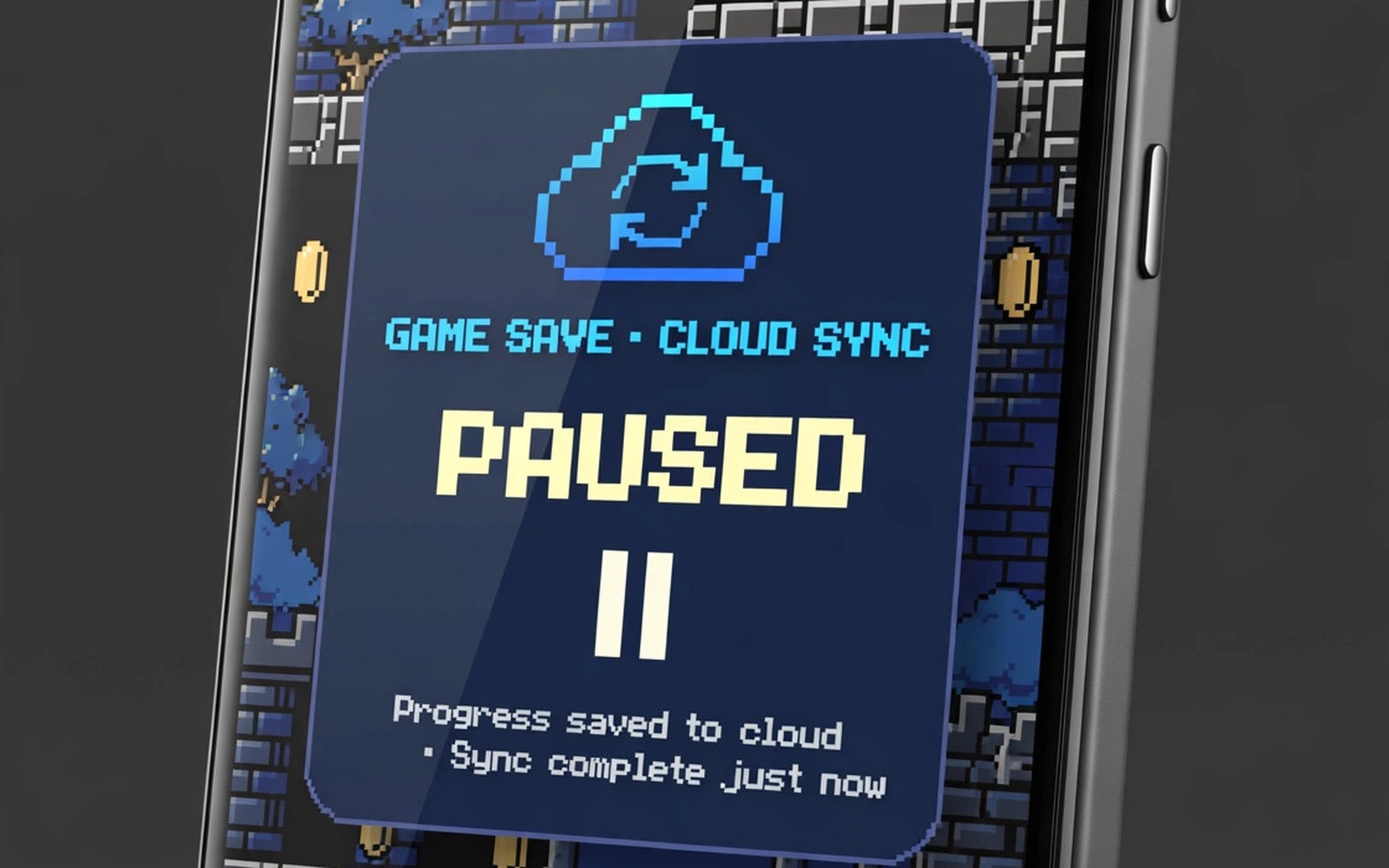
Save states are the closest thing emulation has to a pause button for life. A save state captures the exact moment in a game. It stores memory and screen and progress in a file. You can load that file later and continue from the same second. This guide shows you how to save emulator progress anywhere and how to move saves between devices without losing a run. It also shows you how to keep normal in game saves as a backup.
Start by learning the difference between a save state and an in game save. An in game save uses the original save system of the game. It usually saves at a save point or a menu. A save state bypasses that system. It can save at any moment including mid boss fight. Save states are powerful but they are tied to an emulator version. An in game save is more portable across versions. Use both types together for safety. A save state gives convenience. An in game save gives portability.
Create a save state at a safe moment first. Choose a moment just before a hard boss or a long level. Open the emulator menu and choose a save slot. Name the slot clearly if naming is possible. A clear name like before final boss helps you find the right state later. A slot numbered only with no name can confuse you after many saves. Test loading the state immediately. A state that loads cleanly is a verified backup. A state that fails to load is a warning to create another one. Extracting ROM game files directly on Android helps you organise the game folders that hold these save files.
Create Save States The Reliable Way
Use a fresh slot for each major milestone. Do not overwrite your only good state with a risky new state. Keep at least two states for a long game. One state can be a recent checkpoint. The other state can be an older safe point. If a new state corrupts then the older state can rescue progress. A single slot is a single point of failure. Multiple slots are cheap insurance.
Save in game as well whenever the game offers a save point. An in game save can survive an emulator update that breaks old states. It can also move to a different emulator core more easily. Make in game saving a habit at every save point. Do not skip a save point because you have a state. A state and an in game save together give two independent safety nets. Two nets are better than one.
Check save file locations in emulator settings. Some emulators store states in a hidden folder. Some store them beside the game file. Know the folder before you need a backup. Open the folder and confirm that state files appear after you save. A state that does not appear as a file may be stored in a cache that clears on close. A file based state is easier to back up and move.
Move Saves Anywhere Instantly
Copy save files to cloud storage or to a second device for instant access anywhere. Use a folder structure that mirrors your game library. A mirrored structure makes it easy to find a save for a specific game. Sync only after a session ends. Syncing during play can cause a conflict if the same save changes on two devices. A conflict can overwrite progress with an older version. A post session sync avoids that risk.
Test a moved save before you delete the original. Copy the save to a new device and load it in the emulator. Play for a few minutes past the save point. If the game continues cleanly then the move worked. Only then should you consider deleting the original. A moved save that you never tested is only a hope. A tested save is a real transfer. Keep the original until the test passes.
Use version notes when you move saves between emulator versions. A state from an old version may not load in a new version. An in game save usually loads across versions more easily. If a state fails on a new version then load the in game save instead. Recreate a fresh state on the new version once the game loads. A fresh state on the new version becomes your new portable checkpoint.
Automate Backups Without Losing Progress
save_state_slots = 3
in_game_save = on
backup_folder = saves_backup
sync_after_session = true
keep_old_states = 2
The snippet above is an original example written for this guide. It shows generic settings that you can adapt to your own device. It does not copy code from any outside source.
Use the backup plan above as a starting point. It keeps three state slots and an in game save and a backup folder. It syncs after a session and it keeps two old states. A plan with multiple slots protects against a single corrupt file. A plan with in game saves protects against version changes. A plan with a backup folder protects against a phone reset. Together these layers make progress loss unlikely.
Recover From A Corrupt Save
A corrupt state usually shows as a crash on load or a frozen screen. Do not panic and do not overwrite other slots. Load an older state first. If the older state works then continue from there. If no state works then load the in game save. An in game save may lose some progress but it saves the run. A lost hour is better than a lost game. After recovery create a fresh state immediately and back it up.
Check storage space when saves fail. A full storage can truncate a save file. A truncated file looks like a save but it crashes on load. Free space before a long session. A phone with ample free space rarely truncates saves. A phone near full storage is a risk for every save type. Freeing space is a simple fix that many players overlook.
Keep a log of major milestones in a note. Write the level name and the date of a key save. A log helps you choose the right state after a problem. It also helps you track progress across a long game. A log is especially useful for role playing games with many hours of play. A short note can save a long search through unnamed slots. Setting up RetroArch for Android explains save folders for a multi core setup.
Share Saves Safely Between Devices
Use your own cloud account for save sync. Do not share save files publicly if they contain personal data. Some saves can include a player name or a profile. A public share can expose that data. Keep sync private. Use a folder that only you can access. A private sync is fast and safe. A public share is unnecessary for personal progress.
Test sync on a second device with a small game first. A small game transfer reveals folder mistakes quickly. A large game transfer can hide a path error under a long copy time. A small test gives fast feedback. Once the small test passes then sync larger games with confidence. A tested sync path is reliable for the whole library.
Do not sync saves while a game is running on two devices at once. Two running games can write the same save file. The later write wins and the earlier progress vanishes. Close the game on one device before you open it on another. A closed game cannot overwrite a save. That simple rule prevents most sync conflicts. It is the most important rule for anywhere saves.
Organise Save Files By Game And Date
A save folder with vague names becomes hard to use after many games. Name each save folder with the game title. Inside that folder name each backup with a date. A dated backup tells you which save is newest. A game title folder tells you which game a save belongs to. Together they make recovery fast. A recovery that takes minutes is useful. A recovery that takes an hour of searching is frustrating.
Delete very old states that you no longer need. A folder with fifty states for one game is hard to navigate. Keep the newest states and one older safe state. Delete the rest after a game is finished. A clean folder is easier to back up. It also syncs faster to cloud storage. A smaller sync is less likely to conflict. Clean folders are part of good save hygiene.
Check save file sizes after a backup. A state file that is far smaller than usual may be truncated. A truncated file can crash on load. Compare sizes across slots for the same game. Similar sizes are a good sign. A tiny outlier is a warning. Create a fresh state when you spot an outlier. A fresh state replaces a suspect file before it causes a problem.
Use a separate backup drive or cloud folder for finished games. A finished game does not need daily sync. An archive folder preserves it without cluttering active saves. An archive can restore a finished game years later for a replay. A replay with original progress is more satisfying than a fresh start. Archive folders protect long term memories as well as progress.
Common Mistakes
One mistake is to rely on a single save state. A single state can corrupt and erase progress. Another mistake is to skip in game saves. In game saves are more portable across versions. A third mistake is to sync during play. Sync after a session to avoid conflicts. A fourth mistake is to delete the original save before testing a move. Test first and delete later.
Do not use save states to cheat a high score system unfairly in a shared competition. Save states are great for personal practice. They can undermine a fair competition if used to retry a run endlessly. Keep practice and competition separate. A fair score earned without state abuse means more. Retro arcade emulators for 90s nostalgia shows how arcade scores gain meaning from fair play.
Frequently Asked Questions
What is the difference between a save state and an in game save?
A save state captures the exact moment in a game at any time. An in game save uses the original save system at a save point. Save states are convenient but tied to an emulator version. In game saves are more portable. Use both together for safety.
Can I move emulator saves to another phone?
Yes copy save files to the new phone in the same folder structure. Load the save and play past the save point to test it. Keep the original until the test passes. In game saves usually move more easily across emulator versions than states.
Why did my save state fail to load?
The state may be corrupt from full storage or from an emulator version change. Load an older state or an in game save. Free storage space before future saves. Create a fresh state on the new version after recovery.
Conclusion
Create a save state and an in game save for your current game today. Copy both files to a backup folder and test loading the state. That tested backup is your concrete next step toward progress you can resume anywhere.

