

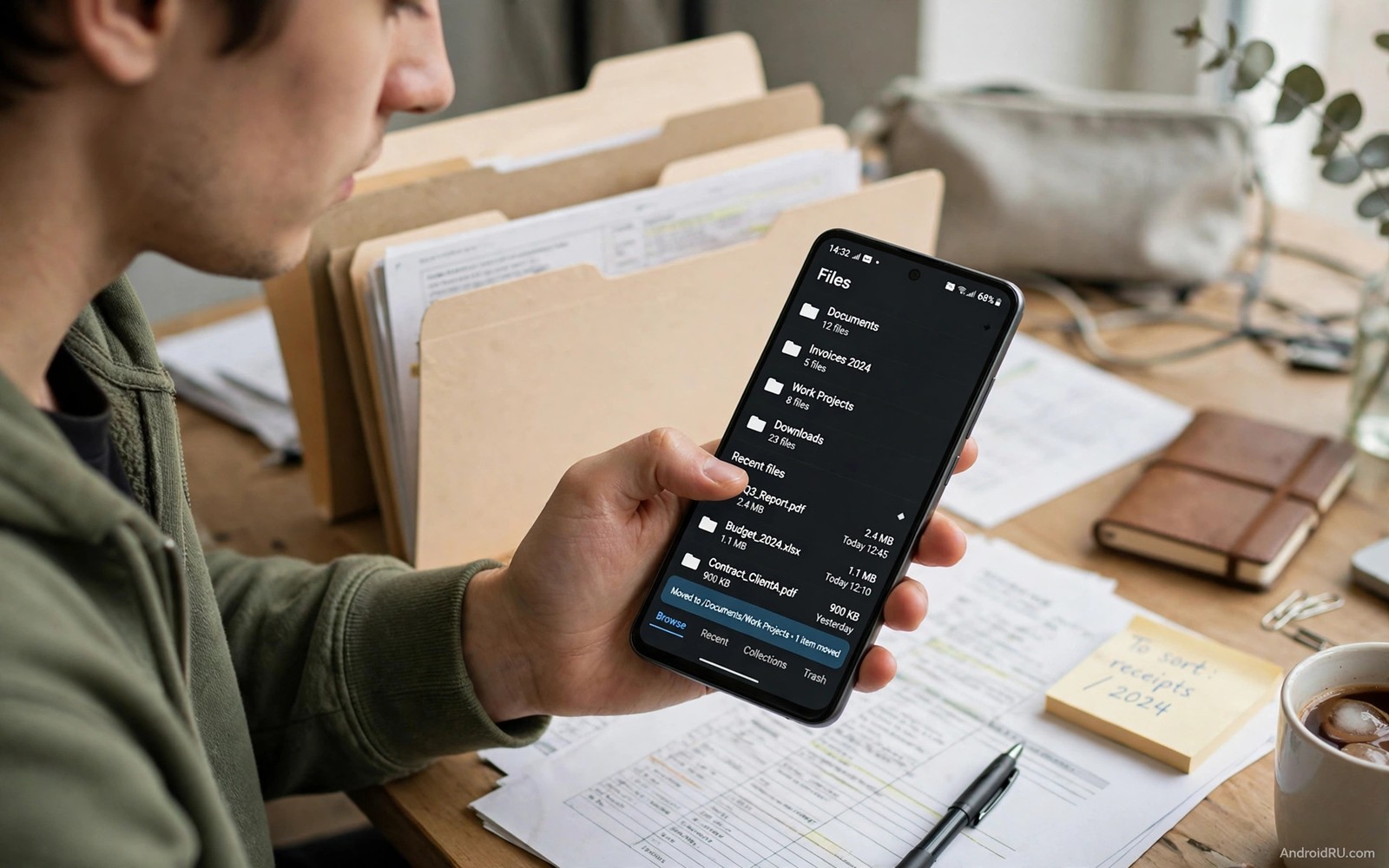
Files on a phone rarely stay where you left them. Downloads mix with photos and documents and installers in one long list. The default manager shows that list but it rarely helps you tame it. A stronger file manager adds search and batch moves and folder tools that turn chaos into order. This guide compares seven approaches without naming a winner for everyone.
Start with the mess you actually face. Maybe screenshots fill your camera folder and hide real photos. Maybe PDFs from work sit beside memes and music files. Maybe large videos eat storage and you cannot tell which ones matter. Each mess needs a different tool strength. A manager that excels at search may not excel at batch rename. A manager that excels at network folders may feel heavy for simple local moves.
A good manager should open fast and show storage use at a glance. It should let you select many files with a simple drag or a long press. It should move and copy and rename without a confusing dialog. It should also show hidden folders when you ask for them and hide them again when you finish. Those basics matter more than a long list of exotic features.
Think about where your files live beyond the phone. Some people keep documents on a home computer or a network drive. Some people move files between phone and tablet every day. A manager with network support can reach those places without a separate app. A manager without that support may still win if all your files stay local. Match the tool to your real locations.
Core features that separate strong managers
Search quality sits at the top of the list. A strong search finds a file by part of its name and by type and by date range. It should also search inside folders without forcing you to open each one. A weak search forces you to remember exact names and exact folders. That burden grows as your file count grows into the thousands.
Batch operations come next. Renaming twenty photos one by one wastes an evening. A batch rename with a pattern can add a date and a sequence number in seconds. Moving a whole project folder should keep its internal structure intact. Copying a large folder should show progress and allow a pause without losing work.
Storage analysis turns a manager from a viewer into a helper. A visual breakdown shows which folders use the most space. A large files view surfaces videos and installers you forgot. A duplicate view finds identical downloads that waste space. Use those views before you delete anything by hand. A careless delete costs more time than a slow search ever will.
Seven manager styles explained
The first style is a clean minimal manager for everyday moves. It focuses on speed and a simple folder view. It suits a person who wants to find a file and move it without learning a new system. It may lack network support or advanced archive tools. That simplicity is a feature when your needs stay local and simple.
The second style is a dual pane manager for serious organising. Two folders sit side by side so you can drag files between them. This style suits a person who sorts large projects or moves files between storage and a memory card. It can feel busy on a small screen. On a larger phone or a tablet it becomes a real productivity tool.
The third style is a network ready manager for home and office files. It connects to shared folders and lets you move files without a computer in between. It suits a person who works across devices every day. It needs careful setup for passwords and permissions. Once set up it removes a daily round trip through a cloud service.
The fourth style is a media focused manager with strong previews. It shows thumbnails for photos and videos and documents at a glance. It suits a person who sorts a large camera roll or a music collection. It may use more memory for previews on an older phone. Test it with your largest folder before you commit to it as a daily tool.
The fifth style is a root friendly manager for deep system folders. It can reach areas that a normal manager cannot see. It suits an advanced user who tweaks system files or cleans leftover app data. It can also damage a system if used carelessly. Use it only for folders you understand and back up before any system level change.
The sixth style is a cloud aware manager that shows local and online files together. It can move a file to online storage without opening another app. It suits a person who splits files between phone and cloud. Watch for sync delays and duplicate names when a file exists in both places. A clear sync status prevents a painful overwrite.
The seventh style is a lightweight manager for older phones. It uses little memory and opens instantly even on weak hardware. It suits a person who values speed over advanced features. It may lack batch rename or network tools. That trade is worth it when every second of load time matters on a slow device.
A practical test before you switch
Create a test folder with twenty mixed files and sort it with the new manager. Rename the files with a date pattern and move them into three subfolders. Search for one file by a partial name and by type. Delete a duplicate and empty the trash. Time each step and note any confusing dialog. A manager that passes that test will handle your real folders well.
adb shell ls -lh /sdcard/Download | head -20This short command was added to list download folder contents with file sizes. It shows a simple command that lists files in the download folder with sizes. You can use the output to spot large forgotten downloads before you organise them by hand.
Cleaning hidden trash pairs naturally with better file habits. A manager that shows large and duplicate files helps you decide what to keep. A dedicated cleaner can help too when used with care. The guide to cleaning hidden storage trash explains that careful approach. Use the manager for decisions and the cleaner only for files you already understand.
Organising a messy phone in one afternoon
Start the afternoon by creating three folders that match your real life rather than generic labels. A work folder and a personal folder and a shared folder cover most files without overthinking. Move files into those folders in batches rather than one by one. A batch move with a clear destination feels fast and keeps momentum. Stop after the first hundred files and check that the new structure feels natural before you continue.
Next tackle screenshots and downloads because those two folders cause most of the chaos. Screenshots often duplicate photos and hide real camera shots in the same view. Move useful screenshots into project folders and delete the rest without hesitation. Downloads often hold installers that served their purpose months ago. Sorting those two folders alone can free a surprising amount of space and reduce daily hunting.
Finish by setting a weekly habit that prevents the mess from returning. Spend five minutes every Sunday moving new downloads into their project folders. Rename files with a date and a short descriptive name during that weekly pass. A short weekly habit beats a heroic annual clean because it keeps the pile small. Small piles stay easy to sort while large piles feel overwhelming and get postponed.
Advanced manager features worth learning
Archive tools let you compress a finished project into a single file for storage. A compressed project takes less space and moves as one unit to a computer or a cloud folder. Test archive creation on a copy of a project before you compress the only version. A safe archive habit protects finished work while it frees space for new projects. Keep the original until you verify the archive opens correctly.
Network folders turn a manager into a bridge between phone and computer. A shared folder on a home computer can appear beside local folders in the same view. Moving a large video to that shared folder avoids a cable and a cloud upload. Set up network access once with a strong password and a clear folder name. That one time setup saves a daily round trip through email attachments.
Lightweight tools complement a strong manager when storage runs low on an older phone. A manager that stays fast on weak hardware matters more than a manager with every feature. That is why a comparison of lightweight apps under 10MB helps you pick a manager that fits the device you actually own. A fast manager on a slow phone beats a powerful manager that stutters on every open.
File manager tips for photos and videos
Photos and videos dominate storage on most phones because a single minute of video can outweigh hundreds of documents. A file manager that shows media by size helps you find the largest videos first. Sort the camera folder by size once a month and review the top twenty files. Delete duplicates from burst mode and keep only the best version of each moment. That monthly size sort prevents a storage crisis far better than a yearly panic clean.
Naming matters for media because a camera file name means nothing to a human reader. Rename important videos with a date and a short description during a weekly review. A renamed video surfaces in search years later when the original file name would fail. Batch rename tools make this habit fast because they can add a date pattern to dozens of files at once. A few minutes of renaming each week saves hours of hunting later.
Backing up media before organising protects against an accidental move or delete. Copy a project folder to a second location before a large sort. Verify the copy opens correctly before you delete anything from the original. That safety step feels slow during a clean but it prevents a loss that no manager can undo. A power user setup supports the same discipline because essential apps power users install first places file management at the start of any serious setup. Organise with a backup and the manager becomes a safe tool rather than a risky one.
Common mistakes
The biggest mistake is granting a manager broad access and then letting it auto clean without review. An auto cleaner can delete a project folder that looks like junk to an algorithm. Review every suggested deletion before you confirm it. A manager should help your judgement rather than replace it.
Another mistake is moving system folders to free space without understanding them. A folder with a strange name may hold app data that breaks an app if moved. Move only your own documents and media at first. Leave app data folders alone until you have a backup and a clear reason.
Frequently asked questions
Do I need to replace the default manager completely?
No. Use a stronger manager for organising and keep the default for quick opens. Two managers can coexist if you set only one as the default for file actions.
Can a manager access a memory card and internal storage together?
Yes. Most strong managers show both locations in one view. Grant storage permission once and check that both locations appear before you start moving files.
Is a dual pane manager useful on a small phone?
It can feel cramped on a small screen. Try it in landscape mode or on a tablet first. A single pane manager may serve a small phone better for daily moves.
Conclusion
Pick one manager style that matches your biggest file mess and test it on a twenty file folder today. Sort and rename and search and delete a duplicate with it. Keep it only if it makes that test faster and clearer than your current tool.

