

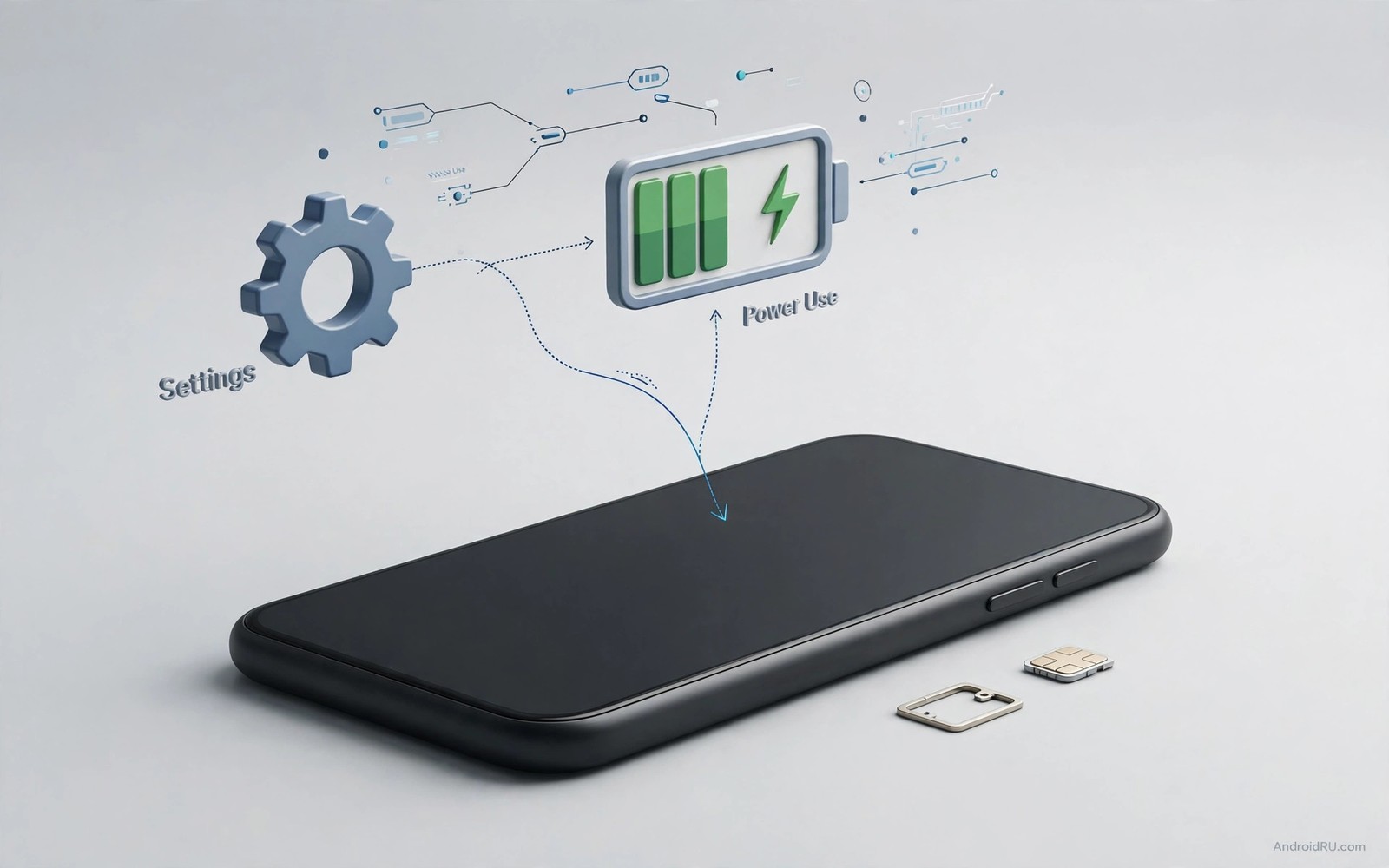
Your phone went to bed with half a charge left and woke up nearly empty. No game was running. No video was playing. The screen stayed dark all night. The culprit may sit in a menu you almost never open. Your SIM card settings control how hard your phone works to stay connected to a mobile network. When those settings are wrong for your area the radio keeps searching and retrying. That quiet work costs power every hour of the day.
Most people blame apps first when a battery drops fast. Apps do matter and they deserve a check. But a phone with two SIM cards or a weak carrier signal can burn power before any app even opens. The modem inside your phone raises its power to hold a faint signal. It scans for better towers when the current tower fades. It switches between network types when coverage changes. Each switch wakes the radio and spends energy. You never see this work on the screen. You only see the battery percentage fall.
This article walks through the exact SIM settings that cause the drain. You will learn how to spot the problem in your battery stats. You will also learn which settings to change and which ones to leave alone. The steps use only the built-in menus on your phone. No extra app is needed and no risky change is required. A few careful taps can add hours back to your day.
Why SIM Settings Drain Power At All
A mobile phone is really a small radio that never fully sleeps. It must listen for calls and messages even when the screen is off. It must also tell the tower where it is so calls can reach it. When the signal is strong this work is cheap. The radio sends a short check now and then and rests between checks. When the signal is weak the radio must shout louder to be heard. It retries failed messages and scans nearby towers for a better link. That extra effort is the hidden drain.
Dual SIM phones face this problem twice over. Each SIM keeps its own link to a network. If one SIM has no signal or belongs to a carrier with poor coverage in your area then that SIM keeps searching. The search never stops because the phone assumes you still want that line ready for calls. A second SIM that you rarely use can therefore cost more power than your main line. Many users keep an old travel SIM or a work SIM in the second slot and forget about it. The phone does not forget. It keeps both radios busy around the clock.
Network mode adds another layer to the drain. A phone set to prefer the newest network type will hunt for that network even where it barely exists. It may drop to an older network and then jump back up again. Each jump costs power and can briefly break data. In a building with patchy coverage this hunting can repeat hundreds of times per day. A steadier network choice often beats a faster one for battery life. Speed means little if the phone dies before lunch.
How To Spot A SIM Drain In Battery Stats
Open Settings and tap Battery. Then open Battery usage. Look at the list of items that used power since the last full charge. Some phones show Mobile network or Cellular standby as a line of its own. If that line sits near the top then your radio is a major drain. Compare it with your screen usage. A healthy phone usually spends most power on the screen and on apps you actually used. A radio line above your top apps is a warning sign.
Check the signal story behind the numbers too. Open Settings and tap About phone. Then tap SIM status. Look at signal strength measured in dBm. A value near negative 70 means a strong signal. A value near negative 110 means a weak signal. A value near negative 120 means the phone barely holds the tower. If your signal sits in the weak range for most of the day then your radio will work hard no matter what you change in apps. The fix then is about network choice and SIM setup rather than app cleanup.
Test one SIM at a time when you use two cards. Turn off the second SIM for a full day and note the battery at bedtime. Then turn it back on and repeat the test on a similar day. Keep your usage roughly the same on both days. A clear gap between the two days points at the second SIM. This simple test beats guessing and it costs nothing. It also tells you whether the problem is a SIM or a place. A phone that drains only at the office may face a coverage gap there rather than a broken setting.
Fix The Network Mode First
Open Settings and tap Network and internet. Then tap SIMs and choose the SIM you want to adjust. Tap Preferred network type. You will see options that name several network generations. Choose a mode that matches real coverage where you live and work. If the newest network is patchy in your area then pick a mode that stops one step lower. The phone will then hold a stable link instead of hunting for a signal that keeps fading. Stability saves power and it also makes calls more reliable.
Do not chase the fastest label on the menu. A fast network that drops every few minutes forces constant reconnection. A slower stable network lets the radio rest between short checks. Most daily tasks feel the same on both. Messages arrive on time. Maps load fine. Music streams without gaps. Only large downloads show a real difference. For those rare downloads you can switch the mode back for a short time and then return to the stable choice.
Roaming settings deserve a look as well. A phone near a border or in a building served by a partner tower may roam often. Roaming forces extra checks and sometimes a different network search pattern. If you do not need roaming then turn it off for that SIM. The toggle sits in the same SIM menu on most phones. Turning it off stops the phone from hunting for partner networks. It also protects you from surprise charges on some plans. Keep roaming on only when you truly travel.
Fix Dual SIM Waste Without Removing A Card
You do not have to throw away a second SIM to save power. Open Settings and tap Network and internet. Then tap SIMs. You can turn off a SIM you rarely use while keeping the card in the slot. The phone will stop searching for that network until you turn the SIM back on. This is perfect for a travel SIM between trips or a work line outside work hours. Turning the SIM back on takes only a few taps when you need it again.
Check which SIM handles mobile data. A data SIM with weak coverage will drain power faster than a voice-only SIM. Set mobile data to the SIM with the stronger signal in your daily area. Open the SIM menu and tap the data setting to change it. Test the change for two days and watch the battery line for Mobile network. A better data SIM often shows up quickly in the stats. The same logic applies to calls if one line drops calls often. Give the reliable line the jobs that matter most.
Weak signal drain links closely to the way your phone handles low coverage indoors. Readers who notice the worst drain at home or at work should also read about how low signal strength drains battery because the fixes there pair well with the SIM changes in this article. A phone that hunts for towers all day needs both a stable network mode and a sensible SIM setup. One fix alone may help only a little. Both fixes together can change the whole day.
Other SIM Settings That Quietly Cost Power
Automatic network selection sounds helpful and it usually is. The phone picks the carrier it thinks is best. But in some areas automatic selection keeps switching between two close carriers. Each switch wakes the radio and restarts the link. Try manual network selection for a day if you see this pattern. Open the SIM menu and turn off automatic selection. Then pick your carrier from the list and stay on it. A fixed carrier removes the switching cost and the phone can rest.
Wi-Fi calling can help or hurt depending on your setup. When Wi-Fi calling is on the phone may route calls over Wi-Fi and let the mobile radio rest a little. That helps in a building with strong Wi-Fi and weak mobile signal. But if your Wi-Fi also drops often then the phone may juggle two links at once. Test Wi-Fi calling for a few days with your normal routine. Keep it if calls stay clear and the battery improves. Turn it off if calls break up or the drain stays the same.
Background data for the SIM itself is rarely the problem. The real cost is the radio link not the data volume. Still it helps to stop apps from syncing over mobile data when you do not need them to. Open Settings and tap Network and internet. Then tap Data Saver and turn it on. Data Saver limits background traffic on mobile data. Less traffic means fewer radio wakeups. Pair this with the background app battery setting to cut both app wakeups and radio wakeups at once. The two settings work on different parts of the same problem.
When The Problem Is Not A Setting
Some drains come from hardware or coverage rather than menus. A damaged SIM card can cause repeated registration failures. The phone tries to join the network and fails again and again. If you see no service errors or frequent signal drops then try the SIM in another phone. If the problem follows the card then ask your carrier for a replacement. A fresh card often fixes registration loops at once. A replacement is usually cheap or free.
A phone case with metal parts can also weaken the signal a little. The effect is small on most phones but it matters when the signal is already weak. Test the phone without the case for a day in your worst coverage spot. If the signal improves by a clear margin then the case may be part of the problem. You do not need a new phone. A different case may be enough. Keep this test in mind before you blame software alone.
Carrier outages and tower work can cause short drains too. A tower under repair may force phones in the area onto a distant tower. The drain lasts until the work ends. Check with neighbours or your carrier status page when the drain starts suddenly for everyone nearby. A sudden drain that affects many phones is rarely a setting on your phone alone. Wait a day and compare before you change many settings at once. Changing one thing at a time keeps the cause clear.
A Simple Checklist You Can Run Today
Start with the battery stats and note the Mobile network line. Then check signal strength in SIM status. Next set a stable preferred network type for each SIM. Turn off any SIM you do not use this week. Set mobile data to the stronger SIM. Turn off roaming when you do not travel. Try manual carrier selection if automatic switching looks busy. Turn on Data Saver for mobile data. Recheck the battery stats after two normal days.
SIM battery check
1. Settings > Battery > Battery usage
2. Note the Mobile network percentage
3. Settings > About phone > SIM status
4. Note signal strength in dBm
5. Settings > Network and internet > SIMs
6. Set a stable preferred network type
7. Turn off any unused SIM for the week
The checklist above was written for this article as a plain summary of the steps in the sections before it. It uses only built-in menus and it needs no extra tool. Follow the steps in order so you can see which change helps most. If one step makes things worse then undo that step alone and keep the rest.
Keep a short note of your results for a week. Write down the battery percentage at bedtime each night. Write down any setting you changed that day. A short note beats memory when the drain creeps back later. It also helps you restore a good setup after a system update resets a menu. Updates sometimes return network mode to a default that hunts again. Your note lets you spot that reset fast. For a broader daily routine that keeps these checks in order see the daily battery optimization checklist and use it beside this SIM checklist.
Common mistakes
Many users change five settings at once and then cannot tell which one helped. Change one setting and test it for a full day. A single change gives a clear result. Five changes give only confusion. Patience here saves time later because you will not undo a good fix by accident.
Another common mistake is picking the fastest network mode in a weak coverage area. The label looks better on the menu but the radio pays for it all day. A stable mode often gives a better real experience. Calls stay connected and data stays steady. Speed on paper means little when the link keeps dropping.
Some users blame the battery itself and buy a replacement too soon. A new battery will not fix a radio that hunts all day. Check the Mobile network line first. Check signal strength second. Only consider battery health after the radio looks normal. This order saves money and it finds the true cause faster.
A final mistake is leaving a dead travel SIM active for months. The phone keeps searching for a network that may not serve that card at home. Turn the SIM off between trips. The card stays safe in the slot. The radio rests until you need that line again.
FAQ
Does a second SIM always drain more battery?
A second SIM adds some drain because it keeps a second link alive. The cost stays small when both signals are strong. The cost grows large when one SIM has weak or no coverage. Turn off the weak SIM when you do not need it and the extra drain mostly disappears.
Will a stable network mode slow down my phone?
A stable mode may lower peak download speed. Daily tasks like messaging and maps usually feel the same. Large downloads may take longer. You can switch to a faster mode for a big download and then switch back. The battery gain during normal use is worth that small trade.
Can a carrier fix a SIM drain from their side?
A carrier can replace a faulty SIM and check tower coverage in your area. They can also confirm whether your plan supports the network mode you chose. If the drain follows the SIM to another phone then contact the carrier. If the drain stays with your phone then the cause is more likely a setting or a hardware fault.
Conclusion
SIM settings hide in plain sight and they work all day without any sign on the screen. A weak signal forces the radio to work harder. A second SIM doubles that work. A hunting network mode adds switching cost on top. Each factor alone may seem small. Together they can drain hours of battery life. The good news is that every fix in this article uses a built-in menu and takes only minutes.
Your concrete next step is simple. Open Battery usage now and note the Mobile network percentage. Then open SIM status and note your signal strength. If the radio line looks high then set a stable network type and turn off any SIM you do not need this week. Recheck the same stats after two normal days and keep the setup that gives you the best bedtime percentage.

