

How to Hack Android System Thermal Tables Safely with Root
Your phone slows down on purpose. When the processor, the battery, or the outer shell gets too warm, the system cuts speed to keep temperatures inside a safe envelope. That behaviour is not a bug. It is a table of rules, written by the maker, that maps temperature readings to actions. Change the rules and the phone behaves differently. Change them badly and the phone can cook its own battery.
Most owners who want steadier performance never actually see the table. They install a kernel manager, slide a slider, and hope. That hides the one thing that matters: which sensor triggers which action at which temperature. A table edit done after reading the table is a tuning job,
This guide covers the careful way: what a thermal table is, how to read your own table instead of copying someone else’s, how to move early trip points by a few degrees, how to keep the final safety limit exactly where the maker put it, and how to test the result over real sessions. It assumes a rooted phone and a willingness to move slowly.
What Android thermal tables control: trip points, sensors, and actions
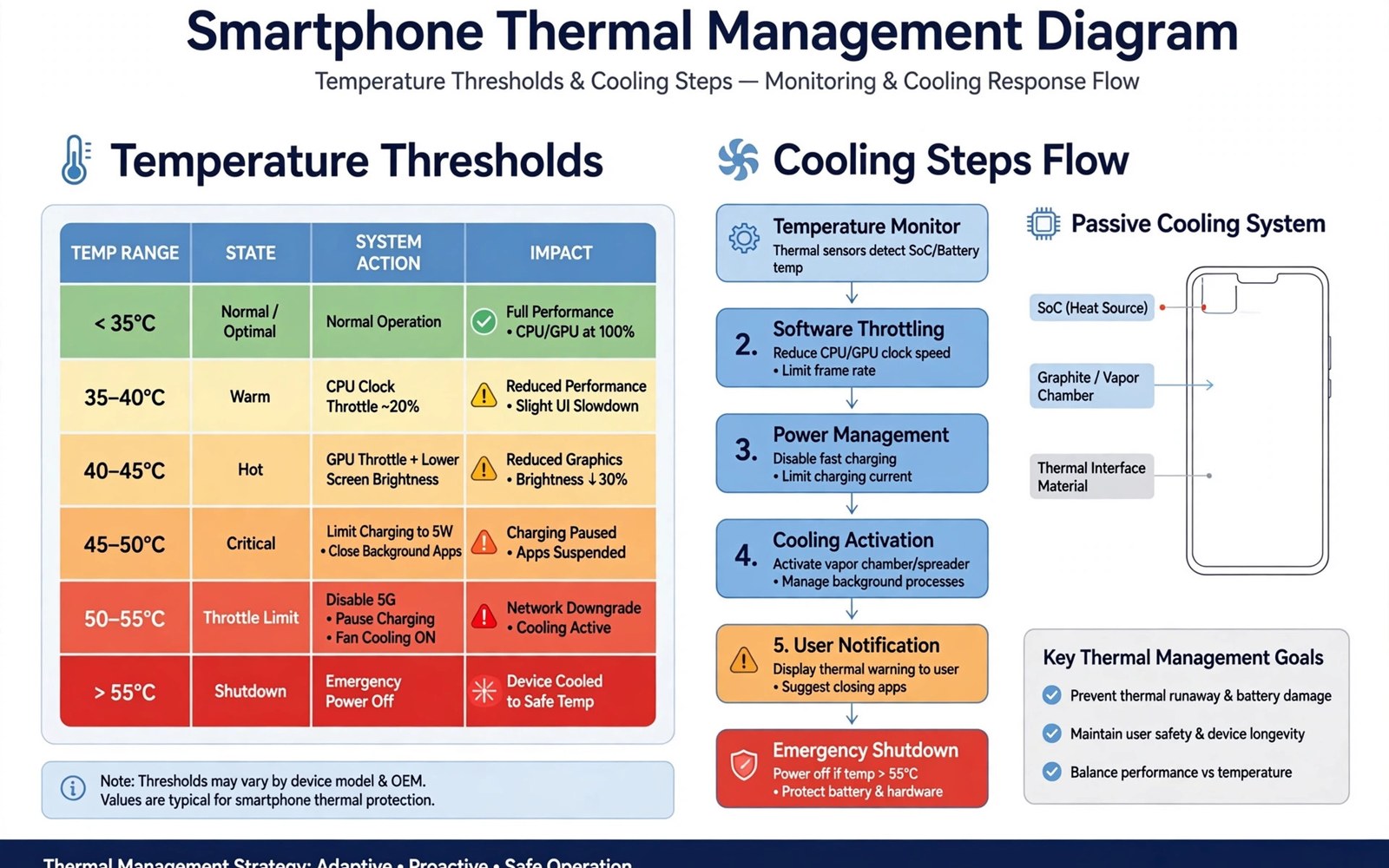
A thermal table is a list of temperature thresholds, called trip points, paired with actions. When a sensor crosses a trip point, the system runs the action tied to that row. The first rows are gentle: the big processor cluster drops one frequency step, or charging slows from fast to standard. The last row is the emergency brake, a deep throttle or a shutdown.
Think of the table as a staircase. Each step down in speed buys a drop in heat. A cautious table starts stepping down early, while the phone is still comfortable to hold. An aggressive table stays on the top step longer, then drops hard.
Battery zone: the sensor that ages your phone
The battery temperature zone is the one to respect most. Lithium cells lose capacity faster when they spend time above roughly 40 degrees Celsius, and the damage is cumulative. A table row tied to the battery sensor might slow charging, cap the processor, or both.
CPU zone: where the speed cuts land
The processor zone tracks the system-on-chip, often split into separate zones for the big cluster, the little cluster, and the graphics processor. Rows tied to these zones are the ones that change how a game feels. A trip point at 65 degrees on the big cluster might drop it from 2.8 GHz to 2.4 GHz, and the next row at 70 degrees might drop it to 2.0 GHz.
Skin zone: the temperature your hand feels
The skin zone measures the temperature of the phone’s outer surface, usually through a sensor near the frame or the back panel. A processor can sit at 70 degrees internally while the skin stays near 40, because the heat spreader and the casing slow the transfer. Makers cap skin temperature around the low to mid 40s because hotter than that feels uncomfortable and, past the high 40s, can irritate skin during long contact.
Reading your own thermal table: thermal-engine.conf and sys class thermal zones
Every device keeps its table somewhere in the vendor partition, and the exact path changes between makers and Android versions. The most common home is the vendor etc directory, in a file named thermal-engine.conf or a set of thermal configuration files with similar names. The inspection commands below find whatever your device uses.
su
ls /vendor/etc/thermal*
cat /vendor/etc/thermal-engine.conf 2>/dev/null | head -100
cat /sys/class/thermal/thermal_zone*/type
cat /sys/class/thermal/thermal_zone*/temp
Run those commands and save the output to your computer before you change anything. The last two list every thermal zone by name and show its current temperature in millidegrees Celsius, so a reading of 38500 means 38.5 degrees. That live reading is your ground truth.
Matching table rows to sensor names before you touch a value
Open the table file and read it end to end. Each section names a sensor, lists trip points in degrees, and states the action at each point. Write down the mapping: sensor name, zone number, each trip temperature, each action. A table without a sensor map is a list of numbers that invites dangerous guesses, and guessing is how a trip point meant for a minor sensor gets edited as if it guarded the battery.
Why a copied table from another model is dangerous
Tables differ by device because sensor layouts differ. One phone may track a dozen thermal zones while another tracks half that number. A table copied from a different model can map a trip point to the wrong sensor and leave the hottest part unguarded while overprotecting a cool one. Your table is the only table that matters for your phone.
Raising early trip points by 3 to 5 degrees without touching the hard limit
The safe edit is small and specific. Raise one early trip point by three to five degrees and leave everything else untouched. That single change delays the first speed cut while keeping the rest of the safety curve intact.
Do not raise two points at once. If performance improves, you will not know which change did it. If temperatures climb too far, you will not know which change to undo. One change, one test, one verdict.
| Trip point | Typical temperature | Typical action | Safe to adjust |
|---|---|---|---|
| Early trip 1 | 60 to 65 degrees on the processor zone | One frequency step down on the big cluster | Yes, by 3 to 5 degrees |
| Early trip 2 | 65 to 70 degrees on the processor zone | Second frequency step down or governor change | Yes, by 3 degrees, after testing trip 1 |
| Middle trip | 70 to 75 degrees, or 42 to 44 on the battery zone | Deeper throttle, charging slowdown, brightness cap | Rarely, by 1 to 2 degrees at most |
| Skin trip | 43 to 45 degrees on the skin zone | Brightness cap and processor cap together | Only by 1 degree, comfort matters |
| Hard safety limit | Final row, often 80 degrees or higher on the chip | Deep throttle or shutdown | Never |
The table above uses typical ranges because exact values differ by chip and maker. Check your own file and replace the typical numbers with your real ones before you edit. Thermal trip points in the early rows give you room to work. The final row gives you nothing but safety, and safety is not negotiable.
Testing one change with a workload that matches real use
Reboot after the edit so the thermal service reloads the table, then test with a sustained workload that matches your real use. A thirty-minute game session or a long video export gives a better test than a short benchmark because heat builds over time. Watch the frame rate and the skin temperature together. A good edit holds performance steadier without pushing skin temperature into uncomfortable territory.
Backing up the original table and versioning every edit
Copy the original table to your computer with a clear label that includes the device model and the date. A backup on the phone alone is not enough because a thermal problem can make the phone hard to use. The computer copy lets you restore the original even when the phone misbehaves.
Version your edits like a developer. Save each edited table with a note describing the change and the test result. A version history turns a bad edit into a one-step rollback. Without versions you must guess which change caused a new problem, and guessing wastes the time that versioning saves.
A simple versioning scheme that survives updates
Keep a folder on your computer named after the device model. Inside it, store the stock table as thermal-stock-YYYY-MM-DD.conf, then each edit as thermal-v1-trip1-plus3.conf, thermal-v2-trip2-plus3.conf, and so on, each with a short text note recording the date, the room temperature, the workload, and the result.
Where to store backups so a bad edit cannot trap you
Store one copy on the computer, one copy on a cloud drive or a second device, and, if your recovery supports it, one copy on external storage the phone can reach from recovery mode. Three copies sounds excessive until the day the phone throttles so hard it will not stay awake long enough to copy a file back.
Testing a thermal table edit over full sessions and seasons
Wait a full day before making a second change. Thermal behaviour varies with room temperature and usage patterns. A change that looks safe in a cool morning test can prove aggressive in a warm afternoon session. Daily variation is data and not noise. Respect it by spacing changes apart and by testing in varied conditions.
Keep a weekly temperature log. Record the battery temperature and the skin temperature after a standard workload such as a thirty-minute game session or a long video export,. The gaming-focused application of the same method appears in hacking thermal limits for gaming without throttling, where the same hierarchy guides longer sessions.
Logging temperature against workload every week
Record four things every time: the date, the workload, the room temperature, and the two temperatures that matter, battery and skin. Record them in the same order every time. Without ambient notes, a summer test and a winter test look like a tuning regression when they merely reflect the weather.
Comparing your table with stock after every system update
After every update, compare your edited table against the new stock table to see what the update changed. The graphics clock work in overclocking a smartphone graphics chip for ultra high frame rates depends on the same respect, because clocks and tables must evolve together with the system.
Common mistakes that turn a tuning job into a repair bill
The most dangerous mistake is deleting the thermal service or the final trip point to chase a benchmark. That change removes protection that no performance gain can replace. The second mistake is copying a table from another model: sensor mappings differ, and a copied table can leave the hottest sensor unguarded while it overprotects a cool sensor.
Change one layer at a time. The performance mod set in advanced root mods that maximise hardware performance benefits from the same log discipline, because performance claims without a log are stories and not measurements. Battery zone readings belong in that log beside every other number, since the battery is the part that pays for every aggressive edit.
Mistake: disabling the thermal service entirely
Some guides suggest freezing or removing the thermal daemon for maximum speed. That is the single worst idea in this whole field. Without the daemon, nothing watches the sensors. The phone will run fast right up to the moment it does not run at all. If a guide tells you to kill the thermal service, close the guide.
Frequently asked questions
How do I find my thermal table on my phone?
Thermal tables usually live in the vendor configuration area, most often under /vendor/etc/, but the exact path varies by maker and Android version. Use the inspection commands in this guide to list thermal files and match them against your sensor list. A file that does not match your sensors is not your active table.
How much can I safely raise early trip points?
Three to five degrees is a cautious starting range for early points. Larger jumps risk sudden heat buildup that the later points cannot manage smoothly. Raise gently, test for a full day before any further change, and watch the battery temperature as closely as the frame rate. If the battery crosses the mid 40s during a normal session, the edit is too aggressive.
Does a table edit survive a system update?
System updates often restore vendor files including thermal tables, so an edit usually does not survive. Keep your edited table and your version notes on a computer so reapplying takes minutes.
Can a thermal table edit damage my battery?
Yes, if it lets the battery spend long periods above the mid 40s. Heat ages lithium cells, and the damage adds up over months rather than appearing in one session.
Start tonight: back up the stock table and read the sensor map
Thermal tables reward the owner who reads first, edits gently, and never touches the final safety limit. The hard safety limit stays sacred because it guards the battery and the chip when everything else goes wrong, and no frame rate is worth removing it.
Your concrete next step is to locate and back up your original thermal table today without changing a single value. For the gaming use of the same method, continue with hacking thermal limits for gaming without throttling as your next guide.

