

KernelSU roots Android at the kernel level rather than by patching only the boot image in the classic way. That design gives it a different balance of power and hiding. It can grant root to apps with kernel level control. It can also work well with modern integrity tools when set up correctly. For newer devices with supported kernels it is a strong alternative to classic root methods.
KernelSU is not a one click app for every phone. It needs a kernel that supports it or a custom kernel built with support. That requirement limits which devices can use it easily. Devices with active kernel development support it well. Devices without kernel support may need a different root method. Checking support for your exact model is the first and most important step.
This guide explains the KernelSU path in plain steps. You will check kernel support and back up data. You will flash the right kernel or image. You will install the manager and grant root carefully. You will test integrity and core apps before daily use. The steps assume basic comfort with fastboot and recovery. If those tools are new to you then practise on a spare device first.
Check Kernel Support For Your Exact Model
KernelSU needs kernel support for your device and Android version. Some makers ship kernels that already support it through community builds. Some devices need a custom kernel from a developer for that model. Search for your exact model and Android version together. A kernel for a sibling model is not a safe substitute.
Check the kernel version and the Android version in Settings before downloading anything. Match the kernel build to both values exactly. A mismatch can bootloop the phone or break Wi-Fi and camera drivers. Patch boot images with fastboot explains the image skills behind this step. A careful match at this stage prevents most KernelSU failures.
Back Up Everything Before Flashing
Flashing a kernel or a boot image can wipe data if the bootloader needs unlocking first. Back up photos and messages and app data outside the phone. Store the backup on a computer or in cloud storage you can reach without the phone. A backup inside the phone is useless if the phone will not boot.
Also back up the stock boot image and the stock kernel if you can obtain them for your model. Those files are your return path to an unrooted state. Label them with model and version and date. Custom ROM warning stresses the same backup rule because flashing without a return path is risky. A labelled stock backup turns a failure into a restore.
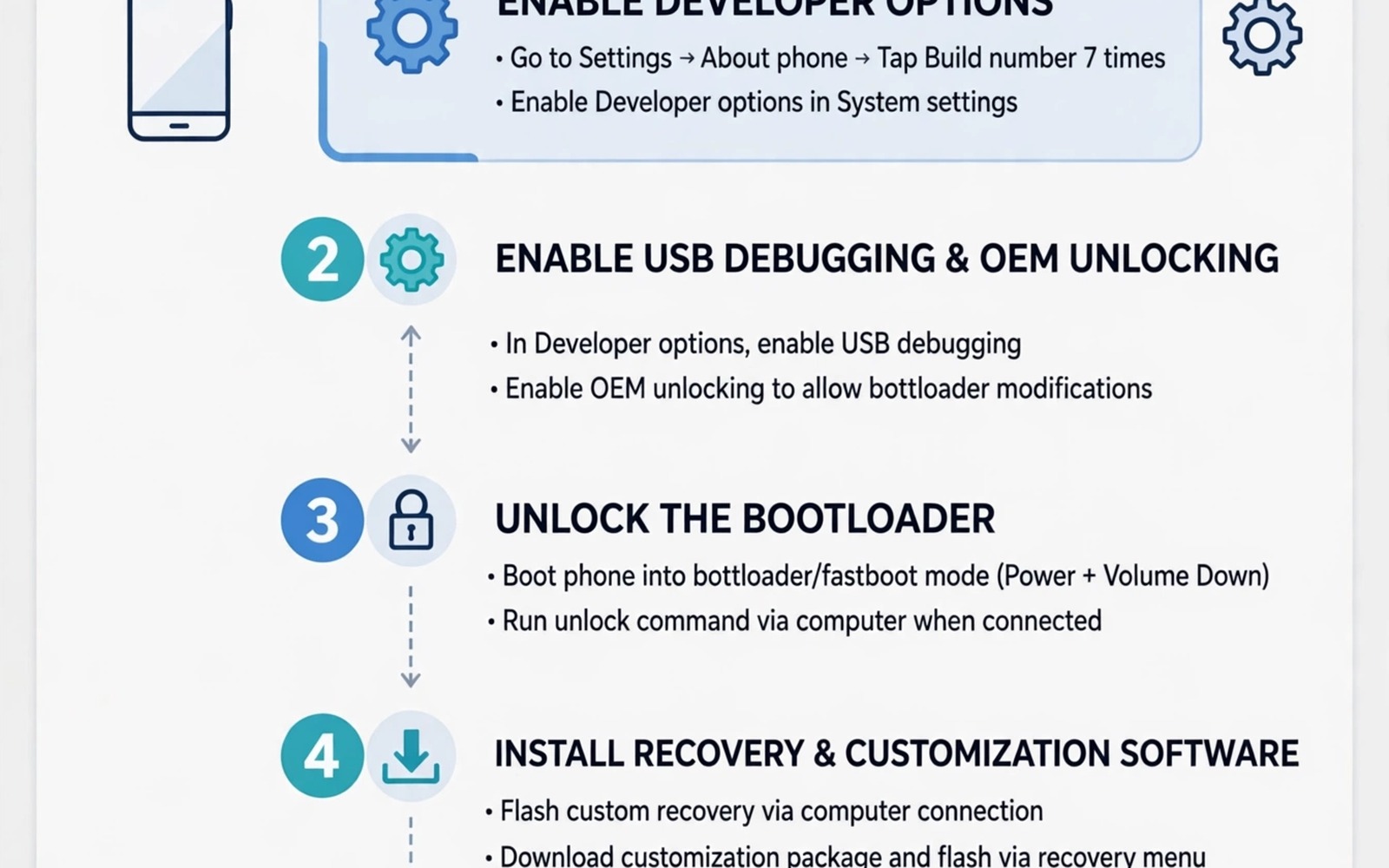
KernelSU install checklist
1. Confirm kernel support for exact model and version
2. Back up all data outside the phone
3. Save stock boot and kernel images labelled
4. Flash the KernelSU kernel in fastboot
5. Install the manager and check version
6. Grant root only to trusted tools
7. Test hardware and banking apps
The example above was written for this guide as a plain summary of the steps in the sections before it. It uses only the menus and options described above and it needs no extra tool to understand. Follow the steps in order so you can see which change helps most. If one step makes things worse then undo that step alone and keep the rest.
Flash The KernelSU Kernel Or Image
Download the KernelSU supported kernel for your model from a trusted source. Verify the file if the source provides a checksum. Boot the phone into fastboot mode and flash the image to the correct partition. Use the exact fastboot command from the kernel guide for your model because partition names vary. A command for another model can write to the wrong place.
Reboot after flashing and watch the first boot carefully. The first boot can take longer than usual while the system settles. If the phone loops on the logo then boot into recovery and restore the stock image. Do not flash additional files while the phone is looping. Restore first and research the mismatch before trying again.
Install The Manager And Grant Root
Install the KernelSU manager app after a successful boot. Open it and check that it reports a working KernelSU version. The manager controls which apps receive root permission. Grant root only to tools you trust and that need it. Deny root to any app that asks without a clear reason. A strict grant list is essential on a kernel rooted phone.
Enable any hide or unmount features the manager offers for sensitive apps. Add banking apps to the hide list if the manager supports it. Test integrity after setting the list. Superuser manager comparison helps you compare manager features. A manager that hides well and grants strictly is the right manager for daily use.
Test Core Apps And Updates
Test calls and messages and camera and banking apps after installing KernelSU. A kernel change can affect drivers for camera or fingerprint or mobile data. Test each hardware feature once before daily use. If a feature fails then the kernel build may lack a driver for your model. Restore stock and look for a newer kernel build.
Plan for system updates carefully because an update can replace the kernel and remove root. Update rooted devices without losing root covers update planning. Never accept an update on a rooted daily phone without reading model reports first. A planned update keeps root while a rushed update can break it.
KernelSU Versus Classic Root Daily
Daily use with KernelSU feels similar to classic root once setup is complete. Apps request root through the manager in the same way. Modules work where they support the kernel method. The main daily difference is update behaviour. A kernel update can remove KernelSU while a boot patch update follows a different path. Learn the update path for your method before daily use.
Classic root suits users who change modules often because its module ecosystem is larger. KernelSU suits users who value kernel level control and a cleaner hide profile. Neither choice is universally better. Pick the method with better support for your model and with a community you can ask for help. A supported method beats a fashionable method every time.
KernelSU Troubleshooting Basics
If KernelSU fails to appear after flashing then check that the kernel build matches your model and version. A mismatched kernel is the most common cause. Restore stock and download the correct build. If the manager shows no version then the kernel may lack the required support. A manager alone cannot add kernel support that is missing.
If an app fails to get root then check the manager grant list. A denied grant can look like a broken root setup. Grant root to the app again and test a simple root command. If root works for one app but not another then the problem is grant or scope rather than kernel. Test grants one app at a time to isolate the issue.
KernelSU On Older Devices
Older devices present a different KernelSU challenge because kernel sources may be outdated. A device with an old kernel may lack the features KernelSU needs. Community developers may backport support but backports take time and testing. Check whether your older model has a maintained kernel with KernelSU support before attempting installation. A device without maintained kernel support is better served by a classic root method that does not need kernel changes. Forcing KernelSU onto an unsupported old kernel risks driver failures.
Older devices also have smaller batteries and slower storage. A kernel change that works on a new device may feel slower on an old device. Test performance after flashing on an older phone with normal apps before judging success. A boot success alone does not prove daily usability. Check camera and fingerprint and mobile data on the older device because old drivers are more fragile. If any core feature fails then restore stock and consider classic root instead. A working older phone with classic root beats a partially working phone with KernelSU.
Battery health on older devices deserves attention during any kernel change. A worn battery can cause random reboots that look like kernel problems. Check battery health before flashing so you do not blame the kernel for a hardware issue. Replace a failing battery through a trusted service before major system changes. A healthy battery gives a kernel change a fair test. A failing battery confuses every diagnostic step that follows.
Common mistakes
One common mistake is flashing a kernel for the wrong model or Android version. That mismatch can bootloop the phone or break drivers. Match model and version exactly. Another mistake is skipping the stock backup before flashing. Without a return path a failure becomes a long repair. A third mistake is granting root to every app that asks. Keep grants strict and review them regularly.
FAQ
Is KernelSU better than Magisk?
It depends on your device and your needs. KernelSU suits devices with kernel support and users who want kernel level control. Magisk suits a wider range of devices with systemless modules. Choose based on model support rather than hype.
Can I switch from Magisk to KernelSU?
Often yes by restoring stock images first and then following the KernelSU path. Do not flash KernelSU over a Magisk patched image without a clean restore. A clean base prevents conflicts between root methods.
Will KernelSU pass integrity checks?
It can pass basic integrity with hide tools on supported devices. Strong integrity depends on hardware and model. Test your sensitive apps after setup rather than assuming a pass.
Conclusion
Confirm kernel support for your exact model today and back up everything outside the phone. Save labelled stock images before you flash anything. Flash the matched KernelSU kernel and install the manager with strict grants. Test hardware and banking apps before daily use. That careful sequence gives KernelSU its best chance to work as a stable next-gen root solution.
Test KernelSU on a spare device for a full week before moving it to a daily phone. A week of normal use reveals driver issues that a quick boot test hides. Check camera and fingerprint and mobile data each day during that week. A device that passes a week of daily use is ready for a primary role. A device that fails even once deserves more research before promotion. That patient week protects your daily phone from a rushed kernel decision.
Join a community forum for your device after installing KernelSU. A forum gives early warnings about bad updates and broken kernels. It also gives solutions from users with the same model. Lurking for a month before posting helps you learn the community norms. When you do post a problem include your model and version and kernel build. Complete information gets faster and better answers. A helpful community is part of the KernelSU experience.

