

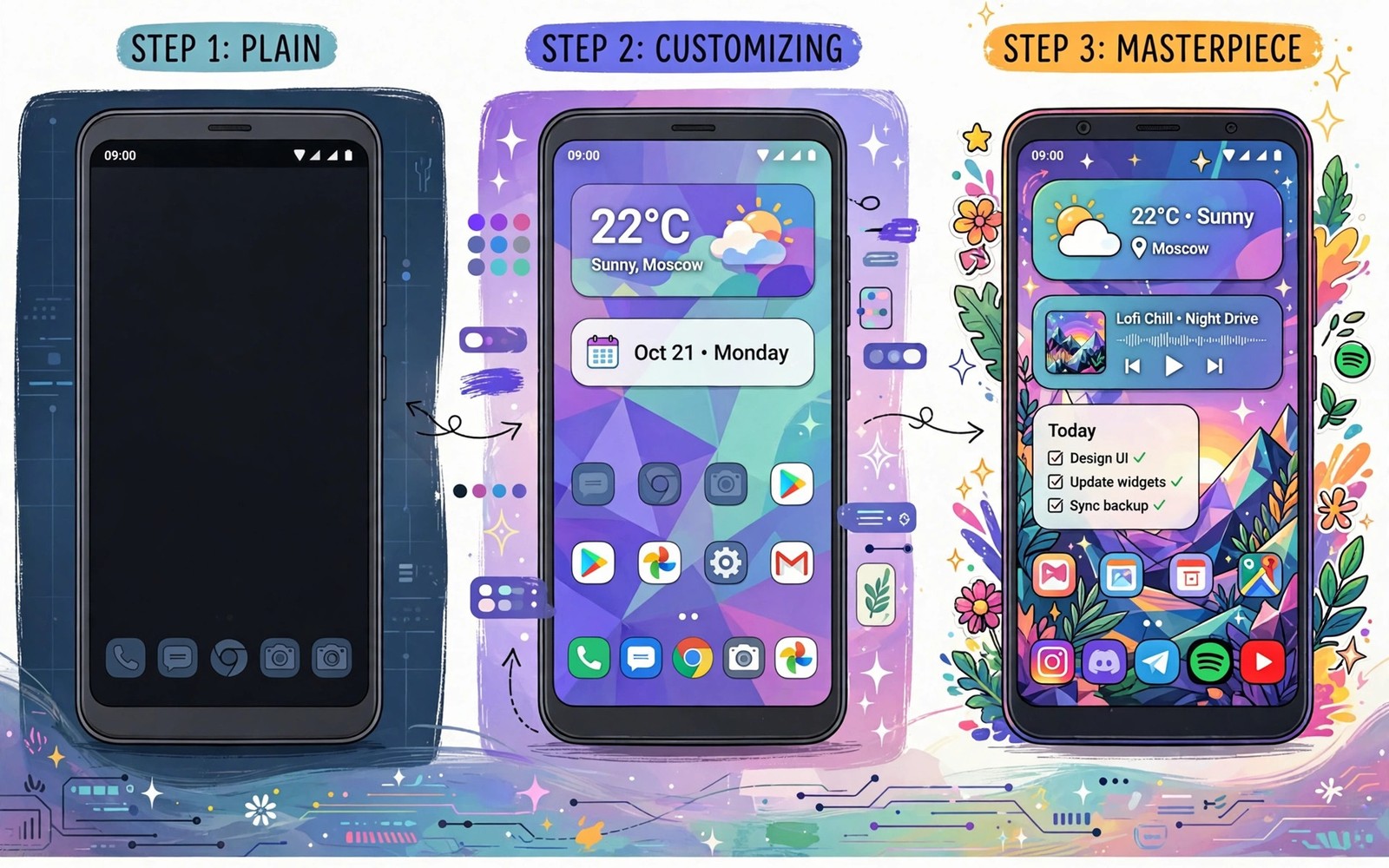
A stock Android phone works well but it looks like every other phone from the same maker. A masterpiece phone looks like it was designed for one person. The gap between those two phones is not money or root. It is a series of small choices made in the right order. Launcher first and theme second and widgets third and polish last. That order keeps the project manageable and the result coherent.
Many customization guides fail because they jump to advanced tricks before the base is solid. A fancy widget on a messy launcher still looks messy. A beautiful icon pack on a cluttered home screen still looks cluttered. This guide builds from the base up so each layer supports the next. You will finish with a phone that is both beautiful and fast to use every day.
Work through the stages in order and test each stage for a day before moving on. A stage that feels wrong can be fixed before it hides under later layers. Keep a backup of each stage in your launcher so you can return to a good version. That habit turns a big project into a safe and enjoyable one.
Stage One Replace The Launcher
The launcher controls the grid and the icons and the gestures. A custom launcher is therefore the foundation of any masterpiece. Install a launcher known for stability and backup support. Set the grid to a size that fits your hand and your screen. A grid that is too dense makes icons hard to tap. A grid that is too sparse wastes space.
Set the app drawer to a layout you can scan fast. A vertical list suits long app names. A paged grid suits visual scanning. Try both for a day and keep the faster one. Android customization hacks often start here because the launcher touches every interaction. A solid launcher makes every later stage easier.
Stage Two Choose A Theme And Palette
A theme is a promise that colours and shapes will stay consistent. Pick one accent colour and one neutral palette and use them everywhere. A dark theme with a teal accent feels calm. A light theme with an orange accent feels energetic. Avoid a rainbow theme because it fights with app colours and photos.
Apply the theme to the launcher and to quick settings and to widgets. Check the result on the home screen and in the app drawer and in settings. A theme that works in only one place is incomplete. Minimalist aesthetic setup shows how restraint creates a premium feel. Two colours used well beat ten colours used randomly.
Masterpiece customization checklist
1. Install a stable custom launcher
2. Set grid and app drawer layout
3. Pick one accent and one neutral palette
4. Build widgets that answer daily questions
5. Apply one icon pack and mask the rest
6. Set three core gestures
7. Export a launcher backup
The example above was written for this guide as a plain summary of the steps in the sections before it. It uses only the menus and options described above and it needs no extra tool to understand. Follow the steps in order so you can see which change helps most. If one step makes things worse then undo that step alone and keep the rest.
Stage Three Build Widgets With Purpose
Widgets should answer a question at a glance. A calendar widget answers what happens next. A weather widget answers whether to carry a coat. A music widget answers what is playing. A widget that answers no question is decoration and decoration belongs in a wallpaper rather than in a widget slot.
Build one widget at a time and place it where it serves a daily moment. A morning widget stack can hold calendar and weather. An evening widget can hold music and tasks. Aesthetic setup ideas can inspire layouts but your routine should decide the final placement. A widget that serves your morning is worth more than a beautiful widget you never read.
Stage Four Refine Icons Gestures And Sound
Icons complete the visual language started by the theme. Apply one icon pack across the whole home screen. Mask any unthemed icons so the set stays consistent. Check icons after app updates because updates can break a mask. A consistent icon set makes the phone feel like one product.
Gestures complete the speed language of the phone. A swipe down for notifications and a double tap to lock cover most daily needs. A swipe on an icon for a second action covers the rest. Sound completes the feel when it stays subtle. A soft unlock sound and a calm notification tone suit a masterpiece better than loud alerts. Keep all three refinements restrained so the phone feels polished rather than busy.
Stage Five Polish And Maintain The Masterpiece
Polish means checking the whole phone as one product. Unlock the phone and scan the lock screen. Open the app drawer and scan for a stray icon. Pull down quick settings and check tile order. Open settings and check that colours still match. Fix any detail that breaks the theme even if it seems small.
Maintenance keeps the masterpiece alive after updates. Export a launcher backup after each stage and after each major change. Review the home screen monthly and remove widgets and shortcuts you stopped using. A masterpiece is not a finished picture. It is a living setup that adapts as your habits change. Small monthly care beats a yearly rebuild.
Masterpiece For Tablets And Foldables
A masterpiece setup on a phone does not transfer directly to a tablet. A tablet screen offers more space for widgets and for a wider grid. Use that space for a two column widget layout rather than stretching phone widgets. A tablet home screen can hold a calendar and a notes widget side by side. That layout uses the large screen well without looking empty.
Foldables need two layouts in one device. The outer screen suits a simple phone layout with large icons. The inner screen suits a richer layout with widgets and shortcuts. Set each screen layout separately if your launcher allows it. Test both layouts for a day each. A foldable masterpiece respects both screens rather than forcing one layout onto both.
Seasonal Refresh Of Your Setup
A masterpiece setup should change with the seasons to stay fresh. A light theme with bright accents suits summer. A dark theme with warm accents suits winter. Change the wallpaper and accent colour each season while keeping the launcher structure stable. A seasonal colour change feels new without requiring a rebuild. Keep the grid and gestures unchanged so muscle memory survives the refresh.
Review widgets each season and replace any that no longer match your routine. A summer travel widget may be useless in winter. A winter calendar widget may matter more during a busy holiday period. A seasonal review takes ten minutes and keeps the setup relevant. A masterpiece that never changes will eventually feel stale even if it once felt perfect.
Masterpiece Maintenance Calendar
A masterpiece setup needs a maintenance calendar to stay perfect. Set a monthly reminder to review the home screen. In that review remove widgets you stopped using and shortcuts that no longer match your routine. Check icon masks after app updates because updates can break them. Check quick settings tile order because new tiles can appear after updates. A ten minute monthly review prevents slow decay into clutter. Without a review a masterpiece drifts back toward a stock mess within a few months.
Set a quarterly reminder for a deeper review. In the quarterly review reconsider the theme palette and the wallpaper. A palette that felt fresh in spring may feel tired by autumn. Change the accent colour or the wallpaper while keeping the launcher structure stable. That refresh feels new without requiring a rebuild. Also review launcher backups in the quarterly review. Delete old backups that no longer match your setup and export a fresh backup of the current masterpiece. A current backup is the safety net that makes experimentation safe.
Set an annual reminder to reconsider the whole setup from scratch. An annual rethink can reveal habits that changed over the year. A job change or a new hobby can make old widgets irrelevant. An annual review is a chance to rebuild intentionally rather than patching an old layout forever. Keep the parts that still work and replace the parts that do not. A masterpiece that evolves annually stays personal for years rather than feeling frozen in one era.
Common mistakes
One common mistake is starting with widgets before fixing the launcher. A weak base makes every later layer harder. Start with the launcher and build up. Another mistake is using too many colours and effects at once. A masterpiece uses restraint. A third mistake is skipping backups. An update can reset a launcher and a backup restores hours of work in minutes. Export a backup after each stage without exception.
FAQ
How long does a full customization take?
A solid base takes an evening. A polished masterpiece takes a week of small tests. Work in stages and test each stage for a day. Rushing the whole project in one night usually creates a messy result.
Do I need root for a masterpiece setup?
No for launcher and theme and widget and icon work. Root adds deeper system themes but most users reach a masterpiece without it. Start without root and judge the result before considering deeper changes.
What if an update breaks my layout?
Restore the launcher backup you exported after the last good stage. Check icon masks after the restore because updates can change app symbols. A backup habit turns a breakage into a minor fix.
Conclusion
Install a stable custom launcher today and set a grid that fits your hand. Back up that base before you touch themes or widgets. Add one theme palette tomorrow and one purposeful widget the next day. That staged method turns a stock phone into a masterpiece without chaos. Keep backing up after each stage so your masterpiece survives every update.
Keep your masterpiece screenshot as a design record and update it after each major change. A current screenshot helps you restore the layout after an update. It also helps you explain your setup to a friend who admires it. A screenshot with personal widgets blurred is safe to share. Sharing a masterpiece can inspire others to build their own rather than copying yours exactly. Inspiration is better than imitation because a personal phone should reflect its owner.
Celebrate the finished masterpiece by taking a screenshot for your own reference. A screenshot records the layout that took a week to perfect. If a future update resets the layout then the screenshot guides the rebuild. Share the screenshot with a friend who wants inspiration but keep personal widgets hidden. A shared masterpiece can inspire others without exposing private information. That record turns a temporary layout into a design you can return to any time.

