

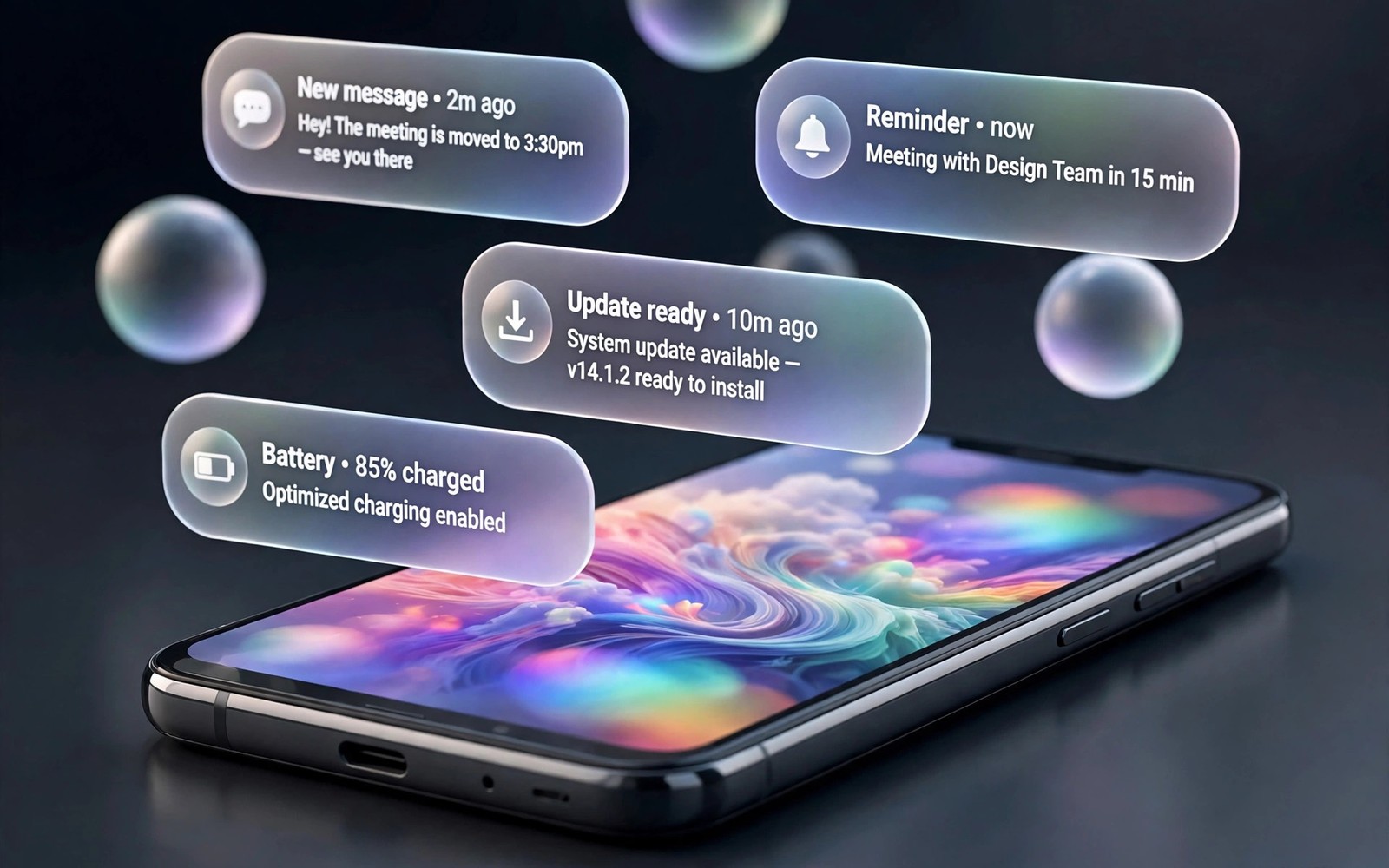
Chat bubbles let you keep a conversation open while you use another app. A solid bubble can block the content behind it. A transparent bubble shows the chat and the app behind it at the same time. That small change makes multitasking feel lighter. You can read a message and still see a map or a video underneath. The bubble stays useful without taking over the screen.
Transparency works best when it is subtle rather than extreme. A bubble that is almost invisible becomes hard to tap. A bubble that is only slightly transparent still blocks the view. The right level lets you see through the bubble while keeping the text and the icon clear. The guide below finds that balance and shows how to apply bubbles across messaging apps.
Not every app supports bubbles in the same way. Some apps offer bubbles natively. Some apps need the system bubble setting turned on first. A few apps block bubbles for privacy reasons. Start with one messaging app that supports bubbles well. Learn the controls there and then expand to other apps that behave the same way.
Turn On Bubbles In System Settings
Open Settings and search for bubbles. Turn on the main bubble switch if your phone offers one. Then open the notification settings for a messaging app and allow bubbles for that app. Some phones offer three choices for bubbles. All conversations can bubble or only selected conversations can bubble or none can bubble. Choose selected conversations at first so only important chats float.
Test the setting by sending yourself a message from another device or asking a friend to message you. The bubble should appear as a small circle on the edge of the screen. Tap it to expand the chat and tap it again to collapse it. If no bubble appears then check that notifications for that app are allowed. A blocked notification cannot create a bubble.
Adjust Transparency Without Losing Readability
Transparency controls may sit inside a bubble tool or inside a theme tool depending on your phone. Some phones offer no transparency slider at all. In that case a bubble customizer tool can add transparency and shape options. Set transparency to a moderate level first and read a message through the bubble. Increase transparency slowly until the background shows through without hiding the text.
Text inside a bubble needs a solid background even when the bubble frame is transparent. A chat window with a faint background keeps text readable while the frame stays light. If text becomes hard to read then lower transparency for the chat window and keep transparency for the bubble icon only. Dynamic island floating bubbles use a similar balance between visibility and lightness. A bubble should help you read faster rather than forcing you to squint.
Transparent bubble setup
1. Turn on bubbles in system settings
2. Allow bubbles for one messaging app
3. Choose selected conversations only
4. Set transparency to a moderate level
5. Drag the bubble to a quiet corner
6. Exclude the app from aggressive battery optimization
The example above was written for this guide as a plain summary of the steps in the sections before it. It uses only the menus and options described above and it needs no extra tool to understand. Follow the steps in order so you can see which change helps most. If one step makes things worse then undo that step alone and keep the rest.
Place Bubbles So They Never Block Work
A bubble on the edge of the screen is easy to reach and easy to ignore. Drag the bubble to a corner that you rarely tap. A corner near the top works well for right handed users. A corner near the bottom works well when the keyboard is open. Move the bubble when you switch apps if it blocks an important button.
Some tools let a bubble auto hide after a few seconds of no use. Turn auto hide on if bubbles distract you during video or reading. The bubble will return when a new message arrives. That behaviour keeps the screen clean while keeping chats reachable. Custom notification shades can pair with bubbles because a clean shade and a light bubble share the same calm style. Keep both subtle for the best result.
Control Which Chats Can Bubble
Bubbles for every chat quickly become clutter. Allow bubbles only for people you message daily. A family group and a close friend deserve bubbles. A large group chat with constant messages does not deserve a permanent bubble. Turn bubbles off for noisy groups so they stop pulling your attention.
Review the bubble list once a month. Remove chats that cooled down and add chats that became important. A bubble list should reflect your current life rather than your old habits. Status bar as a control center shows the same idea because the top of the screen should carry only current priorities. A current bubble list stays helpful while a stale list becomes noise.
Fix Bubbles That Disappear Or Freeze
Bubbles can disappear when battery optimization stops the messaging app in the background. Exclude the messaging app from aggressive battery optimization if bubbles vanish often. Restart the phone after changing that setting so the app can run cleanly. A bubble that freezes usually comes from an app update or a theme conflict. Update the app and test again before changing other settings.
If a bubble tool conflicts with the system bubble setting then turn one of them off. Two bubble systems fighting for the same chat cause flicker and freezes. Use the system bubbles first and add a tool only for transparency. That single source rule keeps bubbles stable across updates.
Bubbles For Group Chats
Group chats can benefit from bubbles when the group is small and active. A family group with daily messages deserves a bubble because replies are frequent. A large public group with constant messages does not deserve a bubble because it will never stop demanding attention. Set a rule for groups based on size and importance. Small important groups get bubbles while large noisy groups stay in notifications only.
Mute a group bubble during work hours if the group is social rather than urgent. The bubble will still exist for later but it will not pull focus during work. Check the group bubble once at lunch and once in the evening rather than after every message. That rhythm keeps group chats friendly without letting them dominate the day. A bubble should serve your schedule rather than hijack it.
Bubble Privacy On Shared Screens
A bubble can expose a private message when you share your screen or show your phone to someone. A chat preview inside a bubble may show the first line of a message. Turn bubbles off before sharing your screen in a meeting or a presentation. A single preview line can reveal more than you intend. Privacy settings for bubbles deserve the same care as notification privacy settings.
Set sensitive chats to hide message previews in notifications. A bubble for such a chat will show only the sender name without content. That setting keeps the bubble useful for alerts while protecting message content. Review bubble privacy after adding a new sensitive contact. A new contact should start with hidden previews until you decide otherwise.
Bubbles And Focus Modes
Focus modes can change how bubbles behave during work or sleep. A focus mode may hide bubbles for social apps while allowing bubbles for family. Set bubble permissions inside each focus mode rather than only in the main settings. A bubble that appears during a focus session defeats the purpose of that session. Test each focus mode by sending a test message during it. The test reveals whether the mode actually blocks the bubble or only silences its sound.
Sleep focus deserves special bubble care. A bubble at night can wake a light sleeper even when sound is off because the screen lights up. Turn bubbles off entirely in sleep focus for all but emergency contacts. An emergency contact bubble can stay because its purpose is to wake you. Every other bubble should wait until morning. Review sleep focus bubble settings after adding a new contact. A new contact should start with bubbles off in sleep focus until you decide otherwise. A good night sleep is worth more than an instant chat reply.
Work focus bubbles should follow a similar rule with a different list. Allow bubbles for work contacts and for urgent family contacts during work focus. Block bubbles for social groups and for shopping apps during work focus. That list keeps work communication flowing while social noise waits. Change the list when your work pattern changes. A focus mode that never changes will eventually mismatch your real work and you will start ignoring it.
Common mistakes
One common mistake is turning bubbles on for every chat at once. The screen fills with circles and nothing feels important. Allow bubbles only for daily contacts. Another mistake is setting transparency so high that text becomes unreadable. Keep the chat window readable and make only the frame light. A third mistake is letting two bubble tools run at once. Use system bubbles as the base and add a tool only for transparency.
FAQ
Do transparent bubbles work for all messaging apps?
No because support varies by app. Many major messaging apps support system bubbles. Some apps block bubbles for privacy or design reasons. Test one app first and expand only to apps that behave well.
Will transparent bubbles drain battery?
A bubble uses little power when idle. Frequent messages and a bubble tool running all day can add a small cost. Exclude only the apps you need from battery optimization and keep transparency moderate.
Why does my bubble disappear after a while?
Battery optimization may stop the app or the bubble may auto hide after inactivity. Check battery settings for the app and check auto hide in the bubble tool. A new message should bring the bubble back.
Conclusion
Turn on bubbles for one messaging app today and allow only selected conversations. Set transparency to a moderate level and drag the bubble to a quiet corner. Test it during a real task like watching a video or using a map. Keep the bubble only if it helps without blocking your work. That real world test decides whether transparent bubbles deserve a place on your screen.
Keep a bubble diary for the first week after enabling transparent bubbles. Note which chats you actually opened through bubbles and which bubbles you ignored. A diary reveals whether bubbles save time or merely add another surface to check. Remove bubbles for chats you ignored all week. Keep bubbles only for chats that proved their value in real use. That evidence based review turns a novelty feature into a genuinely useful tool.

