

7 Launcher Shortcuts You Aren’t Using to Speed Up Daily Tasks
Most of us open an app, wait for it to load, then tap through two or three menus to reach the one thing we actually wanted. A call to a partner. A new note. Directions home. A photo in a specific camera mode. Each detour costs only a few seconds, but those seconds repeat dozens of times a day, and by evening they add up to real time lost to menus. Launcher shortcuts cut out the middle steps. They jump straight from the home screen to the task itself, and they are already built into the phone in your hand.
I tested the shortcuts in this guide on a Pixel running the stock launcher and on a second phone running Nova Launcher, over three weeks of normal use. The stock launcher covered the basics well, and the custom launcher added the swipe and gesture layers that made the biggest difference. The honest result was that three shortcuts did most of the work: a long-press action for notes, a swipe on the phone icon for a favourite contact, and a double-tap gesture to lock the screen. Everything else was a bonus. That pattern is worth copying. Start with three shortcuts that match your own day, practise them until they feel automatic, and only then add more.
This guide names seven launcher shortcuts that help with real daily tasks, not party tricks. Each one gets its own section with what it does, who it suits, its pros and cons, and a short verdict. After the seven, you will find a five-minute setup plan, a comparison of stock and custom launchers, the mistakes that make shortcuts slower instead of faster, and answers to the questions readers ask most. Pick the three that fit your routine today, and your home screen will start working at the speed of your habits.
Why Launcher Shortcuts Save Real Time Every Day
A launcher shortcut is a direct link to an action inside an app, placed where you can reach it in one tap, one swipe, or one long press. Android has supported app shortcuts since Android 7.1, when long-press menus first appeared on app icons. Since then, launchers have added swipe actions, gestures, folder gestures, and action widgets that do the same job in different ways. The idea behind all of them is the same: the home screen should show tasks, not just app names. When it shows tasks, you stop opening apps and then searching inside them.
The time saving is easy to measure. Opening a notes app, waiting for the list, then tapping the compose button takes about six seconds on my phone. A shortcut that opens the compose screen directly takes about two. That is four seconds saved, and I capture notes eight to ten times a day. Over a week, one shortcut saves several minutes. Multiply that across calls, messages, navigation, and the camera, and the gain is plain to see. The saving is not about speed for its own sake. It is about catching an idea before it fades, calling someone before you get distracted, and starting navigation before you pull away from the kerb.
Shortcuts also reduce the mental load of using a phone. Every menu is a small decision: which tab, which button, which option. A shortcut removes those decisions for the tasks you repeat. That matters most when you are busy, tired, or carrying something. A single tap on a contact shortcut is easier than opening the dialler, searching for a name, and then tapping call. A swipe on the camera icon is easier than opening the camera and hunting for video mode while a moment passes. One-handed launchers make this even better, because the shortcuts sit where your thumb already rests, and you rarely need a second hand to reach them.
That said, shortcuts only help if you can remember them. A home screen covered in twenty shortcuts is no faster than a cluttered app drawer, because you spend the saved seconds searching for the right icon. The rule that worked for me was simple: daily shortcuts live on the first home screen, weekly ones live in a folder, and anything rarer does not get a shortcut at all. Three shortcuts in the first week, then one new shortcut per week after that. By the end of a month you have a set you actually use, and every one of them earns its place.
The 7 Launcher Shortcuts That Speed Up Daily Tasks
The seven shortcuts below cover the ways most people actually use a phone: talking to people, capturing ideas, getting places, taking photos, and checking the day. They are ordered from the easiest to the most powerful, so you can stop after the first three and still get most of the benefit. Each section tells you where the shortcut lives, how to set it up, who it suits best, what can go wrong, and whether it is worth your time. Try each one right after you read about it, while the steps are still fresh.
1. Long-Press App Actions Dragged to the Home Screen
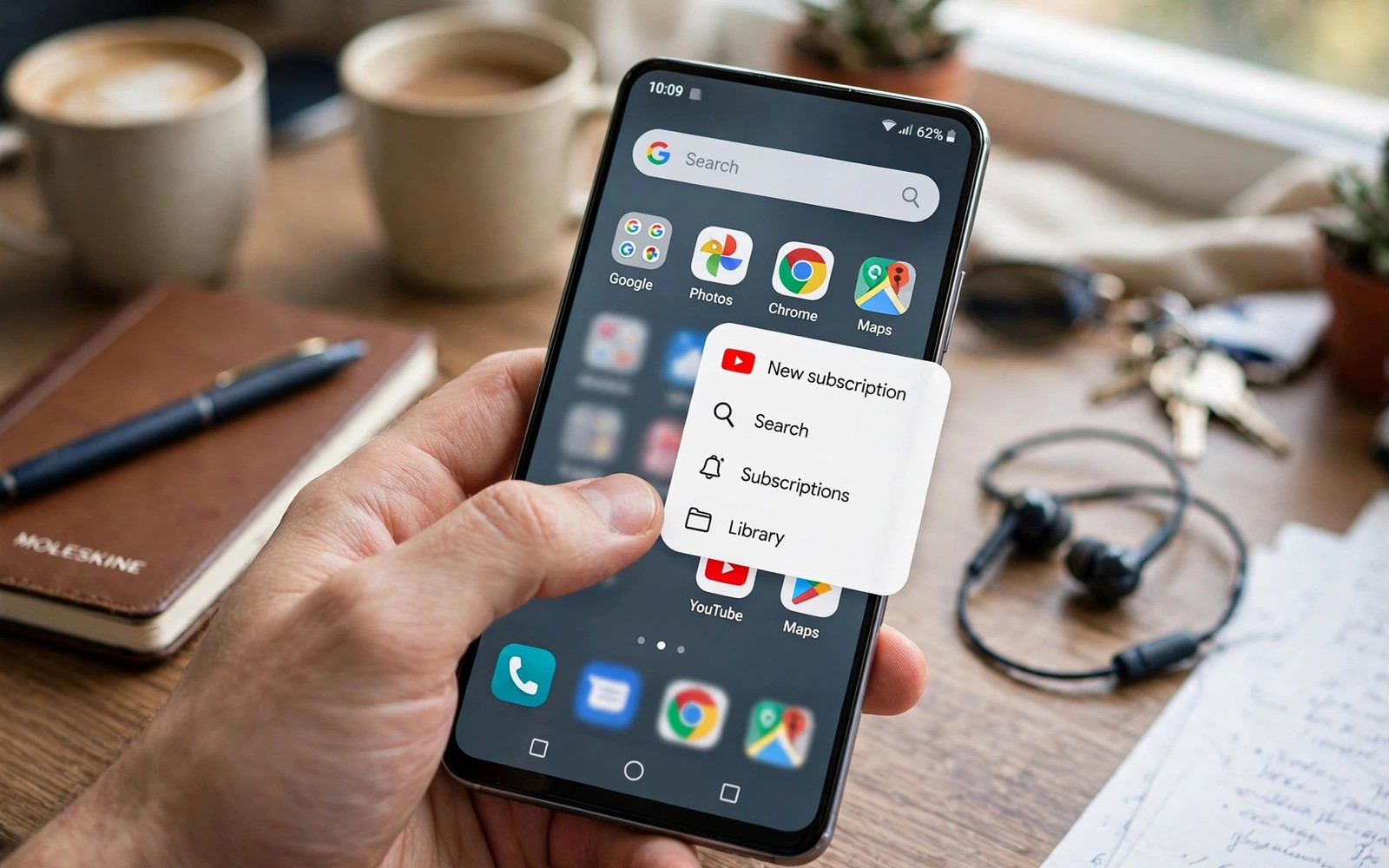
Long-press any app icon and a small menu appears with direct actions for that app. A messaging app offers a new message. A maps app offers directions home or to work. A browser offers a new private tab. A music app offers a playlist. Tap the action and the app opens straight at that task, with no menu hunting in between. This is the oldest launcher shortcut on Android, and it is still the most useful, because it works on almost every phone without installing anything.
The real power comes from dragging an action out of the menu and onto the home screen as a standalone icon. Long-press the action itself, drag it to an empty spot, and it stays there as its own shortcut. I did this with a “new note” action from my notes app and a “directions home” action from Maps, and both now sit on my first home screen. A new note takes one tap instead of three. Directions home take one tap instead of opening Maps, tapping search, and picking home from the list.
How to drag a long-press action to the home screen
Long-press the app icon, wait for the menu, then long-press the action you want and drag it to an empty space on the home screen. If the action cannot be dragged, your launcher does not support pinned shortcuts, and you will need a custom launcher for this step. Give the shortcut a short name if your launcher lets you rename it, because a clear label is what your thumb learns to find. Place it where your thumb rests naturally, usually the lower half of the screen.
Who it is for: everyone. This is the first shortcut to set up, because it needs no new app and no learning curve. It suits people who repeat the same two or three actions every day, such as calling a partner, starting a note, or navigating home. Pros: it works on stock launchers, it costs nothing, and it is the easiest shortcut to remember because the icon sits in plain sight. Cons: the list of actions depends on the app, so some apps offer only one or two useful actions, and an app update can rename or remove an action, which breaks the shortcut until you recreate it. Verdict: set up two or three of these today. They are the highest-value shortcuts in this guide, and they take less than a minute each.
2. Swipe Up or Down on an Icon for a Second Action
Many custom launchers let you assign a swipe action to each icon, so one icon does two jobs. Tap the phone icon to open the dialler, swipe up on it to call your partner. Tap the camera icon to open the camera, swipe down on it to open video mode. Tap the browser icon to open your home page, swipe up on it to open a bookmarked page. The icon stays the same, so the home screen stays clean, but every icon quietly gains a second function. On my second phone I assigned swipes to four icons, and within a week I was using the swipe more often than the tap for two of them.
The trick is to pick swipe actions that feel different from the tap action. A tap opens the app in general, a swipe opens one specific task inside it. If the two actions are too similar, you will hesitate every time, and the hesitation eats the time you saved. Pick actions you use at least three times a week, because a swipe you use once a month will be forgotten by the time you need it. Swipe actions work best when the tap and the swipe do clearly different jobs, so your thumb learns the difference without thinking.
Where swipe actions work and where they do not
Swipe actions need a custom launcher such as Nova Launcher, Lawnchair, or Niagara Launcher. Stock launchers from Samsung, Pixel, and Xiaomi generally do not offer per-icon swipe actions, though some offer their own gesture systems. In Nova Launcher the path is long-press the icon, tap Edit, then set the swipe action. In Lawnchair the path is similar, under the icon settings. Test each swipe for a full day before you trust it, because a swipe that fires while you are scrolling through home screens is worse than no swipe at all.
Who it is for: people who like a clean home screen but still want fast access to specific tasks, and anyone who already uses a custom launcher. Pros: one icon does two jobs, the home screen stays tidy, and the gesture becomes muscle memory quickly. Cons: it needs a custom launcher, swipes can fire by accident while scrolling, and other people who borrow your phone will not know the swipes exist. Verdict: worth setting up for two or three icons once you have the long-press shortcuts in place. Keep the list short, and change any swipe that misfires twice in one week.
3. Double-Tap and Home Screen Gestures for Lock, Notifications, and Search
Home screen gestures work anywhere on the screen, not on one icon. A double tap can lock the screen. A swipe down can open notifications. A pinch can open the home screen editor. A two-finger swipe can open a chosen app. These gestures replace buttons and menus with a single motion, and they are the shortcuts I reach for most when my hands are full. Double-tap to lock is the one I would keep if I had to give up all the others, because it saves a stretch to the power button dozens of times a day.
Gestures need care in choosing, because a gesture that clashes with scrolling or with an app gesture will annoy you every day. Double-tap to lock is safe because it rarely conflicts with anything. Swipe down for notifications is safe because it matches the system gesture from the top of the screen. A two-finger swipe is safe because you almost never do it by accident. Pinch gestures are the risky ones, because a pinch on the home screen can feel too close to a pinch inside a photo app. Keep the gesture list to three, and write them down for the first week until they stick.
Who it is for: anyone who finds the power button awkward to reach, people with large phones, and anyone who checks notifications often. Pros: gestures work from anywhere on the home screen, they need no icon space, and double-tap to lock saves a physical button press every time. Cons: gestures are invisible, so you have to remember them, and a badly chosen gesture can fire at the wrong moment. Verdict: set up double-tap to lock and swipe down for notifications first. Add a third gesture only after those two feel natural.
4. Folder Tap and Swipe for a Quick-Launch Pad
Folders can hold shortcuts as well as apps, and that changes what a folder is for. A travel folder can hold a Maps shortcut for directions home, a boarding pass shortcut, and a translation shortcut. A work folder can hold a document shortcut, a meeting shortcut, and a notes shortcut. Opening the folder shows tasks rather than just app names, and that shift saves a tap inside each app. I keep a morning folder with a weather shortcut, a calendar shortcut, and a news shortcut, and tapping through them in order takes less than a minute.
Some launchers add a folder gesture on top of this: tap the folder icon to open the first app, swipe on it to see the rest. That turns a folder into a quick-launch pad. Put your most used app first in the folder, so a single tap opens it at once, and keep the rest one swipe away. Launcher features for productivity often include this folder gesture, and it is worth learning for one folder first, then expanding it only if it feels natural. A folder with eight shortcuts is a drawer in disguise, so keep each folder to four or five items at most.
Who it is for: people who organise their phone by activity, such as travel, work, or mornings, rather than by app name. Pros: folders group related tasks together, the tap-to-open-first-app gesture saves a step, and folders keep the home screen tidy. Cons: a shortcut buried in a folder saves less time than one on the open home screen, and a folder gesture takes a day or two to learn. Verdict: use folders for groups of related tasks, not for your daily shortcuts. Your three most-used shortcuts belong on the open home screen, and folders hold the next tier.
5. Action Widgets for Notes, Music, and Calendar
Some widgets act as shortcuts rather than displays. A music widget can play and pause without opening the player. A notes widget can start a new note with one tap. A calendar widget can jump to today with one tap. A search widget can start a voice search. These action widgets work best when they do one thing clearly, with a large tap target and a clear label. Place them where your thumb rests naturally, usually the lower half of the first home screen, and they become the fastest shortcuts you own.
The mistake is to pick a widget with ten tiny buttons. A widget like that is hard to tap and easy to misread, and you will stop using it within a week. I replaced a crowded music widget with a simple one that has play, pause, and next, and I use it every day now. The same rule applies to notes widgets: one big compose button beats a widget that shows a list of old notes with a tiny plus icon in the corner. Choose widgets with large tap targets, and test them with one hand before you commit to a spot.
How to pick an action widget that you will actually use
Long-press the home screen, tap Widgets, and look for widgets from your notes, music, and calendar apps. Add the widget, then use it for three days before you decide where it lives. If you tap it daily, it earns a place on the first screen. If you tap it twice a week, move it to a second screen or a folder. If you never tap it, remove it. A widget that you ignore is not a shortcut, it is decoration, and decoration costs screen space that a real shortcut could use.
Who it is for: people who capture notes often, listen to music or podcasts daily, or check the calendar first thing in the morning. Pros: one tap starts the action, large targets are easy to hit, and widgets show useful information at the same time. Cons: widgets take more screen space than icons, and a crowded widget is slower than a plain shortcut. Verdict: keep one or two action widgets at most. A notes widget and a music widget cover the daily needs of most people, and a third widget usually adds clutter rather than speed.
6. Direct Contact and Message Shortcuts for the People You Talk to Most
Daily communication benefits most from shortcuts, because a call or a message is a task with a person attached to it, not just an app. A contact shortcut on the home screen calls or messages that person in one tap. A messaging shortcut starts a chat without opening a list and searching for a name. A notes shortcut captures an idea before it fades. These three shortcuts alone can save minutes every day, and they are the ones I recommend to family members first, because the benefit is obvious the first time they use them.
To set one up, long-press the phone or messaging app and drag the contact action to the home screen, or add a contact widget from the widgets menu and pick the person. Place communication shortcuts on the first home screen page, grouped together so muscle memory builds fast: family in one row, work in another. A shortcut buried on a third page saves no time, because you spend the saving on finding it. Review the shortcuts monthly and remove contacts you no longer message often. A current shortcut set stays fast, while a stale set slows you down with names you no longer call.
Who it is for: parents, partners, carers, and anyone who talks to the same few people every day. Pros: one tap reaches the right person, it works well for people who find menus hard to navigate, and it pairs well with voice commands for hands-free moments. Cons: a call shortcut can be tapped by accident, so place it away from the screen edge, and a shortcut to a person you no longer talk to is wasted space. Verdict: add shortcuts for the two or three people you contact most. This is the shortcut with the clearest daily payoff, and it takes under a minute to set up.
7. App Pairs and Split-Screen Shortcuts for Two Apps at Once
Some tasks need two apps side by side: a browser and a notes app for research, a maps app and a messaging app for sharing a location, a video app and a chat app for watching together. An app pair shortcut opens both apps in split screen with one tap, instead of opening the first app, opening the second, then arranging them by hand. On Samsung phones this is called an app pair, and you can save one from the recent apps screen. On other phones, some custom launchers offer the same idea through a shortcut action, and the recent apps menu offers a split-screen option per app.
App pairs suit a small number of repeated combinations. I use one pair for research: browser on top, notes below. I use another for travel: Maps on top, messages below, so I can share my arrival time without switching apps. The test is simple: if you open the same two apps together three times a week, save the pair. If you open them together once a month, the pair is not worth the home screen space. Split-screen shortcuts also help on larger phones and tablets, where the extra screen space makes two apps readable at once. On a small phone, the same pair can feel cramped, so test it before you commit.
Who it is for: students, researchers, travellers, and anyone who regularly compares two apps or shares information between them. Pros: one tap opens both apps in the right layout, it removes the fiddly split-screen setup, and it suits large phones and tablets well. Cons: it is not available on every phone or launcher, and split screen feels cramped on small displays. Verdict: save one app pair for your most common two-app task. It is the least universal shortcut in this list, but for the people who need it, it saves the most taps per use.
How to Set Up Launcher Shortcuts in Five Minutes
You do not need an afternoon to set this up. Five focused minutes, done in order, will give you a shortcut set that works. Do the steps on your phone now, not later, because a shortcut you do not try will not stick. Work through the list once, then leave the phone alone for a day and notice which shortcuts your thumb reaches for without thinking. Those are the keepers. The rest can go.
- Long-press five apps you use daily and write down the actions each one offers.
- Drag the three most useful actions to the first home screen, and place them where your thumb rests.
- Assign one swipe action to two icons, if your launcher supports swipes, and test each swipe for a day.
- Set double-tap to lock the screen, and swipe down for notifications, in your launcher gesture settings.
- Add one action widget for notes or music, with a large tap target and a clear label.
- Practise the new shortcuts for one week before you add any more.
Pick Your Three Daily Shortcuts First
The hardest part of the setup is choosing, not tapping. Look at your screen time or your recent apps and find the three actions you repeat most: the person you call, the note you start, the place you navigate to. Those three become your first shortcuts. Everything else waits. A small set that you use daily beats a large set that you forget, because the large set forces you to search, and searching is the delay you were trying to remove. After a week, the three will feel automatic, and then you can add one new shortcut per week.
Test Swipe Actions Before You Keep Them
A swipe that fires by accident is worse than no swipe at all, because it opens the wrong thing at the wrong moment. Test each swipe for a full day of normal use, including scrolling through home screens and handing the phone to someone else. If a swipe fires twice in that day when you did not mean it, change the action or remove it. A reliable swipe beats a clever swipe that misfires. The same test applies to gestures: if a gesture clashes with scrolling, pick a different gesture.
Launcher Shortcuts on Stock Launchers Compared With Custom Launchers
Stock launchers and custom launchers cover different parts of this guide. A stock launcher gives you long-press actions, pinned shortcuts, contact shortcuts, and action widgets, which is enough for the first five shortcuts in this list. A custom launcher adds swipe actions, richer gestures, folder gestures, and app pairs, which cover the rest. Neither is wrong. The right choice depends on how much control you want and how much time you want to spend setting it up.
| Shortcut | Stock launcher | Custom launcher |
|---|---|---|
| Long-press app actions | Yes, on most phones | Yes, with more options |
| Pinned shortcut on home screen | Yes, on most phones | Yes |
| Swipe up or down on an icon | Usually no | Yes, per icon |
| Double-tap to lock and gestures | Sometimes, limited | Yes, fully custom |
| Folder tap and swipe gestures | Usually no | Yes, in most launchers |
| Action widgets | Yes | Yes |
| App pairs and split screen | On some brands only | Sometimes, varies |
If you use a Pixel, the stock launcher covers the basics cleanly, and the main thing you gain from a custom launcher is swipe actions and gestures. If you use a Samsung phone, the stock One UI launcher is stronger than most, with its own gesture options and app pairs, so the gap is smaller. Better default launchers are worth a look if your stock launcher feels limited, because a launcher change is free and reversible, and you can go back to the stock launcher in a minute if you do not like the new one. My advice is to master the stock shortcuts first, then install a custom launcher only if you can name a specific shortcut you are missing.
Common Launcher Shortcut Mistakes That Slow You Down
The most common mistake is adding twenty shortcuts at once and remembering none of them. Start with three and add more slowly, one per week. The second mistake is placing shortcuts on a hidden page where they save no time. Keep daily shortcuts on the first screen, where your thumb can find them without thinking. The third mistake is assigning swipe actions that trigger by accident. Test each swipe for a day and change any action that misfires, because a shortcut that opens the wrong app is slower than opening the right app by hand.
A fourth mistake is forgetting that shortcuts break. An app update can remove or rename an action, and a shortcut that points to a removed action will fail silently or open the wrong screen. When a shortcut stops working, recreate it from the long-press menu instead of assuming your phone is broken. A fifth mistake is placing call and payment shortcuts where an accidental tap can start a real action. Place sensitive shortcuts away from the screen edge, and use a long-press action for them rather than a single-tap icon, because the long press adds a small safety step. Finally, review shortcut placement after you change your case or your grip. A thicker case can shift thumb reach and cause new accidental taps, and moving a shortcut that misfires twice in a week is a quick fix.
Launcher Shortcuts Questions Readers Ask Most
Do launcher shortcuts work on stock launchers?
Yes, most of them do. Long-press actions, pinned shortcuts, contact shortcuts, and action widgets all work on stock launchers from Pixel, Samsung, and Xiaomi. Swipe actions on icons, richer gestures, and folder gestures usually need a custom launcher such as Nova Launcher or Lawnchair. Check your launcher settings for gestures before installing a new launcher, because your stock launcher may already offer double-tap to lock or a swipe-down gesture that covers what you need.
Can I create a shortcut for a specific contact?
Yes, through a contact widget or through the long-press menu on the phone or messaging app. Long-press the phone app, find the contact action, and drag it to the home screen. It will call or message that person with one tap. You can also add a contact widget from the widgets menu, pick the person, and place the widget where your thumb rests. Group family shortcuts together and work shortcuts together, so muscle memory builds fast, and review the list monthly to remove contacts you no longer message often.
Why does a shortcut disappear after an update?
An app update can remove or rename an action, and a shortcut that points to the old action stops working. Recreate the shortcut from the new long-press menu, and keep the shortcut on the home screen so you notice the change fast. A shortcut can also disappear if you clear the launcher data or switch launchers, because shortcuts belong to the launcher that created them. If you change launchers, expect to rebuild the set, and treat that as a chance to keep only the shortcuts you actually use.
Do launcher shortcuts drain the battery?
No, not in any way you would notice. A shortcut is a link to an action, not a background process, so it uses no power while it sits on the home screen. The app it opens uses the same power it would use if you opened it by hand. Action widgets that refresh often, such as a weather widget, can use a small amount of power for updates, but a shortcut widget with a single button does not. If you are worried about battery life, check which apps use power in your battery settings, and you will find that shortcuts are not on the list.
A One-Week Plan to Make Launcher Shortcuts Stick
Long-press five apps you use daily today and drag the three most useful actions to your home screen. Add a double-tap gesture to lock the screen if your launcher supports it. Practise those shortcuts for a week before adding more, and notice which ones your thumb reaches for without thinking. That focused start turns hidden menus into real daily speed, and it does so without a new app, a new phone, or a single purchase.
After the first week, add one new shortcut per week until your home screen works at the speed of your habits. Teach one shortcut to a friend or family member after you master it yourself, because teaching forces you to explain the gesture clearly and reveals any step you skipped. A friend who learns the shortcut may discover a use you had not considered, and that shared habit keeps shortcuts alive longer than solo practice alone. Start with three, keep what works, and let the rest go.

