

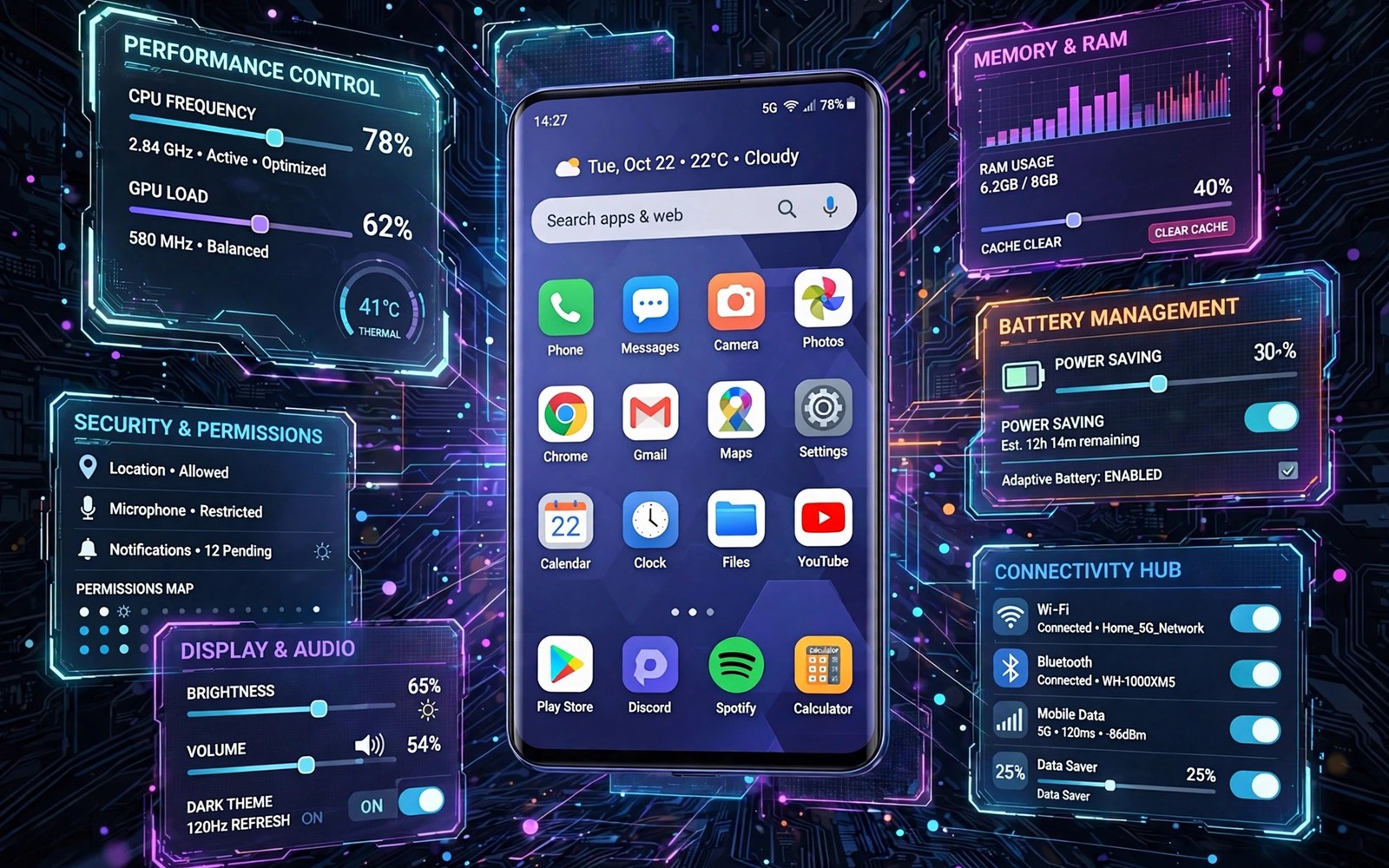
Most phones ship with a launcher that hides the fine controls. You can change the wallpaper and you can move icons. You cannot change the exact grid size or the exact animation speed. Precision tweak apps fill that gap. They give you sliders and numbers where the stock settings give you only a few presets. The result is a home screen that fits your hand and your habits exactly.
Precision does not mean complexity for its own sake. A good tweak app lets you change one thing and see the result at once. You might make icons slightly smaller so one more row fits on the screen. You might slow an animation by a small amount so it feels calm rather than rushed. Small changes add up to a phone that feels made for you. The five tools below cover different parts of the interface so you can mix them without overlap.
Start with one tool at a time and test it for a day before you add another. Changing five things at once makes it hard to know which change helped. Keep a note of the settings you like so you can rebuild the setup after an update. That habit saves hours when a phone resets a launcher after a major update.
A Launcher That Controls Grid And Gestures
A strong custom launcher is the base for precision work. It controls the grid size and the icon size and the spacing between rows. Set the grid to a size that matches your screen rather than accepting the default. A larger grid gives you more room for widgets and shortcuts. A smaller grid gives you larger icons that are easier to tap. Test both for a day and keep the one that feels natural in one hand.
Gestures in a custom launcher can replace several taps with one motion. A swipe down can open notifications while a double tap can lock the screen. A swipe up on an icon can open a second app from the same icon. These gestures save time only if you remember them. Pick three gestures at first and use them every day until they feel automatic. Launcher features for daily productivity become useful only when they match real tasks you repeat.
A Widget Builder For Exact Placement
Widgets often look messy because the stock grid forces them into fixed sizes. A widget builder lets you place text and shapes exactly where you want them. You can build a clock that sits beside the weather rather than above it. You can add a small bar that shows battery and calendar events in one line. The builder takes time at first but the result looks intentional rather than crowded.
Keep widget layers simple so the home screen stays fast. Two well built widgets beat six overlapping widgets every time. Use one font family across all widgets so the screen feels calm. Use one accent colour for highlights and keep the rest neutral. A restrained palette makes precise placement visible instead of hiding it behind noise.
Precision tweak checklist
1. Install a custom launcher and set grid size
2. Add three gestures you will use daily
3. Build one clean widget with a builder
4. Apply one icon pack and mask the rest
5. Tune animation speed for one full day
6. Rearrange quick settings tiles by use
The example above was written for this guide as a plain summary of the steps in the sections before it. It uses only the menus and options described above and it needs no extra tool to understand. Follow the steps in order so you can see which change helps most. If one step makes things worse then undo that step alone and keep the rest.
An Icon Pack Tool For Consistent Shapes
Icons from different apps rarely match each other. One icon is round and the next is square and the next uses a loud colour. An icon tool applies one shape and one style to the whole set. The home screen suddenly looks like one product rather than a random collection. Choose a pack that keeps app symbols easy to recognise. A beautiful icon that hides its app is a bad trade.
Some icon tools let you mask unthemed icons so they still fit the set. Turn masking on if your pack leaves a few apps untouched. Check the masked icons after an app update because updates can change the symbol. Changing app icons cleanly matters most on a home screen you see dozens of times a day. Replace any icon that still looks wrong by hand.
An Animation And Transition Tuner
Animations shape how fast a phone feels even when the hardware stays the same. A tuner lets you set the speed for opening apps and for switching screens. A slightly faster animation makes the phone feel sharp. A slightly slower animation makes it feel smooth and calm. The best setting depends on your taste and on your screen size. Test a setting for a full day because a new speed always feels strange at first.
Do not turn animations off completely unless you need maximum speed for a weak phone. No animation makes transitions feel abrupt and it hides where a new screen came from. A short animation keeps the sense of place while still feeling fast. Keep the three animation scales close to each other so no single transition stands out. Consistency is what makes a tuned phone feel polished.
A Status And Quick Settings Customizer
The top of the screen carries a lot of information in a tiny space. A customizer lets you choose which icons appear there and how they look. You can hide a persistent icon that you never need. You can show the exact battery percentage instead of a vague bar. You can change the quick settings layout so the tiles you use daily sit at the top. These small choices reduce the number of taps you make all day.
Quick settings tiles deserve the same care as home screen icons. Place Wi-Fi and mobile data and torch in the first row if you use them daily. Move rarely used tiles to a second page so they stop crowding the first screen. Customizing quick settings tiles is a fast win because it touches every day. Review the layout once a month and remove tiles you stopped using.
Test Tweak Apps On A Second Profile
A tweak app can change a launcher in ways that are hard to undo quickly. Testing on a second profile or a spare device first protects your daily setup. Set up the new tool there and live with it for a day. If it crashes or slows the test profile then you have learned that lesson without harming your main screen. A test profile is a cheap safety net for precision work.
Record the exact settings that work in the test profile before moving them to your main phone. Grid size and icon size and animation speed are easy to forget. A short note with those numbers makes the transfer exact. Move one setting at a time to the main phone and check the result after each move. That transfer method keeps a tested setup intact.
Restore Precision After Updates
System updates often reset launcher data or change animation behaviour. A precision setup can vanish overnight after a major update. Export a launcher backup before every major update and store it outside the phone. After the update restore the backup and check grid and gestures and icons one by one. A backup restores most settings but a few may need manual fixing.
Keep a simple change log for your tweak apps. Note the app name and the setting and the date you changed it. When an update resets a value then the log tells you what to restore. Review tweak app updates before installing them because a new version can change a feature you rely on. A careful update routine protects precision better than any single tool.
Precision For One Handed Use
Precision settings matter most when you use a phone with one hand. A grid that is too dense forces thumb stretches that cause drops and mis-taps. A grid tuned for one hand keeps favourite apps within the lower two thirds of the screen. Move less used apps to the upper area where they are reachable only when you switch hands. That layout respects thumb anatomy rather than fighting it. Test the layout while walking because a layout that works sitting down can fail while moving. A one handed layout should feel safe on a busy street as well as on a sofa.
Gesture precision also changes with one handed use. A swipe from the screen edge is easier with one hand than a swipe from the centre. A double tap to lock is easier than reaching for a power button at the top. Choose gestures that start near the thumb rest position. Avoid gestures that require a stretch to a far corner. A gesture set built around thumb reach will be used daily. A gesture set built around cleverness will be forgotten within a week. Review gestures after changing your case because a thicker case shifts thumb reach by a few millimetres. That small shift can turn a comfortable gesture into a strain.
Icon size deserves special care for one handed use. Icons that are too small cause mis-taps when the thumb is moving fast. Icons that are too large waste space and push apps off the first screen. Find the smallest size you can tap reliably while walking. Test that size with a simple tapping game or by opening apps quickly for a minute. If you mis-tap more than once then increase the size by one step. A reliable icon size is more important than a dense grid. Precision means fitting the phone to your hand rather than fitting your hand to the phone.
Common mistakes
One common mistake is installing five tweak apps at once and changing everything on day one. The phone becomes hard to use and you cannot tell which app caused a problem. Install one app and learn it before you add the next. Another mistake is copying a famous home screen layout exactly. That layout fits someone else hand and habits. A third mistake is ignoring updates that reset launcher settings. Keep a short note of your settings so a reset costs minutes rather than hours.
FAQ
Do tweak apps slow down my phone?
Well built tweak apps add almost no load because they mostly change layout values. Heavy live widgets and complex animations can cost more. Keep widgets simple and test battery for two days after a big change.
Do I need root for precise interface control?
No for most launcher and widget and icon work. Root opens deeper system changes but it is not needed for grid and gesture and icon precision. Start without root and add deeper tools only if a specific limit blocks you.
Why did my layout reset after an update?
System updates can replace the launcher or reset its data. A backup inside the launcher restores most layouts fast. Export that backup to storage before a major update so you can restore it in minutes.
Conclusion
Pick one tool from this guide today and install it alone. Set the grid or the gestures or the icons and live with that single change for a day. Write down the setting you liked before you add a second tool. That slow and steady method builds a precise interface that survives updates. Repeat the cycle until the phone feels like it was designed around your hand.

