

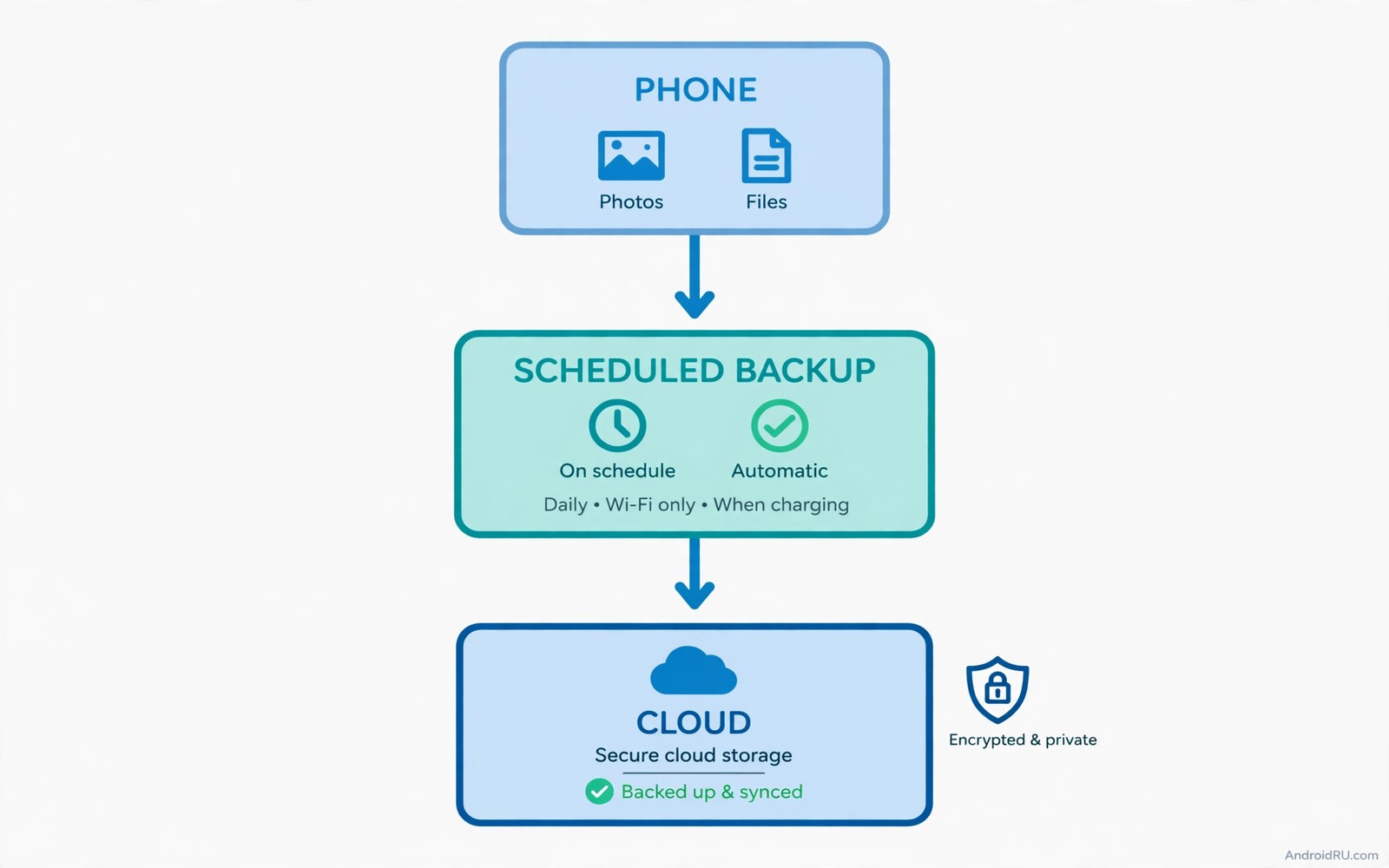
A phone slips from a pocket on a train. The screen cracks on concrete. The device still turns on but the storage fails a week later. Photos from three years vanish in a moment. A backup app would have made that loss a minor annoyance. A phone can be replaced. Memories cannot be remade.
Manual backup fails because people forget. Life gets busy. A backup planned for Sunday never happens. An automatic backup removes human memory from the job. It runs on a schedule. It runs on Wi-Fi. It runs while you sleep. It keeps working even when you stop thinking about it.
Automation needs trust. You trust an app with photos and contacts and messages. You must know where copies go. You must know how they are protected. You must know how to restore them. A backup you cannot restore is not a backup. It is a false comfort. This guide builds a backup you can actually restore.
Start by listing what matters most. Photos usually top the list. Contacts come next. Messages and call history matter for many people. App data matters for chats and notes. Documents matter for work. Rank your own list before choosing an app. An app that backs up photos perfectly but ignores messages may still leave a gap you care about.
What a good automatic backup covers
Photos and videos need automatic camera upload. The app should upload new items soon after capture. It should work on Wi-Fi only by default. It should keep original quality when space allows. It should show a clear uploaded status per item. A photo marked as backed up should truly exist in the cloud. Test that status with one photo before trusting it.
Contacts and calendar need a separate check. Many phones sync these to an account already. A backup app should confirm that sync is active. It should not duplicate every contact. Duplicates create confusion during restore. Check the contact count in the cloud after a sync. It should match the phone count closely.
Messages need care because many apps exclude them by default. SMS backup needs an explicit permission. Chat app backups live inside each chat app. A phone backup app may not cover chat history at all. Open each chat app and check its own backup setting. A phone level backup plus chat level backups together give full coverage.
App data and settings round out the picture. System backup on Android covers many app settings. It does not cover every app. Games and niche tools may store data only locally. Check the backup list in system settings. Note which important apps are missing. Export data manually from those apps on a monthly schedule. Readers who manage many files should also try file manager apps that make Google Files look amateur because a tidy folder makes backup verification easier.
Choosing cloud storage with eyes open
Free storage looks generous until photos fill it. Fifteen gigabytes sounds large. A year of photos and videos can exceed it. Check your current photo library size first. Check your monthly growth rate. A plan that fits today may fail in six months. Choose a plan with headroom for a full year.
Encryption matters for personal photos. Some providers encrypt data in transit and at rest. Fewer offer end to end encryption where only you hold the key. End to end encryption protects against provider breaches. It also means losing your key loses your backup. Store the recovery key in a safe place separate from the phone. A backup locked forever helps no one.
Speed matters less than reliability. A backup that runs slowly overnight still finishes by morning. A backup that fails silently is dangerous. Choose an app with clear error reports. Check the backup status weekly at first. A weekly glance catches a failed job early. Monthly checks are enough once the setup proves stable.
Cost should be compared per year and not per month. A monthly fee looks small. A yearly fee often saves two months. Compare the cost with the value of the data. Photos of family events are priceless in practice. A modest yearly fee is cheap insurance for them. Avoid the cheapest unknown provider for irreplaceable memories.
A schedule that works while you sleep
Set photo upload to Wi-Fi only and charging only. Charging only prevents battery drain during the day. Wi-Fi only prevents mobile data surprises. Night uploads finish by morning on a normal connection. A large video may need two nights. That is fine as long as it completes before you delete the original.
Set a full device backup weekly. A weekly full backup captures settings and app data. Daily photo uploads capture new media. The pair covers both fast changing media and slow changing settings. A daily full backup wastes bandwidth for little gain. A weekly rhythm is enough for most people.
Keep at least two backup destinations when possible. A cloud copy covers loss and theft. A local copy on a home computer covers cloud outages. Two destinations protect against different failures. A cloud failure and a phone failure rarely happen together. Redundancy is the core of real backup strategy.
Test a restore every three months. Restore one photo and one contact to a test folder. Restore a document and open it. A restore test proves the backup works. It also teaches you the restore steps before stress. A person who restores under panic makes mistakes. A person who practised restores calmly.
A setup you can copy today
Turn on system backup in settings. Turn on camera upload in your chosen cloud app. Turn on chat backups inside each chat app you use. Set all uploads to Wi-Fi only. Plug the phone in overnight. Check the backup status in the morning. A first full upload may take several nights for a large library. Let it finish before judging speed.
Organise photos into a few albums before the first upload. Albums make restore browsing easier. Delete blurry duplicates before uploading. Deleting after upload wastes the effort. A clean library uploads faster and restores cleaner. Spend an hour cleaning before a large first backup.
adb backup -apk -shared -all -f backup.ab
rclone sync /sdcard/DCIM/ remote:phone-backup/DCIM/
ls -lh backup.ab
The snippet above is an original example written for this guide. It shows how an advanced user can create a device backup file and sync a photo folder from a computer. It is not a required step for normal automatic backup.
Write down your backup plan on paper or in a secure note. List each app and what it covers. List the cloud account used. List the restore steps in short form. A written plan helps family members restore data if you cannot. It also helps future you remember a setup from years ago.
Restoring on a new phone without stress
Restore starts with signing into the same accounts. System backup restores many settings automatically. Photos appear as the cloud app syncs them back. Contacts return with account sync. The process takes time on a large library. Let the first sync finish on Wi-Fi before judging it. Impatience leads to duplicate installs and confusion.
Chat history needs its own restore step. Open each chat app and restore from its cloud backup. A chat restore may ask for a verification code. Keep the old phone nearby until chats restore fully. The old phone holds the codes and the fallback. Wipe the old phone only after every restore checks out.
Check app by app after restore. Open banking and work apps and confirm logins work. Open notes and confirm recent notes exist. A checklist prevents a nasty surprise days later. Note any app that failed to restore. Export its data manually from the old phone while you still can. A restore checklist is short and saves real trouble.
Verify backup encryption before trusting a new provider. Open the security settings inside the backup app. Confirm that files encrypt on the device before upload. Confirm that the provider cannot reset your password alone. A provider that can reset your vault password holds a key to your data. That design trades convenience for exposure. A provider that cannot reset it puts responsibility on you. Keep a recovery key safe and accept that responsibility for irreplaceable memories.
Common mistakes
The first mistake is deleting originals before upload completes. A photo marked as queued is not yet safe. Wait for a confirmed uploaded status. Check the cloud copy on another device. Only then delete from the phone. Impatience here loses photos permanently.
The second mistake is backing up to the same account on the same phone only. A local copy on the phone is not a backup. Theft or damage loses both copies together. A true backup lives on another device or in the cloud. Distance is part of the definition.
The third mistake is ignoring backup errors. An error about storage full stops all future uploads. An error about permission stops one app silently. Check status weekly until stable. Fix errors at once. A backup that stopped months ago helps no one.
The fourth mistake is never testing restore. An untested backup may hold corrupted files. It may hold only thumbnails instead of originals. A quarterly restore test catches both problems. Test with a single file first. A full restore test is rarely needed.
FAQ
How often should automatic backup run?
Photos should upload daily on Wi-Fi. Full device backup weekly is enough for most users. Chat backups can run daily inside each chat app. More frequent full backups waste bandwidth without adding safety for most people.
Does backup drain battery a lot?
Not when set to charging only and Wi-Fi only. Uploads run while the phone charges overnight. Daytime battery impact stays small. A backup that runs on mobile data during the day will drain more. Keep the charging only rule for large uploads.
Can I back up without any cloud service?
Yes with a local backup to a computer or a home server. Schedule a weekly sync over home Wi-Fi. Keep the computer copy in a safe place. Local backup protects against phone loss but not house fire. Cloud backup protects against both.
Conclusion
Automatic backup turns a fragile phone into a safe system. Photos upload nightly. Contacts sync continuously. Chats back up inside their own apps. A weekly full backup captures settings. A quarterly restore test proves the whole system works. The setup takes an hour. The protection lasts for years.
Your concrete next step is to turn on camera upload tonight and check one uploaded photo from another device tomorrow morning. If the photo appears in full quality then the core system works. If it does not appear then fix the upload setting before adding more apps. Readers who want full automation should also explore the ultimate automation app that will do work for you and the universal search app that finds files instantly because automated backup and fast search together make data loss far less scary.

