

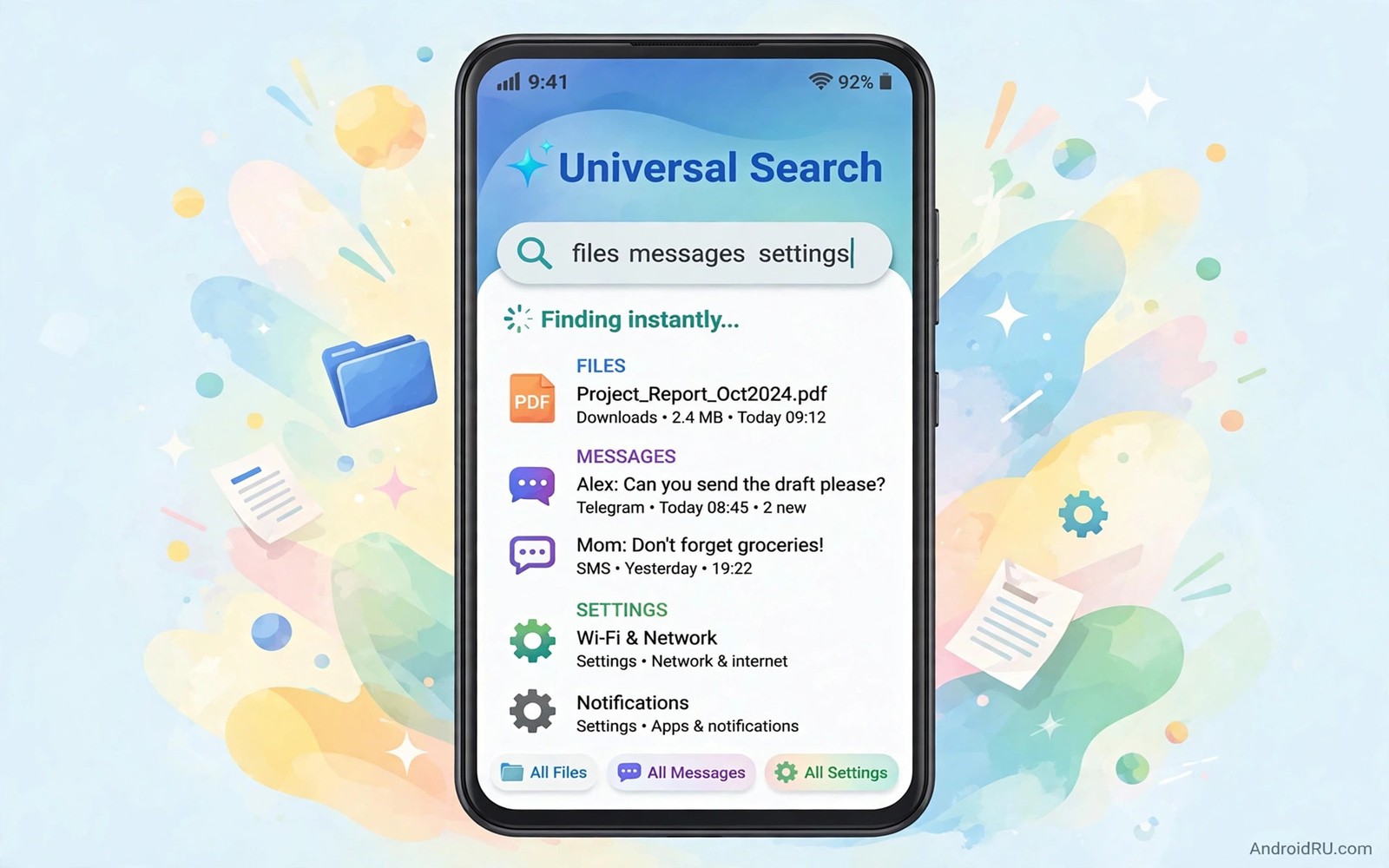
Finding a file on a phone should take seconds. In practice it takes minutes of opening folders and apps and settings. A universal search app changes that hunt into a single query. Type a few letters and see files and apps and contacts and settings in one list. This guide shows how to set up that search habit and judge whether an app truly deserves the universal label.
Start with the searches you repeat every week. A document name from work and a photo from last month and an app you rarely open probably top the list. A setting buried three menus deep also appears often. A universal search should cover all four kinds in one place. An app that only searches files is a file search rather than a universal search.
Speed matters more than a long result list. A search that returns results as you type feels instant. A search that waits for a full query and then loads slowly feels broken. Test search with a partial name and a misspelling and a date. A good search handles all three without forcing exact spelling. Fuzzy matching turns a vague memory into a found file.
Privacy shapes the value of a universal search more than any other feature. A search app that indexes your files must handle that index carefully. It should store the index on the device rather than uploading file contents. It should let you exclude sensitive folders from indexing. Check those controls before you let any search app scan your whole phone.
What universal search should cover
Files come first because they cause the longest hunts. A search should find documents and photos and downloads by name. It should also filter by type so a photo search does not drown in documents. It should show the folder path for each result so you can open the location directly. A result without a clear location forces another hunt after the search succeeds.
Apps come next because opening the right app fast saves taps daily. A search should launch an app from a few letters of its name. It should also show recent apps first when the query is vague. That ordering matches how you actually reach for tools. A search that lists an unused app above a daily app misunderstands your habits.
Settings and contacts complete the universal promise. A search that finds a Wi-Fi setting without opening the settings maze saves real time. A search that finds a contact and offers call and message actions in one tap saves a second app open. Those small jumps add up across a day of quick tasks. Judge a search app by those jumps rather than by its home screen design.
Setting up search for daily speed
Choose a trigger that fits how you hold the phone. A swipe down on the home screen works for many launchers. A double tap on the back works when your hands are busy. A floating button works on a large screen. The best trigger is the one you remember under pressure when you need a file fast. Test the trigger for a day before you change anything else.
Index your main folders first and exclude the rest. Include documents and downloads and camera folders for most users. Exclude system folders and app cache folders that clutter results. Rebuild the index after a large file move so results stay accurate. A clean index beats a huge index that returns junk on every query.
Teach the search your habits by using it for everything for a week. Search for apps instead of hunting through the drawer. Search for settings instead of opening menus by memory. Search for files instead of opening a manager first. After a week the search history will reflect your real priorities and results will feel smarter without any settings change.
adb shell cmd appops get com.example.search RUN_IN_BACKGROUNDThis simple command was included as a pattern for checking background permission for a package. It shows a simple command pattern for checking background operation permission for a package on a connected device. You can use the pattern to audit a search app that runs in the background.
Search also strengthens a lean power user setup because it becomes the front door to every tool. A core set works best when you can reach any part of it instantly. The guide to essential apps power users install first shows that core in install order. Add universal search to that core once file and note habits feel stable.
Search habits for work and study
Work search differs from casual search because it repeats the same document names weekly. A search app that learns recent documents will surface a weekly report faster than a generic file list. Pin the three documents you open every week so they appear at the top of a short query. Pinning turns a search habit into a reliable shortcut. A pinned result saves a hunt even when you remember only part of a file name.
Study search benefits from content search inside documents rather than file name search alone. A student who remembers a phrase from a lecture note needs to find that phrase inside a document. A search app that indexes document text can surface the exact file from a remembered phrase. Test content search with a phrase from a real study note before you rely on it. File name search alone fails whenever a file name does not match its contents.
Search for settings saves time during troubleshooting because settings hide behind nested menus. A search query for a setting name should jump directly to that setting screen. Test setting search with a rarely used setting such as a developer option or an accessibility toggle. A direct jump beats a menu hunt that wastes minutes during a stressful fix. Setting search turns a maze into a single step.
Privacy controls for a search index
Exclude financial folders and private photo folders before the first full index scan. An index that includes sensitive folders creates a new way to surface private files through a casual query. Review exclusions after any major folder move because a moved folder can re-enter the index. Exclusion discipline matters more than index speed because a fast index that leaks private files helps nobody.
Clear search history periodically if the search app stores past queries. A history of queries can reveal interests and projects to anyone who borrows the phone. Set history to clear automatically after a short period if the app offers that option. Manual clearing once a month also works for most users. History hygiene keeps a powerful search tool from becoming a diary of your thoughts.
File organisation still matters beside search because search finds a file but does not organise a folder. A manager that sorts and renames files complements a search tool that finds them. That pairing appears in file managers that go beyond the basics where batch tools handle the folders that search merely finds. Use search for finding and a manager for organising as a complete workflow.
Search across notes and messages
Search often needs to cross app boundaries because an answer may live in a note or a message. A universal search that covers notes and messages saves a hunt through two apps. Test cross app search with a phrase you remember from a conversation last week. A search that finds the message instantly proves its value. A search that only covers files will miss the answer even though it exists on the phone.
Privacy controls matter even more for cross app search because messages contain sensitive conversations. A search app should let you exclude messaging apps from its index if you prefer. It should also clear search history automatically after a short period. Check those controls before you enable cross app indexing. A powerful search that exposes private messages to anyone holding the phone creates a new risk.
Utility tools complement search because a clipboard manager can hold a found phrase for pasting elsewhere. A search result copied to a clipboard with pinning stays available for a later task. That is why a secret utility app pairs well with universal search in daily work. Find with search and hold with clipboard and the workflow becomes smooth rather than fragmented.
Search and voice input
Voice input can make search faster when hands are busy or typing feels slow. A search app that accepts voice queries should transcribe accurately in a normal room. Test voice search with file names and contact names that you actually use. Accuracy on real names matters more than accuracy on demo phrases. A voice search that misunderstands names will frustrate daily use quickly.
Voice search also needs privacy controls because voice queries can reveal intentions. Check whether voice queries stay on the device or travel to a server for processing. Prefer on device voice processing where the app offers that choice. Clear voice history periodically if the app stores past queries. Voice convenience should not create a spoken diary that anyone holding the phone can read.
Common mistakes
The biggest mistake is letting a search app index everything including sensitive folders. An index that includes financial documents or private photos creates a new exposure. Exclude sensitive folders before the first full scan. Review the exclusion list after any major folder move. Privacy controls work only when you set them before indexing starts.
Another mistake is judging search after a single query on day one. An index needs time to build and a habit needs time to form. Give search a full week of daily queries before you decide. A search tool that feels average on day one can feel essential by day seven once the index completes.
Frequently asked questions
Will universal search drain battery?
Indexing uses power during the first scan. Daily queries use very little power after the index completes. Restrict background indexing to charging time if battery matters more than instant new file results.
Can search find text inside documents?
Some search apps index file names only. Others index text inside common document types. Check the feature list for content search before you rely on it for a document you remember by a phrase rather than a name.
Do I still need a file manager with universal search?
Yes. Search finds a file fast but a manager organises folders and moves files in batches. Use search for finding and a manager for organising. Together they cover the full file workflow.
Conclusion
Set up universal search today with documents and downloads indexed and sensitive folders excluded. Use it for every app launch and file hunt for a full week. Keep it only if it finds files faster than folder hunting on at least three real tasks.

