

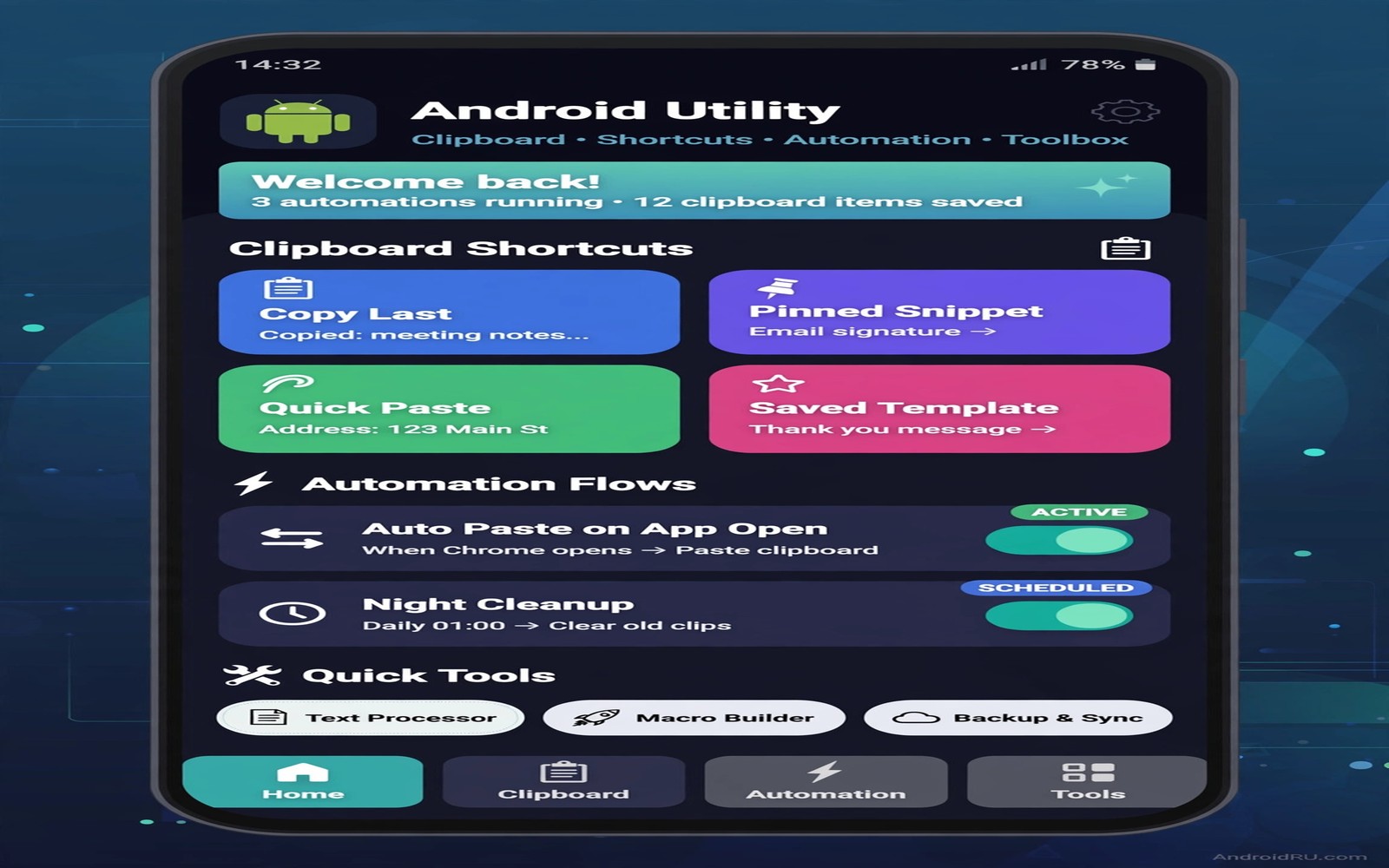
Every phone has a tool that quietly does five jobs at once. It might be a clipboard manager with a search tool built in. It might be a launcher with gestures and hidden folders. It might be a floating button that opens your most used actions anywhere. This guide helps you find that one utility and set it up so it changes your daily flow. The goal is fewer taps for the tasks you repeat most.
A utility app earns the title secret when it stays out of the way until you need it. It does not demand a home screen widget or a constant notification. It waits for a gesture or a shortcut or a button press. Then it delivers the exact action in one step. That restraint separates a true utility from a bloated suite that wants your attention all day.
Start by listing the ten actions you repeat every day. Unlocking and checking messages and searching and sharing links probably top the list. Copying an address and setting a timer and opening a camera also appear often. A utility that shortens three of those actions saves minutes every day. Minutes saved across a year become hours you can spend on better things.
Test a utility in a real week rather than a demo afternoon. A floating tool that feels clever on day one can feel intrusive on day five. A gesture tool that works in one app can conflict with another app you love. A clipboard tool that stores too much can become a privacy risk. A week of real use reveals those tradeoffs before you commit your whole setup to one tool.
What a great utility app actually does
A great utility reduces steps without adding decisions. It turns a five tap job into a one tap job. It remembers your last action so you do not repeat setup each time. It offers a small set of actions that you chose yourself. That focus keeps the tool fast and keeps your muscle memory intact.
A great utility also respects the apps it touches. It should not break a banking app or a payment flow. It should pause itself when a secure screen appears. It should let you exclude sensitive apps from its clipboard or overlay features. Respect for secure contexts is a sign of careful design rather than a missing feature.
A great utility explains its permissions in plain language. A floating button needs overlay permission to appear above other apps. A clipboard tool needs accessibility access to read copied text. A gesture tool needs to observe touches to trigger actions. Each permission should map to a feature you actually use. Disable any feature that does not earn its permission.
Choosing the right utility for your habits
If you copy text all day then a clipboard utility with search and pinning fits best. Pin the addresses and phrases you reuse weekly. Search the history by keyword instead of scrolling a long list. Set an auto clear timer for sensitive copies. That setup turns a hidden history into a reliable work tool.
If you switch apps constantly then a gesture or edge panel utility fits best. A swipe from the edge can open your last three apps in order. A double tap on the back can open the camera or a note. Test gestures in your most used apps to catch conflicts early. A gesture that triggers by accident in a game will annoy you fast.
If you manage files and links all day then a share sheet utility fits best. It can shorten a link or save a page or send a file to a chosen folder in one tap. It can also strip tracking parameters from a shared link. That small clean up protects privacy without extra effort. Pair it with a strong file habit from file managers that go beyond the basics and your downloads stay organised as well as fast.
adb shell settings get secure enabled_accessibility_servicesThis simple command was included to show how accessibility services appear on a device. It shows a simple command that lists accessibility services enabled on a connected device. You can use the output to audit which utilities hold broad access before you grant more.
Setting up one utility without clutter
Enable only the features you listed in your daily top ten. Leave every other toggle off until a real need appears. A utility with ten features enabled at once becomes hard to troubleshoot. A utility with three features enabled stays predictable. You can always enable another feature later when a new habit forms.
Place the trigger where your thumb already travels. An edge swipe near the bottom works for one handed use. A floating button near the side works for a larger screen. A back tap works when your hands are busy. The best trigger feels natural within a day and does not require you to change how you hold the phone.
Review the utility after two weeks and prune ruthlessly. Disable a feature you never triggered. Remove a shortcut you never tapped. Shorten a list that grew too long. A utility stays secret and useful only when it stays lean. A bloated utility becomes just another app you ignore.
Designing a utility setup around your thumb
Watch how you hold the phone during a normal day before you choose a trigger. A commuter who holds the phone one handed needs an edge swipe near the bottom. A desk worker who sets the phone down needs a floating button that stays visible. A driver needs a back tap that works without looking at the screen. The right trigger matches a real grip rather than a demo video. A trigger that fights your grip will go unused within days.
Map each trigger to exactly one action at first so muscle memory forms quickly. An edge swipe that opens the clipboard today should not open a different panel tomorrow. Consistency builds speed because your thumb learns one result per motion. After two weeks of consistent use you can add a second action with a longer swipe. Gradual expansion preserves the speed that a crowded gesture set destroys.
Test triggers inside the apps that matter most rather than on a blank home screen. A gesture that works on the launcher can conflict with a game or a reader. A floating button that helps in messages can cover a send button in another app. Open your five most used apps and trigger the utility inside each one. Adjust position or gesture until it works cleanly in all five without covering essential controls.
Pruning a utility that grew too large
Utilities attract feature creep because every new toggle looks useful in isolation. A clipboard tool gains a translator and a calculator and a search panel over successive updates. Each addition sounds helpful but together they slow the main action. Review enabled features every month and disable anything you did not trigger in the past thirty days. A lean utility stays fast because it refuses to become a suite.
Measure the utility by time saved rather than by features enabled. Time three repeated tasks before and after you enable a feature. A feature that saves less than five seconds per task may not earn its screen space. A feature that saves thirty seconds per task earns a permanent trigger. That measurement keeps enthusiasm honest and prevents a utility from becoming a hobby project.
Automation extends a utility when the trigger becomes a rule rather than a gesture. A clipboard that clears sensitive items on a schedule needs no tap at all. A panel that appears only at work hours needs no manual toggle. That is the natural next step toward automation that does routine work for you where rules replace repeated taps. Start with one rule and expand only after it proves reliable for a full week.
Utility apps for accessibility needs
Utility apps can transform a phone for users with limited dexterity or vision. A large floating button can replace a precise edge swipe that hurts to perform. A voice shortcut can replace a multi tap sequence that takes too long. A high contrast panel can replace a small menu that strains eyes. The best utility for accessibility is the one that matches a specific physical need rather than a generic power user list. Test any utility with the person who will use it daily rather than assuming a feature helps.
Consistency matters even more for accessibility because relearning a gesture costs real effort. A trigger that stays in the same place and does the same action builds confidence over weeks. A trigger that moves after an update or changes behaviour without warning destroys that confidence. Lock the layout once it works and disable automatic layout changes where possible. Stability is a feature for accessibility in a way that novelty never is.
Search by voice or by a few letters can replace hunting through folders for users who struggle with small targets. A universal search that accepts voice input and shows large results helps enormously. That is why universal search that finds files instantly pairs naturally with a utility setup for accessibility. Combine a large trigger with a forgiving search and the phone becomes usable rather than merely powerful.
Common mistakes
The biggest mistake is installing three utilities that overlap and fight each other. Two clipboard tools can overwrite the same history. Two gesture tools can claim the same swipe. Two floating buttons can cover the same corner. Pick one tool per job and disable the overlap in the others. A single clear owner for each job keeps behaviour predictable.
Another mistake is granting every permission on first launch without reading the list. A utility that needs overlay access does not automatically need contacts or location. Grant permissions one feature at a time as you enable each feature. That habit keeps a powerful tool from becoming a broad data collector.
Frequently asked questions
Will a utility app drain my battery?
A lean utility with few background tasks uses very little power. Check battery usage after a week and restrict any utility that tops the list without a clear reason.
Can a utility work without root?
Yes. Most clipboard and gesture and edge tools work on a normal phone. Root opens deeper options but it is not required for everyday utility work.
What if a utility breaks an app I need?
Disable the utility for that app in its exclusion list. Test the app again before you remove the utility completely. Most conflicts come from one feature rather than the whole tool.
Conclusion
List your ten most repeated actions today and choose one utility that shortens three of them. Enable only those three features and test the setup for a full week. Keep the utility only if it saves time without new friction or surprise permissions.

