

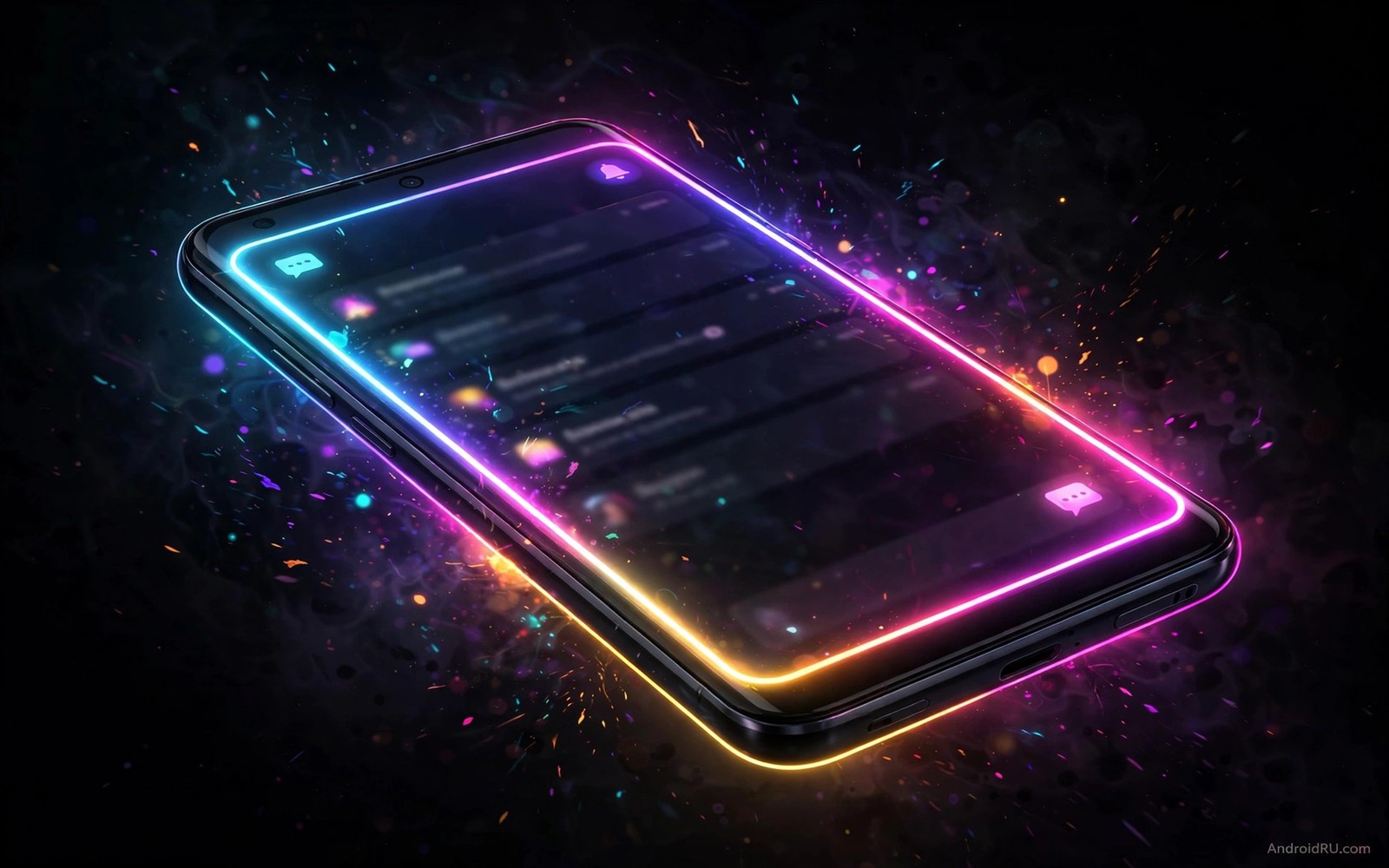
How to Create Custom Edge Lighting Alerts for Individual Apps
Edge lighting turns the border of your phone into a silent signal. A soft glow runs around the screen when a message arrives, and the colour tells you which app sent it before you pick the phone up. A blue glow can mean a work chat, a green glow can mean a personal message, and a red glow can mean something urgent. That quiet code is useful in meetings, in a library, and at night, when sound and vibration would disturb everyone nearby.
I set this up on my own phone after one too many meetings interrupted by a buzz that turned out to be a group chat meme. After three days of testing colours on my desk, I could tell a work message from a social message without touching the phone at all. The trick was not the tool I picked. The trick was keeping the system small enough to remember and testing every colour in real light before trusting it.
This guide walks through the whole setup: picking five apps, giving each one a colour, adding pattern and duration, building night and meeting schedules, choosing between the real tools on the market, and fixing the glows that refuse to show up. By the end you will have a code you can read from across a desk, and a setup that stays quiet when quiet matters.
What custom edge lighting does on an Android phone
Edge lighting is a visual notification that draws a glowing line around the edge of the screen. Some phones draw it only while the screen is off, some draw it over the lock screen, and some draw a brief glow while the screen is on. The glow can be a solid ring, a wave that travels around the border, or a pulse that repeats until you dismiss it. The point is the same in every case: your eyes catch the signal without your ears doing any work.
The feature works best on phones with curved edges or thin bezels, where the glow is visible from an angle while the phone lies flat. It also works on flat screens when the phone lies face up, because the border glow is still easy to spot from a normal sitting position. It does not work when the phone lies face down, in a pocket, or inside a thick case that covers the edges, so check your case before you spend an evening tuning colours. A tidy top area helps too, and live status bar controls can keep icons readable while the glow does the alerting.
How the glow actually works
An edge lighting tool watches incoming notifications through notification access, which is a permission you grant in system settings. When a notification arrives from an app you have configured, the tool draws its glow on top of the lock screen or over a black screen. The tool reads the app name, matches it against your rules, and picks the colour and pattern you assigned to that app. If no rule matches, most tools fall back to a default colour or skip the glow entirely.
That chain has three links, and a break in any one of them kills the glow: the app must post a notification, the system must let the tool see it, and the tool must be allowed to draw over other apps. Keep that chain in mind while troubleshooting later, because almost every invisible glow traces back to one of those three links. A tool that worked yesterday and stopped today usually lost one permission in an update, not its whole configuration.
Some tools add their own always on display, some only draw the glow, and some pair the glow with a small notification preview. The glow itself costs little power when it lasts a few seconds, because only the edge pixels light up on an OLED panel. On an LCD panel the whole backlight turns on, so the same glow costs more power and looks less crisp. That difference matters when you pick durations later in this guide.
Why one colour for every app fails
A single colour for every app tells you that something arrived, and nothing else. You still have to pick the phone up, unlock it, and read the notification to learn whether it was work, family, or a sale alert from a shopping app. The glow becomes a prettier version of a buzz, and you will train yourself to ignore it within a week, because it carries no information worth acting on.
Per-app colours change that completely. The colour becomes a word in a small language you teach yourself, and after a week of daily use you will read that language without thinking. A red pulse across the room means you should look now. A slow purple wave means it can wait until your break. That triage is the whole value of the feature, and it is why the setup below starts with five apps and five clearly different colours.
The catch is that the language only works if you keep it small. Ten colours are hard to remember, twenty are impossible, and similar shades blur together at a glance. A code with five distinct hues beats a code with fifteen subtle shades every time, because the signal has to survive a look from two metres away in ordinary room light.
Pick five apps and give each one a colour you can read at a glance
Start with five apps only, and choose the ones that send your most important messages. For most people that list looks like a work chat app, a personal chat app, email, a calendar or reminder app, and one social app. Write the five names down before you open any settings, because picking apps inside a settings menu leads to adding every app that has ever pinged you, and that is how a clean code turns into noise.
Assign each app a distinct colour that is easy to tell apart at a distance. Blue for work chat, green for personal chat, yellow for email, red for urgent alerts, and purple for social apps is a solid starting point. Avoid similar shades like light blue and dark blue for different apps, and avoid pale colours that vanish in sunlight. A per-app colour code only works when each colour is unmistakable, so test every colour by sending yourself a message from each app and watching the glow from your normal desk distance.
Step 1: choose your five apps
Open your notification history for the past two days and count which apps actually interrupted you. The five apps at the top of that list are your five, even if they are not the apps you expected. A news app that pings twice a day does not belong in the code, and a family group chat that pings forty times a day probably does, because the glow has to cover the interruptions you already get, not the ones you imagine.
Leave room for one change later. Your five will shift as your life shifts, and a work chat app that becomes a personal app can change colour with it. Do not add a sixth app until the first five feel automatic, which usually takes about two weeks of daily use. Adding apps early is the most common way people break a working code, and the fix is always the same: go back to five.
- Open Settings, then Notifications, then Notification history, and note the five apps that interrupted you most in the past two days.
- Write those five names on paper or in a note on your phone, in order of importance, with the most urgent app first.
- Cross off any app whose messages can always wait until morning, and replace it with the next app on your history list.
- Keep that note where you can see it for the first two weeks, because it is your answer key while you learn the code.
Step 2: assign colours that stay distinct
Pick colours from widely separated parts of the colour wheel. Blue, green, yellow, red, and purple sit far enough apart that a glance across a room separates them. Teal and light blue do not, and neither do orange and red, or pink and purple. Look at your five colours side by side in the tool before you save them, and if two of them look close on the picker, change one of them now rather than after a week of confusion.
Test colours in daylight and in a dark room. A pale yellow glow can vanish in sunlight, a deep red glow can look brown in dim light, and a white glow can look like the screen simply turned on. Choose colours with strong saturation for daylight visibility, and send yourself a test message from each app in both kinds of light. If you cannot name the app from the glow alone, adjust that colour or its brightness until you can.
Colour pairs that stay distinct in daylight
Blue and yellow are the easiest pair to separate in bright light, because one is cool and dark and the other is warm and bright. Red and green work well too, though people with red-green colour vision differences should swap green for cyan. Purple and orange also separate cleanly, and they make a good pair for social apps versus shopping or delivery alerts. The rule is simple: if two colours share a temperature and a brightness, they will blur, so keep at least one of those two qualities different.
What to do when two apps feel equally important
When two apps both feel urgent, give them the same colour family but different patterns, which the next section covers in detail. A fast red pulse for a work chat and a slow red wave for a family chat keeps the urgency visible while the pattern tells you which app sent it. Do not give them identical colour and identical pattern, because that combination erases the difference you are trying to create. If you truly cannot separate them, drop one app from the code and let its messages arrive silently until you have room.
Step 3: write the code down and test it
Write the colour code down for the first two weeks. Keep the note on the phone or on paper near your desk, and check it when a glow appears until the mapping becomes automatic. After two weeks you will not need the note. If you still need the note after a month, your colours are too similar, so change the confusing pair to more distinct hues. A code that needs constant lookup is not a shortcut, it is a chore, and a chore gets abandoned.
Test the whole code in one sitting. Ask a friend to send you a message from each of the five apps, or send test messages to yourself from a second device, and watch each glow from your normal sitting position. Note any colour you misread, and fix it on the spot. Repeat the test the next day, because a colour that felt clear on day one can blur once the novelty wears off and you stop paying close attention.
Keep the colour code stable across months. Changing colours weekly resets your learning and turns the signal back into noise. Change a colour only when an app changes its role in your life, document the change in your note, and give yourself a week to relearn it. Stability is what turns colours into language, and language is what makes the whole setup worth keeping.
Set pattern, speed and duration for each app
Colour alone is not enough, because some messages matter more than others. Pattern adds a second layer of meaning on top of colour, and the two layers together carry more information than either one alone. A slow wave can mean a normal message, a fast pulse can mean an urgent message, a single sweep can mean a calendar reminder, and a repeating glow can mean a missed call. Combine colour and pattern so that urgent apps use both a distinct colour and a fast pattern, while calm apps use a muted colour and a slow wave.
Duration controls how long the glow stays visible. A short glow of three seconds is enough for a message you will check soon. A longer glow of ten seconds helps when the phone is across the room. A glow that repeats until you dismiss it suits missed calls and alarms, and almost nothing else. Set duration by urgency and not by preference alone, because a long glow for every social message becomes visual noise that you learn to ignore, and ignored noise is worse than no signal at all.
Speed should match the urgency of the app. Fast patterns draw attention and they can feel stressful if used for every app, so reserve fast patterns for urgent alerts and missed calls, and use slow patterns for social and news apps. This hierarchy protects your attention. When a fast red pulse appears you know it matters, because fast pulses are rare in your setup, and rarity is what keeps the signal meaningful.
Patterns that signal urgency without sound
Most tools offer four or five pattern types: a steady ring, a wave that travels around the edge, a pulse that fades in and out, a sweep that crosses the screen once, and a repeating flash. The steady ring is the calmest and suits email and reminders. The wave feels friendly and suits personal chat. The pulse feels insistent and suits work chat and urgent alerts. The single sweep suits calendar reminders, because it says something once and then stops. The repeating flash suits missed calls, because a call you missed is worth repeating.
Test patterns with the screen off and with the screen on. Edge lighting behaves differently in each state: with the screen off the glow is the only signal and it should be clear, while with the screen on the glow competes with app content and it should be subtle. Set separate brightness values for screen off and screen on if your tool supports it. A glow that is perfect in one state may be invisible or distracting in the other, and most people only test one state and then wonder why the other feels wrong.
Duration and brightness settings that protect battery life
Battery impact is modest when glows are short. A three second glow lights the edge briefly and then the screen sleeps again, and that costs almost nothing across a day. A glow that repeats for minutes keeps the screen active and will show up in battery statistics within a week. Keep most glows under ten seconds, use repeating glows only for missed calls, and check battery usage after a week. If the edge tool sits near the top of the battery list, shorten durations and reduce brightness before you blame the tool itself.
Brightness deserves the same discipline. Maximum brightness looks impressive in a shop and hurts in a dark bedroom, while low brightness vanishes in sunlight. Set brightness to roughly two thirds for daytime use, and let the night profile in the next section drop it further after bedtime. On OLED screens the glow only lights edge pixels, so brightness costs less power than it does on LCD screens, where the whole backlight turns on. Either way, a dim glow you can read beats a bright glow that wakes the room.
- Three seconds: normal chat messages you will check within minutes.
- Five to ten seconds: email and reminders, where the phone may sit across the room.
- Repeat until dismissed: missed calls and alarms only, never social apps.
- Lower brightness at night: a dim glow still reads in the dark, and it protects sleep.
Build night and meeting schedules that respect Do Not Disturb
Edge lighting at night needs a gentler approach. A bright glow in a dark bedroom can wake you or disturb a partner, so set a night schedule that dims all glows and limits them to urgent apps only. Social glows can wait until morning, and a shopping alert certainly can. Missed call glows can stay, because they may matter, and a family emergency at 2 a.m. is exactly the message a silent visual signal was made for. A night profile turns edge lighting from a disturbance into a quiet guardian that watches while you sleep.
Meeting schedules work the same way. Set a work hours profile that allows only work chat and calendar glows, and let personal social glows pause during meetings. This filtering is more useful than turning edge lighting off completely, because you still see urgent work signals while the rest of the noise waits. Configure the schedule in the edge lighting tool or in the system Do Not Disturb settings, and make sure the two systems do not fight each other by testing them together, not separately.
For quiet hours you can also rely on custom quick settings tiles to silence sounds with one tap while edge glows stay visible, which gives you a silent phone that still talks to your eyes. Put a Do Not Disturb tile and an edge lighting toggle tile next to each other, so switching between loud, quiet, and silent-visual modes takes two taps instead of a hunt through settings menus.
A night profile that only lets urgent apps glow
Open your edge lighting tool, find its schedule or routine section, and create a profile called Night. Set its hours to cover your usual sleep window, plus thirty minutes on each side for the nights you go to bed early or sleep in. Inside that profile, allow only two apps: your most urgent chat app and your phone app for missed calls. Set brightness to the lowest value you can still read in the dark, set duration to five seconds, and turn off repeating glows except for missed calls.
Test the night profile before you trust it. Set your phone clock forward, or wait until the profile starts, and send yourself a test message from a social app and from your urgent app. The social glow should stay dark, and the urgent glow should appear dimly and briefly. If the social glow appears, the schedule is not applied, and the usual cause is a second schedule in the system settings overriding the tool. Fix it now, at a calm hour, rather than discovering it at midnight.
Meeting mode and Do Not Disturb exceptions
Do Not Disturb interaction needs testing, because phones handle it differently. Some phones suppress edge lighting when Do Not Disturb is on, others allow edge lighting as a visual exception, and a few let each app decide for itself. Send test messages with Do Not Disturb on and check which glows appear. Adjust exceptions so urgent apps still glow while others stay dark, because a Do Not Disturb mode that blocks urgent glows defeats its purpose for people who need silent but visible alerts.
Build a meeting routine around your calendar if your phone supports routines. A routine that starts when a calendar event marked as a meeting begins, and ends when it finishes, can switch the edge lighting profile automatically. That removes the need to remember to silence the phone before every meeting, and it removes the need to remember to turn it back on afterwards. If your phone does not support calendar routines, a manual work profile switched from quick settings takes five seconds and is far better than nothing.
- Turn on Do Not Disturb, then send yourself a test message from each of your five apps.
- Write down which glows appeared and which stayed dark, and compare that list with what you wanted.
- Open Do Not Disturb exceptions, allow your urgent apps, and block the rest.
- Repeat the test, and keep adjusting until only the urgent glows appear.
Choose the right edge lighting tool for your phone
Samsung phones have edge lighting built in, and that is the best place to start if you own one. Open Settings, then Notifications, then Brief pop-up settings, then Edge lighting style, and you will find colour, pattern, and duration controls without installing anything. Samsung also offers Edge Lighting+ through its Good Lock suite, which adds per-app colours and more pattern choices. Try the built-in version first, and only add Edge Lighting+ when you hit a limit in the built-in tool, because the built-in version is the most stable and the most power efficient option on a Samsung phone.
Phones without built-in edge lighting need a third-party tool, and three names cover most needs: Always On Edge, NotifyBuddy, and aodNotify. Always On Edge draws the glow and can also show an always on display with notification icons. NotifyBuddy focuses on LED-style notification dots and edge glows for phones that lost their notification LED. aodNotify pairs edge lighting with an always on display and adds per-app colours, fingerprint unlock animations, and notification previews. All three need notification access and permission to draw over other apps, and all three are worth a week-long trial before you commit to one.
Samsung Edge Lighting and Edge Lighting+
Built-in Samsung Edge Lighting handles the basics well: pick a colour, pick an effect such as a wave or a glow, pick a duration, and choose whether the glow appears while the screen is on, off, or both. Its weakness is per-app colour, which the built-in version handles only loosely. Edge Lighting+ fixes that with a proper per-app colour list, more effects, and a keyword filter that can give different colours to different senders inside the same app. If your work and family chats live in the same app, that keyword filter is the feature that makes the paid effort of Good Lock worthwhile.
On my Samsung test phone, the built-in tool used almost no measurable battery across a week of short glows, and Edge Lighting+ added only a small amount on top. The practical difference was not power, it was control: Edge Lighting+ let me give a red pulse to messages from my manager and a blue wave to everything else in the same work chat app. That sender-level control is rare, and it is the reason to install Good Lock even if you already like the built-in tool.
Always On Edge, NotifyBuddy and aodNotify compared
Always On Edge is the most complete of the three, because it combines edge lighting with a full always on display, notification previews, and per-app colours in one tool. NotifyBuddy is the lightest, and it suits people who want a simple glow and nothing else, especially on phones where the LED is gone and the glow is its replacement. aodNotify sits in the middle, with a strong always on display and per-app colours, plus extras like a charging animation and a fingerprint icon glow that some people love and others turn off on day one.
| Tool | Per-app colours | Always on display | Best for | Watch out for |
|---|---|---|---|---|
| Samsung Edge Lighting | Basic | No | Samsung owners who want zero setup | Weak per-app control |
| Edge Lighting+ | Yes, plus sender keywords | No | Samsung owners who want full control | Needs Good Lock installed |
| Always On Edge | Yes | Yes | Phones with no built-in edge lighting | More settings to learn |
| NotifyBuddy | Yes | Basic | A light LED replacement | Fewer pattern choices |
| aodNotify | Yes | Yes | People who want glow plus display | Extras can distract at first |
Pick one tool and use it for a week before judging it. Installing all three at once creates overlapping glows, doubled battery use, and permission conflicts that look like bugs in each tool. Uninstall the two you do not pick, and keep the winner. A single tool that you know well beats three tools that fight each other, and the week-long trial is what tells you which one deserves to stay.
Fix a glow you cannot see
Invisible glows feel mysterious, but they almost always trace back to a short list of causes, and working through that list in order fixes most of them in ten minutes. Start with the simplest check: send yourself a test message and watch the phone with the screen off, the screen on, and the phone face up on a desk. If the glow appears in one state and not another, the problem is a setting for that state, not a broken tool. If it appears for one app and not another, the problem is that app, not the tool.
Check notification access first, because it is the cause more often than any other. Open Settings, then Apps, then Special app access, then Notification access, and confirm your edge lighting tool is allowed. System updates can revoke this permission silently, and a tool that worked for months can stop overnight without any warning. Send a test message after every major update, because a five minute test prevents days of missed signals that you blame on the tool.
The glow is missing for one app only
When glows stop for one app only, check that app notification settings. The app may have its own notification categories that need enabling, and a messaging app can have separate categories for groups and direct messages, for mentions and for silent updates. Enable edge lighting for the categories you care about and disable it for noisy categories, because category level control prevents a group chat from flooding your edge with glows while direct messages stay visible.
Also check the app own in-app notification settings, because some apps let you turn off notifications per chat or per channel inside the app itself. A muted chat in the app will not post a notification, and a notification that never posts cannot trigger a glow. Unmute one chat, send a test message, and see if the glow returns. If it does, the tool was fine all along, and the muted chat was the whole story.
The glow is missing for every app
When no app glows at all, the problem is usually a permission, a battery optimisation, or a conflicting setting. Work through them in order: notification access, permission to draw over other apps, and battery optimisation set to unrestricted for the edge tool. Battery optimisation is the quiet killer here, because the system can pause a background tool that watches notifications, and a paused watcher sees nothing. Set the tool to unrestricted, restart the phone, and test again.
Also check that a second edge lighting tool is not installed and fighting the first one. Two tools watching the same notifications can cancel each other out, or one can draw a black overlay that hides the other glow. Uninstall the tool you are not using, restart, and test with a single tool. If the glow returns, the conflict was the cause, and keeping one tool is the fix.
Check notification access after a system update
After a major Android update, open Settings and re-check three permissions in one pass: notification access for the edge tool, permission to display over other apps, and the notification permission for each of your five apps. Updates can reset any of the three without telling you. Re-grant what is missing, restart the phone, and send a test message from each app. This three minute routine after every update saves hours of confused troubleshooting later, and it belongs on your calendar as a habit, not as a reaction to a broken glow.
Edge lighting and always on display: stop the two features fighting
Always on display can compete with edge lighting, because both draw on the screen when it is off. If the always on clock sits near the edge, a glow may blend into it, and a bright clock can wash out a dim colour. Adjust the always on display position or brightness so the edge remains clear, and look for a setting that pauses the always on display during a glow. Some tools offer that mode, and enabling it makes the colour code much easier to read, because the edge is clean for the three seconds the glow lasts.
For a calm silent desk setup, pair the two features deliberately instead of letting them collide, and always on display customisation can help you shape a display that leaves the border free for glows. Move the clock towards the centre, dim it, and keep notification icons small, so the glow has the edge to itself. The goal is a lock screen where the clock tells the time and the edge tells you who messaged, and neither one shouts over the other.
Position the clock so the edge stays clear
Open your always on display settings and move the clock away from the border. A centred clock leaves all four edges free, while a clock pushed into a corner will sit exactly where a glow travels. If your display lets you shrink the clock, do that too, because a smaller clock leaves more dark space around it, and dark space is what makes a glow readable. Test a glow with the new clock position, and watch whether the colour still reads clearly from your desk distance.
If your tool lets the always on display fade out during a glow, turn that on. The display returns a few seconds later, and the brief pause is worth it, because a glow fighting a bright clock is a glow you will misread. On phones where the two features come from different apps, the pause setting may live in the edge tool rather than the display settings, so check both places before you decide the option does not exist.
When a case or screen protector hides the glow
Case and screen protector issues also hide glows. A thick case lip can shadow the edge, a tinted screen protector can dim colours, and a privacy protector can narrow the viewing angle so much that a glow visible from straight above vanishes from the side. Test glows with the case on and off, and with the protector in mind. If the case hides the glow, choose a case with a slimmer edge, or accept that edge lighting will work only when the phone is out of the case. Do not blame the tool for a physical block, because no setting can shine through plastic.
A clear case is usually the best compromise, because it protects the phone while leaving the edge visible. A case with a raised lip around the screen protects against drops but casts a shadow on the glow, so weigh drop protection against signal visibility before you buy. If you already own a thick case you love, keep it for travel and use a slim case at your desk, where the glow matters most. Two cases for two contexts costs little and keeps both needs met.
Frequently asked questions about custom edge lighting alerts
Does edge lighting work on a flat screen?
Yes, it works on flat screens when the phone lies face up, because the glow appears around the screen border and is easy to spot from a normal sitting position. It is most visible on curved screens from an angle, but flat screens still show a clear border glow. Test with your phone face up on a desk, and if the glow is visible from where you sit, the feature suits your setup. If you usually keep the phone face down, no edge feature will help, and a vibration pattern or a smartwatch alert is a better fit.
Will edge lighting drain my battery fast?
Short glows use little battery, because the screen lights only briefly and then sleeps again. Long repeating glows use more, because they keep the screen active for minutes at a time. Keep durations short for most apps, reserve repeating glows for missed calls, and check battery usage after a week. If the edge tool ranks high in battery use, shorten durations and reduce brightness before you uninstall it, because the fix is usually a setting, not a different app.
Can edge lighting replace sound and vibration?
It can replace sound in quiet settings, but it cannot replace vibration when the phone is in a pocket, because edge lighting is a visual signal and it needs line of sight. Use it alongside vibration for important apps when the phone is not visible, and let it fully replace sound when the phone sits on a desk. For desk use it pairs well with a silent phone and a dim always on display, and that combination is the calmest notification setup I have used.
Why did my glow stop after a system update?
System updates can revoke notification access, reset battery optimisation, or change how apps draw over other apps, and any one of those changes stops the glow without a warning. Re-check notification access for the edge tool, set its battery use to unrestricted, confirm it can draw over other apps, and restart the phone. Then send a test message from each of your five apps. That four step check fixes the problem in most cases, and it takes less time than searching for a new tool.
A small setup you can finish tonight
Custom edge lighting works when five distinct colours and two patterns tell you what arrived without a sound. Keep the code small, schedule it for night and meetings, and test it in real light before you trust it. Your concrete next step is to assign colours to five apps tonight and send yourself a test message from each one. If you can name all five apps from their glows tomorrow morning, the code is ready to keep, and your phone will have learned to speak quietly instead of buzzing for attention.
Review the setup again after two weeks. Drop any app whose glow you ignore, change any colour you still misread, and shorten any duration that feels long. A system that survives two weeks of real use is a system that will last, and the small review at the end of those two weeks is what turns a fun evening project into a daily habit you stop noticing, which is exactly how a good notification system should feel.

