

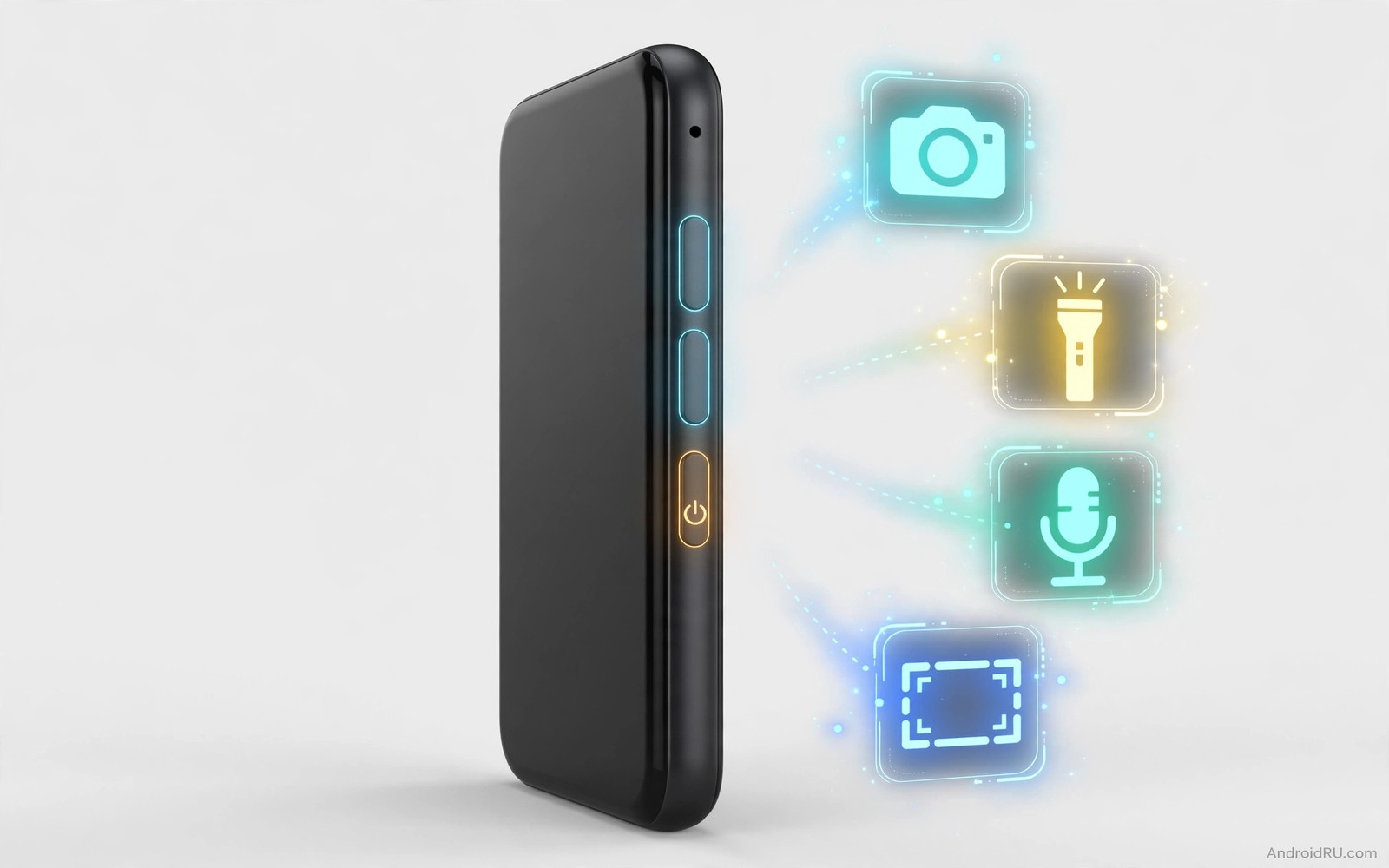
Physical buttons are the fastest controls on a phone because you can press them without looking. Volume keys and power keys sit under your fingers in a pocket and in a bag. Mapping them to custom shortcuts turns a simple press into a useful action. Double press volume down can open the camera. Long press power can toggle the flashlight. A mapped button saves the unlock and search and tap sequence that a screen shortcut requires.
Button mapping works through accessibility and key event tools that listen for presses. These tools intercept a press pattern and run an action instead of the default behaviour. A single press should usually keep its default job because changing it breaks basic use. Double press and long press and press combinations are safer to remap because they are less used by the system. A thoughtful map keeps single presses normal and adds power to the patterns you rarely trigger by accident.
Safety must guide every mapping choice. A button that calls emergency services by accident is dangerous. A button that toggles silent mode by accident can silence important calls. Avoid mapping a single press to a destructive action. Avoid mapping patterns that are easy to trigger in a pocket. Test each mapping with the phone in a pocket and in a bag before you trust it. A mapping that fires accidentally is worse than no mapping at all.
Choose actions that deserve a button
Good button actions are frequent and urgent and simple. Opening the camera is a classic because moments pass fast. Toggling the flashlight is another classic because you need light without unlocking. Starting a voice note is useful for capturing ideas while driving. Toggling silent mode helps in meetings when you cannot look at the screen. Each of these actions is one step and it benefits from instant access.
Bad button actions are complex and multi step. Opening a specific document inside an app is fragile because the document may move. Sending a message to a specific person is risky because a pocket press could send it at the wrong time. Launching a game is rarely urgent enough to deserve a button. Reserve buttons for actions where speed matters more than precision. Let screen shortcuts handle precise multi step tasks.
Rank your candidate actions by frequency for one week. Note every time you wish you had a faster way to do something. If an action appears five times or more then it is a button candidate. If it appears once then it is not. This frequency test prevents a map full of clever actions you never use. A map with three well chosen actions beats a map with twelve rarely used ones.
Consider context for each button. A camera button is useful everywhere. A flashlight button is useful at night and useless in daylight but harmless. A silent toggle is useful in meetings but risky if triggered in a pocket. Assign risky actions to patterns that need deliberate intent like a long press with a vibration confirm. Assign safe actions to faster patterns like double press. Intent and risk should match.
Set up double press and long press patterns
Open a button mapping tool and grant the permissions it needs for key events. Most tools need accessibility access to see button presses. Some need permission to draw over other apps for feedback. Read each permission and grant only what matches button mapping. A tool that asks for contacts or files for a button job should be replaced. Button mapping does not need your personal data.
Start with one mapping only. Map double press volume down to open the camera. Test it from the lock screen and from inside an app. The camera should open in under two seconds. If it opens slowly then the tool may be waiting too long to confirm the pattern. Reduce the double press timeout slightly. A timeout that is too long makes the action feel laggy. A timeout that is too short causes single presses to be misread as double presses.
Add a long press mapping next. Map long press volume up to toggle the flashlight. Hold the button for a clear second and feel for a vibration confirm. The flashlight should turn on without unlocking. Test turning it off with the same long press. If the long press also changes volume then the tool needs to suppress the default volume action for that pattern. A good tool handles suppression cleanly. A poor tool will fight the system volume.
Power button mapping needs extra care because power controls screen lock and emergency features. On many phones double press power already opens the camera by default. Keep that default if it works well. Do not override emergency press patterns. Emergency patterns exist for safety and they should never be remapped to a casual shortcut. If a tool asks to override emergency patterns then decline and choose a different pattern.
Build press sequences for power users
Press sequences combine two buttons or a button plus a screen gesture. Volume up then volume down can toggle silent mode. Power plus volume down already takes a screenshot on most phones so do not override it. A sequence that uses volume keys in order is less likely to trigger by accident than a single double press. Sequences suit risky actions because they need deliberate input.
Test sequences with gloves and with a case. A thick case can make volume keys harder to press in sequence. A sequence that works bare handed may fail with gloves in winter. If a sequence fails often then simplify it. Reliability matters more than cleverness for a physical control. A sequence you cannot trigger when you need it is just a setting that wastes space.
Use vibration feedback to confirm each step of a sequence. A short buzz after the first press tells you the tool heard you. A longer buzz after the completed sequence confirms the action. Without feedback you will press again and trigger the action twice. Double toggling silent mode returns it to the original state and confuses you. Feedback prevents that loop and it works even when you cannot see the screen.
Document your sequences in a note on the phone. You will forget a clever sequence after a month without use. Review the note monthly and remove sequences you never use. Keep at most five active mappings including single patterns and sequences. More than five creates memory load that defeats the purpose of instant buttons. A small map that you remember beats a large map that you forget. You can coordinate button actions with live status bar controls so screen and button controls complement rather than duplicate each other.
Fix accidental triggers and conflicts
Accidental triggers usually come from pocket presses. A phone in a tight pocket can press volume keys against fabric and keys. Enable pocket protection if your tool offers it. Pocket protection uses the proximity sensor to ignore button patterns while the phone is covered. Test it by placing the phone in a pocket and moving around. Mappings should not fire until you take the phone out and press deliberately.
Conflicts with system shortcuts are the second cause of trouble. A mapping that overrides screenshot or camera defaults can confuse muscle memory. Keep system defaults for screenshot and emergency functions. Map only patterns that the system leaves free on your phone model. Check your phone manual or settings for default button behaviours before you map anything. A map built around defaults is stable across updates.
Battery optimisation can delay button tools because they must stay awake to hear presses. Exclude the mapping tool from battery optimisation. Check the exclusion after system updates. If a mapping stops working after an update then recheck permissions and optimisation first. Most sudden failures trace back to a revoked permission rather than a broken tool.
When a mapping misbehaves remove it and test the button normally for a day. This isolation test tells you whether the tool or the hardware is at fault. A button that sticks physically will trigger mappings randomly. A clean button that works normally after removal points to a tool setting. Do not add more mappings to fix a faulty one. Remove and rebuild from a clean base.
button_map = {
  "volume_down_double": "open_camera",
  "volume_up_long": "toggle_flashlight",
  "volume_up_then_down": "toggle_silent"
}
print(button_map["volume_down_double"])
The code above is an original example created for this article to show how a button map could be written down as a simple list of patterns and actions. It is a planning aid and not a file you must run on your phone.
Button shortcuts work best alongside screen controls and custom quick settings tiles can cover the toggles that do not deserve a physical button.
Button actions also look more coherent when colours match across the phone and Material You colour tweaks can align the whole interface with your chosen theme.
Common mistakes
The biggest mistake is remapping single presses. A single volume press should change volume. A single power press should lock the screen. Changing those defaults breaks basic use for you and for anyone who borrows the phone. Keep single presses normal and add power only to double and long patterns. That restraint keeps the phone predictable.
Another mistake is mapping risky actions to easy patterns. Sending a message or calling a person should never sit on a double press that can fire in a pocket. Use sequences and vibration confirms for risky actions. Use easy patterns only for safe actions like camera and flashlight. Risk and ease must stay inversely related.
People also forget to test with a case and in a pocket. A mapping that works on a desk may fail or misfire in real life. Test every mapping in the conditions where you will actually use it. A desk test is not a real test for a physical button. Real pockets and real cases are part of the setup.
Frequently asked questions
Do button mappings need root?
No most mappings work without root through accessibility tools. Root allows deeper remapping of system buttons but it is not needed for camera and flashlight and silent toggles. Start without root. Only explore deeper methods if a specific button on your phone model is locked by the system.
Will mapping buttons drain battery?
A mapping tool that listens for key events uses very little battery because it wakes only on presses. Battery problems usually come from a tool that polls constantly or from a second tool doing the same job. Use one mapping tool and exclude it from optimisation rather than letting it poll. Check usage after a week to confirm it stays low.
Can I map buttons differently for work and personal use?
Some tools support profiles that change mappings by time or by app. A work profile can map a button to silent mode during office hours. A personal profile can map the same button to camera in the evening. Profiles add complexity so use them only if your routine truly changes. A single stable map is better than two maps you confuse. You can also simplify screen controls through custom quick settings tiles so buttons stay reserved for the most urgent actions.
Conclusion
Physical buttons earn their mapping when they open urgent actions without looking and without accidental fires. Keep single presses normal and map double and long patterns to camera and flashlight first. Your concrete next step is to map double press volume down to the camera tonight. Test it from the lock screen ten times tomorrow. If it opens fast and never fires in your pocket then add one more mapping next week.

