

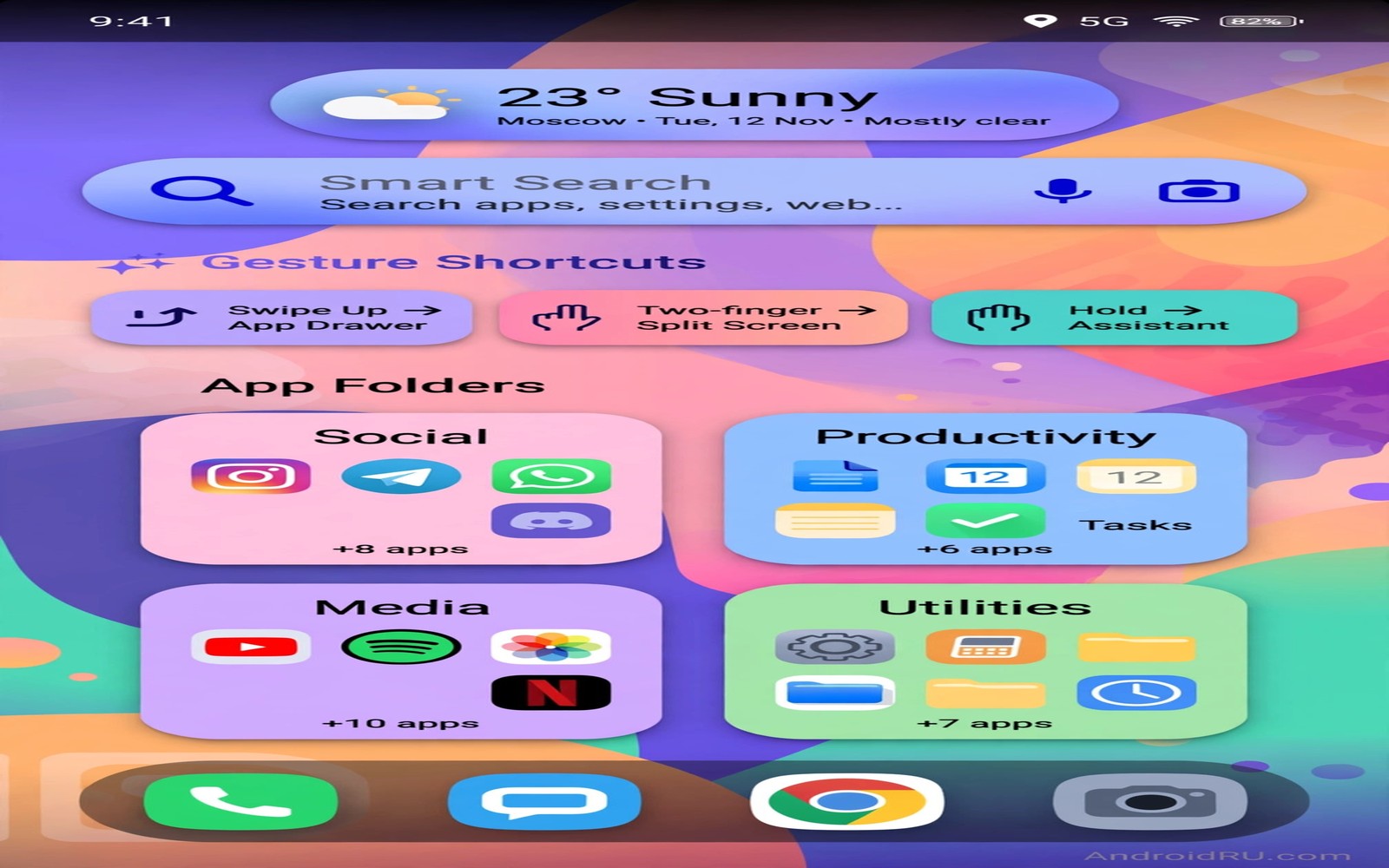
Your launcher decides how fast you reach the right app. A slow launcher forces you to scroll and search and remember where you put things. A productive launcher puts your next action one tap away. The difference is not about pretty icons. The difference is about search that understands intent and gestures that replace menus and folders that match how you actually work.
Most people use only a fraction of what their launcher can do. They keep the default grid and the default dock and they never open the gesture settings. That default setup is built for everyone and therefore it is perfect for no one. A few focused changes can cut the time to open a work app from ten seconds to two seconds. Those seconds add up across dozens of opens per day and they change how your phone feels during a busy morning.
This guide covers five features that matter most for daily work. Smart search comes first because it replaces hunting through folders. Gestures come second because they turn the whole screen into a shortcut. Smart folders come third because they group apps by task and not by vendor. Hidden dock pages and custom swipe actions complete the set. Each feature is explained with a concrete setup you can copy today. You can also borrow ideas from launcher alternatives worth trying if your current launcher lacks one of these tools.
Smart search that finds actions and not just apps
Smart search is more than a box that filters app names. A strong launcher search finds contacts and calendar events and files and settings. Type a colleague name and you should see a call button and a message button. Type a document name and you should see the file itself. Type a setting name and you should jump straight to that setting screen. This action based search removes the need to open an app just to find a button inside it.
Set up search shortcuts for your most repeated tasks. Create a shortcut for a new note and a shortcut for a new calendar event. Pin those shortcuts to the top of search results so they appear before less used apps. Test the setup by typing a single word for each task. If the right action is not in the top three results then rename the shortcut or adjust its priority. Search is only productive when the first result is usually the right one.
Use search history with care. A launcher that remembers recent searches can speed up repeated work. It can also surface private searches at the wrong moment. Clear search history once a week if you share your phone screen in meetings. Turn off web search inside launcher search if you only want local results. Local search is faster and it avoids sending every query to a server. Speed and privacy both improve when search stays on the device.
Practice search as a habit for one week. Every time you catch yourself scrolling for an app then stop and use search instead. Count how many taps you save. Most people find that search beats scrolling for any app that is not on the first home screen. After a week the habit becomes automatic and your home screen becomes a launch pad for favourites rather than a warehouse for every app you own.
Gestures that replace buttons and menus
Gestures turn empty space into a control surface. A double tap on the home screen can lock the phone. A swipe down can open notifications. A swipe up with two fingers can open a work folder. These gestures work from the home screen without opening any menu. They are faster than buttons because your thumb is already on the screen when you think of the action.
Choose gestures that match your hand and your case. A swipe from the bottom edge is easy on a large phone but it can clash with system navigation. A double tap is safer because it rarely triggers by accident. A pinch gesture is good for opening a hidden screen but it needs two fingers and it is awkward while carrying a bag. Assign your most used action to the easiest gesture. Assign less used actions to gestures that need more intent.
Document your gestures for the first month. Write them on a note inside your phone or on a sticky note near your desk. You will forget a clever gesture if you do not use it for a week. Review the list every Sunday and remove gestures you never use. Keep at most six active gestures. More than six creates confusion and you will pause to remember which swipe does what. That pause erases the speed advantage.
Test gestures with your case on and with one hand. A gesture that works on a bare phone may fail with a thick case that covers the screen edge. A gesture that works with two hands may be useless on a crowded train. Adjust sensitivity and edge width until the gesture works nine times out of ten. Reliability matters more than novelty. A boring gesture that always works beats a flashy gesture that works half the time.
Smart folders and a dock that matches your day
Folders should group apps by the job you are doing. A morning folder might hold news and calendar and weather and a task list. A work folder might hold email and documents and chat and a video call app. A travel folder might hold maps and tickets and a translator and a ride app. Task folders let you open a whole workflow with one folder tap and one app tap. Vendor folders that group every app from one company rarely match a real task.
Limit each folder to eight apps at most. A folder with twenty apps is just a second app drawer. It forces scrolling inside a small popup and it hides the app you need. Split a large folder by time of day or by project. Name folders with verbs like plan and write and travel rather than vague names like stuff and misc. A verb name reminds you what the folder is for when you glance at it under pressure.
Your dock deserves the same discipline. Keep four apps in the dock and change them by time of day if your launcher supports dock pages. A morning dock can hold calendar and email and news and a task app. An evening dock can hold music and messages and a reading app and a smart home app. If dock pages feel complex then keep one dock and put your single most used app in the centre where your thumb rests naturally.
Hide apps you rarely use instead of deleting folders that work. A hidden app stays installed and searchable but it stops cluttering your screens. Hide games during work hours by moving them to a hidden folder if your launcher supports scheduled profiles. Or simply remove them from the home screen and rely on search when you want them. A clean home screen reduces decision time because your eyes land on the right icon faster. That clarity is a productivity feature in its own right and it complements live status bar controls for quick access without opening full apps.
Swipe actions and icon shortcuts for one tap work
Swipe actions let one icon do two jobs. Swipe up on a messages icon to open a new message. Swipe up on a camera icon to open video mode. Swipe up on a maps icon to navigate home. These actions save a whole screen of taps because you skip the app home page and land directly on the task. Set swipe actions for your five most used icons first. Leave other icons alone until those five feel natural.
Long press shortcuts are a second layer of speed. Most modern apps offer shortcuts for a new document or a recent chat or a saved place. Long press an icon and pin the shortcut you use most to the home screen as its own tile. A pinned shortcut for a weekly report document can save a minute every Friday. A pinned shortcut for a frequent contact can save several taps every day. Treat shortcuts as personal bookmarks for actions and not just for apps.
Badges and unread counts need limits. A badge on every app creates anxiety and it trains you to check everything. Turn on badges only for messages and email and tasks. Turn off badges for social apps and news apps and shopping apps. Check those apps on your schedule rather than on their schedule. A launcher that shows only meaningful badges helps you focus on work that matters instead of reacting to every red dot.
Widget stacks can help if they are small and specific. A single calendar widget that shows the next event is useful. A full screen of widgets that show news and stocks and weather and social feeds is a distraction machine. Place one widget at the top of your main home screen and keep the rest on a second screen. Swipe to that screen only when you want a briefing. This separation keeps your main screen fast and calm.
Back up your layout before you experiment
Productivity setups fail when an update resets the layout. Export your launcher layout to a file before you change launchers or reset your phone. Save the file to a folder you back up regularly. Test the restore process once on purpose. Delete a folder and restore it from the backup. If restore works in under a minute then you can experiment freely. If restore fails then fix the backup method before you invest more time in the layout.
Sync settings across devices only if the devices share the same job. A work phone and a personal tablet should not share the same dock because their tasks differ. Keep separate profiles for separate roles. Name each profile clearly so you do not restore a tablet layout onto a phone by mistake. A clear name like work phone morning setup prevents a confusing restore that wastes more time than it saves.
Review your launcher every month with a simple test. Time how long it takes to open your top five apps and perform one action in each. If the total time grows then something changed. A new app may have pushed a favourite off the first screen. A folder may have grown too large. A gesture may have stopped working after an update. A monthly review keeps the setup sharp without daily tinkering.
Finally resist the urge to redesign every week. A launcher is a tool for work and not a hobby that needs constant novelty. Change one feature at a time and live with it for seven days. Judge it by saved taps and not by how it looks in a screenshot. The best productive launcher often looks plain because every element on it earns its place by saving time. That plain and fast home screen is the real goal.
launcher_backup_name = "work-phone-2026"
launcher_gestures = {
  "double_tap": "lock_screen",
  "swipe_down": "notifications",
  "swipe_up_two_fingers": "work_folder"
}
print(launcher_backup_name, launcher_gestures["double_tap"])
The code above is an original example created for this article to illustrate how a launcher layout and gestures could be recorded as a simple backup note. It is a planning aid and not a file you must run on your phone.
Search and gestures also benefit from a personal home layout and custom floating widgets can add a small task widget beside your favourite apps.
Common mistakes
The biggest mistake is copying a complex setup from a screenshot without understanding it. A setup with forty widgets and twelve gestures looks impressive but it slows you down if those elements do not match your tasks. Build your setup from your own top tasks. Start with the five actions you repeat most and design around them. Add decoration only after the workflow works.
Another mistake is using too many home screens. Each extra screen adds a swipe and a decision. Keep your main tasks on the first screen and your reference widgets on the second screen. Archive everything else to search. If you cannot remember which screen holds an app then that app belongs in search and not on a screen. Simplicity beats coverage when you are in a hurry.
People also forget to update shortcuts when their job changes. A shortcut to an old project folder becomes dead weight after the project ends. Review pinned shortcuts at the start of each month. Remove shortcuts for finished projects and add shortcuts for new ones. A launcher that evolves with your work stays fast. A launcher frozen in an old job slowly becomes a museum.
Frequently asked questions
Which launcher feature saves the most time?
Smart search usually saves the most time because it works for every app and every action. Gestures save time only for actions you repeat many times a day. Start with search and add gestures for your top three repeated actions. Measure the result by counting taps before and after the change.
Do launcher features drain battery?
Most launcher features use very little battery because they run only when you interact with the home screen. Widgets that refresh constantly are the main exception. Limit widgets to one or two that update on a schedule. Avoid live feeds on the home screen if battery life matters more than instant updates.
Should I switch launchers to get these features?
Switch only if your current launcher lacks search actions or gestures or backup. Many stock launchers now include solid search and folders. Try the features in your current launcher for a week first. A switch is worth it when a missing feature blocks a daily task and not when a new launcher merely looks different. You can compare options through launcher alternatives worth trying before you commit to a change.
Conclusion
A productive launcher is built from search and gestures and task folders that match your real day. It is not built from decoration. Your concrete next step is to set up smart search shortcuts for your three most repeated tasks today. Use search instead of scrolling for those tasks for seven days. If your total taps drop then keep the setup and add one gesture next week.

