

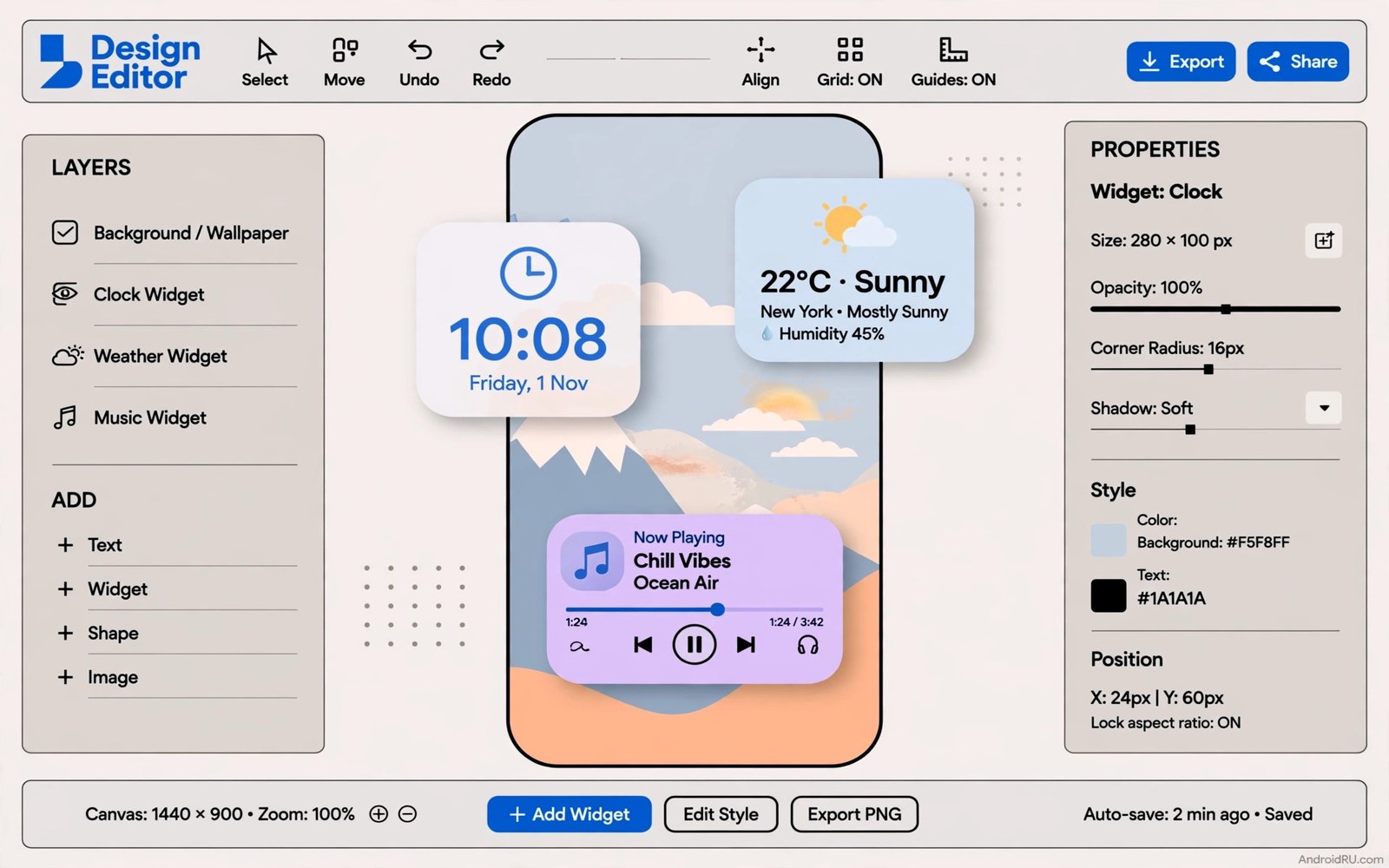
KWGT turns widget building into a craft. Instead of accepting a widget designed for everyone you build one designed for your screen and your routine. A floating widget can show exactly the clock style and weather detail and music control you want and nothing else.
This guide builds one floating widget from a blank canvas. You will place a background shape and a clock and a weather line and a music control. Each step adds one element so mistakes stay easy to find.
Expect a learning curve in the first hour. KWGT exposes many options and the interface rewards patience. By the end of this guide you will have a widget worth keeping and the skill to build a second one in half the time.
Step one: set the canvas and background
Create a new widget sized four by two cells and open the editor. Set the background to a rounded rectangle with a dark translucent fill. A translucent background floats over the wallpaper instead of boxing it in harshly.
Set the corner radius to match your icon shapes. Round icons pair with round widget corners. Square icons pair with slight rounding only. That matching detail makes the widget feel native rather than pasted on.
Canvas setup benefits from the calm wallpaper rules in a minimalist aesthetic setup where the wallpaper breathes behind the widget. A busy wallpaper fights a translucent widget for attention.
Step two: add the clock and date
Add a text element for the time in a large light weight font. Add a second text element below it for the date in a smaller size. Keep both elements left aligned so the eye reads them as one block.
Use a time format that matches your habit such as twenty four hour or twelve hour with a clear marker. A widget clock that forces mental conversion fails its main job. Test readability at arm’s length before moving on.
Clock styling connects to font guidance in changing system fonts without root where light weights suit quiet screens. Pick a font weight that whispers rather than shouts.
Step three: add weather and music
Add a weather text element showing temperature and a simple condition word. Place it on the right side of the widget opposite the clock. That balance keeps the widget symmetrical and glanceable.
Add a music control row with previous and play and next buttons in a single line. Test the buttons while music plays from your usual player. If a button fails then check the music app permission in the widget settings before redesigning.
Music and weather together mirror the glance block in a smart At a Glance style widget where one block answers several questions. Borrow that glance discipline and keep each element to one line.
Step four: save and place the widget
Save the widget with a clear name such as home glance dark. Place it on the home screen in the top wide slot. Check that it does not overlap icons or other widgets because overlap breaks touch targets for both elements.
Live with the widget for three days and note any element you never read. Remove unread elements in the second version. A widget improves by subtraction after the first build teaches you what matters.
Export a backup of the finished widget from the app menu. A backup lets you restore the widget after a phone switch in seconds. Keep the backup file with your other setup notes.
KWGT widget structure sketch
Use this sketch as the blueprint for your widget. Each line is one element in stacking order. Build from top to bottom and test after each addition.
background = rounded rectangle, translucent dark
text_clock = large, light weight, left aligned
text_date = small, below clock
text_weather = temperature + condition, right side
controls_music = previous, play, next in one row
padding = equal on all sides
The sketch above was written for this guide as a blueprint for the widget layout. It is not KWGT code to paste. Recreate each element by hand inside the widget editor.
Share and remix widget designs safely
Sharing a widget design teaches you what makes it work. Export the widget and send it to a friend with a similar phone. Ask which element they read first and which element they ignore completely.
Remixing a friend widget reveals your own blind spots. A layout you would never build may solve a problem you did not know you had. Borrow the idea and rebuild it in your own style rather than copying it exactly.
Keep shared widgets free of personal data before exporting. Remove calendar details and location names from the design. A shared widget should show structure and not your private schedule.
Credit the original designer when you publish a remix publicly. Widget communities thrive on credit and feedback. A credited remix invites improvement suggestions from the original maker.
Archive every major widget version with a date in its name. Archives let you return to a beloved version after a failed experiment. Version history turns widget building from gambling into craft.
KWGT performance on low memory phones
KWGT widgets can strain low memory phones when designs grow complex. Each element with frequent updates consumes memory and processing cycles. A widget with five updating elements behaves like five small apps running together. Low memory phones handle one or two updating elements gracefully and struggle beyond that point. Design for your phone memory rather than for a flagship showcase.
Update intervals are the main performance lever and most beginners set them far too aggressively. Weather updating every ten minutes gains almost nothing over hourly updates for daily planning. Music controls update on state change rather than on a timer and cost almost nothing. Set every timed element to the slowest interval that still serves its purpose and the widget becomes nearly free.
Layer count affects rendering speed more than element count alone. Overlapping translucent layers force the system to blend pixels repeatedly. A widget with ten stacked translucent layers renders slower than a widget with twenty flat elements. Flatten backgrounds wherever possible and reserve translucency for one or two signature layers.
Font loading also contributes to widget cost because each custom font loads into memory. A widget using four custom fonts pays four loading costs every time it renders. Limit designs to two fonts maximum with one for headings and one for body text. That discipline improves both performance and visual coherence at once.
Test widget performance by returning to the home screen repeatedly after heavy app use. A good widget appears instantly every time. A heavy widget shows a blank space for a second while it reloads. That blank flash signals memory pressure and means the design needs simplification before daily use.
KWGT widgets for different professions
Professionals need widgets tailored to their work rhythms rather than generic clock and weather blocks. A delivery driver needs next stop and navigation time in one glance. A teacher needs next class and room number. A nurse needs shift countdown and next break. Generic widgets force professionals to open apps for information their widget should already show. Profession specific widgets save dozens of app opens daily.
Sales professionals benefit from widgets showing pipeline reminders and next call times. A widget that surfaces the next client call with its phone number enables one tap dialing. That single tap saves searching through contacts during a busy day. Design sales widgets around actionability rather than information display alone. Every element should enable a next action within one tap.
Creative professionals need widgets that protect focus rather than interrupt it. A writer widget showing word count progress supports momentum without distraction. A designer widget showing a calm color palette inspires without demanding attention. Creative widgets should whisper information rather than shout notifications. The best creative widget is one you notice only when you deliberately look for it.
Field workers need widgets that survive harsh conditions including gloves and sunlight and rain. Large touch targets and high contrast text matter more than elegant thin fonts for field use. A field widget with small delicate controls fails when gloves are worn. Test field widgets outdoors with work gloves on before deploying them to a team.
Students need widgets that balance study and social life visibly. A widget showing next assignment deadline beside next social event keeps both priorities in view. That balance prevents study from consuming all attention or social life from consuming study time. Students who see both deadlines and events together plan more realistically than students who track them separately.
Finally remember that profession widgets evolve as careers evolve. A widget built for a junior role may fail for a senior role with different rhythms. Review profession widgets after promotions and role changes. A widget review within the first month of a new role aligns the phone with new responsibilities quickly and prevents old habits from lingering inappropriately.
Common mistakes
KWGT builds fail in familiar ways. Avoid these.
- Adding ten elements in the first build so errors hide among the layers.
- Choosing a solid bright background that boxes in the wallpaper harshly.
- Using a decorative font that makes the clock hard to read quickly.
- Forgetting music permissions and blaming the widget design for dead buttons.
- Overlapping the widget with icons so touch targets break for both.
Frequently asked questions
Is KWGT free to use?
KWGT offers a free version that covers the widget built in this guide. Advanced features may require a paid upgrade. Start free and upgrade only for a feature you truly miss.
Will my KWGT widget drain battery?
A simple widget with hourly weather updates uses very little power. Widgets that update every minute or track location constantly cost more. Keep updates hourly for the lightest result.
Can I share my widget with another phone?
Yes by exporting the widget file from the app menu and importing it on the other phone. Fonts and weather sources may need matching setup on the new device.
Conclusion
You now own a floating widget built to your screen with a clock and weather and music controls. It matches your wallpaper and your font mood because you placed every element yourself.
Your concrete next step is to build a second version tonight with one element removed. Keep the version that still answers your daily questions with less visual weight.

