

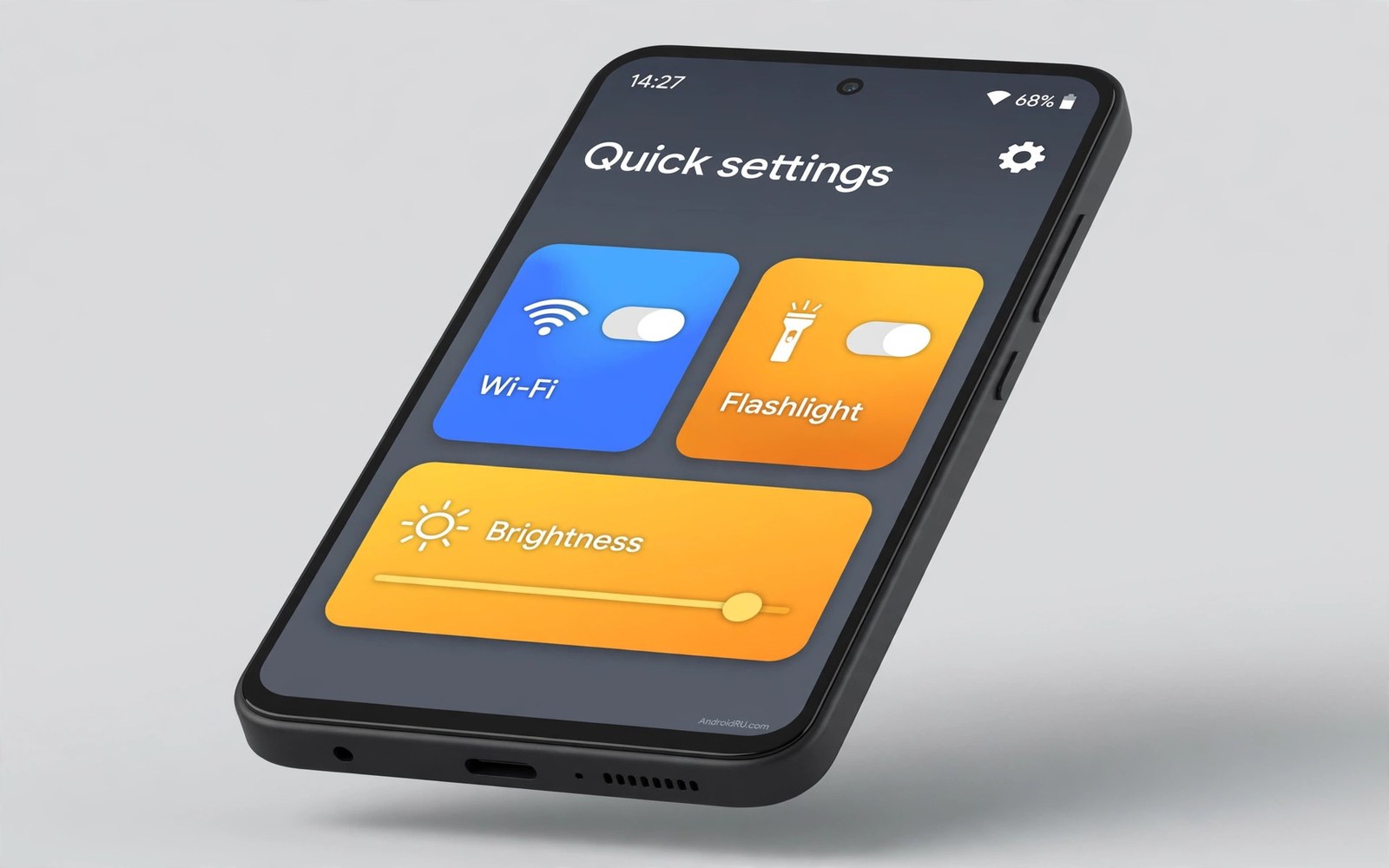
Quick settings is the fastest control surface on your phone. One swipe reaches Wi-Fi and flashlight and brightness without opening any app. Yet most people never edit it and scroll past tiles they have never tapped.
A customized panel doubles efficiency in a simple way. Your thumb learns fixed positions for the four controls you use most. You stop scanning a long grid and start tapping from memory. That memory is the speed gain.
This guide rebuilds your panel in three moves. You will remove the dead tiles. You will order the survivors by daily routine. You will add one smart tile that saves a longer trip into settings.
Remove every tile you never tap
Open the panel editor and look at each tile honestly. If you have not tapped a tile in the past month then remove it. Tiles for cast and nearby share and screen record often sit unused on phones that never use those features.
Aim for eight tiles on the first page and nothing on a second page. A single page panel opens fully with one swipe. A two page panel forces a second swipe and defeats the purpose of quick access.
Tile trimming follows the same discipline as a minimalist aesthetic setup where removal is the main design tool. Keep the panel boring and fast rather than complete and slow.
Order tiles by your daily routine
Put the morning tiles first. Wi-Fi and mobile data and Do Not Disturb belong in the first row for most people. Put evening tiles like flashlight and night mode in the second row. Your thumb will learn the morning row within a week.
Keep brightness as a slider rather than a tile if your phone offers that choice. A slider adjusts in one motion while a tile only toggles auto brightness. Reserve tile space for controls that truly toggle.
Routine order also matters for the status bar companion in a live control center in the status bar where the top row carries live information. Match the two surfaces so the same controls appear in the same relative order.
Add one smart tile that saves a trip
Add a tile for a setting you change often but hate hunting for. Battery saver during travel days and location during navigation days are good candidates. Change the smart tile with the season instead of keeping a fixed set forever.
Test the new tile for a week and count your taps. If you tap it fewer than three times then it failed the test and should leave the panel. A smart tile earns its place with frequency and not with cleverness.
Smart tile thinking connects to gesture work in custom navigation gestures where one motion replaces several taps. Apply the same math here and demand real tap savings.
Maintain the panel monthly
Review the panel on the first day of each month. Travel tiles can leave after a trip. Work tiles can leave after a project ends. A panel that never changes slowly fills with tiles for a life you no longer live.
After each review take a screenshot of the panel. If a future update resets the order you can rebuild it from the screenshot in a minute. That backup habit protects all customization work not just tiles.
The final test is simple. Swipe down and tap your most used control without looking. If your thumb lands correctly then the panel is done. If you still scan then one more trim is needed.
Quick settings target layout
Build toward this target layout and then adapt it to your routine. The first row is fixed by frequency. The second row holds your personal smart tile.
row_1 = wifi, mobile_data, dnd, flashlight
row_2 = bluetooth, brightness_slider, battery_saver, smart_tile
total_tiles = 8
pages = 1
review = first day of month
The layout above was written for this guide as a target to aim for. It is not code to run. Adjust the smart tile slot to your own most changed setting.
Use tiles for travel and event days
Travel days demand a different tile set from normal days. Swap in airplane mode and mobile hotspot and location tiles before leaving home. Those three tiles cover flights and tethering and navigation in one panel.
Event days need flashlight and Do Not Disturb and screen record tiles close together. A concert or a conference rewards fast access to those three. Normal work tiles can wait in full settings for one day.
Build the habit of swapping tiles the night before a special day. A two minute swap prevents fumbling during the event itself. Preparation is the hidden half of quick settings efficiency.
After the special day restore the normal tile set the same evening. A travel tile set that lingers into normal weeks wastes panel space. Restoration completes the temporary change cycle.
Keep a note of your travel set and your event set in a notes app. Notes turn a from memory rebuild into a thirty second task. Future trips benefit from past preparation without new thinking.
Quick settings for accessibility needs
Quick settings become an accessibility tool when motor control or vision limits make full settings hard to navigate. Large tiles with clear icons help users with tremor because targets are bigger than settings list rows. High contrast tiles help users with low vision because the panel uses fewer colors than full settings screens. Designing tiles for accessibility benefits every user because everyone navigates the panel in a hurry sometimes.
Voice control users benefit from a short panel too. A voice command that toggles a tile by name works faster when tile names are distinct and few. Twenty tiles with similar names confuse voice matching and cause wrong toggles. Eight tiles with clear names give voice control a reliable vocabulary.
One-handed users with limited reach gain the most from bottom placement of the panel trigger. Some phones allow swiping from the bottom edge to open quick settings instead of the top. Enable that option if your reach is limited. The panel itself matters less than the gesture that opens it when reach is the constraint.
Cognitive accessibility also favors a stable panel that never changes unexpectedly. Users who rely on memory positions suffer when updates reorder tiles silently. Lock the tile order after you find a good arrangement and screenshot it. A stable panel becomes a reliable tool rather than a puzzle that changes monthly.
Caregivers can help by setting up the panel for someone else and then teaching the positions by touch. Sit beside the person and guide their thumb to each tile while naming it aloud. Three guided sessions usually build lasting memory for a short panel. That teaching investment pays off every day the person uses the phone independently.
Quick settings across different Android skins
Android skins from different manufacturers implement quick settings differently and those differences affect customization depth. Some skins allow extensive tile editing with third party tile apps. Others restrict tiles to a fixed manufacturer set with limited reordering. Check your skin capabilities before following a generic quick settings guide. A guide step that works on one skin may not exist on another.
Tile size and layout vary by skin in ways that change efficiency math. A skin with large tiles shows fewer tiles per page but each tile is easier to hit accurately. A skin with small tiles shows more options but demands precise taps. Efficiency depends on your thumb accuracy and not just tile count. Test both sizes if your skin offers a density choice.
Brightness slider placement differs across skins and that placement affects daily comfort more than most users realize. A slider at the top of the panel requires a full panel expansion. A slider visible on the first swipe saves a step every time you adjust brightness outdoors. Prioritize skins or settings that expose brightness immediately if you adjust it often.
Manufacturer additions such as device control tiles or smart home panels expand quick settings beyond phone controls. Those additions help users with connected homes but clutter panels for users without them. Remove smart home tiles promptly if you own no connected devices. A panel cluttered with irrelevant smart home controls wastes the fastest surface on the phone.
Update behavior for quick settings also varies by manufacturer. Some manufacturers preserve tile order across updates faithfully. Others reset tiles to defaults after major upgrades. Screenshot your tile layout before every major update regardless of manufacturer reputation. A screenshot costs seconds and saves a frustrating rebuild after a reset.
Finally consider that quick settings efficiency is personal in ways skins cannot predict. A tile set that serves a night shift worker differs completely from one serving a student. Generic best tile lists are starting points only. Build your final set from a week of noting which controls you actually reach for during real days.
Quick settings for emergency situations
Emergency situations demand a quick settings panel that works under stress without thinking. A panel with eight familiar tiles lets a stressed user find flashlight or mobile data by muscle memory alone. A panel with twenty unfamiliar tiles forces visual searching at the worst possible moment. Stress narrows attention and shrinks working memory dramatically. Design the emergency ready panel for the stressed version of yourself rather than the calm version who sets it up. Test the panel while simulating stress by timing yourself with a loud alarm sounding. If you cannot find flashlight within three seconds under that pressure then the panel needs trimming before a real emergency arrives.
Common mistakes
Quick settings customization has small traps. Avoid these.
- Keeping twenty tiles across two pages and calling it customized.
- Placing rarely used tiles in the first row out of habit.
- Adding a tile for a feature you test once and never use again.
- Forgetting that updates can reset tile order without warning.
- Using a brightness tile when a slider would adjust faster.
Frequently asked questions
Can I add app shortcuts as tiles?
Some phones and apps offer custom tiles for app actions. Use them sparingly because each custom tile adds visual weight. One custom tile for a daily action is plenty.
Why did my tiles reset after an update?
System updates sometimes restore default tile order. Rebuild from your screenshot and the panel returns in a minute. Monthly screenshots make resets painless.
How many tiles are too many?
More than eight on the first page forces scanning instead of memory tapping. Keep eight or fewer and move the rest into full settings where they belong.
Conclusion
Your quick settings panel now holds eight tiles in routine order with one smart tile earning its place. Every swipe lands faster because your thumb knows where to go.
Your concrete next step is to remove three tiles you have not tapped this month right now. Time your next five panel uses and enjoy the taps you no longer waste scanning.

