

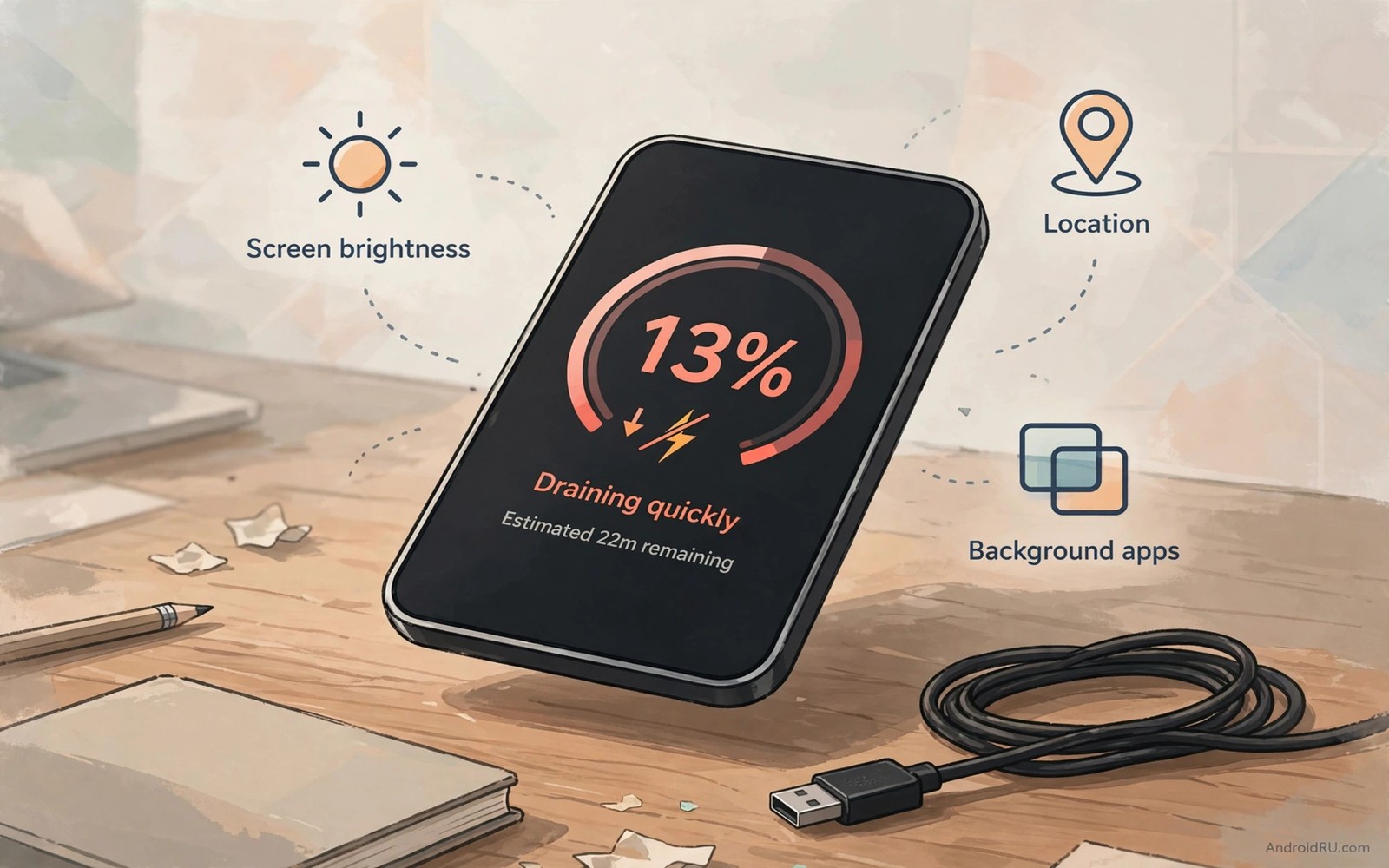
A fast draining battery feels like a mystery. The phone was fine last month. Now it dies by lunch. No single setting changed visibly. The cause hides in a short list of usual suspects. Screen time and rogue apps and weak signal and sync storms cover nearly every case. Diagnosis beats guessing.
This guide gives you a diagnostic order. Check the biggest drains first. Rule out each suspect with a simple test. Fix the confirmed culprit and measure the result. A systematic hour beats a week of random setting changes.
Start with the battery usage screen. It ranks every drain source by percentage. The ranking tells you where to look first. Trust the ranking over hunches about favourite apps. Data leads and opinions follow.
Read the battery usage ranking correctly
Open battery settings and view usage for the last full day. Screen usually leads on heavy use days. Apps lead on standby drain days. System services lead after updates or in weak coverage. The leader names the investigation. A screen-led drain needs display fixes. An app-led drain needs restriction fixes.
Compare the ranking against your actual use. An app you never opened ranking near the top is a rogue suspect. A maps app ranking high after a road trip is normal. Context separates guilt from innocence. Judge each entry against what you actually did that day.
Hunt the rogue app with a simple test
Force stop the top suspect app for one day. Use the phone normally without it. Check standby drain that evening. A large improvement confirms the culprit. No improvement clears the suspect and moves the investigation onward. One suspect per day keeps results clean.
Check the suspect app permissions after confirmation. Background location and unrestricted background activity feed many rogues. Restrict background activity and set location to while using the app. Reinstall the app when restriction fails to tame it. A fresh install clears corrupt caches that drive runaway loops.
Blame weak signal before you blame the battery
A phone in weak coverage boosts radio power to hold a connection. Basements and rural roads and concrete buildings drain batteries fast. The battery usage screen may show mobile network as a major drain. Moving to Wi-Fi or airplane mode in dead zones proves the cause quickly.
Test signal drain on a commute day. Note battery drop during the weak coverage stretch. Compare it against a Wi-Fi day at home. A large gap confirms radio drain. Wi-Fi calling and offline downloads reduce the need for a struggling cellular radio.
Stop sync storms from waking the phone
Sync storms happen when many accounts refresh at once. Email and social and cloud apps wake the processor dozens of times per hour. Each wake costs a little power. Thousands of wakes per day cost a lot. Lengthen sync intervals for low priority accounts. Disable auto-sync for accounts you check manually anyway.
Cloud photo backup deserves special attention. A large camera roll upload after a holiday drains power for hours. Set photo backup to Wi-Fi only and charging only. The upload still completes overnight without touching daytime battery. Scheduling turns a drain into a background task.
Rule out a worn battery honestly
A worn battery drains fast even with perfect settings. Sudden percentage cliffs signal wear. Shutdowns above twenty percent signal wear. A battery health report below eighty percent confirms wear. Settings cannot restore lost chemical capacity. A replacement restores the phone at a fraction of new phone cost.
Test wear with a controlled day. Apply efficient settings and avoid heavy use. A healthy battery lasts the day comfortably. A worn battery still dies early under light use. The controlled test separates software waste from chemical age cleanly.
Use safe mode as a diagnostic tool
Safe mode disables third party apps temporarily. The phone runs only system apps in safe mode. Battery drain in safe mode points at system or hardware causes. Normal drain in safe mode points at a third party app. The comparison isolates the culprit cleanly.
Enter safe mode through the power menu long press option. Use the phone normally for several hours in safe mode. Record battery drop across that window. Exit safe mode with a normal restart. The whole test takes half a day at most.
Compare safe mode drain against normal mode drain directly. A large gap confirms a third party culprit. A small gap clears third party apps from suspicion. The gap size guides the next investigation step. Data from safe mode ends many arguments.
Uninstall suspects one by one after a confirming safe mode test. Start with the most recently updated third party app. Test a day after each removal. The drain vanishes when the true culprit leaves. Patience in removal beats mass uninstalls.
Track drain with a simple log
A drain log needs only four columns. Time and battery percentage and activity and signal quality fit one line. Log every two hours during a test day. Patterns emerge from lines that memory misses. A log turns feelings into numbers.
Note signal quality honestly in each entry. Weak signal entries often match steep drops. Strong signal entries with steep drops point elsewhere. Signal context prevents false blame on innocent apps. Honest logs diagnose faster than perfect memory.
Review the log at day end and circle the steepest drops. Investigate the activity during each circled window. A game session explains one drop legitimately. An idle window with a steep drop demands investigation. Circles focus attention where it matters.
Keep logs for three test days before deciding on repairs. Three days cover varied signal and usage conditions. A single bad day misleads diagnosis. Three days of evidence support confident decisions about batteries and repairs.
Decide when professional help is needed
Professional diagnosis becomes necessary when home tests produce contradictory results. A battery that drains fast despite clean settings and good signal needs expert testing. Repair shops measure actual cell capacity with specialised equipment. Home estimates cannot match laboratory measurement accuracy. Professional measurement ends speculation with a definitive number.
Seek help promptly when physical symptoms appear alongside battery problems. A bulging back panel or a lifting screen demands immediate professional attention. Physical deformation signals cell failure that software cannot address. Delaying repair risks screen damage and safety hazards. Physical symptoms override every software troubleshooting step.
Choose repair services based on reputation and warranty rather than lowest price alone. A cheap replacement cell with no warranty may fail within months. A reputable service with a warranty stands behind its work. Warranty terms reveal confidence in parts quality clearly. Price alone hides quality differences that matter for years.
Ask the repair service to test the old battery before replacement. Testing confirms whether the cell truly caused the drain. A test result showing a healthy cell redirects investigation toward software or board problems. Testing before replacement prevents paying for an unnecessary new cell. Evidence based repair beats guess based replacement.
Keep the repair receipt and warranty documentation in a safe place after service. Warranty claims require proof of service date and parts used. A receipt also helps future buyers trust the device history. Documentation transforms a repair from a forgotten expense into a verifiable improvement. Good records protect resale value measurably.
adb shell dumpsys batterystats --reset
adb shell dumpsys batterystats | grep -i top
adb shell cmd connectivity airplane-mode
The commands above are a generic illustration for resetting and reading battery statistics from a computer. They show the kind of data a technician reviews during a drain hunt. Everyday users should use the on-screen battery usage ranking instead.
Hidden background drainers often explain a sudden drain better than a dying cell. Quick battery life fixes cut screen and background waste within five minutes. Power hungry settings deserve a first check before any factory reset decision.
Common mistakes
The worst mistake is factory resetting at the first sign of drain. A reset costs hours and often restores the same rogue app from backup. Diagnose first and reset last. Most drains yield to a single restriction or permission change.
Another mistake is installing a task killer to fight the drain. Task killers restart apps in loops that burn more power. Built-in restriction settings work with the system rather than against it. Trust the platform tools over aggressive third party killers.
A third mistake is replacing the battery before checking signal drain. A new battery in a dead zone drains fast too. Rule out radio and app causes first. Spend on a battery only when wear evidence is clear.
FAQ
Why did my battery drain start suddenly?
Sudden drain usually follows an app update or a system update or a new location with weak signal. Check recently updated apps first. Check signal conditions second. A sudden change has a sudden cause and the timeline usually reveals it.
Can a system update cause permanent drain?
A buggy update can drain fast until a patch arrives. Permanent drain from an update alone is rare. Test for a week and check for patches before assuming hardware failure. A patch often restores normal drain without any setting changes.
How long should a diagnosis take?
A full diagnosis takes one to three days of normal use with one change per day. Rushing all changes at once hides the culprit. Patience produces a clear answer and a fix that lasts.
Conclusion
Open battery settings now and write down the top three drains. Force stop or restrict the top app suspect for today. Note standby drain tonight and compare it against yesterday. One measured day reveals more than a week of guessing.
Fix the confirmed culprit tomorrow and keep the measurement habit for a week. Your phone will stop dying mysteriously by lunch. You will know exactly what drains it and exactly what stops the drain. That knowledge is the real fix. Keep the measurement habit alive for a week after the fix.

