

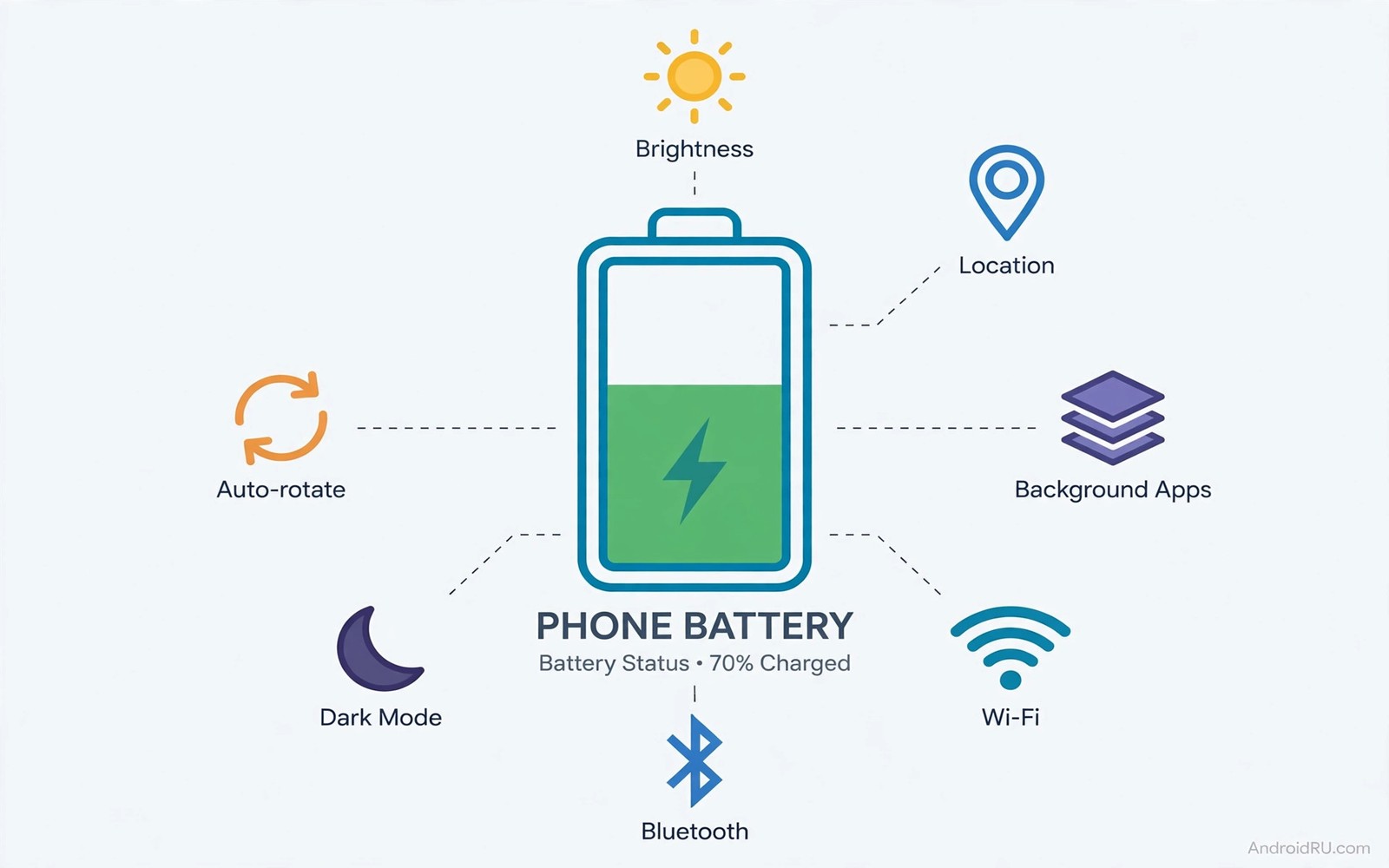
Your battery dies at four in the afternoon. The morning started at full charge. Nothing dramatic happened in between. The screen stayed bright. Apps refreshed in the background. Radios hunted for signals. Small drains stacked into a dead phone before dinner. Five minutes of settings changes can reverse most of that stack.
Doubling battery life sounds like a wild claim. It becomes realistic when a phone starts from a wasteful baseline. A bright screen plus always-on location plus unrestricted background apps can halve endurance. Fixing those three alone often adds hours. The remaining tweaks add the rest.
This guide gives seven moves in order of impact. Each move takes under a minute. Test the phone for one full day after applying all seven. Measure screen time and standby drain before judging. Numbers beat feelings when you tune a battery.
Drop brightness and shorten screen timeout
The screen is the largest power draw on most phones. Lower brightness to a comfortable level rather than maximum. Enable adaptive brightness so the phone dims indoors automatically. Set screen timeout to thirty seconds. A screen that sleeps fast stops burning power on a forgotten desk.
Dark wallpaper helps on OLED screens because black pixels draw almost no power. Bright white wallpapers keep every pixel lit. Switch to a dark theme in system settings and in your most used apps. The visual change feels small. The power saving across a day is real.
Restrict background activity for greedy apps
Open battery settings and sort apps by usage. Social and shopping apps often lead the list without any visible work. Set the worst offenders to restricted background activity. Restricted apps still open normally when you tap them. They simply stop refreshing silently all day.
Check the restricted list after a week. An app you actually need for timely alerts may suffer delays. Move messaging and banking apps back to optimised mode. Keep games and shopping apps restricted. The goal is selective silence rather than blanket bans.
Tame location and scanning radios
Location set to always on lets apps track you all day. Change location permission to while using the app for most apps. Keep always on only for navigation and family safety tools. Disable Wi-Fi scanning and Bluetooth scanning in location settings. Scanning hunts for networks even when Wi-Fi looks off.
Turn off Bluetooth when no device is connected. Turn off mobile data during long Wi-Fi sessions at home. Radios searching for signals in weak coverage drain power fastest. Airplane mode during a dead zone commute saves more power than any app tweak.
Silence sync and refresh storms
Email set to push every minute wakes the phone constantly. Change rarely used accounts to manual or hourly fetch. Social apps set to instant refresh behave the same way. Lengthen refresh intervals for news and shopping feeds. You will still see everything on your next open.
Disable auto-play videos in social apps. Auto-play downloads and decodes video you never asked to watch. Disable background video preload where offered. These two toggles cut both battery use and mobile data use at once.
Use adaptive battery and bedtime modes
Adaptive battery learns which apps you actually use. It throttles rarely used apps automatically. Enable it in battery settings and give it a week to learn. Early days may show odd delays for forgotten apps. The system improves as usage patterns stabilise.
Bedtime mode silences the phone and greyscales the screen at night. It stops late night scrolling from draining the battery before morning. Schedule it from bedtime to wake time. Morning starts with a fuller battery and a calmer mind.
Kill the always-on extras you never use
Always-on display looks elegant and draws power all day. Disable it or limit it to tap-to-show mode. Live wallpapers animate constantly and cost power too. A static dark wallpaper is the efficient choice. Edge lighting and notification glows add smaller drains that still stack.
Haptic feedback on every keypress drains a small amount per tap. Thousands of taps per day turn small into noticeable. Reduce keyboard vibration strength or disable it. Keep vibration for calls where it carries real value.
Charge smarter between the tweaks
A phone that starts the day at eighty percent with efficient settings outlasts a phone that starts at full with wasteful settings. Top up during a desk break instead of draining to zero. Partial charges suit lithium chemistry better than deep cycles. Efficient settings plus partial charging form a durable routine.
Measure results after one week
A week of measurements beats a day of impressions. Record screen time each evening for seven days. Record standby drop overnight each morning. Record the top drain app daily. Seven days of numbers reveal the true effect of tweaks.
Compare the week against the previous week fairly. Similar usage patterns make comparison valid. A travel week compares poorly against a home week. Note unusual days and exclude them from averages. Fair comparison needs similar conditions.
Adjust one tweak at a time during the second week. Change screen timeout alone and measure again. Change background restriction alone and measure again. Isolated changes reveal individual contributions. Combined changes hide which tweak actually helped.
Keep the winning combination as a documented routine. Write the final settings in a note for future phones. A documented routine transfers to a new device in minutes. Undocumented tweaks get lost at every upgrade.
Fix standby drain overnight
Overnight standby drain is the purest efficiency test. The phone does almost nothing while you sleep. A large overnight drop signals background work. A small drop signals a well tuned phone. Measure the drop before changing anything.
Charge to a known percentage before bed. Record the percentage in the morning before touching the phone. The difference is the overnight drain. Repeat for three nights for a reliable average. Single nights vary with updates and signal.
Restrict the top overnight drain app when the drop exceeds five percent. Check battery usage for the overnight window specifically. A social app updating all night is a common culprit. Restriction usually halves the drop within a night.
Enable bedtime mode as the final standby tool. Bedtime mode silences radios and greyscales the screen. The phone rests more deeply through the night. Morning starts with more power and fewer distractions. Bedtime mode is free efficiency.
Protect battery gains on busy days
Busy days threaten battery gains because heavy use overwhelms efficient settings. Navigation and video calls and photography together drain even well tuned phones. A power bank carried on busy days preserves gains that settings alone cannot protect. Planning for busy days beats regretting them afterwards. A power bank is insurance for efficiency rather than a confession of failure.
Pre-download maps and media before busy days to reduce radio drain. Offline content eliminates constant network fetching during travel and meetings. A phone with offline maps navigates without cellular strain. A phone streaming everything constantly drains through radios all day. Preparation converts radio drain into storage use which costs far less power.
Lower screen brightness manually during busy outdoor days. Adaptive brightness often overestimates outdoor needs and keeps screens brighter than necessary. A manual brightness step down saves noticeable power across hours outdoors. Readability usually survives one step down without any real loss. Manual control beats automatic optimism on long bright days.
Close unused apps deliberately at the start of busy days. Background apps from yesterday continue refreshing through today unless stopped. A morning cleanup takes one minute and frees the whole day from stale background work. Fresh starts each morning keep battery gains consistent. Yesterday apps should not tax today battery.
Review busy day battery results in the evening to learn personal drain patterns. Note which activity consumed the most power during the day. Navigation heavy days need different preparation than photography heavy days. Personal patterns guide future preparation better than generic advice. Learning from busy days improves every future busy day.
adb shell dumpsys batterystats | grep -i drain
adb shell settings get system screen_off_timeout
adb shell cmd appops get --uid com.example.app RUN_IN_BACKGROUND
The commands above are a generic illustration for reading battery statistics and timeout values from a computer. They show the kind of data a technician reviews during a drain investigation. Everyday users should use the on-screen battery usage list instead.
Power hungry settings hide the largest standby drains behind innocent toggles. Hidden background drainers eat power through location and scanning work owners forgot. Fast battery drain diagnosis separates rogue apps from weak signal with simple tests.
Common mistakes
The classic mistake is installing a battery booster app. Booster apps kill apps aggressively and Android restarts them. The kill and restart loop burns more power than the apps did alone. Use built-in restriction settings instead of third party killers.
Another mistake is disabling every sync at once. Missed messages and stale calendars follow quickly. Restrict the greedy apps and keep essential sync alive. Selective tuning beats total shutdown.
A third mistake is judging results after one hour. Battery behaviour varies with signal and usage. Judge after a full day with similar use. A day of data beats an hour of hope.
FAQ
Will these tweaks make my phone feel slower?
No and most tweaks affect background work rather than foreground speed. Restricted apps open normally when tapped. Screen timeout and brightness changes feel different for a day and then feel normal. Performance stays intact while waste disappears.
Do I need to repeat these settings after an update?
Major updates sometimes reset a few permissions and battery settings. Recheck battery usage and location permissions after a major update. The check takes two minutes and restores any tweak an update undid.
Which single tweak helps most?
Brightness and screen timeout help most on phones with heavy screen use. Background restriction helps most on phones with many social apps. Check your battery usage list to see which category dominates your phone before choosing a priority.
Conclusion
Apply all seven tweaks right now in one five minute session. Start with brightness and screen timeout. Move to background restriction and location permissions. Finish with sync intervals and always-on extras.
Charge to eighty percent tonight and measure tomorrow screen time. Compare it against a normal day from last week. The gap will tell you the tweaks worked. Keep the winners and adjust the rest. Battery life doubles when waste stops winning.

