

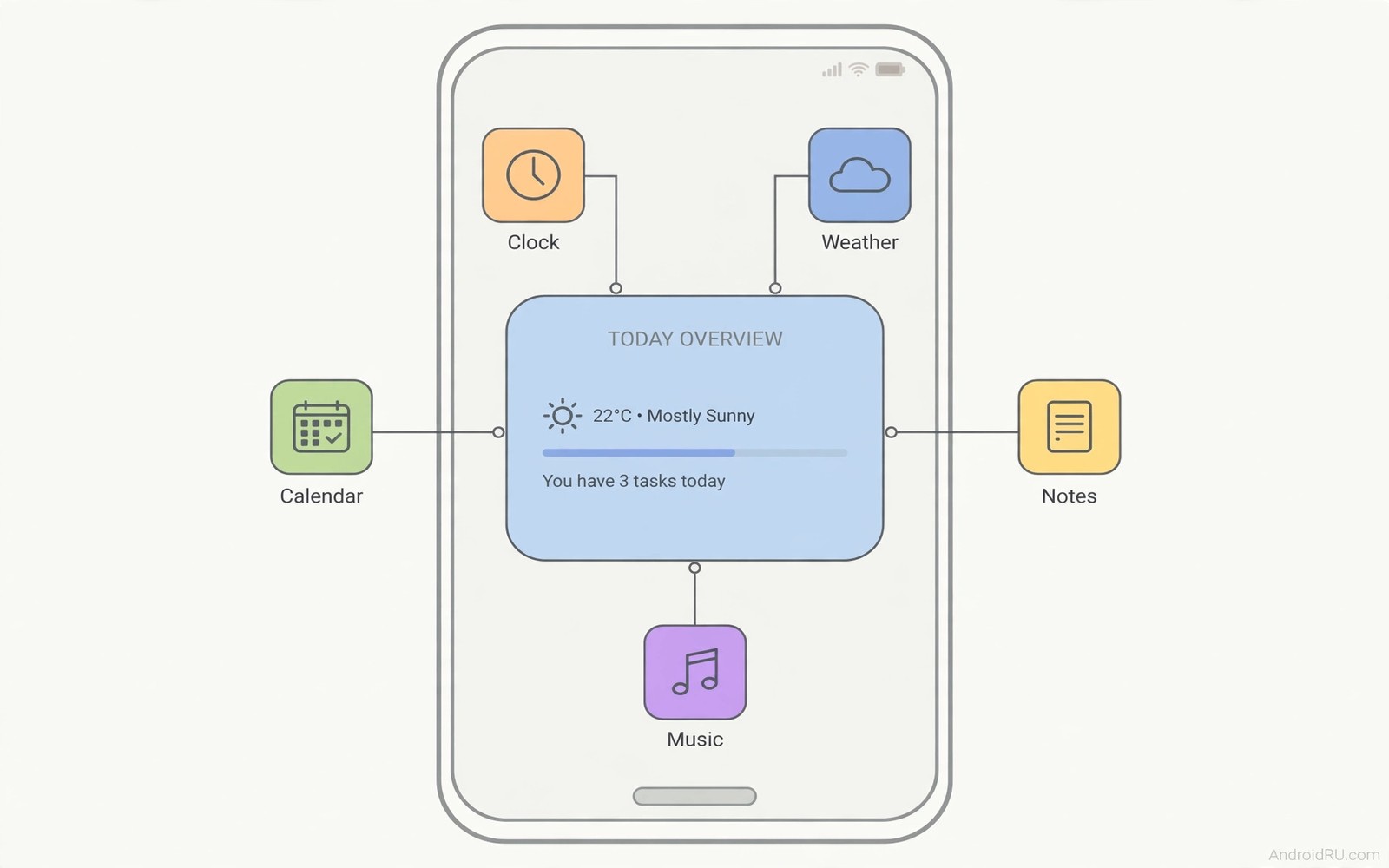
Home screens often become crowded with app icons. Calendar and weather and notes and music each get their own icon. Opening each app takes taps and waiting time. A smart widget can show all that info in one place. It turns the home screen into a live dashboard. You glance and you know what matters next.
The hidden power is not one magic widget from a store. It is the combination of widget stacking and smart suggestions. Android launchers and brand tools can stack widgets in one slot. Swiping the stack changes the visible widget. Smart widgets can also rotate by time of day. Morning shows calendar and weather. Evening shows music and tasks.
This guide shows how to build a single dashboard widget area. It covers calendar and weather and notes and music and tasks. It explains stacking on major launchers. It also explains when a separate app still beats a widget. A clean dashboard should reduce taps rather than hide important info.
Build a dashboard with calendar and weather
Start with a calendar widget that shows the next event. Place it at the top of your home screen. Add a weather widget beside it or below it. A combined calendar plus weather widget exists on many launchers. Google At a Glance shows date and weather and next event in one bar. That bar alone replaces two separate app opens daily.
Resize widgets to show useful detail without crowding. A calendar widget needs at least two event rows to be useful. A weather widget needs current temp and next hours. A tiny widget that shows only an icon adds little value. Give the dashboard enough height for real info. Remove a decorative widget to make room.
Tap behaviour matters for a dashboard widget. Tapping a calendar event should open that event directly. Tapping weather should open the forecast. Test each tap target after placing a widget. A widget that opens the wrong app wastes the time it should save. Replace widgets with confusing tap targets at once.
Stack notes tasks and music in one slot
Widget stacking lets several widgets share one home screen slot. Long press a widget and look for stack or smart stack options. Drag another widget onto the first to create a stack. Swipe the stack to change the visible widget. This method packs five tools into the space of one widget. It keeps the home screen clean and focused.
Place a notes widget in the stack for quick capture. A single note widget can show a shopping list or ideas. Place a tasks widget next for daily priorities. A music widget in the same stack controls playback without opening an app. Rotate the stack by time or by manual swipe. Manual swipe gives control while smart rotation gives convenience.
Keep the stack to five widgets maximum for usability. More widgets make swiping tedious and confusing. Order the stack by daily frequency. Calendar first in the morning and music first in the evening makes sense. Smart rotation can automate that order on supported launchers. Test smart rotation for a week before trusting it fully.
Dashboard design benefits from good navigation habits. Learning about a gesture that changes how you multitask on mobile helps you move from widget to app quickly. A tap plus a gesture should feel like one motion. Smooth movement makes a dashboard feel truly instant.
Choose the right widget app for your needs
Google widgets cover calendar and weather and search well. Samsung widgets cover calendar and weather and device care well. Third party widget apps offer custom designs and data sources. Choose widgets from developers you trust. A widget with broad permissions can read sensitive data. Check permissions before adding a widget from an unknown developer.
Custom widget makers allow beautiful dashboards with clocks and data. They need time to design well. Start with official widgets before customising deeply. Official widgets update reliably and respect system themes. Custom widgets can break after system updates. A broken dashboard widget is worse than a plain one.
Some widgets drain battery with frequent updates. Weather widgets that update every few minutes use more power. News widgets with constant refresh also drain faster. Set update intervals to thirty minutes or one hour where offered. That interval keeps info fresh without constant drain. Battery friendly widgets update on open rather than in background.
Keep the dashboard clean and useful
A dashboard should answer three questions at a glance. What is next on my calendar. What is the weather now. What task needs attention today. If a widget does not answer a daily question then remove it. Decorative widgets belong on a second home screen page. The main page should stay functional and calm.
Review the dashboard monthly and remove stale widgets. A widget for a finished project should go. A widget for a seasonal sport should pause after the season. A clean dashboard adapts to life changes. A cluttered dashboard becomes ignored over time. Monthly review takes only two minutes.
Back up launcher layout where your launcher offers it. A backup restores widgets after a phone reset. It also helps when moving to a new phone. Export the layout to cloud storage if offered. Note widget positions in a screenshot as a simple backup. A screenshot restores a layout faster than memory.
Home screen > Long press empty area > Widgets
Widgets > Calendar > Drag to home screen
Widgets > Weather > Drag onto calendar widget to stack
Stack > Swipe to change widget > Edit stack order
This snippet shows a standard Android home screen pattern for widget stacking. It lists widget placement before stacking steps. Use it as a checklist while you build a dashboard. Menu names can differ slightly by launcher app. The core ideas stay the same across Android launchers.
Test the dashboard for three days of real use. Count how often you open full apps for info the dashboard should show. Reduce those opens by adjusting widget size and order. A good dashboard cuts app opens for routine info. It does not replace deep app work like editing a calendar event.
Widget privacy deserves attention on a shared phone. Learning about how to lock any app without third party apps helps you protect apps behind widget taps. A calendar widget can reveal private events on a lock screen. Check lock screen widget settings before sharing your phone.
Design a second page for deep tools
A main dashboard should stay simple for daily glances. Deep tools belong on a second home screen page. Move finance and health widgets to page two. Move travel and shopping widgets to page two as well. Page one stays for calendar and weather and tasks. Page two serves weekly rather than daily needs. That separation keeps the main page calm.
Group second page widgets by life area. A finance group holds bank and budget widgets. A health group holds steps and sleep widgets. A travel group holds maps and tickets widgets. Grouping by area speeds finding later. It also prevents a random widget sprawl. Review groups monthly and move stale widgets out.
Use folders for apps that widgets replace partially. A notes folder holds several note apps behind one icon. A media folder holds music and podcast apps together. Folders reduce icon clutter without hiding apps fully. A widget plus a folder gives both glance info and deep access. That combination suits most users well.
Test second page widgets during real weekly routines. Open the finance widget on payday. Open the travel widget before a trip. Note whether the widget saves an app open. Remove widgets that never save time. A second page should earn its space through use. Unused widgets are clutter even on page two.
Back up both pages after a good design settles. Screenshot page one and page two for reference. Export launcher backup if offered. A backup restores a thoughtful layout after a reset. It also helps when moving to a new device. A designed layout deserves preservation like any good setup.
Launcher choice shapes widget possibilities greatly. Learning about why default launchers limit customisation shows alternative launchers. Some launchers offer better stacking and resizing. Choose a launcher that supports your dashboard vision. Test a new launcher for a week before committing fully.
- Keep daily widgets on page one only.
- Group page two widgets by life area.
- Use folders for apps behind widgets.
- Test page two widgets during real routines.
- Back up both pages with screenshots.
Common mistakes
- Stacking ten widgets into one slot and never finding anything.
- Using tiny widgets that show no useful detail.
- Installing a widget app with broad permissions from an unknown developer.
- Setting weather updates every few minutes and draining battery.
- Placing private calendar events on a lock screen widget.
- Never reviewing a dashboard after life routines change.
FAQ
Can one widget really replace five apps?
A stacked widget area can replace routine glances at five apps. It does not replace deep editing inside those apps. Use widgets for viewing and quick actions. Open full apps for detailed work.
Why do widgets differ by launcher?
Launchers control widget stacking and smart rotation. Pixel and Samsung launchers offer different tools. Third party launchers add their own stacking features. Choose a launcher that supports the stacking you want.
Do widgets drain battery a lot?
Most official widgets drain little battery. Frequent update widgets drain more. Set longer update intervals for weather and news. Remove widgets that refresh constantly without need.
Quick check before you finish
Add a calendar widget and a weather widget to your home screen today. Stack a notes widget onto the same area. Use the stack for routine glances over three days. Count how many full app opens you avoid for calendar and weather. A useful stack should cut several opens daily. Remove any widget that never saves an open.
Conclusion
A smart widget dashboard turns a crowded home screen into a live overview. Calendar and weather give context at a glance. Notes and tasks and music complete the daily set. Stacking packs those tools into one clean slot. Smart rotation adapts the view by time of day. Review the dashboard monthly to keep it useful.
Your concrete next step is to add a calendar widget and a weather widget to your home screen today. Stack a notes widget onto the same area. Use the stack for three days and note how many full app opens you avoid.

