

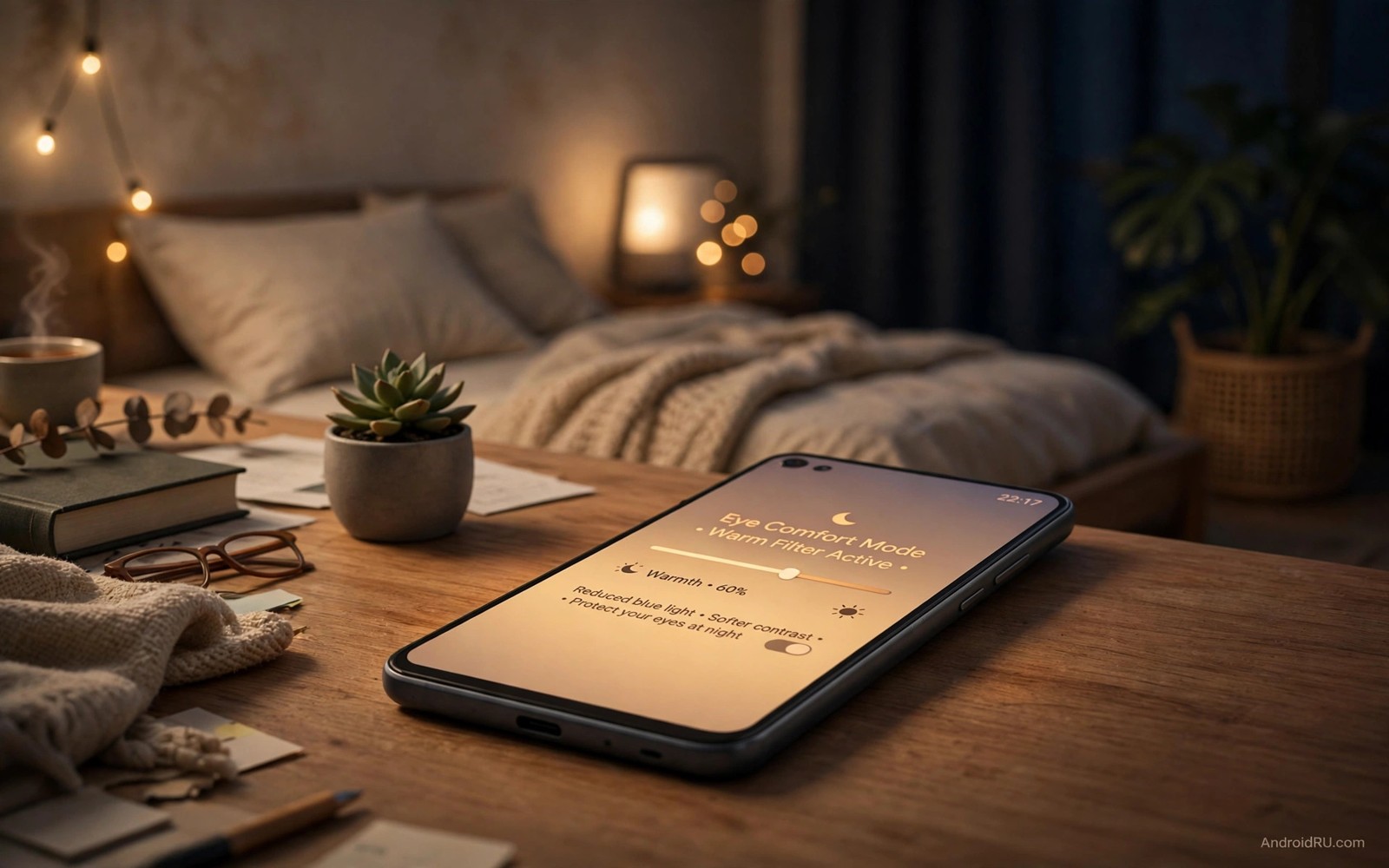
Your screen is the hardest working part of your phone. It draws more power than any other component on most days. It also shapes how tired your eyes feel after a long evening of reading and scrolling. A few small display changes can improve both problems at the same time. You do not need a new phone to get relief. You only need settings that most people never open.
Many owners leave brightness on automatic and never touch anything else. That choice is simple but it is not always kind to your eyes. Bright screens in dark rooms force your pupils to work hard. Harsh white backgrounds at night can also disturb sleep. A calmer screen is easier to read for long periods. It also uses less energy when dark pixels replace bright ones.
This guide covers five practical display tricks. Each trick is easy to test in under two minutes. You can keep the ones that suit your eyes and undo the rest. Start with brightness and night light. Then move to dark theme and screen timeout. Finish with refresh rate and text size. Small changes add up across a full day of use.
Set brightness for the room you are in
Automatic brightness tries to guess the right level for every room. It often guesses too high indoors at night. A manual ceiling works better for many people. Set a comfortable level for your living room and bedroom. Let automatic mode work only within that safer range. Your eyes will feel less strain during late reading sessions.
Open Settings and then Display to find brightness controls. Slide brightness down until white pages look soft rather than glaring. Text should stay sharp and easy to read. If you squint then the level is too low. If the screen feels like a lamp then it is too high. Aim for a level that matches the light around you.
Extra dim mode helps on some phones in very dark rooms. It lowers brightness below the normal minimum. Night light adds a warm tint that reduces blue light. Use both tools together for bedtime reading. The screen will look amber and calm. Your brain will also get a clearer signal that the day is ending.
- Lower brightness in dark rooms until glare disappears completely.
- Turn on night light one hour before bed each night.
- Use extra dim mode for reading in a dark bedroom.
- Raise brightness outdoors so you do not strain to see text.
- Check brightness again after a system update changes defaults.
Use dark theme the smart way
Dark theme turns bright menus into dark grey and black surfaces. This change helps most on phones with OLED screens. Dark pixels on OLED panels use very little power. The effect is smaller on LCD screens. It still helps eyes at night because glare drops sharply. Choose dark theme for apps that support it well.
Some apps look worse in forced dark mode. Text can become hard to read in a few older apps. Keep dark theme on for the system and your main apps. Leave a troublesome app in light mode if reading becomes harder. Comfort matters more than a perfect dark look. A setting that hurts reading is not a good setting.
Schedule dark theme from sunset to sunrise for automatic comfort. Your phone will switch without any daily effort. Daytime screens stay bright and clear for outdoor use. Night screens stay calm for indoor reading. This simple schedule removes one daily decision completely. It also builds a healthy habit without willpower.
Related display habits can support this change in useful ways. Learning about hidden settings that change daily use helps you find more screen controls in one place. Those controls include font size and colour correction. They work well beside dark theme for tired eyes.
Control refresh rate and screen timeout
High refresh rates make scrolling feel smooth and fast. They also drain battery faster than standard rates. Many phones let you choose between smooth and standard modes. Use smooth mode when you play games or scroll social feeds. Use standard mode for reading and messaging. The difference in battery life can be clear by evening.
Screen timeout decides how long the display stays on after you stop touching it. A long timeout wastes power when you set the phone down. A very short timeout annoys you during reading. Thirty seconds works well for most people. One minute suits long articles and recipes. Pick the shortest timeout that never interrupts your reading.
Adaptive refresh rate is a middle path on newer phones. It raises the rate for motion and lowers it for still pages. Keep it on if your phone supports it well. Turn it off if you notice flicker or uneven scrolling. Your comfort comes first in every display choice. No battery saving is worth a headache.
Make text larger and easier to read
Small text forces your eyes to work harder than they should. Larger text reduces squinting and head leaning. Open Display settings and find font size. Move the slider one step larger and test it for a day. Many people find one step makes a real difference. Two steps help older eyes and small screens.
Display size changes icons and layout as well as text. Font size alone changes letters only. Try font size first for a gentle change. Add display size if buttons still feel cramped. Keep both changes modest so apps still fit well. A layout that breaks constantly is worse than small text.
Bold text helps some readers a great deal. It thickens letters without making them larger. Colour correction helps people with colour vision needs. High contrast text sharpens edges on busy backgrounds. Test one aid at a time so you know what helps. Keep only the aids that truly improve reading.
Build a calm evening screen routine
Evening screen use needs its own routine. Bright light late at night can delay sleep for many people. A calm routine starts with lower brightness. Add night light and dark theme next. Finish with a longer reading break before bed. Your eyes and your sleep both benefit from this pattern.
Place your charger away from your bed if you can. This small change reduces late night scrolling. It also stops the phone from heating your pillow area. Charge the phone on a desk instead. You will still hear an alarm in the morning. You will simply reach for the phone less at night.
Try this routine for one full week before judging it. Habits need time to show a clear effect. Note eye comfort each evening on a scale from one to five. Note battery level at bedtime as well. Compare the second half of the week with the first half. Real numbers beat vague feelings when you test a change.
Settings > Display > Brightness level
Settings > Display > Dark theme > Schedule sunset to sunrise
Settings > Display > Night Light > On at sunset
Settings > Display > Screen timeout > 30 seconds
This snippet shows a standard Android settings path pattern for display controls. It lists the menus in the order most phones present them. Use it as a checklist while you change each setting. Menu names can differ slightly by phone brand. The core ideas stay the same across Android devices.
Checking battery use after display changes is also worthwhile. The battery menu shows which apps and features use most power. Screen use appears as a separate entry on many phones. A lower screen share after your changes is a good sign. Keep testing for a few days before you settle on final values.
Some owners also explore secret battery saving toggles hidden deep in settings after fixing the display. Those toggles control background activity and adaptive power use. They pair well with a calmer screen. Together they can extend evening battery life in a clear way.
Test display changes across a full week
A single evening test rarely shows the full effect of a display change. Brightness habits differ between workdays and weekends. Reading habits differ between morning commutes and late nights. A week long test captures those differences well. Keep a simple log during that week. Note eye comfort and battery level each night before bed.
Start the week with only brightness and night light changed. Do not change font size or refresh rate in the same week. A single variable test gives a clear answer. If eyes feel better then the brightness change deserves credit. If battery improves then night light and dimming helped. Add one more change in week two after the first result is clear.
Compare screen on time before and after the test. Battery settings show screen on time for recent days. A calmer screen may not change total screen time much. It may still reduce eye fatigue during that same time. Both outcomes matter for daily comfort. A setting that helps eyes but not battery is still worthwhile.
Children and older relatives benefit from larger text and calmer screens too. Set up a relative phone with the same routine. Show them how to adjust brightness manually. Teach them the night light schedule in one short session. A simple routine they understand beats a complex setup they ignore. Check their comfort after a few days and adjust once.
Outdoor use needs a different display profile from indoor use. Sunlight washes out dim screens quickly. Raise brightness manually for outdoor navigation. Return to a dimmer level indoors to protect eyes. Adaptive brightness can help with this switch. Test adaptive mode for a week before deciding it is unreliable.
Gesture controls can reduce the time you spend staring at menus. Learning about gesture controls for daily navigation helps you move faster between apps. Faster navigation means less screen staring overall. Combine gestures with a calm display for a double benefit. Your eyes rest more when tasks finish sooner.
- Log eye comfort and battery level each night for seven days.
- Change only one display setting per test week.
- Test brightness outdoors and indoors separately.
- Teach a relative the same simple night routine.
- Revisit font size after a month of regular reading.
Common mistakes
- Leaving brightness at maximum indoors all day long.
- Using a bright white screen in a dark bedroom at night.
- Forcing dark mode on apps where text becomes unreadable.
- Setting screen timeout to ten minutes and wasting power.
- Changing five settings at once and not knowing which one helped.
- Ignoring font size while blaming the phone for eye strain.
FAQ
Does dark mode always save battery?
Dark mode saves the most power on OLED screens. It saves less on LCD screens. It still reduces glare at night on both types. Use it for comfort first and battery second.
Is night light enough to protect sleep?
Night light helps by warming the screen colour. It does not replace a break from screens before bed. Combine warm light with lower brightness. Stop scrolling earlier for the best sleep effect.
What refresh rate should I choose for reading?
Standard rate is fine for reading and messaging. Smooth rate suits games and fast scrolling. Adaptive rate is a good middle choice on supported phones. Pick the rate that feels calm to your eyes.
Quick check before you finish
Stand in a dim room and open a long article on your phone. Lower brightness until the page feels soft rather than glaring. Turn on night light and read for five minutes. Note whether your eyes feel calmer than before. If strain remains then increase font size by one step and test again. A calm screen plus larger text often solves evening strain completely. Keep the combination that feels best and ignore the rest.
Conclusion
Display comfort comes from small choices made every day. Lower brightness helps eyes in dark rooms. Dark theme calms night use on most phones. A short timeout saves power without effort. Larger text reduces strain during long reads. Together these tricks make an old phone feel gentler and last longer.
Your concrete next step is simple and quick. Open Display settings tonight and set night light to start at sunset. Lower brightness until glare disappears. Leave those two changes in place for three nights. Then add dark theme on a schedule if your eyes feel better.

